Quick Answer
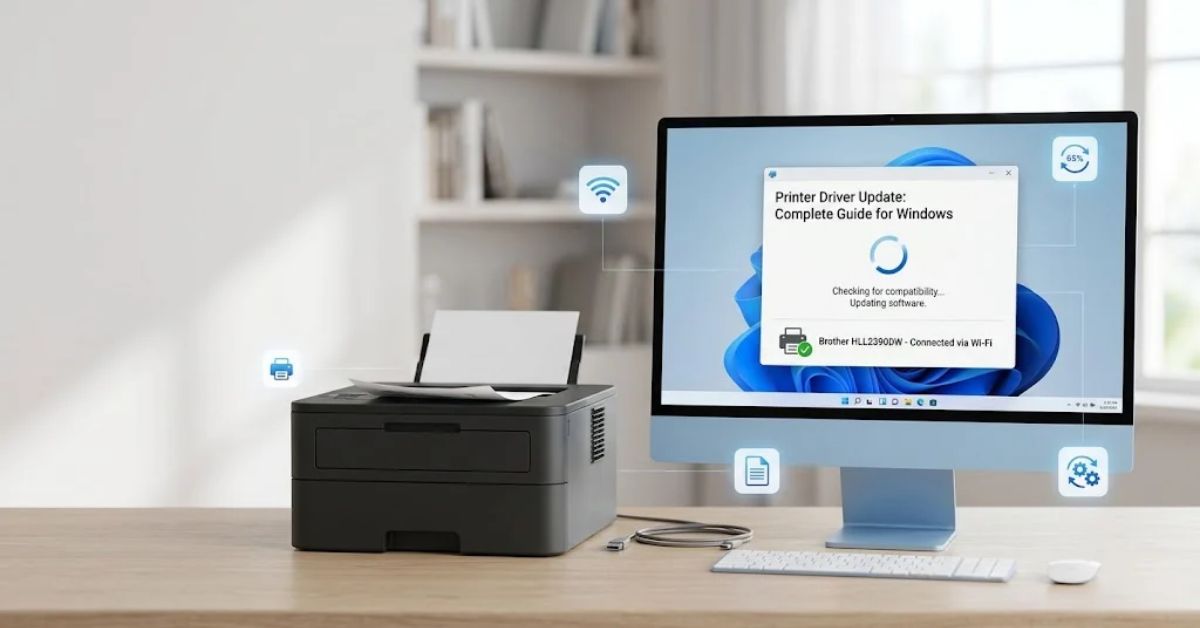
A printer driver update installs a newer version of the software that helps your computer communicate with your printer.
Updating printer drivers can fix printing errors, improve Windows compatibility, and restore missing printer features.
You can update drivers through Windows Update, Device Manager, or your printer manufacturer’s official website. Always choose a driver that matches your printer model and Windows version.
Author Information
Author: Gulnaz Malik
Role: Founder, Publisher & Technology Content Specialist
Experience: 5+ Years in Technology, AI, Software & Digital Innovation
Content Review: This guide focuses on practical printer maintenance, driver installation, Windows compatibility, and safe troubleshooting practices.
Introduction
A printer can stop working even when it has enough ink, paper, and power. Sometimes, the problem starts with an outdated, missing, or incompatible printer driver.
A printer driver acts as a communication bridge between your computer and printer. It helps Windows send documents, images, and print commands to the correct device.
When the driver develops a problem, you may experience printing delays, connection errors, missing features, or poor print quality. A compatible driver update can often resolve these issues.
However, updating drivers does not fix every printer problem. Hardware faults, network issues, incorrect settings, and empty ink cartridges can also affect printing.
This guide explains how a printer driver update works, how to install the correct driver, and how to troubleshoot common problems.
Whether you use an HP, Canon, Epson, Brother, or another printer brand, you’ll learn practical ways to keep your printer working reliably.
Table of Contents
- What Is a Printer Driver Update?
- Why Is a Printer Driver Update Important?
- Signs You Need to Update Printer Drivers
- How to Update Printer Drivers in Windows
- Printer Driver Types and Installation Methods
- How to Choose the Correct Printer Driver
- Common Printer Driver Update Problems
- Best Practices for Safe Driver Updates
- Latest Printer Driver and Windows Trends
- Key Takeaways
- Conclusion
- Frequently Asked Questions
What Is a Printer Driver Update?
A printer driver update replaces an older printer driver with a newer version that supports your printer and operating system.
A printer driver tells Windows how to communicate with a physical printer. It helps the computer send print commands, select paper sizes, manage color settings, and use supported printing features.
For example, when you print a PDF, Windows sends the document to the printer through a compatible driver. The driver translates the print job into instructions the printer can process.
Without a compatible driver, Windows may not recognize the printer correctly or may not offer all its features.
A printer driver update may include:
- Compatibility improvements for newer Windows versions.
- Fixes for printing errors.
- Support for additional printer features.
- Improvements to communication between Windows and the printer.
- Bug fixes for specific printer models.
Keep in mind that a driver update does not necessarily improve print speed or quality. The results depend on the update, printer model, and problem you’re trying to solve.
Printer Driver vs. Printer Firmware
Printer drivers and firmware serve different purposes.
| Feature | Printer Driver | Printer Firmware |
| Location | Computer | Printer |
| Main purpose | Connects Windows with the printer | Controls the printer’s internal operations |
| Update source | Windows or printer manufacturer | Printer manufacturer |
| Common benefit | Compatibility and printing fixes | Device stability, security, and internal fixes |
A driver update changes software on your computer. A firmware update changes software inside the printer.
Always follow the manufacturer’s instructions before updating printer firmware.
Why Is a Printer Driver Update Important?
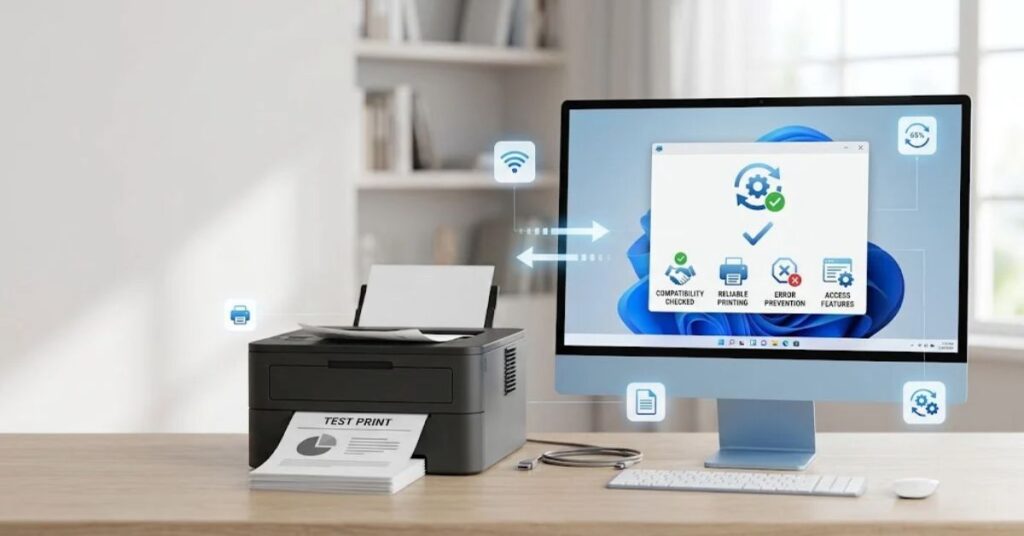
An outdated or incompatible driver can interfere with normal printing. Updating it may restore features or fix problems that affect daily work.
Here are some practical benefits.
1. Better Windows compatibility
A printer that worked with an older Windows version may need a compatible driver after an operating system upgrade.
2. Fewer printing errors
A manufacturer may release a driver that fixes known communication problems, print-job failures, or application compatibility issues.
3. Access to printer features
Some printer models support duplex printing, borderless printing, color management, or specialized paper settings through their manufacturer-provided drivers.
4. Improved reliability
A suitable driver can resolve certain recurring errors, such as failed print jobs or incorrect printer detection.
5. Support for newer software
Some driver releases improve compatibility with newer applications or printing workflows.
For example, a small business that prints invoices every day may need a reliable driver to avoid delays. A student may need the correct driver to print assignments with the right page layout.
However, an update cannot fix every issue. Low ink, paper jams, damaged cables, and network failures require different solutions.
Signs You Need to Update Printer Drivers
Your printer may need a driver update if you notice unusual behavior that points to a software or compatibility issue.
Common warning signs include:
- Windows cannot recognize the printer.
- Your printer appears offline despite having a working connection.
- Print jobs remain stuck in the queue.
- Windows displays a driver-related error.
- Your printer stops working after a Windows update.
- Certain printing features disappear.
- The printer produces incorrect layouts after a software change.
- Windows cannot install the printer successfully.
These symptoms do not always indicate an outdated driver. A disconnected printer, incorrect default settings, or a stuck print spooler can cause similar problems.
Before updating, check the printer’s power, connection, paper supply, and display panel.
If the printer works correctly and the manufacturer has not identified a reason to update, you usually don’t need to replace its driver simply because a newer version exists.
How to Update Printer Drivers in Windows
Windows provides several ways to update printer drivers. Start with Windows Update because it offers a convenient way to obtain compatible drivers.
Method 1: Update Printer Drivers Through Windows Update
Windows Update can download recommended printer drivers for supported devices.
Follow these steps:
- Open Start and select Settings.
- Select Windows Update.
- Click Check for updates.
- Open Advanced options.
- Select Optional updates, if available.
- Expand the Driver updates section.
- Look for a driver that matches your printer.
- Select the appropriate update and install it.
- Restart your computer if Windows requests it.
Optional driver updates may not appear on every computer.
If Windows does not offer a suitable printer driver, try the manufacturer’s official support website.
Method 2: Update Printer Drivers Through Device Manager
Device Manager can help you manage printer-related drivers.
- Press Windows + X.
- Open Device Manager.
- Look for your printer under Printers or Print queues.
- Right-click the relevant printer.
- Select Update driver.
- Choose Search automatically for drivers.
- Follow the instructions on your screen.
Windows will search for a suitable driver.
If it reports that the best driver already exists, you can still check the printer manufacturer’s website for a newer compatible version.
Device Manager may not expose every printer-specific package or feature. Some manufacturers provide a separate installer for advanced printing functions.
Method 3: Download the Driver From the Printer Manufacturer
The manufacturer’s official support website often provides model-specific drivers.
This method can help when Windows Update cannot find the correct driver or when you need advanced printer features.
| Printer Brand | Official Support Website |
| HP | HP Support |
| Canon | Canon Support |
| Epson | Epson Support |
| Brother | Brother Support |
Use these steps:
- Find your printer’s exact model number.
- Visit the manufacturer’s support website.
- Search for your printer model.
- Select your Windows version.
- Find the printer driver or software package.
- Download the compatible file.
- Open the installer.
- Follow the installation instructions.
- Connect the printer when the installer asks.
- Print a test page.
Some manufacturers offer full software packages. Others provide a basic driver or separate installation utility.
Choose the package that matches your needs. Avoid downloading drivers from unfamiliar websites that promise automatic updates.
Method 4: Reinstall a Printer Driver
If your current driver has become corrupted or the printer repeatedly fails to connect, reinstalling it may help.
Before removing the existing driver, download the correct replacement if possible.
Then:
- Open Settings.
- Select Bluetooth & devices > Printers & scanners in Windows 11.
- Select your printer.
- Choose Remove.
- Restart your computer.
- Add the printer again through Windows Settings or run the manufacturer’s installer.
Menu names can vary between Windows versions and printer models.
If Windows automatically reinstalls the same problematic driver, use the manufacturer’s installation instructions to install a compatible replacement.
Do not remove unrelated printer drivers from a shared or business computer without checking which devices depend on them.
Printer Driver Types and Installation Methods
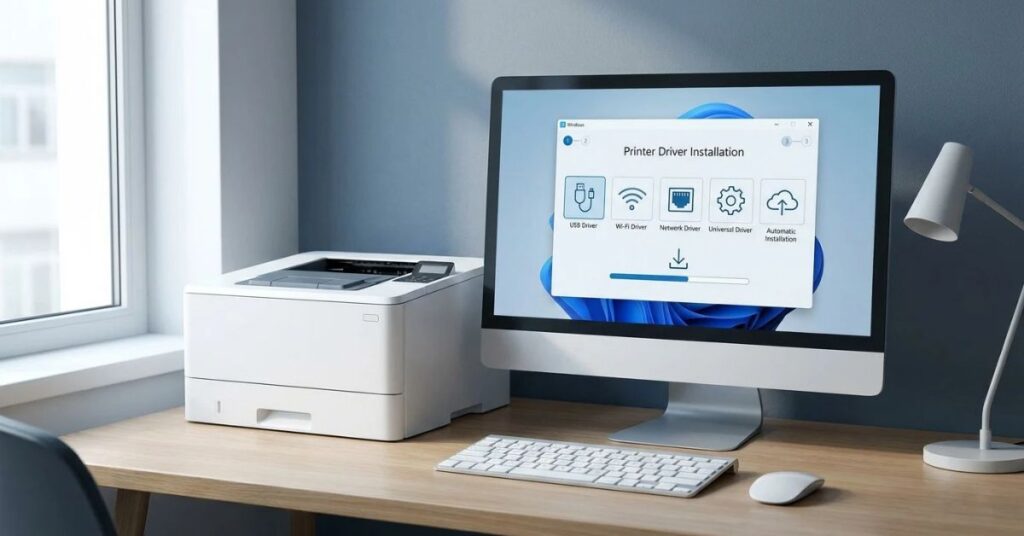
Not every printer uses the same driver. The correct option depends on the printer model, Windows version, and features you need.
Common Printer Driver Types
- Manufacturer-specific drivers: These drivers support particular printer models and may include advanced features.
- Microsoft IPP Class Driver: Windows can use this driver with compatible printers that support Internet Printing Protocol (IPP).
- Universal printer drivers: Some manufacturers provide a single driver package that supports multiple printer models.
- Basic or class drivers: These drivers provide essential printing functions but may not support every advanced feature.
A basic driver may work well for everyday documents. However, a manufacturer-specific driver may offer additional options, such as duplex printing or advanced color controls.
Driver Installation Methods Compared
| Method | Best Use | Main Limitation |
| Windows Update | Routine driver updates | May not offer every model-specific feature |
| Device Manager | Basic driver troubleshooting | May not locate every manufacturer package |
| Manufacturer installer | Full printer functionality | Requires correct model selection |
| Windows automatic setup | Compatible plug-and-play printers | May install a basic driver |
For everyday printing, Windows automatic setup may be enough. For advanced printing needs, use the driver recommended by your printer’s manufacturer.
How to Choose the Correct Printer Driver
Choosing the correct driver matters more than simply choosing the newest available version.
A driver made for another printer model might not install correctly or provide access to all the features your printer supports.
Before downloading a driver, check these details:
- Printer model: Find the complete model number on the printer.
- Windows version: Confirm whether your computer runs Windows 10 or Windows 11.
- System architecture: Check whether the driver supports your system, such as x64 or ARM64.
- Connection type: Determine whether you use USB, Wi-Fi, Ethernet, or a shared network printer
- Driver features: Confirm that the package supports the printing functions you need.
For example, two printers from the same brand may use different driver packages.A matching or similar product name doesn’t necessarily mean the driver will work with your device.
If you’re unsure which software your device needs, TechCrebia’s Windows Driver Update guide explains how to identify hardware drivers and choose suitable update methods.
Common Printer Driver Update Problems
A printer driver update can sometimes fail or create new problems. Understanding the cause helps you avoid unnecessary reinstallations.
Printer Driver Is Unavailable
Windows may display a message that the printer driver is unavailable.
Try these steps:
- Restart your computer and printer.
- Check Windows Update for compatible drivers.
- Remove and re-add the printer.
- Get the compatible driver directly from the printer manufacturer’s official website
- Check whether the printer supports your Windows version.
If the manufacturer no longer supports the printer, Windows may offer only a basic driver or limited functionality.
Printer Driver Installation Fails
An installation may fail because of an incompatible package, an interrupted download, or an existing driver conflict.
Download the correct package again from the manufacturer’s website. Close unnecessary applications and follow the installer’s instructions.
If the manufacturer provides a dedicated cleanup or uninstall utility, review its instructions before using it.
Printer Shows Offline After Updating
An offline status does not always indicate a driver problem.
Check the printer’s power, Wi-Fi connection, USB cable, and network settings. Also confirm that Windows selected the correct printer.
If you use a network printer, verify that your computer and printer can communicate over the network.
Printer Prints Blank Pages or Incorrect Colors
Blank pages and incorrect colors may result from low ink, clogged print heads, incorrect print settings, or hardware problems.
Run the printer’s built-in nozzle check or diagnostic utility, if available.
If the problem began after a driver update, check the manufacturer’s recommendations and consider rolling back the driver.
Print Jobs Get Stuck in the Queue
A stalled print job can sometimes be caused by the Windows Print Spooler instead of the printer driver.
Try canceling the pending job and restarting the printer.
If the queue remains stuck, restart the Print Spooler service through Windows Services. Avoid deleting system files or changing advanced spooler settings unless you understand the procedure.
How to Troubleshoot Printer Driver Update Errors
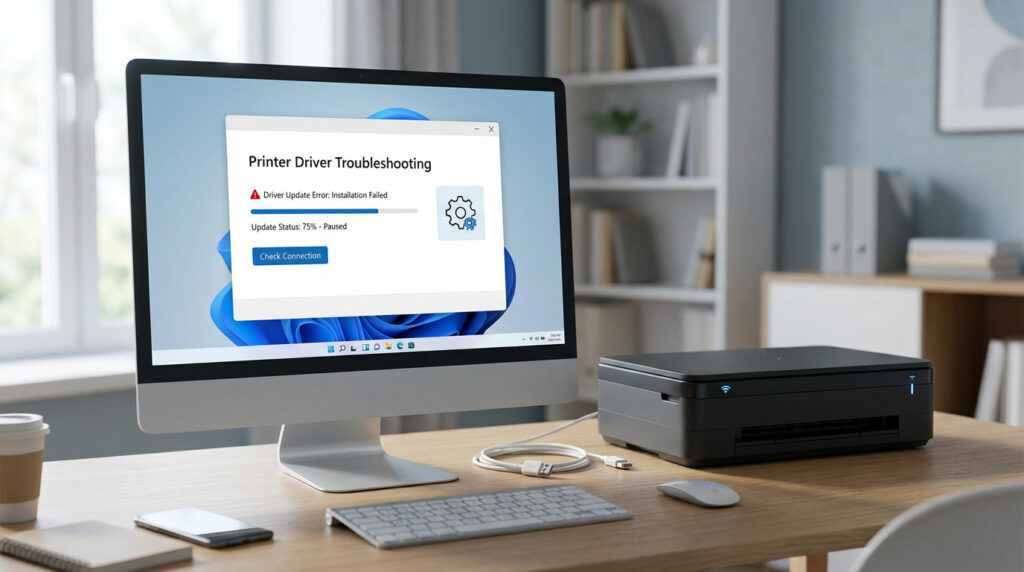
Follow a logical troubleshooting process instead of changing several settings at once.
- Check the physical connection. Confirm that the printer has power and that its USB or network connection works.
- Restart the printer and computer. This can resolve temporary communication problems.
- Check Windows Settings. Make sure you selected the correct printer.
- Inspect Device Manager. Look for warning icons or driver errors.
- Check Windows Update. Install any relevant compatible driver updates.
- Reinstall the correct driver. Use the manufacturer’s instructions if the current installation appears corrupted.
- Print a test page. Confirm that the printer can complete a basic print job.
If the issue started immediately after an update, check whether Device Manager offers a Roll Back Driver option.
This option can help you return to the previous driver when the new version causes compatibility problems.
For broader system maintenance, TechCrebia’s Difference Between Software and Hardware guide explains how software and physical devices work together.
Best Practices for Safe Printer Driver Updates
A careful update process can prevent many common printing problems.
Follow these best practices:
- Download drivers from official manufacturer websites or Windows Update.
- Check your printer model before installing a driver.
- Confirm Windows compatibility.
- Record the existing driver version before making changes.
- Avoid updating a working driver without a clear reason.
- Restart Windows when the installer requests it.
- Print a test page after installation.
- Keep a copy of the correct driver installer when practical.
- Avoid unknown driver-updater programs.
- Follow the manufacturer’s instructions for firmware updates.
If you manage several devices, keep printer drivers organized by model. This approach can save time when you reinstall Windows or replace a computer.
TechCrebia’s Productivity Software guide offers additional context on choosing software that supports an efficient workflow.
Latest Printer Driver and Windows Trends
Printer driver management continues to evolve as Windows improves device setup and printing compatibility.
Automatic Printer Setup
Modern Windows systems can automatically detect many compatible printers and install suitable drivers. This reduces the need for manual installation, especially with supported network and USB printers.
However, automatic setup may install a basic driver rather than the manufacturer’s full software package.
IPP-Based Printing
Internet Printing Protocol (IPP) helps compatible devices communicate through standardized printing workflows.
Windows supports IPP-based printing, which can reduce dependence on traditional model-specific driver packages for compatible printers.
Still, some advanced printer features may require additional manufacturer software.
Security and Driver Compatibility
Driver security remains important because drivers interact with the operating system and connected hardware.
Users should avoid unofficial driver packages and follow trusted installation guidance. Microsoft provides information about installing and updating drivers in Windows.
More Connected Printing Workflows
Network printing, wireless printing, and cloud-connected workflows continue to shape how people use printers.
These features make reliable device communication important for homes, offices, schools, and businesses.
As Windows and printer technology evolve, users should focus on supported drivers, compatibility, and security rather than installing every available update.
Key Takeaways
- A printer driver helps Windows communicate with your printer.
- A printer driver update can fix compatibility issues and printing errors.
- Windows Update offers a convenient starting point for driver updates.
- Device Manager helps you manage and troubleshoot printer drivers.
- Manufacturer websites provide model-specific drivers and software.
- Always check your printer model and Windows version before installing a driver.
- Reinstall or roll back a driver if an update creates printing problems.
- Avoid unofficial driver downloads and unnecessary updater tools.
- Test your printer after every major driver change.
Conclusion
A printer driver update can help restore printing functionality, improve Windows compatibility, and resolve certain printer errors.
For most users, Windows Update provides a simple starting point. If Windows cannot find the right driver, your printer manufacturer’s official support website can help you locate a compatible package.
Before installing anything, confirm your printer model and Windows version. If an update creates a new problem, use Device Manager to troubleshoot or roll back the driver when that option is available.
You don’t need to update printer drivers constantly. Focus on compatibility, reliability, and genuine printing problems. A careful update process can help keep your printer working smoothly at home, school, or the office.
Frequently Asked Questions
1. How do I update my printer driver in Windows 11?
Open Settings > Windows Update > Advanced options > Optional updates. Check available driver updates or download the correct driver from your printer manufacturer’s website.
2. How do I know if my printer driver needs an update?
Look for driver errors, compatibility problems, missing features, or printing issues that began after a Windows update.
3. Can I update printer drivers without the internet?
Yes, if you already have the correct driver installer on a USB drive or another local storage device.
4. Is it safe to download printer drivers from third-party websites?
Official manufacturer websites and Windows Update provide safer sources. Avoid unfamiliar websites that offer unverified driver packages.
5. Will a printer driver update delete my documents?
A normal driver update should not delete your documents. However, save your work before making significant system changes.
6. Should I uninstall my old printer driver before updating?
Not always. Many installers handle the update automatically. Remove the old driver only when the manufacturer’s instructions or troubleshooting steps recommend it.
7. Why does Windows say my printer driver is unavailable?
Windows may not have a compatible driver, or the existing installation may have a problem. Check Windows Update and your printer manufacturer’s support page.
8. Can an outdated printer driver cause printing errors?
Yes. An outdated or incompatible driver can cause communication problems, missing features, or failed print jobs.
9. Do wireless printers need driver updates?
Wireless printers may need driver updates just like USB printers. The correct driver depends on the printer model and operating system.
10. How often should I update printer drivers?
There is no fixed schedule. Update when Windows recommends a suitable driver, the manufacturer releases an important fix, or you experience a driver-related problem.
10 SEO Tags
- Printer Driver Update
- Update Printer Drivers
- Windows Printer Driver
- Printer Driver Download
- Windows 11 Printer Driver
- Printer Driver Installation
- Printer Troubleshooting
- Printer Software Update
- HP Printer Driver
- Printer Compatibility
5 Internal Linking Suggestions for Future Use
These are additional linking opportunities. Avoid adding a link if the same destination already appears in the article.
| Suggested Anchor Text | TechCrebia URL |
| Bluetooth Driver Update | https://techcrebia.com/bluetooth-driver-update/ |
| Fan Controller RGB Software | https://techcrebia.com/fan-controller-rgb-software/ |
| PhysX System Software | https://techcrebia.com/physx-system-software/ |
| Samsung J7 Software Update Guide | https://techcrebia.com/samsung-j7-software-update-guide/ |
| Software and Hardware Differences | https://techcrebia.com/difference-between-software-and-hardware/ |
2 Authoritative External References
- Microsoft Support — Update drivers through Device Manager in Windows
- Microsoft Support — Install a printer in Windows
Social Media Title
Printer Driver Update: Fix Windows Printing Problems Fast