





Quick Answer:
Malware software issues happen when malicious or unwanted programs affect a computer, phone, browser, files, or security settings.
Common signs include slow performance, pop-ups, redirects, unknown apps, high CPU usage, disabled security tools, and unusual network activity.
Users can reduce these risks by running trusted security scans, updating software, avoiding suspicious downloads, using strong passwords, and keeping reliable backups.
Author Information
Author: Gulnaz Malik
Role: Founder, Publisher & Technology Content Specialist
Experience: 5+ Years in Technology, AI, Software & Digital Innovation
Content Review: All content follows Google’s latest EEAT guidelines and includes fact-checked information from official documentation, trusted technology sources, industry reports, and practical research to ensure accuracy, reliability, and up-to-date insights.
Introduction
Malware software issues can affect almost any computer, smartphone, or tablet. A device may suddenly become slow.
A browser may redirect searches. Unknown applications may appear. Security software may stop working correctly.
These symptoms can make users think that their device has a virus. However, not every software problem comes from malware.
Low storage, outdated drivers, damaged system files, browser extensions, and old hardware can also cause similar symptoms.
Malware creates a different type of risk because it can intentionally interfere with your device. Some malware steals information. Some monitor activity. Other threats can encrypt files or give attackers unauthorized access.
Understanding the difference between normal software problems and malware symptoms helps you choose the right solution.
This guide explains malware software issues in simple English. It covers malware types, warning signs, causes, diagnosis, removal, Windows troubleshooting, mobile security, prevention, common mistakes, and current security trends.
Table of Contents
- What Are Malware Software Issues?
- Common Types of Malware
- Signs of Malware Software Issues
- How Malware Creates Software Problems
- How to Diagnose Malware Software Issues
- How to Fix Malware Software Issues
- Malware Software Issues on Windows
- Malware Software Issues on Android and iPhone
- Common Malware Troubleshooting Mistakes
- Best Practices for Malware Protection
- Malware vs Normal Software Problems
- Advanced Troubleshooting for Persistent Malware
- Latest Malware Security Trends
- Key Takeaways
- Conclusion
- FAQs
What Are Malware Software Issues?

Malware software issues describe problems that malicious or unwanted programs create on a digital device.
The word malware combines “malicious” and “software.” Malware includes viruses, trojans, spyware, ransomware, worms, keyloggers, adware, and other harmful programs.
Different malware families behave differently.
A trojan may pretend to be a useful application. Spyware may monitor user activity. Ransomware may lock important files. Adware may display unwanted advertisements. A browser hijacker may change your search settings.
Malware can affect both software and hardware performance. For example, a malicious process can consume CPU resources and make cooling fans run faster.
A threat that constantly communicates with remote servers can also increase network usage.
Users should also understand that unwanted software does not always qualify as traditional malware.
Potentially unwanted applications can create unwanted advertisements, change browser behavior, or consume resources without providing enough value.
When diagnosing an infection, focus on multiple symptoms instead of one unusual event.
For beginners, the difference between software and Hardware can help explain how software interacts with physical components inside a computer.
Common Types of Malware
Different malware types create different software problems.
| Malware Type | Main Purpose | Common Symptoms |
| Virus | Infects files and spreads | File changes and crashes |
| Trojan | Pretends to be legitimate software | Unknown processes |
| Spyware | Monitors user activity | Privacy concerns |
| Ransomware | Locks or encrypts data | Inaccessible files |
| Adware | Displays unwanted advertisements | Pop-ups and redirects |
| Worm | Spreads between systems | Network problems |
| Keylogger | Records keystrokes | Account security risks |
| Browser Hijacker | Changes browser behavior | Search redirects |
One device can experience more than one threat.
For example, a fake software installer may install adware, a browser extension, and another background program at the same time. Removing only one component may not solve the complete problem.
Signs of Malware Software Issues
Malware often leaves noticeable clues. A single symptom does not prove an infection, but several symptoms together deserve attention.
Performance Warning Signs
- The computer suddenly becomes slow.
- Applications take longer to open.
- Programs crash without an obvious reason.
- CPU usage remains high while the device sits idle.
- Fans run constantly.
- The system becomes unusually hot.
- Battery life drops quickly.
- Internet usage increases unexpectedly.
Malware can consume CPU, RAM, storage, and network resources.
However, legitimate applications can also cause high resource usage. Check Task Manager or your operating system’s activity monitor before concluding.
Browser Warning Signs
- The homepage changes unexpectedly.
- Search results redirect to unfamiliar websites.
- Unknown browser extensions appear.
- New toolbars appear.
- Pop-ups appear frequently.
- The default search engine changes.
- Suspicious security warnings appear repeatedly.
Browser problems often involve adware, unwanted extensions, or browser hijackers.
Security Warning Signs
Security-related changes deserve special attention.
You may notice:
- Antivirus protection turns off unexpectedly.
- Security settings change without permission.
- Malware scans fail repeatedly.
- Unknown security applications appear.
- Windows Security displays unusual alerts.
- A suspicious program requests administrator access.
Do not disable security protection just because an application asks you to do so.
How Malware Creates Software Problems
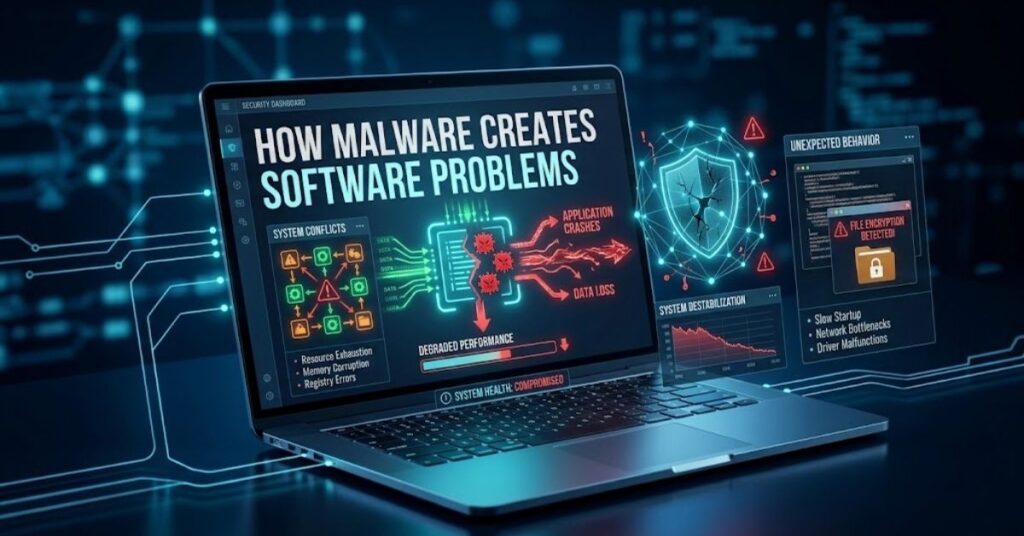
Malware can interfere with a device in several ways.
First, it can change system settings. These changes can affect startup programs, browser settings, security controls, and application behavior.
Second, malware can create background processes. These processes may consume CPU, RAM, storage, or internet bandwidth.
Third, malware can modify browser settings. This behavior can cause redirects, advertisements, and unwanted search results.
Fourth, malware may interfere with security software. Some threats attempt to disable protection so they can continue running.
Malware can also create persistence. Persistence allows malicious software to start again after the user restarts the device.
For example, malware can create startup entries or scheduled tasks. If you delete only one suspicious file, another component may launch the threat again.
This explains why proper malware cleanup requires more than simply deleting an unfamiliar program.
How to Diagnose Malware Software Issues
Good diagnosis starts with the timeline.
Think about what happened before the problem appeared.
Ask yourself:
- Did you install new software?
- Did you download a file from an unfamiliar website?
- Did you open an unexpected email attachment?
- Did your browser suddenly change?
- Did a security warning appear?
- Did you install a new extension?
- Did the problem begin after an update?
- Did another person recently use the device?
Next, inspect recently installed applications.
Look for software that you do not recognize. Check the publisher before removing anything important.
Then review browser extensions. Remove extensions that you did not install or no longer trust.
You should also check your security software. Make sure it has current security intelligence and active protection.
A useful rule involves looking for patterns.
High CPU usage alone does not prove malware. High CPU usage combined with unknown applications, browser redirects, unusual network activity, and disabled security protection creates a stronger warning.
How to Fix Malware Software Issues
Use trusted security tools and follow a controlled cleanup process.
Disconnect the Device When Appropriate
If you strongly suspect an active infection, disconnect the device from the internet when practical.
This step can reduce communication between malware and external systems.
However, do not disconnect automatically if you need internet access to download trusted security updates or contact technical support.
Update Security Software
Update your trusted security software before running a deeper scan.
Security updates improve protection against newer threats.
Run a Malware Scan
Windows users can open Windows Security and start a Quick scan.
If the problem continues, run a Full scan. Microsoft also provides an Offline scan option for difficult infections.
Use the official Microsoft Defender malware scanning guide when you need Microsoft’s current scanning instructions.
Quarantine or Remove Threats
If your security software detects malware, follow its recommended action.
Quarantine isolates suspicious files so they cannot run normally. Removal deletes detected threats.
Do not manually delete system files simply because their names look unfamiliar.
Remove Suspicious Applications
Use your operating system’s normal application management tools.
Remove applications that:
- You did not install
- You cannot identify
- Came from an untrusted installer
- Continue creating unwanted behavior
- Security software identifies as unwanted
Check Browser Extensions
Open your browser’s extension manager.
Remove extensions that you do not recognize or trust.
Then restore your preferred homepage and search engine if malware changed them.
Restart and Scan Again
Restart the device after cleanup.
Run another scan after the restart. A second scan can help confirm whether the threat still appears.
Malware Software Issues on Windows
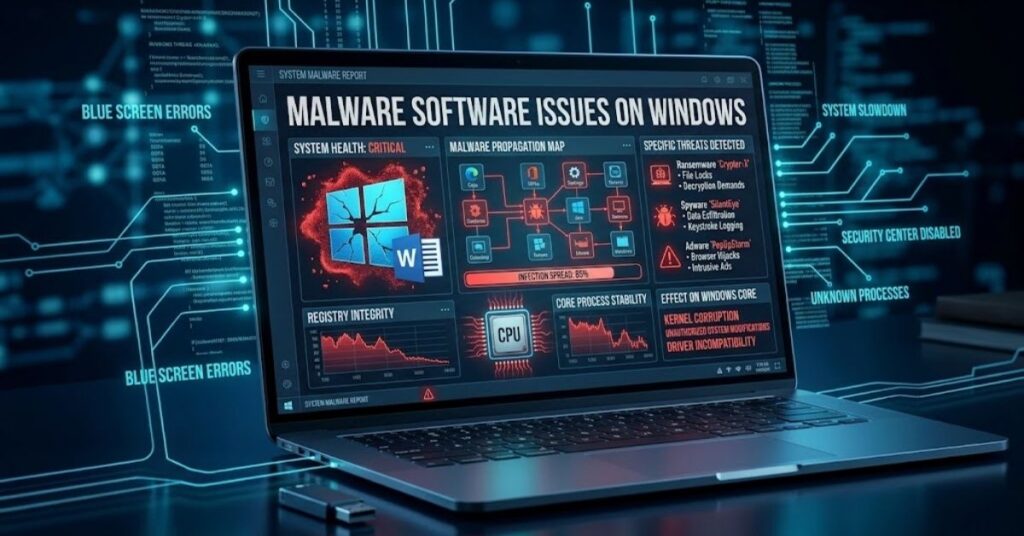
Windows includes several built-in security features that help users identify and remove malware.
Windows Security provides access to Microsoft Defender Antivirus and other security controls. Users can scan files, applications, and the wider system for threats.
A practical Windows cleanup process looks like this:
- Install pending Windows updates.
- Update security intelligence.
- Open Windows Security.
- Run a Quick scan.
- Run a Full scan if needed.
- Quarantine detected threats.
- Review installed applications.
- Check browser extensions.
- Restart Windows.
- Run another scan.
- Use an Offline scan if the infection returns.
Do not install several real-time antivirus programs simply because you think more protection always means better protection. Multiple security products can conflict with one another and consume additional resources.
Software maintenance also matters when troubleshooting Windows problems. PhysX System Software is one example of a legitimate system component that users may encounter on gaming PCs. Users should distinguish trusted system software from suspicious programs before removing anything.
Malware Software Issues on Android and iPhone
Mobile devices can also face malware, malicious applications, phishing attacks, and account compromise.
Android users should pay close attention to applications installed from outside trusted sources.
Common warning signs include:
- Unexpected advertisements
- Unknown applications
- Battery drain
- High mobile data usage
- Browser redirects
- Strange permission requests
- Slow performance
- Unexpected account activity
Start by reviewing recently installed applications.
Remove suspicious applications and review their permissions. Then update your operating system and applications.
Software updates can also improve security. TechCrebia’s Samsung Galaxy J7 Update Software guide explains why software updates can help protect older devices against security problems.
iPhone users face a different risk profile because Apple’s ecosystem controls application distribution more tightly. However, phishing, malicious websites, stolen credentials, and compromised accounts can still create serious security problems.
Malware protection alone cannot solve every mobile security issue. Strong passwords, multi-factor authentication, software updates, and careful browsing remain important.
Common Malware Troubleshooting Mistakes
Many users make malware problems worse while trying to fix them.
Downloading Random Removal Tools
Avoid websites that display dramatic virus warnings and immediately offer a download.
Some fake security warnings attempt to convince users that their device has an infection. The offered download may create a bigger problem.
Always download security software from a trusted vendor.
Installing Multiple Antivirus Programs
Installing several real-time antivirus products does not automatically improve protection.
Security programs can conflict with one another and create performance issues.
Use one trusted real-time security solution unless a security professional recommends another setup.
Downloading Individual DLL Files
Never download random DLL files from unknown websites.
If a legitimate application reports a missing DLL, reinstall the application from its official source or use trusted system repair methods.
Ignoring Browser Extensions
Users sometimes remove an unwanted application but forget its browser extension.
Always inspect extensions after experiencing redirects or unexpected advertisements.
Disabling Security Warnings
Do not disable antivirus or browser warnings just to complete a suspicious download.
Security warnings exist to prevent unsafe actions.
Paying Ransomware Demands Without Planning
Do not make rushed decisions after ransomware appears.
Disconnect affected systems when appropriate. Preserve evidence. Check reliable backups and seek professional incident-response assistance when necessary.
Best Practices for Malware Protection
Prevention provides the strongest long-term defense against malware software issues.
Follow these practices:
- Keep your operating system updated.
- Update browsers and applications.
- Download software from official or trusted sources.
- Avoid pirated applications and cracked installers.
- Do not open unexpected attachments.
- Use strong, unique passwords.
- Enable multi-factor authentication.
- Review browser extensions regularly.
- Keep trusted security protection active.
- Back up important files.
- Avoid suspicious pop-ups.
- Scan removable storage when appropriate.
- Remove unnecessary applications.
Software management also affects security. Too many unnecessary applications increase the number of programs that require updates.
TechCrebia Productivity Software Guide provides useful background on choosing and managing software based on actual needs.
Before installing a free utility, verify its developer and download source. Avoid websites that bundle unrelated programs with one installer.
Regular backups provide another important layer of protection. Keep at least one backup that malware cannot easily modify or delete.
Malware Software Issues vs Normal Software Problems
Not every software issue means malware.
| Symptom | Possible Malware Cause | Other Possible Cause |
| Slow PC | Malicious background process | Low RAM or old hardware |
| High CPU | Cryptomining malware | Heavy application |
| Browser redirects | Browser hijacker | Bad extension |
| Pop-ups | Adware | Aggressive advertising |
| App crashes | Malware interference | Corrupted files |
| Battery drain | Spyware | Aging battery |
| Security alert | Malware | False positive |
| Startup problems | Malicious startup entry | Broken system files |
This distinction matters.
Suppose a computer becomes slow after installing video-editing software. The application may simply require significant resources.
Now consider a different situation. The computer becomes slow, unknown programs appear, the browser redirects searches, and antivirus protection turns off. That combination deserves a malware investigation.
Use evidence rather than assumptions.
Advanced Troubleshooting for Persistent Malware
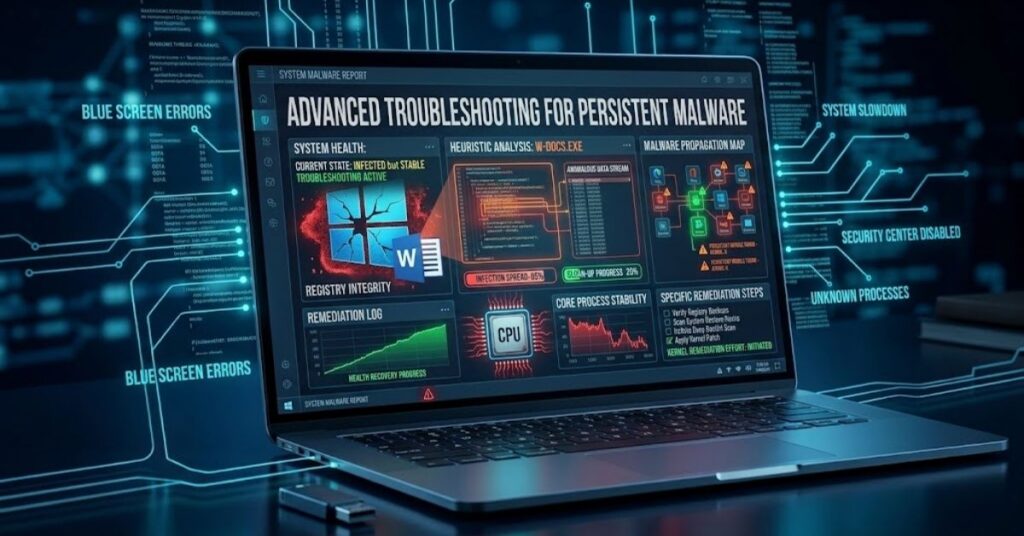
Some infections return after normal cleanup. A recurring infection may indicate a hidden component, compromised account, malicious startup entry, scheduled task, infected browser extension, or another persistence method.
Start with a Full scan.
If the threat returns, run an Offline scan.
You should also review:
- Startup applications
- Installed programs
- Browser extensions
- Scheduled tasks
- Security settings
- Recent downloads
- Account activity
If you confirm account compromise, change important passwords from a clean device.
Prioritize:
- Banking
- Cloud storage
- Social media
- Shopping accounts
- Work accounts
Enable multi-factor authentication whenever possible.
If malware causes major system changes, consider a clean system reset or reinstall.
Before resetting, protect important personal files. Use trusted backups created before the infection whenever possible.
Do not restore suspicious executable files from an infected backup.
Organizations should follow a more formal incident-response process for serious infections. Security teams should isolate affected systems, preserve evidence, identify the infection source, remove the threat, and verify that the attacker no longer has access.
Latest Malware Security Trends
Malware continues to evolve as attackers improve automation, social engineering, and delivery methods.
One major trend involves malware disguised as legitimate software.
Attackers can create fake installers, browser extensions, updates, and utilities that appear trustworthy. Users who download software without checking the source can easily install unwanted programs.
Information-stealing malware also creates major risks. These threats may target browser credentials, cookies, session information, and other valuable data.
Ransomware remains another serious concern because attackers can target both personal files and business operations.
Artificial intelligence adds another layer to the security landscape.
Attackers can use AI to create more convincing phishing messages, automate social engineering, and improve malicious campaigns.
Security teams can also use AI to identify unusual behavior, analyze large amounts of security data, and automate some response tasks.
This creates an ongoing technology race. Users should therefore avoid depending on a single security feature.
A stronger security strategy combines:
- Updated software
- Trusted malware protection
- Strong passwords
- Multi-factor authentication
- Safe browsing
- Careful downloads
- Reliable backups
- Security awareness
Modern security tools increasingly combine antivirus protection, browser security, identity protection, cloud intelligence, and automated threat detection.
The goal remains simple: detect threats early and reduce their impact.
Key Takeaways
- Malware software issues can affect performance, browsers, files, applications, and security settings.
- Slow performance alone does not prove malware infection.
- Pop-ups, redirects, unknown applications, and disabled security tools deserve investigation.
- Use trusted security software for detection and removal.
- Keep operating systems, browsers, and applications updated.
- Avoid pirated software and suspicious installers.
- Do not run multiple real-time antivirus products unnecessarily.
- Use deeper or Offline scans when malware returns.
- Review browser extensions after an infection.
- Maintain reliable backups.
- Change important passwords after confirmed account compromise.
- Enable multi-factor authentication.
- Treat unexpected security warnings seriously.
Conclusion
Malware software issues can range from annoying browser redirects to serious data theft and ransomware attacks. Early detection can reduce potential damage.
The safest approach combines careful diagnosis, trusted security tools, software updates, safe downloads, strong authentication, and reliable backups.
Do not assume that every slow computer contains malware. Look for multiple symptoms and confirm your concerns with a trusted security scan.
If malware continues after normal cleanup, use deeper scanning methods. For serious infections, professional technical support or a clean system recovery may provide the safest solution.
Prevention should remain part of your everyday technology routine. Keep your software updated. Download applications from trusted sources. Maintain active security protection. Back up important files.
These simple habits can significantly reduce the risk and impact of malware software issues.
FAQs
What are malware software issues?
Malware software issues occur when malicious or unwanted software disrupts a device, changes settings, steals information, or consumes system resources.
How do I know if my computer has malware?
Look for several warning signs together, such as redirects, pop-ups, unknown applications, unusual resource usage, or security alerts.
Can malware make a computer slow?
Yes. Malware can consume CPU, RAM, storage, or network resources, although normal software and aging hardware can also cause slow performance.
Can antivirus software remove malware?
Yes. Trusted antivirus tools can detect, quarantine, and remove many malware threats. Persistent infections may require deeper scanning.
Should I install two antivirus programs?
Avoid running two real-time antivirus products simultaneously because they can conflict and reduce system performance.
Can malware return after removal?
Yes. Malware can return when hidden components remain, another infected file exists, or the user encounters the original malicious source again.
Does resetting a PC remove malware?
A clean reset or reinstall can remove many infections, but users should protect important data and use trusted backups.
Can phones get malware?
Yes. Mobile devices can face malicious applications, spyware, phishing, and other security threats.
10 SEO Tags
- malware software issues
- malware problems
- malware removal
- malware detection
- malware protection
- antivirus software
- Windows malware
- computer security
- virus removal
- cybersecurity
5 Internal Linking Suggestions
- Difference Between Software and Hardware
- PhysX System Software
- Samsung Galaxy J7 Update Software
- Productivity Software
- Fan Controller RGB Software
2 Authoritative External References
Social Media Title
Malware Software Issues: Causes, Fixes & Prevention Guide



