

Losing important iPhone data can be stressful, especially when it includes family photos, messages, contacts, or documents.
Fortunately, iPhone Backup Recovery methods can help you retrieve information when a suitable backup is available.
Depending on how you saved your data, you may be able to restore an entire iPhone or recover selected information from a computer backup.
The right method depends on where the backup is stored, when it was created, and whether it is accessible.
Apple offers several ways to recover iPhone data, including iCloud backups, the Apple Devices app on Windows, and Finder on Mac. Some third-party tools can also help inspect compatible computer backups, although their features and limitations vary.
This guide explains how iPhone backup recovery works, how to restore a device, how to extract individual files, and how to troubleshoot common problems.Before you begin, review your existing backups and take care not to replace a saved copy that may contain your missing data.
How to Recover Data Using iPhone Backup Recovery
iPhone backup recovery involves retrieving information from a saved copy of your device. It is useful when data disappears after accidental deletion, a device replacement, a software problem, or a factory reset.
Before choosing a recovery method, identify where your backup is stored. IfIf your data is saved in iCloud, you can recover it while setting up your iPhone. For backups stored on a computer, use the Apple Devices app on Windows or Finder on a supported Mac.
Specialized software may offer a way to inspect certain local backups without restoring the entire device.
What Is iPhone Backup Recovery?
iPhone Backup Recovery is the process of retrieving saved iPhone information from an existing backup. Depending on the backup and recovery method, the available data may include photos, messages, contacts, settings, and other supported information.
There are two main approaches:
- Full backup restoration: Returns supported information and settings to an iPhone using a selected backup.
- Selective data extraction: Allows compatible software to display or export particular files from a computer backup, if those files are included and accessible.
These approaches serve different purposes. Full restoration is useful when setting up a replacement iPhone or returning a device to an earlier state. Selective extraction is more convenient when you only need a particular photo, message, or contact.
However, a backup does not contain every item automatically. Some information may already be synchronized with iCloud or another service, while other content may never have been included in the backup. Recovery depends on what was saved and whether the relevant copy still exists.
How Does iPhone Backup Recovery Work?
The process begins by locating an available backup and checking its date, size, and accessibility. The recovery method then reads the saved information and either restores it to the iPhone or makes supported files available for export.
For example, imagine you accidentally delete several messages on Monday but have a computer backup from Sunday. If those messages were included in that backup, restoring it or extracting its supported contents may help you retrieve them.
By contrast, a backup created after the messages disappeared might not contain them. Similarly, if your only backup is damaged or does not include the missing files, recovery may not be possible through that copy.
To access an encrypted computer backup, you must enter the password used to protect it.
You should also distinguish a backup from a device synchronization service: photos, contacts, and messages may be managed separately depending on your settings.
When Do You Need iPhone Backup Recovery?
You may need backup recovery in several situations:
- You accidentally deleted important information.
- Your iPhone was reset or erased.
- You are moving data to a replacement device.
- A software update or device problem interrupted normal access to your information.
- You need to recover files saved in a previous computer backup.
- You need to inspect a backup before deciding whether to restore it.
First, check your recently deleted folders, relevant iCloud services, and other devices that may still contain the missing information. If the data is available through synchronization, you may not need a complete backup restoration.
How to Restore an iPhone from a Backup
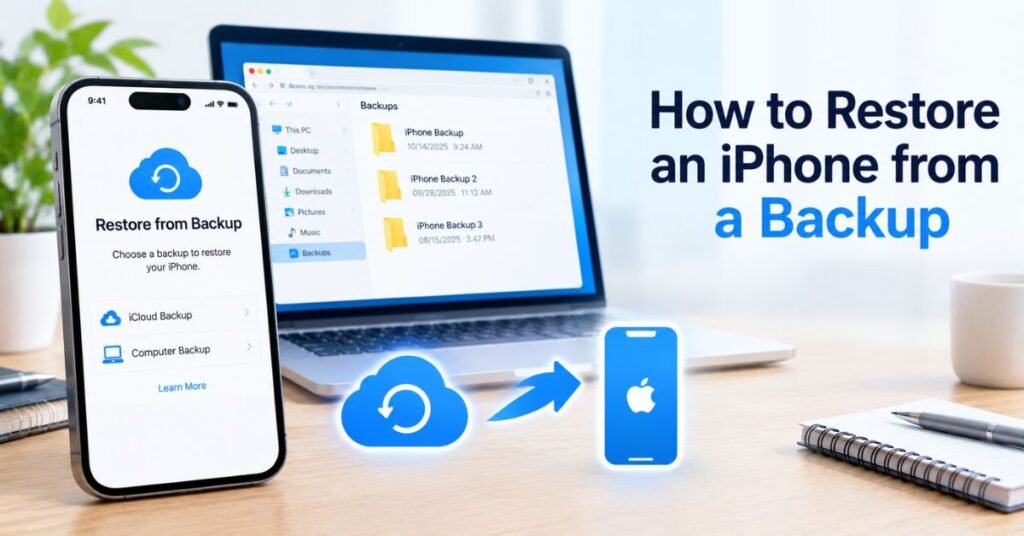
Restoring an iPhone from a backup can bring back supported data and settings from an earlier point in time. You can use iCloud or a computer, depending on where the backup was created.
Important: Restoring an existing iPhone from an iCloud backup generally requires erasing the device first. A computer backup restoration also replaces the device’s current contents with supported data from the selected backup. Save any newer information before proceeding.
Restore an iPhone Using iCloud
An iCloud backup is convenient because you do not need a computer to complete the restoration. You need access to the Apple Account associated with the backup and a reliable Wi-Fi connection.
Follow these steps:
- Check that a suitable iCloud backup exists and that you can access the associated Apple Account.
- If your iPhone is already configured, back up any new information you want to keep before erasing it.
- Open Settings, select General, choose Transfer or Reset iPhone, and tap Erase All Content and Settings.
- Follow the instructions to erase the device.
- When the Hello screen appears, follow the setup instructions until you reach the data transfer screen.
- Select From iCloud Backup.
- Sign in to your Apple Account.
- Review the available backups and choose the appropriate one using its date and size.
- Keep the iPhone connected to Wi-Fi and power while restoration proceeds.
After the initial process finishes, some apps, photos, and other content may continue downloading in the background. The time required depends on the backup size, internet connection, and amount of information being restored.
Choose a backup created before the data disappeared, provided it contains the information you need. You can read Apple’s official guide to restoring an iPhone from a backup for additional instructions.
Restore an iPhone Using a Computer
A computer backup can help you recover iPhone data that was saved on your PC or Mac. On Windows, you can use the Apple Devices app, while Finder is available for managing backups on compatible Mac computers.
To restore from a computer backup:
- Open Apple Devices on your Windows PC or Finder on a compatible Mac.
- Connect the iPhone using a suitable USB cable.
- Unlock the device and approve the Trust This Computer prompt if necessary.
- Select your iPhone in the application.
- Open the General section in Apple Devices or the corresponding device summary in Finder.
- Choose Restore Backup.
- Review the available backups and select the appropriate copy.
- Enter the password if the selected backup is encrypted.
- Start restoration and keep the iPhone connected until the process finishes.
Do not disconnect the device while the restoration is underway. Once it completes, follow any remaining setup instructions and allow apps and other content to synchronize.
If you have important newer files on the iPhone, save them first. A restoration is not a merge operation that automatically preserves every current item alongside the selected backup.
Common iPhone Backup Restoration Problems
Restoration can fail or take longer than expected for several reasons. Try the following checks before attempting the process again.
The backup does not appear: Confirm that you are using the correct Apple Account for iCloud or the computer containing the local backup. Check whether the backup is still available and whether the correct device is connected.
The backup requires a newer iOS version: Follow the on-screen instructions to update the iPhone to a compatible version before restoring the backup.
The restoration gets stuck: Keep the iPhone connected to power and a stable network when using iCloud. For computer restoration, check the USB connection and restart the relevant application if necessary.
The backup password is rejected: Verify the password carefully. An encrypted computer backup cannot be unlocked simply by using the iPhone passcode or Apple Account password.
Some information is missing: Check whether the information was included in the backup or synchronized separately through iCloud or another service.
Avoid repeatedly erasing your iPhone without checking your available backups. Doing so can make it harder to preserve newer data or identify the best recovery option.
How to Extract Data from an iPhone Backup
Sometimes you need only a few files rather than a complete device restoration. In this situation, selective extraction may be more practical, provided you have a compatible computer backup and a tool that supports the required file types.
Apple’s standard restoration process is designed to restore a backup to a device. Third-party applications may offer additional browsing and export functions, but their compatibility, supported data types, and pricing should be checked before use.
Preview Data Before Recovery
Previewing a backup can help you decide whether it contains the information you need. This is particularly useful when you have several backups created on different dates.
Start by identifying the backup’s creation date and device details. If a third-party application supports backup browsing, follow its instructions to load the local backup and view the available categories. Samsung J7 Software Update Guide
Before selecting any recovery tool, check that it supports your iPhone model, operating system, backup format, and desired data type. A program that can display photos may not support messages or other information.
Use reputable software and review its privacy policy. Backups can contain personal conversations, account details, and other sensitive information, so avoid uploading them to unknown websites or services.
Extract Photos, Messages, and Contacts
The steps for extracting individual files depend on the backup format and software being used. A typical supported workflow looks like this:
- Locate the computer backup you want to inspect.
- Open a compatible backup viewer or extraction application.
- Select the relevant backup and enter its password if required.
- Choose the available category, such as photos, messages, or contacts.
- Preview the supported information.
- Select the files you want to export.
- Save the exported files to a secure folder on your computer.
Check the exported files before deleting anything from the original backup. Open photos, review message exports, and verify contact details where possible.
Not every application supports every file type. Some may export messages as readable reports rather than restoring them to the Messages app. Others may only support specific formats or older backup versions.
If your goal is simply to recover a photo, first check the Photos app’s Recently Deleted album and any relevant iCloud Photos library. For contacts, check whether they are synchronized with iCloud or another account. These checks may provide a simpler solution than extracting an entire backup.
Recover Data from an Encrypted Backup
An encrypted computer backup protects stored information with a password. Depending on the backup, encryption can include additional information such as saved passwords, Wi-Fi settings, browsing history, Health data, and call history.
To access an encrypted backup, use the application that supports it and enter the correct backup password when prompted. Do not assume that the iPhone’s screen-lock passcode will work.
If you have forgotten the password, check any password manager or secure record where you may have saved it. Apple provides guidance for resetting backup encryption settings, but resetting the setting does not unlock older encrypted backups. You may be able to create a new encrypted backup of the current device, but the previous backup still requires its original password.
Read Apple’s official encrypted backup guidance before making changes. Keep an untouched copy of an existing backup whenever practical, especially if it contains the only known copy of important information.
How to Recover Deleted Data from an iPhone Backup
Recovering deleted information depends on whether a saved copy exists. An older backup may contain data that has since disappeared, but recovery is not guaranteed. The key is to identify the correct backup before restoring or changing anything.
Check Available Backups Before Recovery
Start by checking your available iCloud backups and any local backups on computers you have used with the iPhone. Bluetooth Driver Update
On your iPhone, open Settings, tap your name, select iCloud, and look for the backup settings and available device backup information. The exact labels may vary by iOS version.
On a Windows PC, open Apple Devices or the supported iTunes installation you previously used. Connect your iPhone if necessary and look for the backup management options. On a Mac, check the device’s backups through Finder.
Compare the dates with when the data disappeared. A backup from before deletion may be useful if it includes the missing information. A later backup may not contain it.
Before restoring, protect your current data. Save any newer photos, documents, or other files that are not included in the older backup. Also check whether the missing items are already available through iCloud synchronization, another device, or a relevant Recently Deleted folder.
Recover Deleted Messages and Photos
For deleted messages, check whether they remain available in the Messages app’s Recently Deleted section, if supported by your iOS version. If they are not there, examine your available backups and message synchronization settings.
For photos, begin with the Photos app’s Recently Deleted album. If iCloud Photos is enabled, check the same photo library across your devices and through iCloud. Photo synchronization and device backups are different, so a photo may not be present in a device backup when it is already managed through iCloud Photos.
If the information exists in an older backup, you can consider restoring that backup or using a compatible tool to extract supported files from a local backup.
Remember that restoring an older backup may replace newer device data. Make sure you understand the consequences before continuing.
Understand the Limitations of Backup Recovery
Backup recovery has practical limits. No method can guarantee the recovery of every deleted file.
- No saved copy: If the data was never backed up or synchronized, backup recovery may not help.
- Outdated backup: Information created after the backup date may be missing.
- Encrypted backup: The original password is required to access an encrypted computer backup. Windows Driver Update
- Damaged backup: Corrupted or incomplete files may prevent successful restoration.
- Synchronization differences: Data managed through iCloud or another account may not be stored in the backup as expected.
- Unsupported extraction: Third-party tools may not support every data category or backup version.
Be cautious of services that promise guaranteed recovery without examining your situation. A trustworthy recovery process should explain what it can access, what it cannot recover, and what risks are involved before you pay for software.
How to Restore an iPhone Backup on Windows
Windows users can restore iPhone backups using Apple’s supported software. The Apple Devices app is the standard option for compatible Windows installations, while iTunes may still be relevant for some existing setups.
Before starting, install the appropriate software, check that your computer has enough free storage where needed, and use a reliable USB cable.
Use the Apple Devices App
Follow these steps to restore a local backup through Apple Devices:
- Open the Apple Devices app on your Windows PC.
- Connect the iPhone using a USB or USB-C cable.
- Unlock the iPhone and tap Trust if prompted.
- Select your device from the sidebar.
- Open the General section.
- Choose Restore Backup.
- Review the available backups and select the one you need.
- Enter the encrypted backup password if requested.
- Start the restoration and keep the device connected until it finishes.
If the Apple Devices app is unavailable, check Apple’s instructions for the supported iTunes workflow on your computer.
Do not confuse Restore Backup with Restore iPhone. Restoring a backup loads saved information and settings from an existing copy. Restoring the device to factory settings erases its contents and is a different operation.
For Windows-specific instructions, see Apple’s guide to restoring a device from a backup.
Locate an Existing iPhone Backup
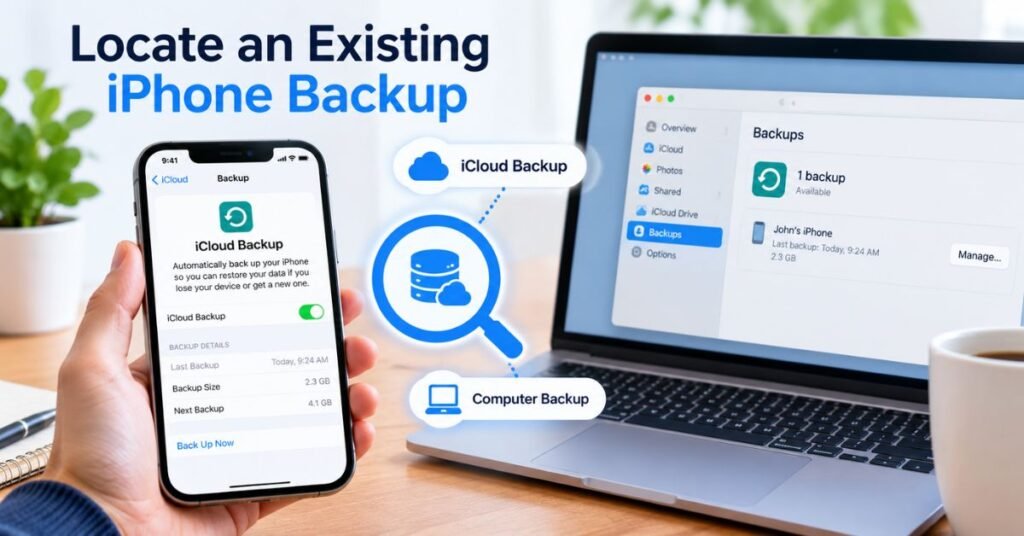
If you cannot find a backup in the application, check the computer where it was originally created. The backup may be stored on a different Windows account or drive.
To inspect the usual backup location:
- Press Windows + R to open the Run dialog.Productivity Software: Complete Guide
- If you use Apple Devices or the Microsoft Store version of iTunes, enter %USERPROFILE% and press Enter.
- Look for the Apple-related backup folders and the Apple or Apple Computer directory, then navigate to MobileSync\Backup where applicable.
- If you use the traditional desktop version of iTunes, %APPDATA% may be relevant instead.
- Avoid renaming, moving, or deleting backup folders while troubleshooting.
The exact path can vary depending on the software version and installation method. You can also use the application’s backup management screen to identify available copies.
If you find the backup folder but it does not appear in the application, check whether the folder is complete and belongs to the correct Windows user account. Do not modify its internal files manually unless you understand the risks.
Fix Common Backup Restoration Errors
If Windows fails to restore an iPhone backup, work through these checks one at a time.
The iPhone is not detected: Try another USB port or compatible cable, unlock the device, and approve the Trust This Computer prompt. Restart the computer and iPhone if needed.
The backup is missing: Confirm the Windows account and application version used to create it. Check the usual backup folders and the application’s backup management screen.
The backup is incompatible: Follow Apple’s instructions if the iPhone needs a compatible iOS update before restoration. Avoid installing unofficial firmware or tools from untrusted sources.
The backup password is incorrect: Check your saved password records. Encrypted backups cannot be accessed without the correct password.The Difference Between Software and Hardware
The process stops unexpectedly: Update Apple Devices or the supported iTunes installation, restart the software, and verify that the USB connection remains stable. If an error message appears, note its exact wording and consult Apple Support for the relevant fix.
After the restoration finishes, allow the iPhone to restart and complete any remaining synchronization. Check your photos, contacts, messages, and other important information before removing old backups.
Final Thoughts
iPhone Backup Recovery is most effective when you know where your data was saved and choose a method that matches your needs. iCloud and computer backups offer Apple’s standard restoration options, while compatible extraction tools may help you retrieve selected files without restoring an entire device.
Start by checking the backup date, protecting your current information, and confirming whether the missing data is available through synchronization or a Recently Deleted folder. If you need to restore a complete backup, follow Apple’s instructions carefully. If you only need individual files, verify that your chosen tool supports the required data type and backup format.
Most importantly, create regular backups and keep encrypted backup passwords somewhere secure. A current, accessible backup gives you a much better chance of recovering important information when something goes wrong.
FAQ
1. What is iPhone Backup Recovery?
iPhone Backup Recovery is the process of retrieving lost or deleted data from an existing iCloud or computer backup.
2. Can I recover deleted iPhone data without a backup?
You may recover some data from Recently Deleted folders or synchronized services, but permanently deleted data without another available copy may not be recoverable.
3. How do I restore my iPhone from an iCloud backup?
Erase your iPhone if it is already set up, then select From iCloud Backup during setup and choose the appropriate backup.
4. Can I extract individual files from an iPhone backup?
Yes, compatible third-party tools may let you preview and export supported files, such as photos, messages, and contacts, without restoring the entire backup.
5. What should I do if my encrypted iPhone backup password is forgotten?
Check your password manager or saved records. Older encrypted backups generally require their original password and cannot be unlocked simply by resetting the encryption settings.