






Meta Description: Learn how to perform a Bluetooth driver update on Windows, fix connection problems, reinstall drivers, and improve Bluetooth device compatibility safely.
SEO URL Slug: bluetooth-driver-update
Focus Keyword: Bluetooth Driver Update
Quick Answer
A Bluetooth driver update installs newer software that helps Windows communicate correctly with Bluetooth hardware. An updated driver can fix pairing failures, missing Bluetooth options, connection drops, audio problems, and device detection errors. Windows Update and Device Manager provide simple update methods, while your PC manufacturer’s support page can provide newer model-specific drivers.
Author Information
Author: Gulnaz Malik
Role: Founder, Publisher & Technology Content Specialist
Experience: 5+ Years in Technology, AI, Software & Digital Innovation
Content Review: All content follows Google’s latest EEAT guidelines and includes fact-checked information from official documentation, trusted technology sources, industry reports, and practical research to ensure accuracy, reliability, and up-to-date insights.
Introduction
Bluetooth has become an essential part of modern computing. Windows laptops and desktops use it to connect wireless keyboards, mice, headphones, speakers, game controllers, phones, printers, and other accessories.
Most Bluetooth connections work automatically. However, problems can appear after a Windows update, hardware change, system reset, or driver failure. Your Bluetooth device may stop connecting, disappear from Windows Settings, disconnect repeatedly, or show poor audio quality.
A Bluetooth driver update can often solve these problems.
A Bluetooth driver acts as a communication layer between Windows and the Bluetooth hardware inside your computer. When that driver becomes outdated, incompatible, corrupted, or incorrectly installed, Windows may struggle to communicate with connected devices.
Microsoft recommends updating Bluetooth drivers when users experience connection, pairing, detection, or compatibility problems. The company also recommends checking the computer manufacturer’s website when Windows cannot find a newer driver.
This guide explains everything you need to know about Bluetooth driver updates. You will learn how drivers work, how to update them, when to reinstall them, how to troubleshoot common errors, and how to avoid unsafe driver downloads.
Table of Contents
- What Is a Bluetooth Driver Update?
- Why Is a Bluetooth Driver Update Important?
- Signs You Need a Bluetooth Driver Update
- How to Update Bluetooth Drivers on Windows
- How to Reinstall a Bluetooth Driver
- How to Fix Common Bluetooth Driver Problems
- Bluetooth Driver Update Methods Compared
- How to Choose the Correct Bluetooth Driver
- Common Bluetooth Driver Update Mistakes
- Best Practices for Bluetooth Driver Maintenance
- Bluetooth Drivers and Windows 11
- Bluetooth Driver Update for Different Devices
- Latest Trends in Bluetooth Drivers
- Future of Bluetooth Driver Updates
- Key Takeaways
- Conclusion
- FAQ
- SEO Tags
- Internal Linking Suggestions
- Authoritative External References
- Social Media Title
What Is a Bluetooth Driver Update?
A Bluetooth driver update replaces an older Bluetooth driver with a newer compatible version.
The driver allows Windows to communicate with your Bluetooth adapter. The adapter may exist as a built-in component inside a laptop or motherboard, or as a separate USB Bluetooth dongle.
Think of the driver as a translator.
Windows sends instructions to the Bluetooth hardware. The driver helps translate those instructions into commands the hardware understands. The hardware then communicates with your wireless device.
For example, when you connect Bluetooth headphones, several things happen:
- Windows detects the Bluetooth adapter.
- The Bluetooth driver communicates with the adapter.
- Windows searches for nearby Bluetooth devices.
- You select your headphones.
- The driver helps establish communication.
- Windows manages the connection and audio profile.
A driver problem can interrupt any part of this process.
Understanding the relationship between software and physical hardware can make driver problems easier to diagnose. TechCrebia’s guide to the Difference Between Software and Hardware explains this relationship in greater detail.
Why Is a Bluetooth Driver Update Important?
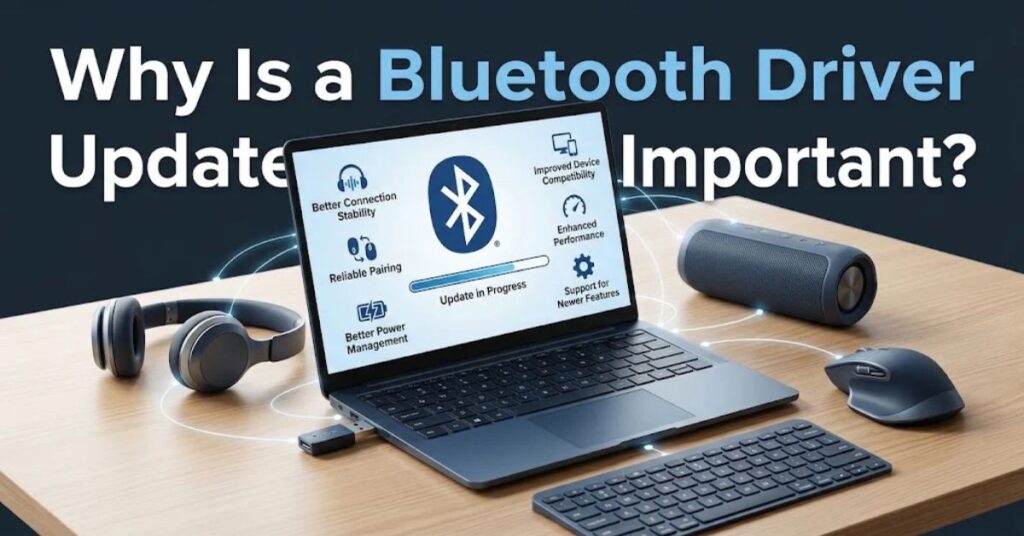
Bluetooth drivers do more than simply enable Bluetooth.
They can affect compatibility, stability, device detection, power management, and communication between Windows and connected hardware.
An update may help when your computer has problems connecting to wireless headphones, keyboards, mice, controllers, or other accessories.
Microsoft specifically notes that updating a Bluetooth driver can help resolve connection, pairing, and detection problems.
A newer driver may also improve compatibility after a major Windows update. This matters because an older driver may have been designed for an earlier Windows version.
However, updating a driver does not guarantee better performance in every situation. If your Bluetooth adapter has a hardware fault, a new driver will not repair the physical component.
The goal should therefore be simple: use a compatible, stable driver rather than simply choosing the newest file available online.
Signs You Need a Bluetooth Driver Update
You do not always need to update Bluetooth drivers simply because a newer version exists.
Instead, look for symptoms.
Common warning signs include:
- Bluetooth devices fail to appear.
- Windows cannot detect your Bluetooth adapter.
- Headphones refuse to pair.
- A Bluetooth mouse repeatedly disconnects.
- Wireless keyboards experience delays.
- Bluetooth audio cuts out.
- Bluetooth disappears from Windows Settings.
- Windows shows a driver-related error in Device Manager.
- Bluetooth stops working after a Windows update.
- A newly installed Bluetooth accessory does not work correctly.
- Your Bluetooth adapter appears under Other devices.
- The system repeatedly asks you to install a driver.
An outdated or incompatible driver is one possible cause of Bluetooth connection problems. Microsoft also identifies settings, services, hardware issues, and recent Windows updates as other possible causes.
That distinction matters. Do not assume every Bluetooth problem comes from the driver.
How to Update Bluetooth Drivers on Windows
Windows provides several ways to update Bluetooth drivers. Start with the safest and simplest method before attempting a manual installation.
Method 1: Use Device Manager
Device Manager is useful when Windows can identify your Bluetooth adapter.
Follow these steps:
- Open Start and search for Device Manager.
- Open Device Manager.
- Expand Bluetooth.
- Find your Bluetooth adapter. It may include words such as Bluetooth, Radio, Wireless, Intel, Realtek, MediaTek, or another hardware vendor name.
- Right-click the adapter.
- Select Update driver.
- Choose Search automatically for drivers.
- Follow the instructions shown by Windows.
- Restart the computer if Windows asks you to do so.
Microsoft recommends this method for automatically checking for an available Bluetooth driver.
If Windows says the best driver is already installed, that does not always mean no newer driver exists. Your PC manufacturer’s support website may offer a newer model-specific version.
Method 2: Use Windows Update
Windows Update can also deliver Bluetooth drivers.
To check:
- Open Settings.
- Select Windows Update.
- Select Check for updates.
- Install available updates.
- Restart your computer when required.
- Test your Bluetooth device again.
This method is especially useful after installing a major Windows update or setting up a new computer.
Microsoft confirms that some Bluetooth drivers arrive through Windows Update.
Method 3: Download the Driver From Your PC Manufacturer
This method works well when Windows cannot locate a suitable driver.
First, identify your exact computer model.
Then:
- Visit your PC manufacturer’s official support website.
- Enter your computer model or serial/product family.
- Select your Windows version.
- Locate the Bluetooth or wireless driver.
- Download the correct package.
- Run the installer.
- Follow the installation instructions.
- Restart Windows.
- Test Bluetooth.
This approach often provides drivers specifically tested for your laptop or desktop model.
Do not download drivers from random websites that promise automatic driver updates. Third-party driver repositories can provide incorrect, modified, outdated, or incompatible files.
Method 4: Manually Install an INF Driver
Advanced users may receive Bluetooth drivers as individual files instead of an executable installer.
A package may contain files such as .inf and .sys.
In this situation:
- Open Device Manager.
- Expand Bluetooth.
- Right-click the Bluetooth adapter.
- Select Update driver.
- Choose Browse my computer for drivers.
- Select the folder containing the driver.
- Continue through the installation process.
- Restart Windows.
Microsoft provides this manual installation process for Bluetooth driver packages that contain individual driver files.
How to Reinstall a Bluetooth Driver
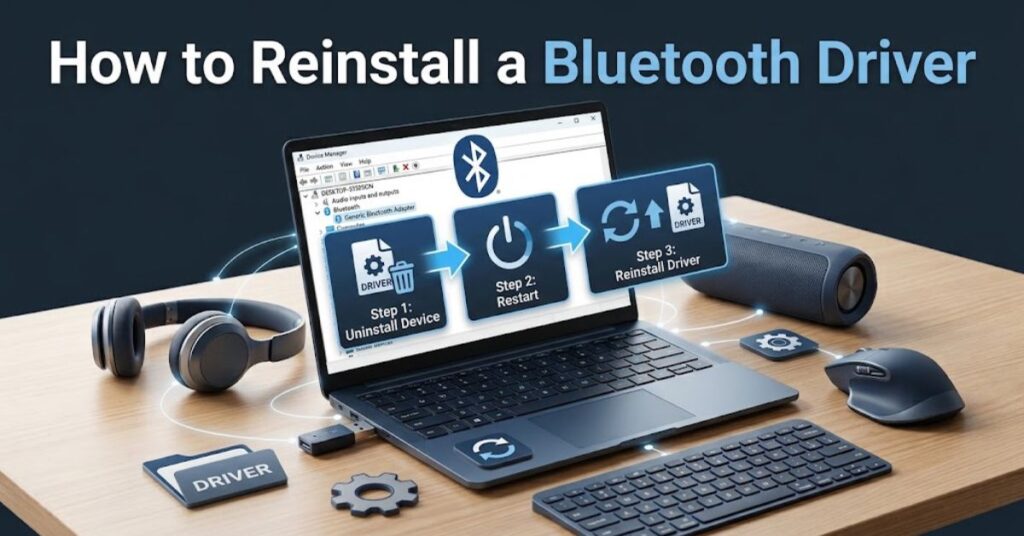
Sometimes updating the existing driver does not solve the problem.
A corrupted installation may require a clean reinstall.
Microsoft recommends uninstalling the Bluetooth adapter through Device Manager and restarting the computer. Windows can then attempt to reinstall the driver automatically.
Before uninstalling anything, identify your adapter name and make sure you know where to obtain the manufacturer’s driver if automatic installation fails.
A typical process looks like this:
- Open Device Manager.
- Expand Bluetooth.
- Right-click your Bluetooth adapter.
- Select Uninstall device.
- Confirm the removal.
- Restart the PC.
- Allow Windows to detect the hardware again.
- Check Bluetooth functionality.
If Windows does not reinstall the driver automatically, Device Manager provides a Scan for hardware changes option.
Reinstallation can help when a driver becomes corrupted or Windows incorrectly associates the Bluetooth hardware with an incompatible installation.
How to Fix Common Bluetooth Driver Problems
Bluetooth problems can look similar even when their causes differ. Use the symptom to guide your troubleshooting.
Bluetooth Does Not Appear in Settings
Check Device Manager first.
If the Bluetooth adapter does not appear there, check Other devices and look for an unknown device.
Also check whether your computer actually includes Bluetooth hardware. Microsoft notes that a missing Bluetooth option can occur when the device lacks a Bluetooth adapter or when its drivers are not installed.
Try these steps:
- Restart Windows.
- Turn Airplane mode off.
- Check Device Manager.
- Install the manufacturer’s Bluetooth driver.
- Run Windows Update.
- Check BIOS or UEFI settings if the adapter remains missing.
Bluetooth Keeps Disconnecting
Repeated disconnections can result from drivers, power-saving settings, services, interference, or the Bluetooth device itself.
Try:
- Updating the Bluetooth driver.
- Restarting the Bluetooth service.
- Turning Bluetooth off and back on.
- Checking battery levels on the Bluetooth device.
- Moving the device closer to the computer.
- Checking Device Manager power-management settings.
- Testing another Bluetooth accessory.
Microsoft also recommends checking the Bluetooth device’s power-management configuration and restarting the Bluetooth Support Service when connections repeatedly drop.
Bluetooth Device Will Not Pair
First, confirm that the accessory has enough battery power and has entered pairing mode.
Then:
- Turn Bluetooth off.
- Wait several seconds.
- Turn Bluetooth back on.
- Put the accessory into pairing mode again.
- Remove the old Bluetooth device entry if necessary.
- Search for the device again.
- Install available Windows updates.
A driver update may help, but pairing problems can also come from range, battery, pairing mode, or device-level issues.
Bluetooth Audio Has Problems
If headphones connect but audio cuts out, check both software and hardware factors.
Update the Bluetooth driver first. Then check Windows audio output settings.
Also test another Bluetooth headset or speaker. If only one accessory has the problem, its firmware, battery, or compatibility may be responsible.
Avoid assuming that a driver update will automatically improve sound quality. Bluetooth audio depends on the adapter, Windows configuration, device capabilities, codecs, and connection conditions.
Bluetooth Driver Update Methods Compared
| Method | Difficulty | Best Use | Main Advantage |
| Windows Update | Easy | Routine updates | Simple and automated |
| Device Manager | Easy | Driver troubleshooting | Built into Windows |
| Manufacturer website | Moderate | Model-specific issues | Often provides tested drivers |
| Manual INF installation | Advanced | Specialized driver packages | More control |
| Reinstallation | Moderate | Corrupted drivers | Rebuilds the driver installation |
For most users, start with Windows Update or Device Manager.
If those methods fail, move to your computer manufacturer’s official support page.
How to Choose the Correct Bluetooth Driver
The correct driver matters more than the newest driver.
Identify the Bluetooth Adapter
Open Device Manager and look for the Bluetooth adapter name.
The manufacturer might be Intel, Realtek, MediaTek, Qualcomm, or another hardware vendor.
Do not choose a driver simply because its name contains the word Bluetooth.
Check the PC Model
Laptop manufacturers often customize drivers for specific systems.
A driver that works on one laptop may not work correctly on another laptop using a similar Bluetooth chipset.
Use the exact computer model when searching the manufacturer’s support page.
Check Windows Compatibility
Always verify that the driver supports your Windows version and system architecture.
Avoid installing an old Windows driver simply because it has a similar name.
Check the Driver Version
Before updating, note the existing driver version and date.
After installation, check the new version again.
This simple step helps you confirm whether the installation actually changed anything.
Common Bluetooth Driver Update Mistakes
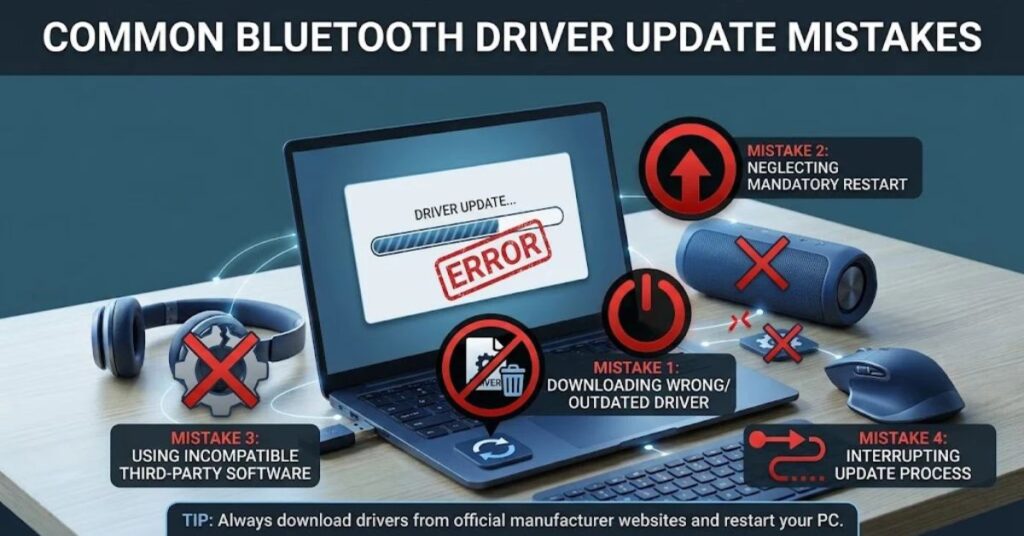
Many Bluetooth problems become harder to fix because users install the wrong driver or make several changes at once.
Avoid these mistakes:
- Downloading drivers from unknown websites.
- Installing a driver for a different PC model.
- Ignoring Windows Update.
- Removing a working driver without having a replacement available.
- Installing several driver-management utilities.
- Updating every driver unnecessarily.
- Ignoring manufacturer documentation.
- Forgetting to restart Windows.
- Blaming the driver when the Bluetooth hardware has failed.
- Changing multiple troubleshooting settings at the same time.
Another common mistake involves confusing Bluetooth software with firmware.
Bluetooth drivers run as part of the operating system environment. Firmware exists inside the hardware or accessory itself. Some Bluetooth keyboards, mice, headphones, and adapters may also receive separate firmware updates.
Keeping these concepts separate helps you troubleshoot more accurately.
TechCrebia’s PhysX System Software guide provides another example of how specialized software can interact closely with computer hardware.
Best Practices for Bluetooth Driver Maintenance
You do not need to update Bluetooth drivers every week.
A better approach involves monitoring the system and updating when a meaningful reason exists.
Follow these practices:
- Keep Windows reasonably current.
- Use official driver sources.
- Save your PC model information.
- Note your current driver version before making changes.
- Create a restore point before major driver changes when appropriate.
- Restart after significant driver installations.
- Test Bluetooth after every update.
- Keep Bluetooth accessories charged.
- Avoid unnecessary driver-update utilities.
- Replace failing hardware when software troubleshooting no longer helps.
If you regularly manage software on your PC, TechCrebia’s Productivity Software guide offers additional context about choosing and maintaining software based on actual needs.
The same principle applies to drivers: update because there is a reason, not simply because a tool says every driver needs an update.
Bluetooth Drivers and Windows 11
Windows 11 includes built-in Bluetooth management and driver support.
You can manage Bluetooth through Settings > Bluetooth & devices. Device Manager provides more detailed access to the Bluetooth adapter and its driver.
If Bluetooth disappears after a Windows update, Microsoft recommends checking the driver, Windows Update, Bluetooth settings, and the device itself.
Windows 11 also includes troubleshooting through the Get Help application for many Bluetooth problems.
One important consideration is Windows 10 support. Microsoft ended support for Windows 10 on October 14, 2025. Devices running Windows 10 can continue operating, but Microsoft no longer provides the same ongoing free software updates and security support available before that date.
If you still use Windows 10, check your PC manufacturer’s compatibility information before considering a move to Windows 11.
Bluetooth Driver Update for Different Devices
Bluetooth driver requirements can differ depending on your hardware.
Laptops: Most laptops use an integrated Bluetooth adapter. The laptop manufacturer usually provides the most appropriate driver package.
Desktop PCs: Bluetooth may come from the motherboard, a PCIe adapter, or a USB Bluetooth dongle.
USB Bluetooth adapters: The adapter manufacturer usually provides the driver. Some devices work automatically with Windows without a separate download.
Wireless headphones: Headphones usually do not require a Windows Bluetooth driver themselves. Your PC’s Bluetooth adapter and Windows handle the computer-side connection. The headphones may have separate firmware.
Bluetooth keyboards and mice: These devices normally rely on the computer’s Bluetooth stack and adapter. Connection problems can also come from battery levels, pairing mode, or interference.
Game controllers: Controllers can be sensitive to driver compatibility, Windows updates, and firmware versions. Test both wired and Bluetooth modes when diagnosing a problem.
This distinction prevents a common mistake: downloading a PC Bluetooth driver when the actual problem exists inside the connected accessory.
Latest Trends in Bluetooth Driver Updates
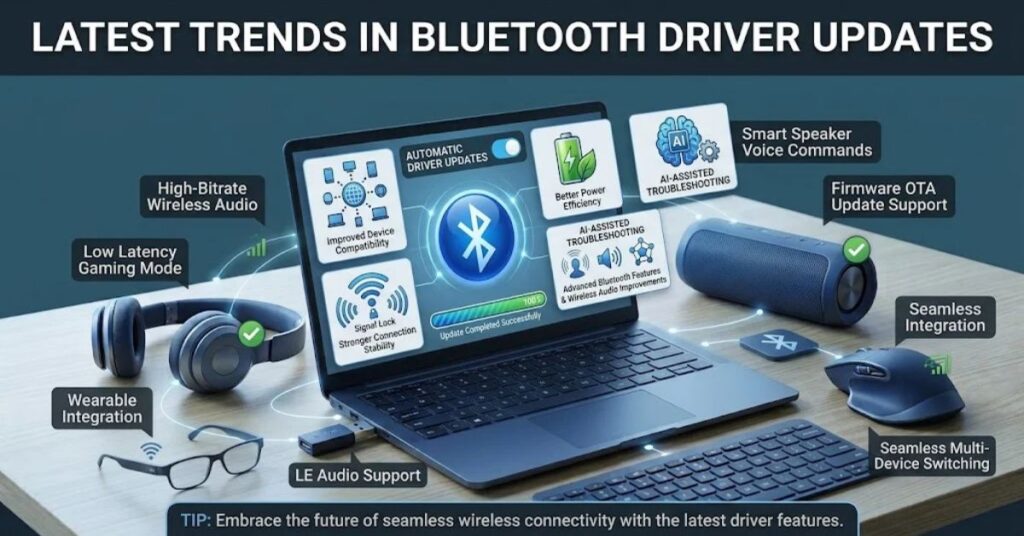
Bluetooth connectivity continues to evolve as operating systems and wireless hardware improve.
Modern driver development increasingly focuses on:
- Better Windows compatibility.
- Improved power management.
- More stable wireless connections.
- Support for newer Bluetooth capabilities.
- Better interoperability between devices.
- Improved audio behavior.
- Reduced connection drops.
- Stronger integration with modern operating systems.
Driver updates are also becoming less visible to users. Instead of manually searching for every driver, users increasingly receive compatible updates through Windows Update or manufacturer support applications.
At the same time, manufacturers continue to release device-specific drivers because hardware configurations can vary significantly between computer models.
This means automatic updates are convenient, but manufacturer support pages remain important when troubleshooting a specific machine.
Future of Bluetooth Driver Updates
Bluetooth drivers will likely become more automated and tightly integrated with operating systems.
Future driver systems may improve automatic compatibility detection and make it easier to identify whether a problem comes from Windows, the Bluetooth adapter, or the connected accessory.
Power efficiency will also remain important. Wireless peripherals need reliable connections without unnecessarily draining laptop batteries.
AI-assisted troubleshooting may also make diagnosis easier. Instead of manually checking several settings, future operating systems could identify patterns such as repeated disconnections and recommend a specific driver, setting, or hardware check.
However, one principle will remain important: compatibility.
The best Bluetooth driver will always be the one that works correctly with your specific hardware and Windows configuration.
Key Takeaways
- A Bluetooth driver allows Windows to communicate with Bluetooth hardware.
- A driver update can help with pairing, detection, and connection problems.
- Windows Update provides an easy way to check for compatible updates.
- Device Manager provides direct access to the Bluetooth adapter.
- PC manufacturers may provide newer model-specific drivers.
- Reinstalling the driver can help when the existing installation becomes corrupted.
- Not every Bluetooth problem comes from the driver.
- Battery, pairing mode, range, services, hardware, and Windows settings can also cause problems.
- Avoid downloading drivers from unknown websites.
- Always match the driver to your computer model and Windows version.
- Restart Windows after important driver changes.
- Keep Bluetooth accessories updated when their manufacturers provide firmware updates.
Conclusion
A Bluetooth driver update can solve many common Windows connectivity problems, but it should not become the first answer to every Bluetooth issue.
Start with simple checks. Confirm Bluetooth is enabled, make sure your accessory has enough battery, check pairing mode, and restart Windows. Then use Windows Update or Device Manager to look for a compatible driver.
If Windows cannot find a suitable update, visit your PC manufacturer’s official support website. Download the driver for your exact computer model and Windows version.
When updating does not help, consider reinstalling the Bluetooth driver. If the adapter still fails to appear or connect, investigate hardware, services, power settings, and the Bluetooth accessory itself.
The safest strategy is straightforward: use official drivers, match them to your hardware, change one thing at a time, and test the connection after every major change.
FAQ
What is a Bluetooth driver update?
It is a newer version of the software that helps Windows communicate with your computer’s Bluetooth adapter.
How do I update my Bluetooth driver?
Open Device Manager, expand Bluetooth, right-click the adapter, select Update driver, then select Search automatically for drivers.
Can a Bluetooth driver update fix connection problems?
Yes. Updating the driver can help resolve some pairing, detection, and connection problems.
Where should I download Bluetooth drivers?
Use Windows Update or your computer manufacturer’s official support website for the safest and most compatible driver.
What should I do if Bluetooth disappears from Windows?
Check Device Manager, Windows Update, Airplane mode, and the Bluetooth adapter driver.
Should I uninstall my Bluetooth driver before updating it?
Usually no. Try updating it first. Reinstall the driver if normal updates do not resolve the problem.
Why does Bluetooth keep disconnecting after an update?
Power settings, driver problems, Bluetooth services, interference, or the connected device can cause repeated disconnections.
Can Windows automatically install Bluetooth drivers?
Yes. Windows Update can deliver some Bluetooth drivers, and Windows may reinstall a driver after you uninstall the Bluetooth adapter and restart.
Do Bluetooth headphones need a Windows Bluetooth driver?
The computer needs a compatible Bluetooth driver, while the headphones may have their own firmware that can receive separate updates.
Is a Bluetooth driver the same as Bluetooth firmware?
No. The driver runs within the operating system, while firmware controls functions inside compatible hardware or accessories.
SEO Tags
- Bluetooth Driver Update
- Bluetooth Driver Windows 11
- Update Bluetooth Driver
- Bluetooth Driver Download
- Bluetooth Driver Fix
- Bluetooth Not Working Windows
- Bluetooth Connection Problems
- Bluetooth Adapter Driver
- Windows Bluetooth Troubleshooting
- Bluetooth Driver Installation
Internal Linking Suggestions With Anchor Text
- Difference Between Software and Hardware — use when explaining how drivers connect operating systems with physical Bluetooth hardware.
- PhysX System Software — use when discussing software that communicates with specialized computer hardware.
- Productivity Software — use in broader software-management and maintenance content.
- Samsung J7 Software Update Guide — use when discussing the importance of keeping device software updated.
- Samsung Galaxy J7 Update Software — use for related software-update and troubleshooting content.
- Fan Controller RGB Software — use when discussing software that manages hardware components and peripherals.
Authoritative External References
- Microsoft Support — Update Bluetooth drivers in Windows Microsoft Support: Update Bluetooth drivers in Windows
- Microsoft Support — Fix Bluetooth problems in Windows Microsoft Support: Fix Bluetooth problems in Windows
Social Media Title
Bluetooth Driver Update: Fix Windows Bluetooth Problems Fast



