






Quick Answer
Deleted file recovery means restoring files that you accidentally deleted, emptied from the Recycle Bin, or lost because of formatting, corruption, or storage problems.
Start with the Recycle Bin, Trash, backups, or cloud recovery options. If those fail, recovery software may help. Stop using the affected drive immediately because new data can overwrite deleted files.
Author Information
Author: Gulnaz Malik
Role: Founder, Publisher & Technology Content Specialist
Experience: 5+ Years in Technology, AI, Software & Digital Innovation
Content Review: All content follows Google’s latest EEAT guidelines and includes fact-checked information from official documentation, trusted technology sources, industry reports, and practical research to ensure accuracy, reliability, and up-to-date insights.
Introduction
Accidentally deleting an important file can create instant panic. You may lose a work document, family photo, school project, video, database, or business record with a single click.
The good news is that deletion does not always mean permanent loss.
In many situations, your operating system first moves the file to a temporary location such as the Recycle Bin or Trash.
Even after permanent deletion, some storage devices may retain the underlying data until another file replaces that space.
That creates an opportunity for deleted file recovery. However, recovery does not guarantee success.
Your chances depend on what happened after deletion, the type of storage device, whether you have a backup, and whether the deleted data has already been overwritten.
This guide explains how deleted file recovery works from beginner to advanced level. You will learn how to recover files from Windows, Mac, USB drives, memory cards, and cloud services. You will also learn what mistakes to avoid and when recovery software makes sense.
For a broader understanding of how software and physical storage work together, see TechCrebia’s guide to the Difference Between Software and Hardware.
Table of Contents
- What Is Deleted File Recovery?
- How Deleted File Recovery Works
- What to Do Immediately After Deleting a File
- How to Recover Deleted Files on Windows
- How to Recover Deleted Files on Mac
- Recover Files From USB Drives and Memory Cards
- Deleted File Recovery Software
- HDD vs SSD Recovery
- Recover Files From Cloud Storage and Backups
- Common Deleted File Recovery Problems
- Best Practices for Preventing Data Loss
- Latest Trends in File Recovery
- Key Takeaways
- Conclusion
- FAQs
- SEO Tags
- Internal Linking Suggestions
- Authoritative External References
- Social Media Title
What Is Deleted File Recovery?
Deleted file recovery is the process of restoring files that you can no longer access normally.
A file may disappear because you:
- Accidentally pressed Delete.
- Emptied the Recycle Bin or Trash.
- Formatted a drive.
- Deleted files from a USB drive.
- Removed photos from a memory card.
- Lost files after a software problem.
- Experienced file-system corruption.
- Deleted files from a cloud-synchronized folder.
- Lost access after a storage device developed errors.
The recovery method depends on the situation.
If you deleted a document a few seconds ago, the solution may simply involve opening the Recycle Bin. If you formatted a drive several days ago, the situation becomes much more complicated.
The most important rule remains simple: stop using the affected storage device as soon as possible.
When a system deletes a file, it can mark the space as available for new data. Future writes can replace the old information. Once that happens, software may no longer reconstruct the original file.
How Deleted File Recovery Works
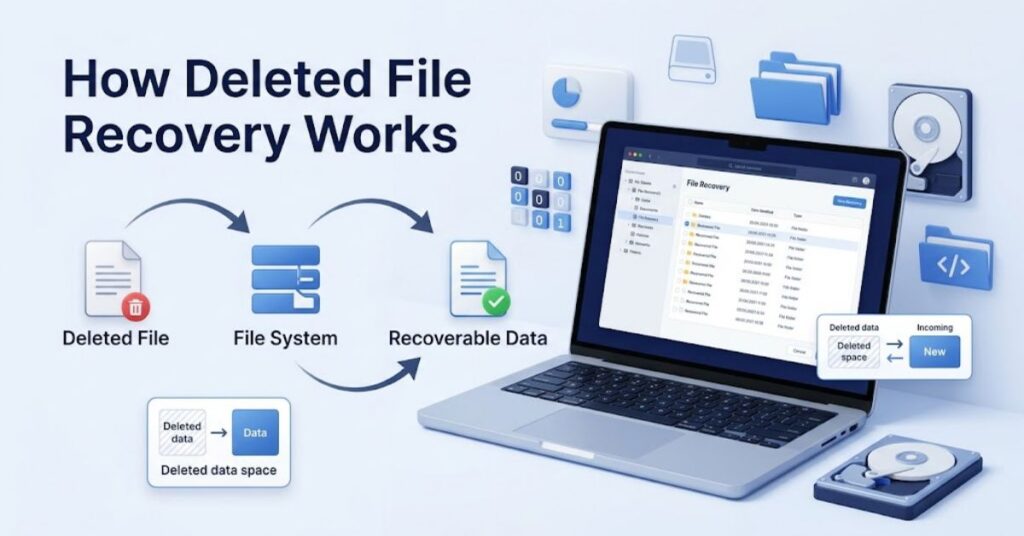
When you delete a file, the computer does not always immediately erase every piece of its data.
On many file systems, the operating system removes the normal reference to the file and makes its storage space available for reuse. Until new data overwrites that space, recovery may remain possible.
Think of a library.
Deleting a file resembles removing a book from the catalog while leaving the physical book on a shelf. The catalog no longer points to it, but the information may still exist.
A new file can eventually occupy that same space. At that point, the old information becomes much harder or impossible to recover.
What happens during recovery?
- File deletion: You remove the file from its original folder.
- File-system change: The operating system marks the space as available.
- Storage remains: Some or all file data may remain temporarily.
- New data arrives: The computer may reuse the available space.
- Recovery attempt: Software scans for remaining file information.
- Restoration: Recoverable data moves to another safe location.
This explains why using the affected drive after deletion can reduce your chances.
It also explains why you should never install recovery software onto the same drive containing the lost files.
What to Do Immediately After Deleting a File
Your first actions can make a major difference.
1. Stop writing data
Avoid downloading files, installing applications, editing videos, or copying large folders onto the affected drive.
2. Check the Recycle Bin or Trash
This should always be your first recovery attempt.
If the file still exists there, restore it instead of using third-party recovery software.
3. Check backups
Look at Windows Backup, external drives, Time Machine, cloud storage, or your organization’s backup system.
A backup usually provides a safer recovery route than file-scanning software.
4. Check cloud storage
Services with deleted-item or version-history features may allow you to restore a previous copy.
5. Save recovered files somewhere else
Never restore a recovered file directly onto the same source drive when you can avoid it.
Use another internal drive, external drive, or suitable storage destination.
6. Avoid random repair utilities
Do not install several recovery programs and repeatedly scan the same drive without a plan. Every unnecessary write can make recovery harder.
How to Recover Deleted Files on Windows
Windows users have several recovery options.
Start with the simplest method before moving to advanced tools.
Check the Recycle Bin
Open the Recycle Bin and look for the missing file.
If you find it:
- Right-click the file.
- Select Restore.
- Windows returns it to its previous location.
This method works when Windows has not permanently removed the item from the Recycle Bin.
Check File History or Backups
If you previously configured Windows backup features, look for an earlier version of the missing file.
Backups can provide a much better recovery result because they restore a known-good copy rather than trying to reconstruct deleted storage data.
Use Windows File Recovery
Microsoft provides Windows File Recovery for recovering deleted files from supported local storage devices.
You can follow the official Windows File Recovery guide for supported recovery modes and commands.
Microsoft explains that the tool can recover files from internal drives, external drives, and USB devices when the files no longer appear in the Recycle Bin. It does not support recovery from cloud storage or network file shares.
Microsoft uses commands such as:
winfr source-drive: destination-drive: /regular
For example, a user might recover certain document types from one drive to another:
winfr C: E: /regular /n *.docx /n *.pdf
The source and destination should use different drives. This reduces the chance of overwriting the very data you want to recover.
Microsoft recommends starting with Regular mode for recently deleted files on healthy NTFS drives and using Extensive mode for more difficult situations such as older deletions, formatted drives, corrupted drives, or supported non-NTFS file systems.
How to Recover Deleted Files on Mac
Mac users should also start with simple recovery options.
First check Trash.
If the file remains there, Control-click it and select Put Back.
If you use Time Machine, check the appropriate backup snapshot and restore the missing file.
Cloud synchronization can provide another recovery path. For example, Apple says iCloud.com can recover certain deleted iCloud Drive and iWork files within 30 days.
This makes cloud recovery especially useful when a local copy has disappeared.
If the file does not exist in Trash, Time Machine, or cloud recovery, you may need specialized recovery software or professional data recovery services.
Mac users dealing with more complicated situations can also review TechCrebia’s Mac Data Recovery Software guide for additional recovery concepts.
Recover Files From USB Drives and Memory Cards
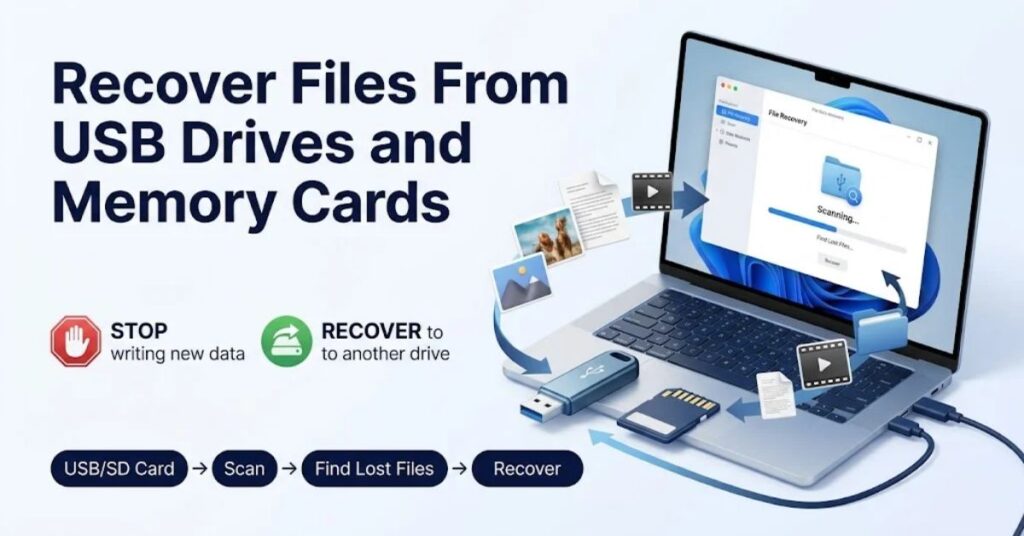
USB drives and memory cards create a common recovery scenario.
You may accidentally delete photos from a camera card or documents from a flash drive. Because these devices often use file systems such as FAT32 or exFAT, recovery software may use different scanning methods than it uses on a standard Windows system drive.
Before attempting recovery:
- Stop saving files to the device.
- Remove the device safely.
- Connect it to a reliable computer.
- Do not format it if Windows asks you to.
- Do not run unnecessary repair operations.
- Recover files to a different storage device.
For example, imagine you delete 200 vacation photos from an SD card.
Do not take another 500 photos immediately after the deletion. The camera may reuse the same storage space, reducing the chance of recovering the original pictures.
A recovery scan can sometimes locate file fragments that the operating system no longer displays.
Deleted File Recovery Software
Recovery software scans storage devices for information that remains after normal deletion.
Different applications use different scanning techniques. Some search the file system for deleted entries. Others search storage directly for recognizable file signatures.
A typical recovery application may offer:
- Quick scanning.
- Deep scanning.
- File-type filtering.
- Folder-based recovery.
- Preview before recovery.
- Partition scanning.
- Formatted-drive scanning.
- External-drive support.
- Memory-card support.
When should you use recovery software?
Use it when:
- The file no longer appears in the Recycle Bin or Trash.
- You do not have a usable backup.
- The storage device still works normally.
- The deleted data has not been overwritten.
- You need to scan an external drive, USB device, or memory card.
Do not assume that every recovery application can recover every file.
Software cannot reliably reconstruct data that another file has already overwritten.
How to choose recovery software
Look for:
- Support for your operating system.
- Support for your storage device.
- Preview functionality.
- Read-only scanning where appropriate.
- Recovery to another destination.
- Clear pricing.
- A reputable developer.
- Transparent limitations.
Avoid programs that promise guaranteed recovery in every situation.
No legitimate recovery tool can guarantee success after severe overwriting or physical storage failure.
For another type of recovery scenario, you can also explore TechCrebia’s iPhone Data Recovery guide.
HDD vs SSD Recovery
Storage technology can strongly influence recovery results.
Traditional hard disk drives store information on magnetic platters. When you delete a file, the system can often mark its space as available while the underlying data remains until new data replaces it.
SSDs work differently.
Modern SSDs use flash memory and technologies such as TRIM to manage storage efficiently. Because of these differences, deleted data may become unavailable more quickly or behave differently during recovery.
This does not mean every deleted SSD file becomes unrecoverable immediately.
It means you should avoid treating HDD and SSD recovery as identical processes.
| Storage Type | Recovery Considerations | Best First Step |
| HDD | Deleted data may remain until overwritten | Stop using the drive |
| SSD | TRIM and flash management can affect recovery | Stop writes immediately |
| USB flash drive | File system and controller behavior matter | Avoid copying new data |
| SD card | New photos can overwrite deleted data | Remove and protect the card |
| External HDD | Recovery depends on drive health | Avoid repair/write operations |
If a drive makes unusual sounds, repeatedly disconnects, or shows severe physical problems, stop experimenting with software. Professional recovery may offer a safer option.
Recover Files From Cloud Storage and Backups
Apple provides an official recovery option for certain deleted iCloud files. See Apple’s official guide to recovering deleted files on iCloud.com for the available recovery process.
Cloud services change the recovery process because deletion does not always mean immediate permanent removal.
Many services provide a deleted-items area, recycle bin, version history, or restoration feature.
For example, Apple states that iCloud can recover certain deleted files within 30 days.
The exact retention period depends on the service and file type.
A practical recovery sequence looks like this:
- Check the local deleted-items folder.
- Check the cloud service’s deleted-items area.
- Check version history.
- Check another synchronized device.
- Check your backup.
- Use recovery software only if appropriate.
Cloud synchronization can also create confusion.
Suppose you delete a synchronized document on your laptop. The deletion may synchronize to your other devices. In that situation, checking another device alone may not restore the original file.
Instead, use the cloud provider’s official recovery feature.
Common Deleted File Recovery Problems
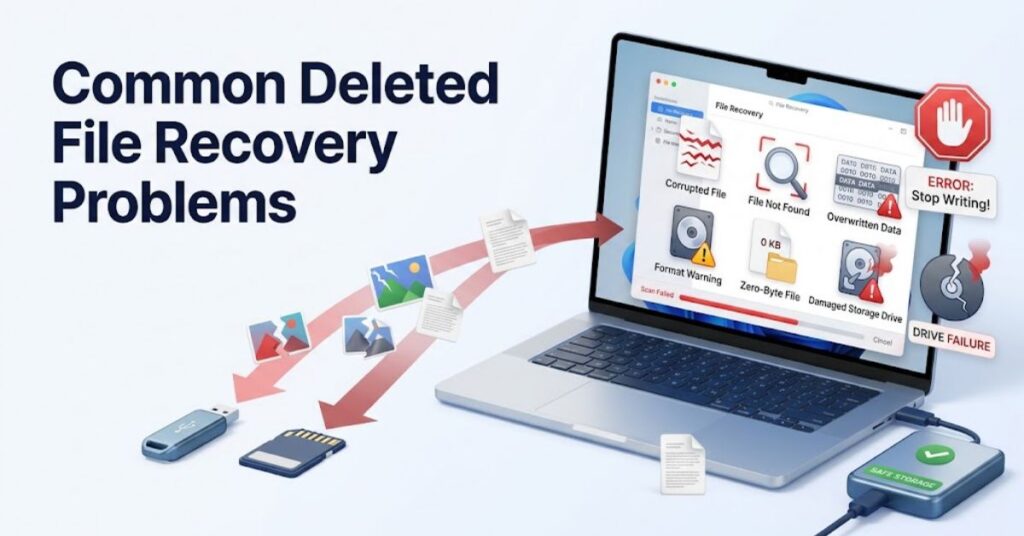
Recovery does not always work smoothly.
The recovered file has the wrong name
Deep scans may find files without their original names or folders.
The content can still remain usable, but you may need to rename and reorganize the recovered files.
The file opens but looks damaged
Partial overwriting can corrupt a recovered file.
Try opening another recovered copy if the software provides several results. For important documents, keep the original recovery output untouched.
The scan finds thousands of files
Use filters.
Search by:
- File extension.
- Approximate filename.
- Folder.
- Date.
- File size.
For example, searching specifically for .docx files can be much easier than reviewing every recovered item.
Windows asks you to format the drive
Do not automatically click Format if the drive contains important lost data.
Formatting can make recovery more complicated.
Recovery software cannot find the file
Several explanations exist:
- The data has been overwritten.
- The file system has severe damage.
- The storage device has physical problems.
- The selected scan mode does not support the situation.
- The file type has limited recovery support.
- SSD behavior has reduced recoverability.
Try a suitable deeper scan only when the drive remains stable. If the device shows physical failure symptoms, stop using it.
The recovered file has zero bytes
A zero-byte result usually does not contain the original file content. Recovery software may identify a file entry without finding the actual data.
In that situation, check backups or other copies before spending more time on software recovery.
Best Practices for Preventing Data Loss
The easiest recovery is the recovery you never need.
Use the 3-2-1 backup approach
Keep multiple copies of important data using different storage locations and at least one copy away from the primary device.
For example:
- Primary copy on your computer.
- Backup on an external drive.
- Additional copy in trusted cloud storage.
Create automatic backups
Manual backups often fail because people forget to run them.
Automatic schedules reduce that risk.
Keep important files organized
A clear folder structure makes accidental deletion less likely and simplifies backup management.
Protect external drives
Do not disconnect storage devices while they are actively writing data.
Keep recovery software off the source drive
If you expect to recover deleted data, install recovery tools on another drive when possible.
Test your backups
A backup that cannot restore successfully does not provide much protection.
Periodically restore a few sample files and confirm that the copies work.
For general data protection and recovery planning, TechCrebia’s SD Memory Recovery Software guide can also provide related recovery context.
Latest Trends in File Recovery
Deleted file recovery continues to change as storage technology evolves.
Modern recovery tools increasingly use smarter file identification, improved partition analysis, and more user-friendly interfaces.
AI-assisted classification may also help users sort large numbers of recovered files. Instead of manually opening thousands of results, future tools can potentially group documents, images, videos, and other data more intelligently.
Cloud recovery also continues to become more important. Users increasingly store files across local computers, smartphones, cloud drives, and synchronized applications.
That creates both benefits and risks.
A deleted file may still exist in another recovery layer, but synchronization can also spread deletions across devices.
Another important trend involves SSDs and newer storage architectures. Recovery companies and software developers must adapt to increasingly complex storage controllers, encryption, flash-management systems, and operating-system behavior.
The future of recovery will therefore focus on prevention, intelligent backups, faster scanning, and better recovery diagnostics, not simply deeper disk scanning.
Key Takeaways
- Deleted files are not always immediately unrecoverable.
- Stop using the affected storage device after accidental deletion.
- Check Recycle Bin, Trash, backups, and cloud recovery first.
- Windows provides Windows File Recovery for certain local-storage recovery situations.
- Mac users should check Trash, Time Machine, and supported iCloud recovery options.
- Never save recovered files back to the same source drive when you can avoid it.
- HDD and SSD recovery can behave differently.
- Formatting or continued use can reduce recovery chances.
- Recovery software cannot guarantee success after data overwriting.
- Professional recovery makes more sense when a storage device shows physical failure.
- Regular backups remain the best defense against permanent data loss.
Conclusion
Deleted file recovery can often rescue important information, but timing matters.
Start with the simplest recovery method. Check the Recycle Bin or Trash. Look through backups. Check cloud storage and version history. Only then consider specialized recovery software.
If the file was permanently deleted, stop using the affected drive before trying advanced recovery. New data can overwrite the space that once contained your file.
Storage technology also matters. HDDs, SSDs, USB drives, and memory cards behave differently, so one recovery method will not work equally well in every situation.
Most importantly, do not rely on recovery as your primary data-protection strategy. Automatic backups, cloud copies, and external storage provide much stronger protection against accidental deletion, hardware failure, and other data-loss events.
With the right approach, you can improve your chances of recovering lost files while avoiding the common mistakes that make recovery harder.
FAQs
What is deleted file recovery?
Deleted file recovery is the process of restoring files that you accidentally deleted, lost, or removed from normal storage locations.
Can permanently deleted files be recovered?
Sometimes. Recovery may work when the deleted data has not been overwritten, but no method guarantees successful recovery.
How do I recover a deleted file without software?
Check the Recycle Bin or Trash, backups, File History, Time Machine, cloud storage, and deleted-items folders first.
Can I recover files after emptying the Recycle Bin?
Yes, sometimes. Recovery software may find remaining data if the storage space has not been overwritten.
Can deleted files be recovered from an SSD?
Sometimes, but SSD storage behavior and technologies such as TRIM can make recovery more difficult than traditional HDD recovery.
Is deleted file recovery software safe?
Reputable recovery software can be safe, but download it from a trusted source and avoid installing it on the drive containing the lost files.
Should I format a drive before recovery?
No. Formatting can make recovery more difficult. Preserve the affected drive until you have exhausted suitable recovery options.
Can I recover deleted files from a USB drive?
Yes, recovery may be possible if the deleted data has not been overwritten and the USB drive remains accessible.
Can cloud storage recover deleted files?
Many cloud services provide deleted-item or restoration features, but retention periods and recovery options vary by provider.
What should I do if a hard drive is physically failing?
Stop using it and consider professional data recovery instead of repeatedly scanning or repairing the drive yourself.
SEO Tags
- deleted file recovery
- recover deleted files
- deleted file recovery software
- recover permanently deleted files
- file recovery software
- data recovery
- Windows file recovery
- Mac file recovery
- recover lost files
- USB file recovery
Internal Linking Suggestions With Anchor Text
- Difference Between Software and Hardware — Use when explaining how software interacts with storage hardware.
- Mac Data Recovery Software — Use for Mac-specific recovery discussions.
- iPhone Data Recovery — Use when expanding recovery topics to mobile devices.
- SD Memory Recovery Software — Use for memory-card and removable-storage recovery.
- System Glitch Software Issues — Use when discussing unexpected system problems that can contribute to data loss.
Authoritative External References
- Microsoft Support — Windows File Recovery
- Apple Support — Recover Deleted Files on iCloud.com
Social Media Title
Deleted File Recovery: How to Recover Lost Files Safely



