





Quick Answer:
SD memory recovery software helps recover deleted, formatted, corrupted, or inaccessible files from SD and microSD cards.
It scans the card for recoverable data and lets you preview and save files to another storage device.
For the best chance of recovery, stop using the card immediately, avoid formatting it, and save recovered files somewhere other than the original card.
Author Information
Author: Gulnaz Malik
Role: Founder, Publisher & Technology Content Specialist
Experience: 5+ Years in Technology, AI, Software & Digital Innovation
Content Review: All content follows Google’s latest EEAT guidelines and includes fact-checked information from official documentation, trusted technology sources, industry reports, and practical research to ensure accuracy, reliability, and up-to-date insights.
Introduction
Losing photos, videos, documents, or other files from an SD card can feel stressful. A single accidental deletion can remove years of memories. A corrupted card can also make important files disappear without warning.
The good news is that deleted or inaccessible data does not always disappear immediately. In many cases, the card still contains recoverable file data.
SD memory recovery software can scan that storage and search for files that normal File Explorer or a phone cannot display.
Recovery success depends on several factors. New files can overwrite old data. Physical damage can also make recovery difficult. Your actions immediately after data loss therefore matter.
This guide explains how SD memory recovery software works, when you should use it, how to choose a recovery tool, and how to recover files safely.
It also covers formatted cards, corrupted cards, common errors, free versus paid tools, and advanced recovery situations.
If you regularly work with storage devices, understanding the basic difference between software and hardware can also help you understand why recovery tools can fix logical problems but cannot repair seriously damaged memory hardware. Difference between software and hardware
Table of Contents
- What Is SD Memory Recovery Software?
- How SD Memory Recovery Software Works
- When Should You Use SD Memory Recovery Software?
- Types of SD Card Data Loss
- How to Recover Files With SD Memory Recovery Software
- Free vs Paid SD Memory Recovery Software
- How to Choose the Right Recovery Software
- Common SD Card Recovery Problems
- Troubleshooting SD Card Recovery
- Best Practices for Successful Recovery
- Is SD Memory Recovery Software Safe?
- Latest Trends in Memory Card Recovery
- Key Takeaways
- Conclusion
- FAQs
- SEO Tags
- Internal Linking Suggestions
- Authoritative External References
- Social Media Title
- Social Media Description
What Is SD Memory Recovery Software?
SD memory recovery software is a specialized utility that searches an SD, microSD, SDHC, or SDXC card for recoverable files.
When you delete a file, the operating system often marks the space as available instead of immediately replacing every data block. That allows recovery software to locate the remaining data.
Recovery tools can search for:
- Deleted photos
- Videos
- Documents
- Audio files
- PDFs
- ZIP archives
- Camera RAW files
- Office files
- Other recognizable file formats
Some programs also recover data after accidental formatting or file-system corruption.
The software usually scans the card in read mode. It analyzes file-system information and, when necessary, searches the storage directly for recognizable file patterns.
For example, imagine you accidentally delete 500 vacation photos from a camera card. If you stop taking new photos immediately, recovery software may find many of those images because the card has not yet reused the storage space.
However, no recovery program can guarantee 100% recovery. If new data overwrites the old data, the original information may become impossible to reconstruct.
How SD Memory Recovery Software Works

Most recovery programs follow a similar process. First, you connect the SD card to a computer through a card reader.
The software identifies the storage device and displays its capacity and file-system information.
Next, you select a scan. A quick scan may inspect file-system records for recently deleted files. A deep or extensive scan can examine the card more thoroughly when the normal directory structure no longer works.
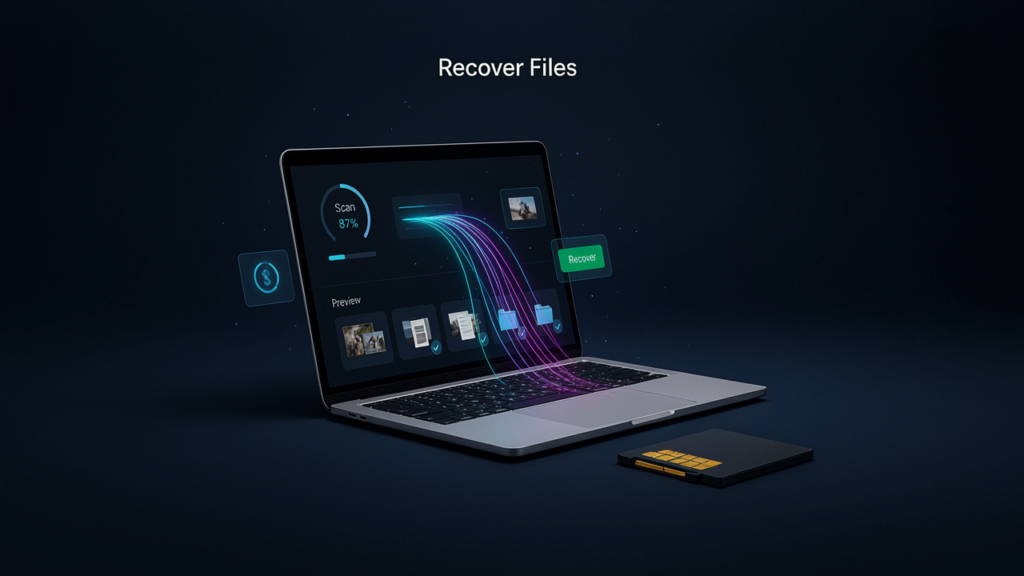
The program then creates a list of possible files. Good recovery software lets you preview files before you recover them. This feature helps you identify useful results and avoid saving unnecessary data.
Finally, you select the files and save them to another drive.
Never save recovered files back to the same SD card. Saving them there can overwrite other recoverable information.
Microsoft also recommends minimizing computer use when recovering deleted files because normal activity can overwrite free space. Its Windows File Recovery documentation explains that FAT and exFAT commonly support SD cards and recommends extensive recovery for those file systems.
When Should You Use SD Memory?
You should consider SD memory recovery software when normal access does not restore your files.
Common situations include accidental deletion, accidental formatting, corrupted directories, missing photos, or an SD card that suddenly shows incorrect storage information.
Recovery software works best when the card still appears on the computer and the system can communicate with it.
You should stop using the card immediately after data loss. Do not continue taking photos. Do not download files onto it. Do not move files around. Do not format it.
For example, if your camera says “Card needs to be formatted”, do not immediately click Format. That action can make your recovery situation more complicated.
If your computer detects the card but shows no files, recovery software may still find the underlying data.
If the card does not appear at all, however, software may not solve the problem. A damaged card reader, broken connector, failed memory controller, or serious hardware failure may require professional recovery.
Types of SD Card Data Loss
Different data-loss situations require different recovery approaches.
| Data-loss situation | Recovery possibility | Recommended first action |
| Accidentally deleted files | Often good | Stop using the card and scan it |
| Quickly formatted card | Often possible | Avoid writing new data |
| Corrupted file system | Depends on damage | Create a backup/image if possible |
| Missing photos | Often recoverable | Use a deep scan |
| Card asks for formatting | Possible | Cancel the format prompt |
| Card shows wrong capacity | Depends on cause | Stop using the card |
| Physically broken card | Difficult | Consider professional recovery |
| Overwritten files | Low | Stop using the card immediately |
A formatted card can still contain recoverable information in some situations. However, recovery becomes harder after continued use.
The SD Association recommends using its official SD Memory Card Formatter for proper SD card formatting and warns against using non-standard file systems because they can create compatibility and data-transfer problems. SD Association Formatter FAQ
How to Recover Files from an SD Card
The safest recovery process starts with preservation. Your goal should not simply involve finding a recovery program. Your goal should involve protecting the remaining data before you scan and recover it.
Prepare the SD Card
- Stop using the SD card immediately.
- Remove it from your camera, phone, drone, or other device.
- Use a reliable card reader.
- Connect the card directly to a computer.
- Do not format the card.
- Do not create new files on it.
- Prepare another drive with enough free space for recovered files.
Scan the Memory Card
- Open your recovery software.
- Select the SD or microSD card.
- Start with a standard scan if the program offers one.
- Use deep or extensive scanning if the first scan finds nothing useful.
- Wait for the scan to finish.
- Avoid disconnecting the card during the scan.
Preview and Recover Files
- Filter results by photos, videos, documents, or other file types.
- Check file names and folders when available.
- Preview important files before recovery.
- Select the files you need.
- Save them to another drive.
- Open several recovered files to confirm their integrity.
For Windows users, Microsoft’s official Windows File Recovery tool offers Regular and Extensive modes.
Microsoft recommends a different destination drive for recovered files, which follows the same basic safety principle used by graphical recovery programs.
Free vs Paid Recovery Tools
Free recovery software can work well for simple cases. You may recover recently deleted photos without paying for a premium application.
However, free tools often have limitations. They may restrict recovery capacity, advanced scans, file previews, technical support, or damaged-card recovery features.
Paid software usually offers a more complete feature set. Some programs support disk imaging, advanced file-system analysis, extensive scanning, file previews, and broader file-type support.
| Feature | Free tools | Paid tools |
| Deleted file scanning | Usually | Yes |
| Deep scanning | Sometimes | Usually |
| File preview | Depends on tool | Usually |
| Large recovery jobs | Often limited | Usually supported |
| Damaged file systems | Limited | Better support |
| Technical support | Rare | Common |
| Disk imaging | Limited | Often available |
| Cost | Free | Usually license-based |
You do not always need a premium tool. Start with a trusted free option when the situation looks simple. Consider paid software when the card contains valuable files or a basic scan cannot find them.
You should also evaluate the recovery software itself. A clear interface, preview function, read-only scanning, reliable file-type support, and transparent pricing matter more than flashy marketing.
How to Choose the Right Recovery Software
Choosing the right tool requires more than searching for “best SD card recovery software.”
Look for software that supports your card’s file system and your operating system. FAT32 and exFAT are common on SD cards, while specific devices can use different configurations.
A good recovery program should also support the file types you need.
For example, photographers may need JPEG, PNG, RAW, CR2, NEF, ARW, or other camera formats. A business user may care more about DOCX, XLSX, PDF, ZIP, and database files.
Check these features before installing a tool:
- SD and microSD support
- FAT32 and exFAT support
- Deep scanning
- File preview
- Multiple file-type support
- Read-only scanning
- Recovery to another drive
- Disk-image support
- Clear pricing
- Reputable developer
- Regular software updates
Avoid programs that promise guaranteed recovery. Data recovery depends on the condition of the storage and the amount of overwriting.
Also avoid suspicious download websites. They can bundle unwanted programs or modified installers.
Common SD Card Recovery Problems
SD card recovery does not always go smoothly. Several problems can prevent software from finding your files.
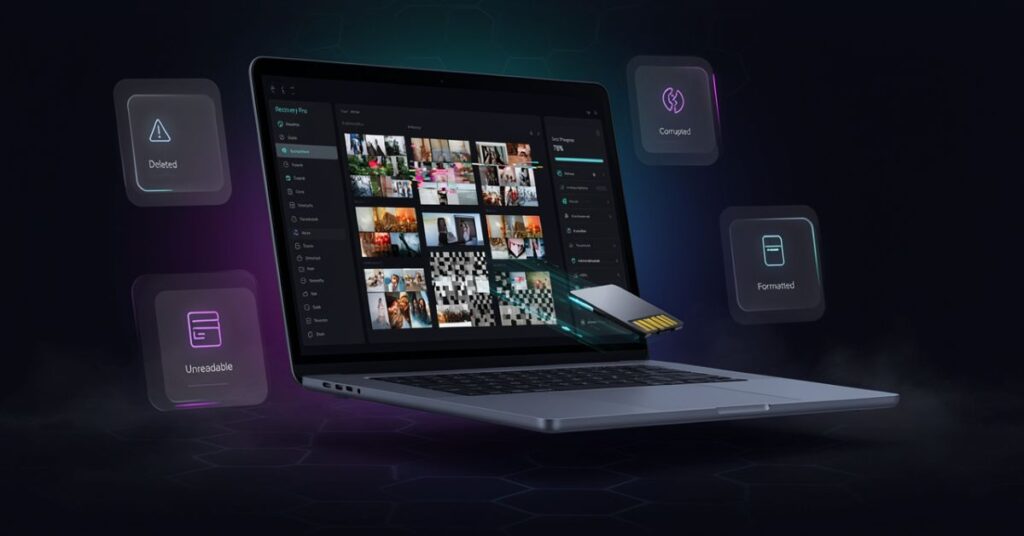
A card may appear as RAW instead of FAT32 or exFAT. The operating system may ask you to format it. The card may show the wrong capacity. A scan may also find files with missing names or broken folder structures.
Sometimes the recovery software finds thousands of files but cannot preserve their original names. This can happen when the software reconstructs files from raw data instead of reading a healthy directory structure.
Video files can present another challenge. Large videos may fragment across multiple storage areas. A simple file scan may locate the file but fail to reconstruct it correctly.
Physical damage creates an even bigger problem. If the computer cannot reliably read the memory, software cannot extract information that the card reader cannot access.
Troubleshooting SD Card Recovery
The SD Card Does Not Appear
- Try another card reader.
- Try another USB port.
- Test the card on another computer.
- Check whether the operating system detects the device.
- Do not format the card if Windows asks you to format it.
- Stop if the card repeatedly disconnects.
If several computers and readers fail to detect the card, the problem may involve hardware rather than ordinary file-system corruption.
The Recovery Software Finds Nothing
- Run a deep or extensive scan.
- Check all available file-system options.
- Search by file type.
- Try another reputable recovery application.
- Confirm that the software detects the correct card.
- Avoid writing anything to the card.
Microsoft explains that Windows File Recovery uses Extensive mode for FAT and exFAT file systems, which commonly include SD cards.
Recovered Photos Look Corrupted
- Recover the files to another drive.
- Try the original file type filter.
- Preview multiple files.
- Run another deep scan.
- Try software that supports fragmented camera files.
- Check whether the card suffered physical damage.
If every recovered photo shows the same corruption pattern, the original data may have suffered overwriting or severe damage.
Windows Asks You to Format the Card
- Cancel the format prompt.
- Do not click Format.
- Disconnect the card safely.
- Reconnect it through another reader if possible.
- Scan the card with recovery software.
- Recover important files before attempting repair.
Windows chkdsk can check and repair file-system problems, but Microsoft notes that repair operations modify the file system. On FAT-based storage, those changes can affect lost allocation chains.
For that reason, recover valuable data before attempting aggressive repair commands.
Best Practices for Successful Recovery
Good recovery starts before you install software.The most important rule involves minimizing writes to the damaged or deleted card.
Every new file can potentially occupy storage space that previously held recoverable information.
Use a reliable card reader. A faulty reader can cause disconnects and make a healthy card appear damaged.
Keep recovered files on a separate drive. You can use a computer drive, external hard drive, or another storage device with enough capacity.
For important professional work, consider creating a sector-by-sector image of the card before repeated recovery attempts. You can then work with the image instead of repeatedly stressing the original card.
After successful recovery, format the SD card only when you no longer need its original contents. If the card continues to produce errors, replace it rather than trusting it with important data.
You can also improve your broader digital workflow with reliable tools. TechCrebia’s guide to productivity software explains how software can support organization, file management, and everyday digital work. productivity software guide
Is SD Memory Recovery Software Safe?

Reputable SD memory recovery software can safely scan a memory card when you use it correctly.
The bigger risks usually come from unsafe downloads, writing recovered files to the same card, formatting before recovery, or using repair tools before securing important data.
Download software from the developer’s official website. Check the publisher name and installer details. Keep your operating system and security software updated.
Do not install multiple unknown recovery programs at random. Each program can create files on your computer, and unnecessary activity can complicate the recovery process.
You should also avoid recovery software that makes unrealistic claims. No legitimate program can guarantee recovery from every deleted, formatted, overwritten, or physically damaged SD card.
For important business or professional data, a professional recovery service may provide a safer option when the card shows signs of physical failure.
Latest Trends in Memory Card Recovery
Memory card recovery technology continues to improve as storage devices become larger and cameras create more complex files.
Modern recovery applications increasingly use signature-based scanning and intelligent file reconstruction. These methods can identify files even when normal folders and file names no longer exist.
Camera recovery also remains an important area. High-resolution cameras create large photos and videos, while drones and action cameras can produce large fragmented files.
Another important trend involves disk imaging. Instead of repeatedly scanning a failing card, advanced workflows can create an image first. Technicians can then work from that copy.
AI-assisted classification may also improve recovery workflows. Future tools can potentially identify likely photos, videos, documents, and duplicates more efficiently.
However, users should treat AI claims carefully because recovery still depends on the actual data remaining on the storage.
Better preview technology also helps users identify healthy files before recovery. This feature saves time when a deep scan returns thousands of results.
As SD card capacities grow, recovery scans may also take longer. Users should therefore choose software that provides progress information and supports large storage devices.
Key Takeaways
- SD memory recovery software can recover many deleted, formatted, or inaccessible files.
- Stop using the card immediately after data loss.
- Never save recovered files back to the same SD card.
- Avoid formatting before you recover important data.
- Use deep scanning when a quick scan fails.
- Preview files before recovery whenever possible.
- Free tools can work for simple recovery jobs.
- Paid tools can provide advanced scanning and file reconstruction.
- Physical damage may require professional recovery.
- Always download recovery software from a trusted source.
- Create backups after successful recovery to prevent future data loss.
Conclusion
SD card data loss does not always mean permanent loss. SD memory recovery software can often locate deleted, formatted, or inaccessible files when the underlying data remains intact.
Your actions after data loss matter more than many people realize. Stop using the card. Do not format it. Do not save new files. Start with a trusted recovery method and save recovered data to another storage device.
Free recovery tools can help with simple situations, while paid software can offer deeper scans and advanced features.
If the card has physical damage or repeatedly disconnects, professional recovery may provide a safer solution.
After you recover your files, create a backup. SD cards provide convenient portable storage, but they should never serve as the only copy of valuable photos, videos, or documents.
FAQs
Can SD memory recovery software recover deleted photos?
Yes. Recovery software can often recover deleted photos when new data has not overwritten the original storage space.
Can I recover files from a formatted SD card?
Yes, recovery may remain possible after a quick format, but continued use can overwrite the original data and reduce recovery chances.
What should I do first after deleting SD card files?
Stop using the SD card immediately. Do not take new photos, copy files, or format the card.
Can recovery software fix a physically damaged SD card?
Usually not. Software can address many logical problems, but severe physical damage may require professional data recovery.
Should I save recovered files to the same SD card?
No. Save recovered files to another drive to avoid overwriting other recoverable data.
Is free SD memory recovery software reliable?
Some free tools work well for simple cases, but advanced recovery may require a paid application with deeper scanning and better file support.
Why does my SD card ask me to format it?
The card may have a corrupted or unreadable file system. Cancel the format prompt if you need the existing data.
Does CHKDSK recover deleted SD card files?
CHKDSK primarily checks and repairs file-system problems. It does not replace dedicated data recovery software and can modify the file system during repairs.
SEO Tags
SD memory recovery software, SD card recovery, memory card recovery, recover deleted files, recover deleted photos, SD card data recovery, microSD recovery, formatted SD card recovery, corrupted SD card recovery, data recovery software
Internal Linking Suggestions with Anchor Text
- Difference Between Software and Hardware → https://techcrebia.com/difference-between-software-and-hardware/
- Productivity Software Guide → https://techcrebia.com/productivity-software/
- Samsung J7 Software Update Guide → https://techcrebia.com/samsung-j7-software-update-guide/
- Samsung Galaxy J7 Update Software → https://techcrebia.com/samsung-galaxy-j7-update-software/
- PhysX System Software Guide → https://techcrebia.com/physx-system-software/
Authoritative External References
Social Media Title
SD Memory Recovery Software: Recover Deleted Files Safely
Social Media Description
Lost photos or files from an SD card? Learn how SD memory recovery software works, how to recover deleted data, and which mistakes you should avoid.



