





Quick Answer
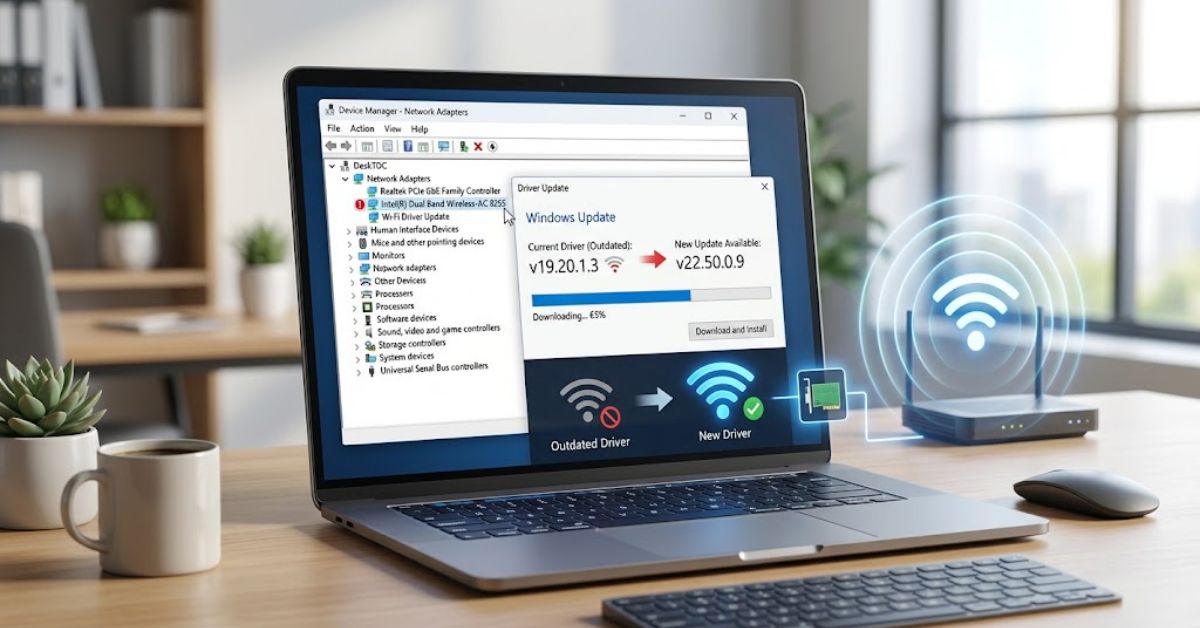
A WiFi Driver Update installs newer software for your computer’s wireless network adapter. Updated drivers can improve compatibility, stability, and connectivity.
On Windows, you can update a Wi-Fi driver through Windows Update, Device Manager, or your computer or adapter manufacturer’s official website.
If Wi-Fi stops working after an update, rolling back or reinstalling the driver can often help.
Author Information
Author: Gulnaz Malik
Role: Founder, Publisher & Technology Content Specialist
Experience: 5+ Years in Technology, AI, Software & Digital Innovation
Content Review: All content follows Google’s latest EEAT guidelines and includes fact-checked information from official documentation, trusted technology sources, industry reports, and practical research to ensure accuracy, reliability, and up-to-date insights.
Introduction
A stable Wi-Fi connection is essential for modern computers. We use wireless networks for browsing, video calls, gaming, streaming, cloud applications, downloads, and work.
When Wi-Fi suddenly becomes slow or unreliable, many users immediately blame the router. However, the problem can also come from the computer’s wireless network adapter or its driver.
A WiFi Driver Update can help when the existing driver has compatibility problems, bugs, or poor support for newer Windows versions and wireless standards.
Windows can install many drivers automatically. However, Windows Update does not always provide the newest driver available from the computer or wireless adapter manufacturer. Microsoft recommends checking the hardware manufacturer’s website when Windows cannot find an appropriate driver. (techcrebia.com)
This guide explains how Wi-Fi drivers work, when you should update them, which update method to use, and what to do when an update creates a new problem.
Table of Contents
- What Is a WiFi Driver Update?
- Why Should You Update Your Wi-Fi Driver?
- When Should You Perform a WiFi Driver Update?
- How to Check Your Current Wi-Fi Driver
- How to Update Wi-Fi Drivers in Windows
- How to Update a Wi-Fi Driver Manually
- How to Choose the Correct Wi-Fi Driver
- Common WiFi Driver Update Problems
- How to Fix Wi-Fi Problems After a Driver Update
- Wi-Fi Driver Updates for Different Hardware
- WiFi Driver Update Best Practices
- Latest Wi-Fi Driver and Wireless Technology Trends
- Key Takeaways
- Conclusion
- FAQ
What Is a WiFi Driver Update?
A Wi-Fi driver is software that allows Windows to communicate with your computer’s wireless network adapter.
The adapter handles wireless communication. The driver acts as the software layer that helps Windows control that hardware.
For example, when you select a wireless network, Windows sends instructions to the Wi-Fi adapter through the driver. The adapter then communicates with the router.
A WiFi Driver Update replaces an older driver with a newer compatible version.
A newer driver may include bug fixes, better Windows compatibility, improved wireless stability, support for newer hardware, performance improvements, and power-management improvements.
Drivers do not normally increase your internet package speed. If your ISP provides a 100 Mbps connection, installing a driver will not turn it into a 1 Gbps connection.
However, the correct driver can help your computer use its available wireless hardware more effectively.
The relationship between physical hardware and software is easier to understand through TechCrebia’s guide to the Difference Between Software and Hardware.
Why Should You Update Your Wi-Fi Driver?

A driver update can solve problems that basic router troubleshooting cannot fix.
For example, imagine that your laptop connects normally to a 2.4 GHz network but frequently disconnects from a newer 5 GHz network. The router may work correctly with your phone and other computers.
In this situation, the laptop’s Wi-Fi adapter or driver could be part of the problem.
Microsoft recommends checking the wireless adapter’s driver version and date in Device Manager when troubleshooting Wi-Fi problems. (techcrebia.com)
A Wi-Fi driver update can also become important after a Windows update. Major operating-system changes can introduce compatibility issues with older drivers.
Benefits of Updating a Wi-Fi Driver
- Better stability when connecting to wireless networks.
- Improved compatibility with newer Windows versions.
- Possible fixes for recurring disconnects.
- Better support for newer wireless hardware.
- Improvements to power management on laptops.
- Fixes for known adapter-specific problems.
A driver update should not become a routine task that you perform every week. Install it when a newer compatible version addresses your problem, supports your system, or comes from a trusted manufacturer.
When Should You Perform a WiFi Driver Update?
You do not need to update a Wi-Fi driver simply because a newer version exists.
Instead, consider updating when you experience a specific problem or when the manufacturer recommends a newer release.
Common situations include:
- Wi-Fi frequently disconnects.
- Available networks disappear.
- Windows cannot detect the wireless adapter.
- Wi-Fi stops working after a Windows update.
- The adapter shows an error in Device Manager.
- A new Windows version requires a compatible driver.
- Your manufacturer releases a driver that fixes a known problem.
- You upgrade or replace the wireless adapter.
- A new driver adds support for a wireless feature you need.
You should also check the release notes before installing a manual driver. The newest driver may target specific hardware or operating-system versions.
Do not assume that the newest file works with every laptop or desktop.
How to Check Your Current Wi-Fi Driver
Before updating anything, identify the wireless adapter and its current driver.
This step prevents one of the most common mistakes: downloading a driver for the wrong device.
Find the Adapter in Device Manager
- Press Windows + X.
- Select Device Manager.
- Expand Network adapters.
- Find the wireless adapter.
- Right-click it and select Properties.
- Open the Driver tab.
- Check the driver provider, date, and version.
Write down the adapter’s exact model.
For example, your computer might use an Intel, Realtek, MediaTek, Qualcomm, or Broadcom wireless adapter.
The computer manufacturer can also use a customized driver. That makes the exact laptop or desktop model important.
Check Wireless Capabilities
Windows also provides a useful command for checking supported wireless features.
Open Command Prompt or Windows Terminal and run:
netsh wlan show drivers
The command can display information about the wireless adapter and supported radio types.
This information helps you understand whether the limitation comes from the driver, adapter, router, or network configuration.
How to Update Wi-Fi Drivers in Windows
Windows provides several ways to update a Wi-Fi driver. Start with the simplest method.
Method 1: Use Windows Update
Windows Update is usually the safest starting point.
Microsoft allows Windows to install recommended hardware drivers through its update system. Optional driver updates may also appear separately. (techcrebia.com)
To check:
- Open Settings.
- Select Windows Update.
- Select Check for updates.
- Install available updates.
- Check Advanced options for optional updates when available.
- Restart your computer.
Windows may not show a driver update every time. That does not necessarily mean your driver is outdated.
The system may already have the appropriate driver.
Method 2: Update Through Device Manager
Device Manager provides another option.
- Open Device Manager.
- Expand Network adapters.
- Right-click your wireless adapter.
- Select Update driver.
- Choose the available search option.
- Follow the instructions.
- Restart the computer if Windows requests it.
Device Manager is useful when you want to check the driver directly.
However, Windows may report that the best driver is already installed even when the manufacturer’s website offers a newer package.
Method 3: Install the Manufacturer’s Driver
If Windows Update does not solve the problem, check the official website for your computer or adapter manufacturer.
Laptop manufacturers often customize drivers for their specific systems.
This approach can be especially useful after reinstalling Windows or when Wi-Fi disappears completely.
Microsoft also recommends downloading the required Wi-Fi driver from the manufacturer’s website when Windows cannot provide one. (techcrebia.com)
How to Update a Wi-Fi Driver Manually
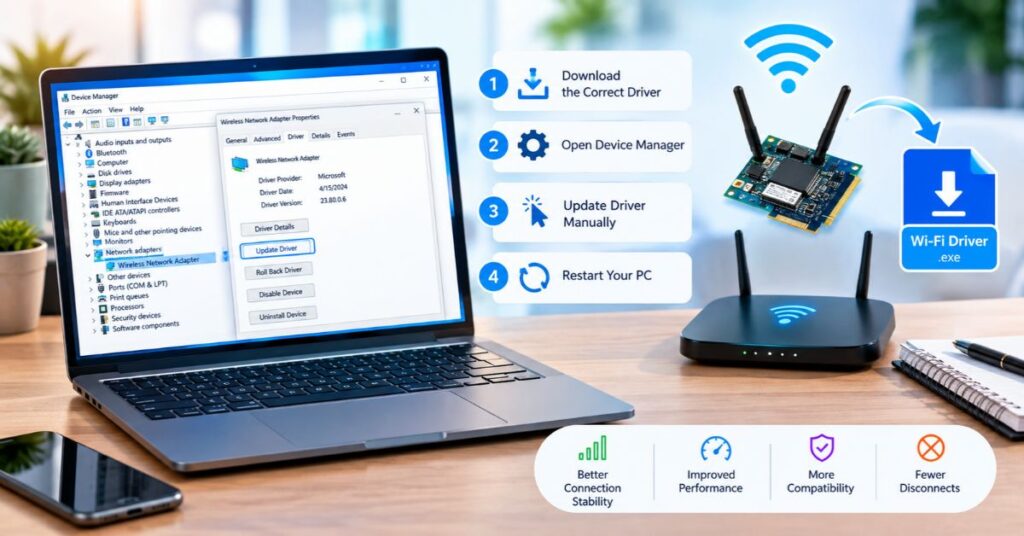
Manual installation gives you more control, but you need to identify the hardware correctly.
Start by finding the exact adapter model.
Then visit the official support page for your computer or adapter manufacturer.
Download the driver that matches your computer model, Windows version, system architecture, and wireless adapter.
After downloading the file:
- Close unnecessary applications.
- Create a restore point when appropriate.
- Run the manufacturer’s installer.
- Follow the installation instructions.
- Restart Windows.
- Test the Wi-Fi connection.
- Check Device Manager again.
For Intel wireless adapters, Intel provides official Windows driver packages and its Driver & Support Assistant as an update option. Intel also notes that computer manufacturers may provide drivers specifically configured for their systems.
That distinction matters for laptops. If your laptop manufacturer provides a customized wireless driver, check it before installing a generic package.
How to Choose the Correct Wi-Fi Driver
Choosing the right driver matters more than choosing the newest driver.
A driver can look legitimate but still fail if it does not match your hardware.
Check Your Hardware
- Find the exact adapter name.
- Confirm the computer model.
- Check whether you use Windows 10 or Windows 11.
- Confirm whether the system uses 64-bit Windows.
- Check the manufacturer’s compatibility notes.
Check the Driver Release
- Read the release date.
- Review supported hardware.
- Read the release notes.
- Look for known issues.
- Check whether the release targets your Windows version.
Prefer Official Sources
Download Wi-Fi drivers from:
- Your laptop manufacturer’s support page.
- Your desktop manufacturer’s support page.
- The wireless adapter manufacturer’s official website.
- Windows Update.
Avoid websites that collect large collections of unknown driver installers.
Third-party driver sites can provide incorrect, modified, outdated, or unwanted files.
Common WiFi Driver Update Problems
A WiFi Driver Update does not always solve every problem. Sometimes the update itself creates a new compatibility issue.
Wi-Fi Stops Working After the Update
This can happen when the new driver does not work well with your specific hardware or Windows configuration.
First, restart the PC.
If the problem remains, check Device Manager for an error.
You can also roll back the driver if the previous version worked correctly.
Wi-Fi Adapter Disappears
If Device Manager no longer shows the wireless adapter, Windows may not detect the hardware correctly.
Check whether the adapter appears in Device Manager and whether Windows has disabled it.
If it does not appear at all, check the computer manufacturer’s support page and consider reinstalling the appropriate driver.
Driver Installation Fails
A failed installation can result from:
- Incorrect driver package.
- Unsupported Windows version.
- Existing driver conflicts.
- Corrupted installer.
- Insufficient permissions.
- Manufacturer-specific restrictions.
Restart Windows and try the correct official package again.
Wi-Fi Is Still Slow
A driver update cannot solve every slow-Wi-Fi problem.
Your speed can also depend on:
- Router location.
- Signal strength.
- Network congestion.
- Wireless band.
- Router capabilities.
- Internet service speed.
- Number of connected devices.
- Wireless interference.
Test another device on the same network. If every device performs poorly, the router or internet connection may be the real cause.
How to Fix Wi-Fi Problems After a Driver Update
If Wi-Fi becomes unreliable after installing a new driver, work through the problem systematically.
Restart First
Restart the computer and router.
This clears temporary software and network states.
Check Device Manager
Open Device Manager and inspect the wireless adapter.
Look for warning icons, disabled status, driver errors, or a missing adapter.
Enable the device if Windows disabled it.
Roll Back the Driver
If Wi-Fi worked before the update and stopped immediately afterward, a rollback may help.
Open the adapter’s Properties, select the Driver tab, and check whether Roll Back Driver is available.
This option may not appear when Windows does not have a previous driver available.
Reinstall the Driver
If rolling back does not help, reinstall the appropriate driver.
Before uninstalling a working network driver, keep a backup driver available. This becomes especially important if the computer has no Ethernet connection.
Use Network Reset as a Last Resort
Windows includes a network reset option.
It removes installed network adapters and resets network settings. Microsoft recommends using network reset as a later troubleshooting step rather than the first solution.
You may need to reconfigure VPN clients or other networking software afterward.
Wi-Fi Driver Updates for Different Hardware
The best update method can depend on the device you own.
| Device | Recommended Driver Source | Important Consideration |
| Laptop | Laptop manufacturer | Use model-specific drivers |
| Desktop PC | PC or motherboard manufacturer | Check integrated Wi-Fi hardware |
| Intel Wi-Fi adapter | Intel or PC manufacturer | Check exact adapter model |
| USB Wi-Fi adapter | Adapter manufacturer | Match hardware revision |
| Custom-built PC | Motherboard manufacturer | Confirm wireless chipset |
| Older computer | Manufacturer support page | Check Windows compatibility |
Laptop users should usually start with the laptop manufacturer’s support page.
For example, a laptop may use an Intel wireless chipset but still require a manufacturer-tested package for proper function.
When using a custom desktop, check the motherboard model or wireless card model before downloading a driver.
USB Wi-Fi adapters also require attention to the exact model and hardware revision because similar adapters can use different chipsets. Two products with similar names can use different chipsets.
WiFi Driver Update Best Practices
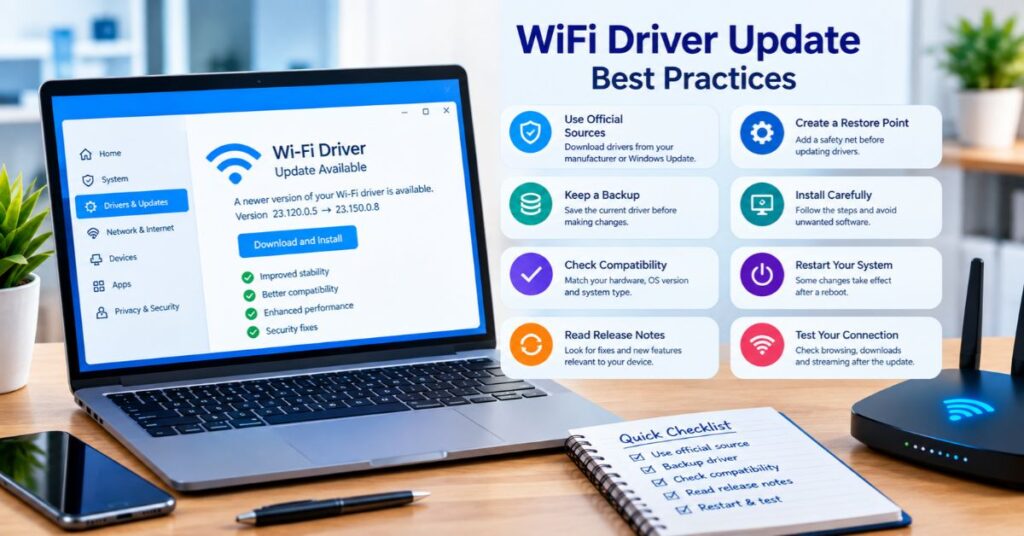
A few simple habits can make driver management safer.
Create a restore point when appropriate. This gives you another recovery option before making significant driver changes.
Keep a backup driver. Save the working driver installer before uninstalling a network adapter.
Use official sources. Avoid random driver-download websites.
Check compatibility first. Never install a driver simply because its version number looks newer.
Read release notes. Look for fixes related to your problem.
Restart after installation. Some driver changes do not become fully active until Windows restarts.
Test after updating. Check browsing, downloads, video calls, and other activities that previously caused problems.
Avoid unnecessary driver updates. If your Wi-Fi works perfectly and the new driver provides no relevant benefit, there may be little reason to change it immediately.
If you also maintain other software on your PC, TechCrebia’s PhysX System Software guide provides another example of why official software packages and correct versions matter.
You can also explore TechCrebia’s Productivity Software guide when looking at software tools used for everyday computer workflows.
Latest Wi-Fi Driver and Wireless Technology Trends
Wireless networking continues to evolve.
Wi-Fi 6 and Wi-Fi 6E remain important technologies for modern computers. Wi-Fi 7 is also becoming increasingly relevant on newer Windows 11 systems and compatible hardware.
A compatible adapter alone does not guarantee access to every wireless feature. The operating system, driver, router, firmware, and network configuration all influence the final experience.
Future driver releases will likely focus on:
- Wi-Fi 7 compatibility.
- Better power efficiency.
- Improved roaming.
- Better stability.
- Security improvements.
- New Windows compatibility.
- Performance optimization.
- Better support for advanced wireless features.
Wi-Fi security is also becoming more important. Modern networks increasingly use stronger security standards such as WPA3.
This means Wi-Fi maintenance involves more than speed. Compatibility, reliability, security, and long-term support all matter.
Key Takeaways
- A Wi-Fi driver allows Windows to communicate with your wireless adapter.
- A WiFi Driver Update can improve compatibility, stability, and reliability.
- Windows Update should usually be your first update method.
- Device Manager can help identify and update the wireless adapter.
- Manufacturer websites often provide model-specific drivers.
- Always identify your exact Wi-Fi adapter before installing a driver.
- Keep a backup driver before uninstalling an adapter.
- A driver update cannot fix every slow-internet problem.
- Roll back the driver if a new version creates problems.
- Use Network Reset only after simpler troubleshooting steps fail.
- Wi-Fi 6E and Wi-Fi 7 require compatible hardware, Windows support, and appropriate drivers.
Conclusion
A WiFi Driver Update can make a meaningful difference when wireless connectivity problems come from outdated, incompatible, or faulty driver software.
Windows provides several ways to update a driver. Windows Update offers the easiest approach, while Device Manager provides direct access to the adapter. Manufacturer websites offer another important option, especially for laptops and specialized wireless hardware.
The safest strategy is simple: identify your adapter, confirm compatibility, download the driver from a trusted source, install it carefully, and test the connection afterward.
If a new driver makes Wi-Fi worse, do not panic. Check Device Manager, roll back the driver when possible, or reinstall a known-compatible version.
Most importantly, remember that wireless performance depends on more than drivers. Your adapter, router, signal strength, network congestion, Windows configuration, and internet service all contribute to the final experience.
FAQ
What is a WiFi Driver Update?
It is the process of installing a newer or different driver that allows Windows to communicate correctly with your wireless network adapter.
How do I update my Wi-Fi driver?
You can use Windows Update, Device Manager, or download a compatible driver from your computer or adapter manufacturer’s official website.
Can updating a Wi-Fi driver improve internet speed?
It can improve adapter performance and stability, but it cannot increase the internet speed provided by your ISP.
How do I know if my Wi-Fi driver is outdated?
Open Device Manager, select your wireless adapter, and check the driver version and date against the manufacturer’s current supported version.
What should I do if Wi-Fi stops working after an update?
Restart your PC, check Device Manager, and consider rolling back or reinstalling the previous compatible driver.
Should I use third-party driver updater software?
Usually, no. Windows Update and official manufacturer websites provide safer and more reliable driver sources.
Can Windows automatically update Wi-Fi drivers?
Yes. Windows Update can automatically install recommended hardware drivers and may provide optional driver updates.
Does Wi-Fi 7 require a new driver?
Compatible Wi-Fi 7 hardware and appropriate Windows support are required. The driver also needs to support the relevant adapter and wireless features.
Can a Wi-Fi driver fix frequent disconnections?
Yes, if the disconnections result from driver bugs or compatibility problems. Router, signal, and hardware issues require different solutions.
Is it safe to uninstall a Wi-Fi driver?
It can be safe when done correctly, but keep a backup driver first, especially if Wi-Fi is your only internet connection.
SEO Tags
WiFi Driver Update, Wi-Fi driver update Windows 11, Wi-Fi driver update Windows 10, wireless network adapter driver, update Wi-Fi drivers, Wi-Fi driver problems, Wi-Fi adapter driver, wireless driver installation, Wi-Fi connectivity troubleshooting, Windows network driver.
Internal Linking Suggestions with Anchor Text
- Difference Between Software and Hardware
- PhysX System Software
- Productivity Software
- Samsung J7 Software Update Guide
- Fan Controller RGB Software
Authoritative External References
- Microsoft Support – Fix Wi-Fi Connection Issues in Windows
- Intel Support – How to Update Wi-Fi Drivers
Social Media Title
WiFi Driver Update: Complete Guide



