





Quick Answer
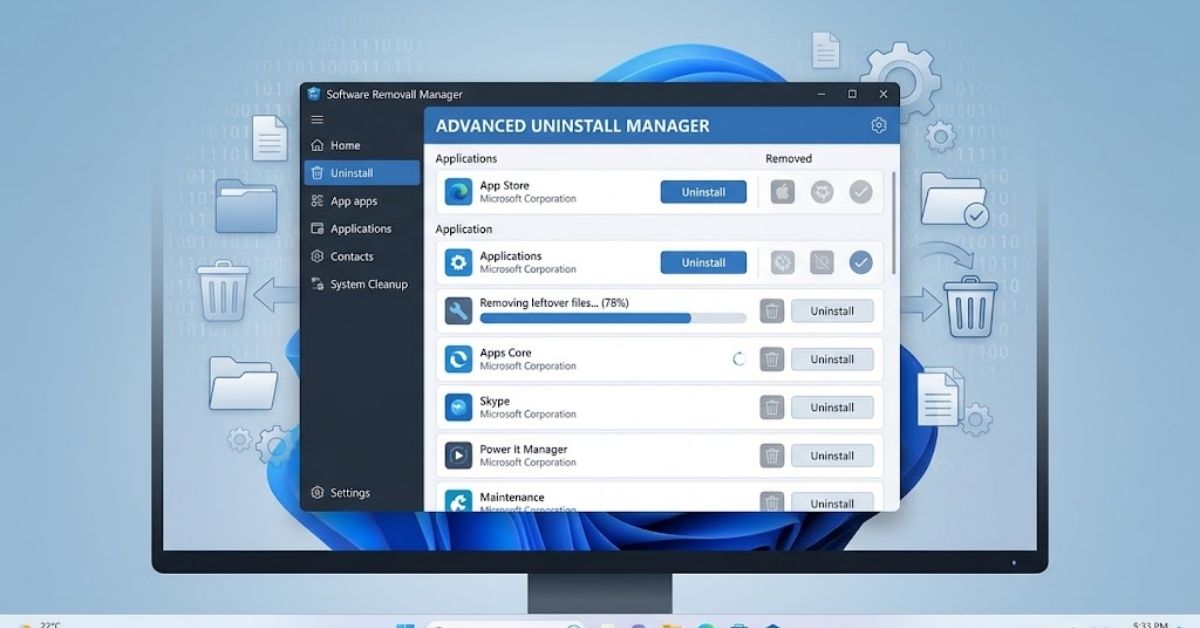
Software removal tools help you uninstall unwanted, broken, stubborn, or potentially harmful programs from a computer.
They can remove applications that normal Windows uninstall options cannot fully delete. Some tools also scan for leftover files, folders, services, and registry entries.
For most users, the safest approach starts with Windows’ built-in uninstall options and then uses a trusted removal tool only when normal removal fails.
Author Information
Author: Gulnaz Malik
Role: Founder, Publisher & Technology Content Specialist
Experience: 5+ Years in Technology, AI, Software & Digital Innovation
Content Review: All content follows Google’s latest EEAT guidelines and includes fact-checked information from official documentation, trusted technology sources, industry reports, and practical research to ensure accuracy, reliability, and up-to-date insights.
Introduction
Removing an application sounds simple. You find the program, click Uninstall, and expect it to disappear.
In many cases, that process works perfectly.
However, some applications leave behind files, folders, configuration data, services, scheduled tasks, or other components.
Other programs may refuse to uninstall because their uninstallers have become damaged. Security software, drivers, old utilities, and poorly installed applications can create even more difficult removal problems.
This is where software removal tools can help.
These tools provide additional methods for removing applications from Windows. Depending on the product, they may scan for leftovers, monitor installations, force removal of broken programs, or provide a deeper cleanup process.
You should still use caution. Removing the wrong system component can create stability problems. A removal tool should improve software maintenance, not encourage users to delete everything they do not recognize.
This guide explains software removal tools from beginner to advanced level. You will learn how they work, when you need one, how to choose a safe tool, how to remove stubborn applications, and which mistakes you should avoid.
If you are new to computer software, TechCrebia’s guide to the difference between software and hardware can help you understand the basic difference between programs and physical computer components.
Table of Contents
- What Are Software Removal Tools?
- How Software Removal Tools Work
- Why Normal Uninstallation Sometimes Fails
- Types of Software Removal Tools
- When Should You Use Software Removal Tools?
- How to Choose Safe Software Removal Tools
- How to Remove a Program Step by Step
- How Software Removal Tools Clean Leftovers
- Software Removal Tools vs Windows Uninstall
- Common Problems and Troubleshooting
- Common Mistakes to Avoid
- Best Practices for Safe Software Removal
- Software Removal Tools for Different Users
- Latest Trends in Software Removal
- Key Takeaways
- Conclusion
- FAQs
What Are Software Removal Tools?

Software removal tools are programs that help users uninstall applications from computers.
Windows already includes several ways to remove programs. You can uninstall many applications through Settings > Apps > Installed apps or other Windows interfaces. Microsoft also supports application removal through its Windows Package Manager.
A dedicated removal tool provides additional features.
For example, a third-party uninstaller may:
- Find installed applications.
- Launch the application’s normal uninstaller.
- Scan for leftover files.
- Detect folders connected to the removed application.
- Search for related registry entries.
- Remove broken uninstall records.
- Force removal when the standard uninstaller fails.
- Monitor a new software installation.
- Create reports about removed components.
The exact features depend on the software.
A removal tool does not automatically make every uninstall process safer. The quality of the tool matters. You should choose a trusted application from a reputable developer and download it from an official source.
Think of a normal Windows uninstall as the basic removal process. A specialized removal tool adds more inspection and cleanup options when you need them.
How Software Removal Tools Work
Software removal tools usually follow a multi-step process.
First, the tool identifies the application. It may read Windows installation information to determine the program name, publisher, version, and uninstall command.
Next, it may launch the application’s own uninstaller.
After that process finishes, some advanced tools scan the computer for leftovers.
These leftovers can include:
- Installation folders.
- Configuration files.
- Temporary files.
- Registry entries.
- Shortcuts.
- Services.
- Logs.
- Scheduled tasks.
- Application-specific folders.
A good tool should distinguish between files that belong to the target application and files that belong to Windows or another program.
That distinction matters.
For example, a browser may store user profiles, saved settings, extensions, and cached information. Removing all related folders without checking them could delete data that the user wanted to keep.
Some removal tools also provide a backup or restore feature before they make deeper changes. This feature can provide an extra safety layer when the tool changes system settings.
The best approach remains simple: identify the application, review what the tool wants to remove, and confirm the action before proceeding.
Why Normal Uninstallation Sometimes Fails
Windows normally handles application removal well. However, several situations can interfere with the process.
One common problem occurs when an application’s uninstall file becomes corrupted or disappears.
For example, imagine that you installed an application two years ago and later deleted part of its installation folder manually. Windows may still show the application in the installed-program list, but the original uninstaller may no longer exist.
Other problems can happen after:
- An interrupted installation.
- A failed software update.
- A damaged hard drive.
- Malware activity.
- Manual deletion of program files.
- An incomplete application migration.
- Incorrect permissions.
- Software conflicts.
- A broken Windows installer record.
In these situations, Windows may display an error when you select Uninstall.
A dedicated removal tool can sometimes identify the broken entry and remove associated components.
You should not immediately delete folders manually. First, identify the application and determine why the standard uninstall process failed.
Types of Software Removal Tools
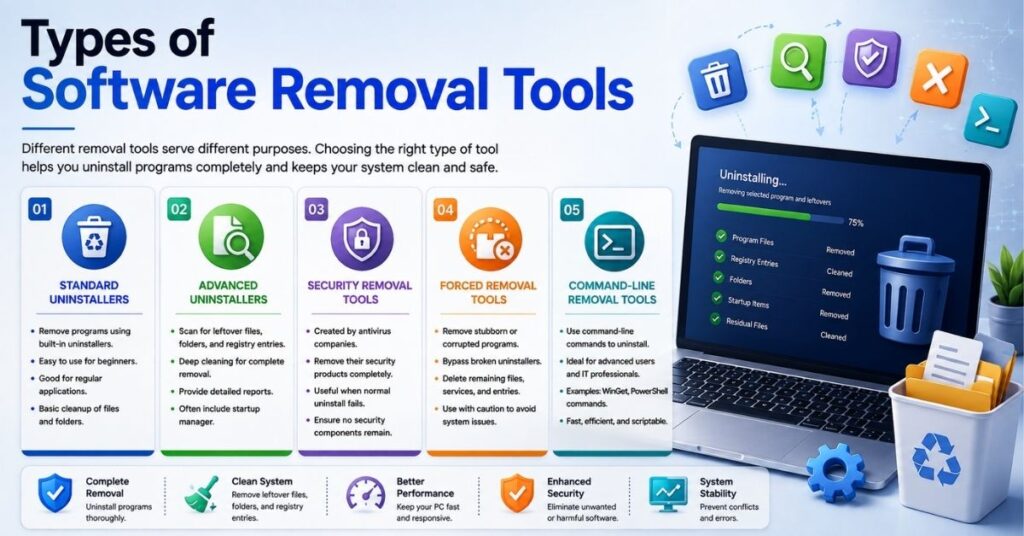
Software removal tools come in several categories. Each category serves a different purpose.
Standard Uninstallers
- These tools focus on normal application removal.
- They often provide a central list of installed programs.
- They can make software management easier for beginners.
Advanced Uninstallers
- These tools scan for leftover files and settings.
- They may provide deeper cleanup options.
- Some tools can create restore points before major changes.
Security Removal Tools
- Antivirus companies often provide dedicated removal utilities.
- These utilities can help remove their own security products when normal uninstall methods fail.
- You should download them directly from the security vendor.
Forced Removal Tools
- These tools target applications that refuse to uninstall normally.
- They can remove broken uninstall entries and related components.
- Users should review every proposed deletion carefully.
Command-Line Removal Tools
- Windows Package Manager provides command-line uninstall capabilities.
- Advanced users can use commands to remove supported applications.
- Microsoft documents the winget uninstall command for application removal.
The right category depends on your problem. You do not need an advanced removal utility just because it offers more features.
When Should You Use Software Removal Tools?
Most users should start with Windows’ built-in uninstall process.
Microsoft recommends using Windows app settings to find an application and select Uninstall.
A specialized tool becomes more useful when the standard method fails.
Consider one when:
- An application refuses to uninstall.
- The original uninstaller no longer works.
- A program remains listed after removal.
- You need to remove leftovers from a failed installation.
- A security product requires a dedicated removal utility.
- You need advanced software inventory features.
- You want to inspect what remains after an uninstall.
For example, suppose a graphics utility causes repeated crashes. You uninstall it through Windows, but the problem continues after reinstalling. A deeper removal process may help identify leftover configuration files or components.
However, removal tools cannot solve every problem.
If malware has infected a system, you should use a reputable security product and follow appropriate malware-removal guidance rather than treating malware like ordinary software.
How to Choose Safe Software Removal Tools
Choosing a removal tool requires more than checking its feature list.
A trustworthy tool should come from a known developer. It should provide clear documentation and explain what it removes.
Look for these characteristics:
| Feature | Why It Matters |
| Trusted developer | Reduces the risk of malicious installers |
| Clear uninstall process | Makes removal easier to understand |
| Leftover scanning | Helps find files after uninstall |
| Restore options | Provides an extra recovery layer |
| Detailed scan results | Lets you review proposed deletions |
| Regular updates | Improves compatibility with modern Windows |
| Transparent privacy policy | Explains how the software handles data |
| Official download source | Reduces fake installer risks |
Avoid tools that make unrealistic promises.
A program that claims it can instantly make every computer faster simply by deleting registry entries deserves extra caution.
You should also avoid download sites that bundle unwanted applications with installers.
If a tool asks you to install unrelated software during setup, stop and review the options carefully.
Security matters especially because removal tools can access important parts of your operating system. TechCrebia’s guide to anti-phishing software explains why trusted software sources and security awareness matter when dealing with potentially risky downloads.
How to Remove a Program Step by Step
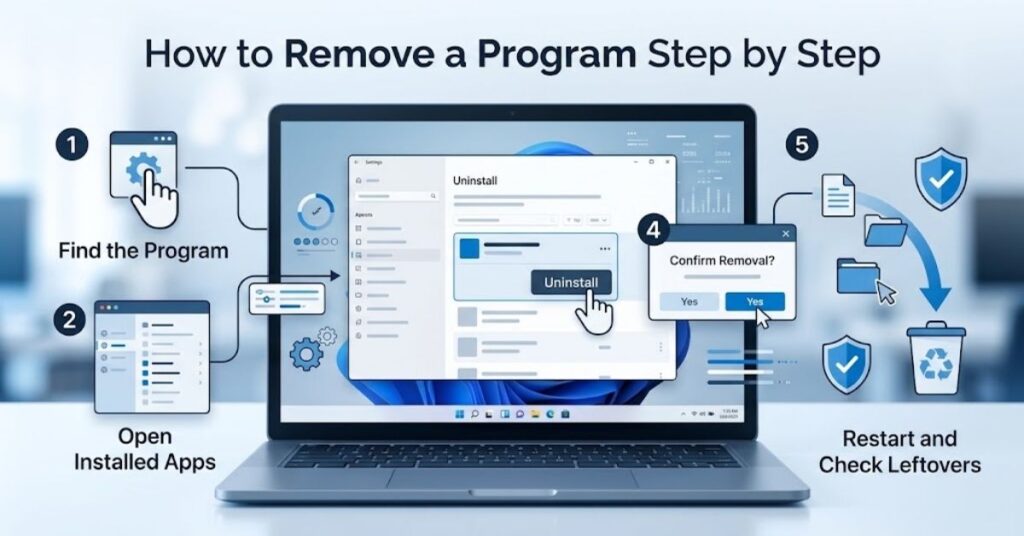
Start with the safest method.
Step 1: Identify the Application
Find the exact application name and publisher.
Do not uninstall a program simply because its name looks unfamiliar. Search for its publisher and determine whether Windows, a driver, or another application needs it.
Step 2: Save Important Data
Back up documents, settings, projects, saved games, or other information that the application stores locally.
This step matters especially for:
- Video editing software.
- Development tools.
- Accounting applications.
- Database programs.
- Creative applications.
- Email clients.
- Games with local saves.
Step 3: Close the Application
Close the application and related windows.
If the program runs background services, check whether its own settings provide an option to exit completely.
Step 4: Try Windows Uninstall First
Open Windows Settings and find the installed application.
Microsoft’s current Windows guidance uses Settings > Apps > Installed apps, where you can locate the application and choose Uninstall.
Step 5: Restart the Computer
Restarting can release files that remained locked by the application.
Step 6: Use a Dedicated Removal Tool if Needed
If Windows cannot remove the application, use a reputable specialized removal tool.
Read its scan results before confirming deletion.
Step 7: Check the Result
After removal, check:
- Start menu.
- Installed apps.
- Desktop shortcuts.
- Application folders.
- Related services.
- Browser extensions, if relevant.
Do not manually delete system folders simply because they contain the application’s name.
How Software Removal Tools Clean Leftovers
Leftover data represents one of the biggest differences between basic and advanced removal processes.
A standard uninstall usually follows instructions created by the software developer. The uninstaller decides which files and settings it should remove.
An advanced tool may perform a second scan.
For example:
Application → Normal Uninstall → Leftover Scan → Review Results → Remove Selected Items
The scan might identify a configuration folder that the original uninstaller left behind.
It might also find registry entries associated with the program.
However, registry cleaning requires special caution.
The Windows Registry contains important system and application settings. Removing unrelated entries can create problems.
Therefore, a reputable tool should show users what it plans to delete instead of silently removing large amounts of data.
Users should also remember that leftovers are not automatically harmful. Some configuration files may contain useful preferences or personal information.
Clean only what you understand.
Software Removal Tools vs Windows Uninstall
The choice between Windows’ built-in uninstall system and dedicated software removal tools depends on your situation.
| Factor | Windows Uninstall | Dedicated Removal Tool |
| Beginner friendly | Excellent | Good |
| Normal app removal | Excellent | Excellent |
| Leftover scanning | Limited | Often stronger |
| Broken uninstallers | Limited | Often better |
| Registry inspection | Limited | Some tools offer it |
| Command-line support | Available through WinGet | Depends on tool |
| Extra cleanup | Basic | Often advanced |
| Risk level | Generally low | Depends on tool and settings |
For ordinary applications, Windows provides a sensible starting point.
For stubborn applications, a specialized tool may provide additional options.
Advanced users can also use Windows Package Manager. Microsoft documents winget uninstall as an official command for removing supported applications.
Common Problems and Troubleshooting
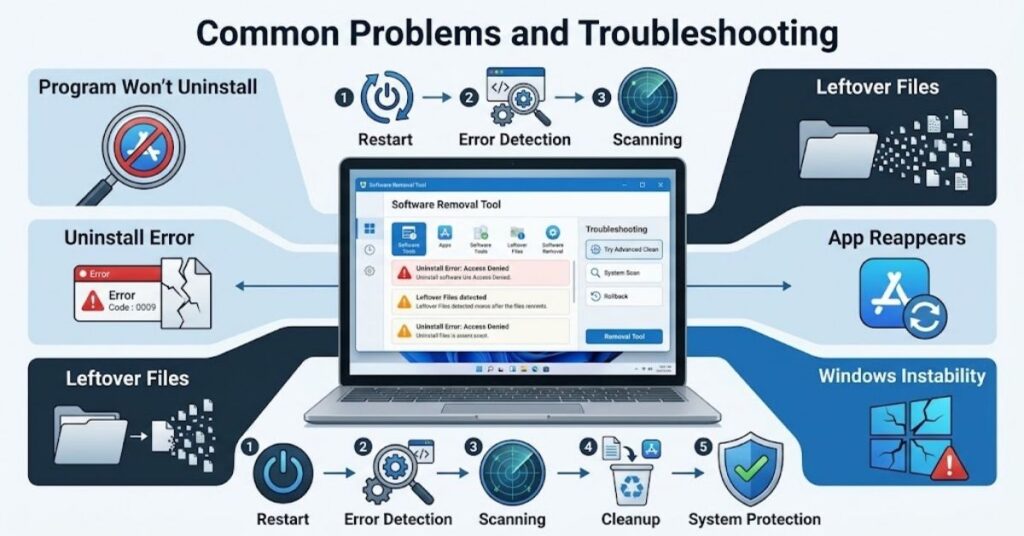
Software removal can fail even when you follow the correct steps.
Here are some common problems and practical fixes.
Program Does Not Appear in Installed Apps
- Search the Start menu for the application.
- Check Control Panel’s Programs and Features for traditional desktop software.
- Use Windows Package Manager to search for supported applications.
- Check whether the program uses a vendor-specific uninstaller.
Uninstall Button Does Not Work
- Close the application.
- End related processes if you understand what they do.
- Restart Windows.
- Try the application’s own uninstaller.
- Use a reputable removal utility if the normal method still fails.
Program Reappears After Removal
- Check whether another application reinstalls it.
- Look for update utilities associated with the software.
- Check scheduled tasks only if you understand their purpose.
- Restart the computer and verify the installed-app list again.
Removal Tool Finds Too Many Leftovers
Do not delete everything automatically.
Review each result.
Some registry entries or folders may belong to another component. When you cannot identify an item, leave it alone and research it first.
Windows Becomes Unstable After Cleanup
Stop making additional changes.
Restart the computer.
If you created a restore point or backup before removal, use it when appropriate.
For software-related instability, TechCrebia’s guide to system glitches and software issues provides additional troubleshooting context.
Common Mistakes to Avoid
Users often create more problems while trying to clean their computers.
Avoid these mistakes:
- Deleting program folders before running the official uninstaller.
- Removing unknown registry entries manually.
- Downloading uninstallers from random websites.
- Installing several cleanup programs at once.
- Trusting fake “PC optimizer” warnings.
- Removing system components without checking their purpose.
- Ignoring backup options.
- Deleting files simply because their names match the application.
- Using cracked removal software.
- Running powerful cleanup commands without understanding them.
One of the most important rules remains simple:
Never remove a system component just because you do not recognize its name.
Research the component first.
Best Practices for Safe Software Removal
A safe removal process starts before you click Uninstall.
Follow these practices:
- Create a backup for important data.
- Record application settings you may need later.
- Use the official uninstall method first.
- Download specialized tools from trusted sources.
- Review scan results before deleting leftovers.
- Restart after major software removal.
- Install security updates regularly.
- Avoid unnecessary registry cleaning.
- Keep only trusted maintenance tools on your computer.
- Check application dependencies before removal.
Software maintenance also works better when you understand what each program does. TechCrebia’s productivity software guide explains how different software categories serve different computing needs.
You should also keep Windows and important applications updated. Updates can fix compatibility problems that sometimes cause installation and removal failures.
Software Removal Tools for Different Users
Different users need different approaches.
Beginners
Beginners should rely on Windows’ built-in uninstall system for normal applications.
Use a dedicated tool only when the standard method fails.
Power Users
Power users may benefit from advanced uninstallers, installation monitoring, command-line tools, and detailed leftover scans.
They should still review deletion results.
Gamers
Gamers often install launchers, overlays, drivers, mods, and supporting components.
Before removing gaming software, check whether another game depends on the same component.
For example, removing a supporting runtime or physics component can affect older games. TechCrebia’s PhysX System Software guide explains why some supporting software remains important for gaming compatibility.
Businesses and IT Teams
Organizations need more than simple uninstallation.
IT teams may require:
- Software inventory.
- Centralized deployment.
- Remote removal.
- Compliance reporting.
- Standardized cleanup procedures.
- Application lifecycle management.
Enterprise environments should use tools designed for managed systems rather than consumer cleanup utilities.
Latest Trends in Software Removal

Software removal continues to change as Windows applications become more complex.
Modern applications may combine traditional desktop components, Microsoft Store packages, cloud services, background processes, browser extensions, and update systems.
This creates a bigger challenge for traditional uninstall methods.
Command-line package management also continues to become more useful. Windows Package Manager gives advanced users another supported method for managing and removing applications.
Another growing trend involves smarter application detection.
Future removal tools may use automated analysis to identify:
- Application dependencies.
- Shared components.
- Startup entries.
- Background services.
- Cloud-connected components.
- Unused application data.
AI may also help explain removal results in plain language. Instead of showing a long technical list, a future tool could explain why each item belongs to an application and whether removing it could affect another program.
Privacy will also matter.
Users increasingly want tools that perform local scans without collecting unnecessary system information.
Security will remain equally important because removal utilities often require elevated permissions.
Key Takeaways
- Software removal tools help uninstall unwanted and stubborn applications.
- Windows’ built-in uninstall options should usually come first.
- Dedicated tools can provide deeper leftover scanning.
- Broken uninstallers may require specialized removal methods.
- Registry cleanup requires extra caution.
- Always download removal software from trusted sources.
- Review proposed deletions before confirming them.
- Back up important data before major cleanup.
- Do not remove unknown system components.
- Windows Package Manager provides an official command-line uninstall option.
- Different users need different levels of removal functionality.
- Future tools will likely provide smarter dependency detection and clearer cleanup explanations.
Conclusion
Software removal tools can make Windows maintenance easier, especially when a normal uninstaller fails.
However, more powerful removal does not always mean better removal. The safest strategy starts with understanding the application and using Windows’ standard uninstall process.
When that process fails, a reputable removal tool can provide deeper scanning and additional cleanup options.
Always review what a tool wants to delete. Avoid aggressive registry cleaning and unknown download sources. Back up important data before major changes.
For everyday users, simple and careful software management usually provides the best results. For advanced users and IT professionals, specialized removal tools can offer valuable control over stubborn applications, leftovers, and software inventories.
The goal should not simply be to delete more files. The goal should be to remove unwanted software safely while keeping Windows stable, secure, and useful.
FAQs
What are software removal tools?
Software removal tools help uninstall applications and may also remove leftover files, folders, settings, and other related components.
Are software removal tools safe?
Trusted removal tools can provide safe cleanup, but users should download them from official sources and review deletion results before confirming changes.
Do I need a software removal tool for every program?
No. Windows’ built-in uninstall options work well for most applications. Use specialized tools when normal removal fails or you need deeper cleanup.
Can software removal tools remove stubborn programs?
Yes. Some specialized tools can handle broken uninstallers, missing uninstall files, and applications that refuse normal removal.
Should I clean registry entries after uninstalling software?
You should not remove registry entries blindly. Only remove entries that you can confidently associate with the application.
Can software removal tools delete malware?
Some security vendors provide dedicated removal utilities for specific threats or products. General uninstallers should not replace reputable anti-malware software.
Is Windows Package Manager useful for uninstalling software?
Yes. Microsoft’s WinGet supports removing applications using the winget uninstall command.
What should I do if an application refuses to uninstall?
Restart Windows, try the application’s official uninstaller, check Windows’ installed apps options, and use a trusted, specialized removal tool if necessary.
SEO Tags
- software removal tools
- software uninstall tools
- Windows removal tools
- program removal software
- uninstall software
- stubborn software removal
- Windows uninstall tools
- application removal tools
- software cleanup tools
- Windows software management
Internal Linking Suggestions with Anchor Text
- Difference Between Software and Hardware → https://techcrebia.com/difference-between-software-and-hardware/
- Anti-Phishing Software → https://techcrebia.com/anti-phishing-software/
- System Glitches and Software Issues → https://techcrebia.com/system-glitch-software-issues/
- PhysX System Software → https://techcrebia.com/physx-system-software/
- Productivity Software → https://techcrebia.com/productivity-software/
Authoritative External References
- Microsoft Support — Uninstall or remove apps and programs in Windows
- Microsoft Learn — WinGet uninstall command
Social Media Title
Software Removal Tools: Safely Uninstall Apps in Windows 2026



