





Quick Answer:
System glitch software issues occur when an operating system, application, driver, or background process behaves unexpectedly.
Common signs include freezing, crashes, error messages, slow performance, missing features, and random restarts.
You can often fix these problems by restarting the system, updating software and drivers, checking system files, removing conflicting apps, scanning for malware, and restoring stable settings.
Author Information
Author: Gulnaz Malik
Role: Founder, Publisher & Technology Content Specialist
Experience: 5+ Years in Technology, AI, Software & Digital Innovation
Content Review: All content follows Google’s latest EEAT guidelines and includes fact-checked information from official documentation, trusted technology sources, industry reports, and practical research to ensure accuracy, reliability, and up-to-date insights.
Introduction
System glitches can turn a normal computer session into a frustrating experience. One minute, everything works normally.
The next minute, an application stops responding, Windows freezes, a driver crashes, or an update creates unexpected behavior.
These problems can affect desktops, laptops, workstations, and even software running on business systems.
System glitch software issues usually come from software conflicts, outdated components, damaged system files, incorrect settings, buggy updates, driver problems, insufficient resources, or security threats. Hardware problems can also create symptoms that look like software glitches.
The good news is that you can troubleshoot many glitches without advanced technical knowledge.
This guide explains the most common causes, warning signs, troubleshooting methods, prevention strategies, and future trends.
It also explains when you should handle a problem yourself and when you should seek professional help.
Table of Contents
- What Are System Glitch Software Issues?
- Common Signs of Software Glitches
- Main Causes of System Glitches
- How to Troubleshoot System Glitch Software Issues
- System Glitches in Windows
- Software, Driver, and Update Conflicts
- Security Threats and Software Glitches
- Best Practices to Prevent Software Problems
- Common Troubleshooting Mistakes
- When Should You Seek Professional Help?
- Latest Trends in Software Troubleshooting
- Key Takeaways
- Conclusion
- FAQs
What Are System Glitch Software Issues?
System glitch software issues describe unexpected problems that affect an operating system, application, driver, or software service.
A glitch may appear as a small visual problem. For example, a menu may fail to open. A more serious glitch can cause an application crash, system freeze, or repeated restart.
Not every glitch means that your computer has a major fault.
Sometimes a temporary process conflict creates the problem. A simple restart may clear it. Other times, corrupted files or incompatible drivers require deeper troubleshooting.
Software glitches can affect different parts of a system:
- Operating system components
- Device drivers
- Desktop applications
- Background services
- Security software
- Browser extensions
- Startup programs
- System updates
- Cloud synchronization tools
- Gaming software
- Network applications
For example, an outdated graphics driver can cause a game to crash. A browser extension can make a webpage freeze. A damaged system file can create repeated Windows errors.
If you regularly experience slow performance, you may also benefit from our guide to productivity software and digital tools for understanding how software affects everyday computer workflows.
Common Signs of Software Glitches
A software glitch does not always produce an obvious error message. You may notice smaller symptoms first.
Common warning signs include:
- Applications suddenly stop responding.
- Programs close without warning.
- The system freezes temporarily.
- Windows displays repeated error messages.
- Files fail to open correctly.
- A program takes unusually long to start.
- Menus or buttons stop responding.
- Audio or video playback becomes unstable.
- Network applications disconnect unexpectedly.
- The computer restarts without a clear software reason.
- A feature works after a restart but fails again later.
- System performance changes after an update.
Pay attention to when the problem starts.
If the issue appears immediately after installing an application, that application may create a conflict. If the issue begins after a driver update, investigate the driver first.
A clear timeline makes troubleshooting much easier.
Main Causes of System Glitch Software Issues
Several factors can trigger system glitches. Identifying the likely cause helps you choose the right fix.
Software Conflicts
Two applications may compete for the same system resources or services. Security tools, system utilities, overlays, customization software, and background managers can sometimes create conflicts.
Outdated Software
Older applications may not work correctly with newer operating system components. Developers regularly release updates to improve compatibility and fix bugs.
Damaged System Files
Operating system files can become corrupted after interrupted updates, unexpected shutdowns, disk problems, or failed installations.
Driver Problems
Drivers connect the operating system with hardware. A faulty or incompatible driver can create display problems, audio failures, network issues, crashes, or instability.
Failed Updates
An interrupted software update can leave an application in an unstable state. The same problem can occur when an update introduces a compatibility bug.
Malware
Malicious software can change system settings, consume resources, interfere with applications, or damage important files.
For security guidance, users can review Microsoft’s Windows Security documentation for official Windows security and troubleshooting information.
Resource Limitations
Low RAM, limited storage, high CPU usage, and excessive background processes can make software appear unstable.
A system with very little free storage may also struggle with updates, temporary files, and application operations.
How to Troubleshoot System Glitch Software Issues
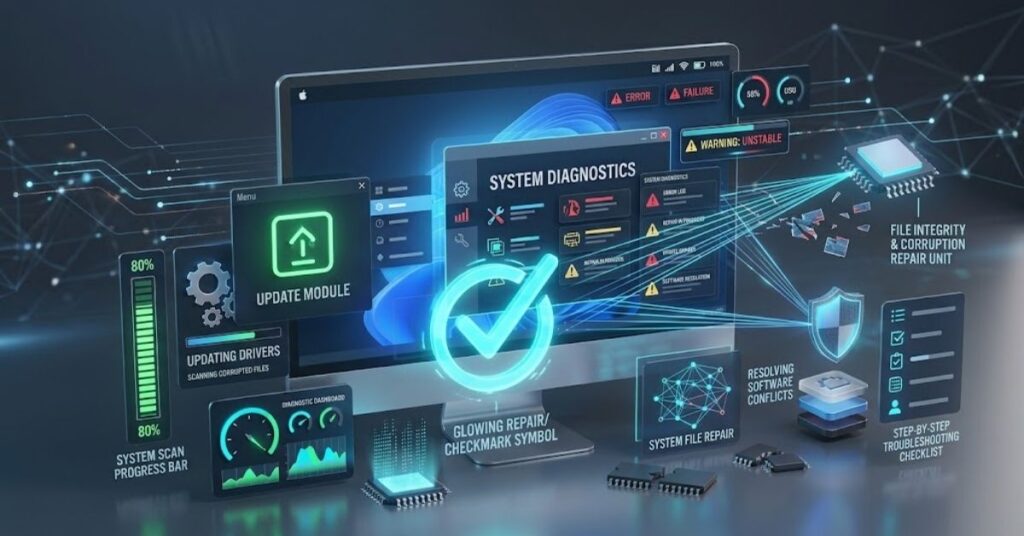
Start with simple steps before making major system changes. This approach reduces risk and saves time.
Restart the Computer
A restart clears temporary processes and refreshes system services.
Restarting often fixes:
- Temporary application freezes
- Background process conflicts
- Memory-related slowdowns
- Temporary driver failures
- Network service problems
If the same issue returns after every restart, continue with deeper troubleshooting.
Identify the Problematic Application
Ask yourself:
- Which application shows the problem?
- Does the issue happen every time?
- Did the problem start after an update?
- Did you install another program recently?
- Does another application show the same behavior?
If only one application fails, focus your investigation on that application instead of changing the entire operating system.
Update the Software
Install the latest stable version from the developer or official app store.
Avoid random download websites. Unofficial installers may contain modified files, unwanted software, or malware.
Check System Resources
Open your operating system’s task manager or resource monitor.
Look for applications that consume unusually high:
- CPU
- Memory
- Disk activity
- Network resources
Close unnecessary programs and test the problematic application again.
Check for System Updates
Operating system updates can fix security problems, compatibility issues, and known bugs.
However, you should also create a backup before major system changes. A backup gives you a recovery option if an update creates a new problem.
For users who want to understand broader Windows maintenance, our Windows software guides can provide additional troubleshooting context.
Repair or Reinstall the Application
If an application continues to fail, use its built-in repair feature when available.
If repair does not work:
- Save your important data.
- Uninstall the application.
- Restart the computer.
- Download the current version from the official source.
- Install it again.
- Test the application.
Do not immediately delete folders manually unless the developer’s instructions recommend that step.
System Glitches in Windows
Windows systems can experience software glitches for many reasons. Drivers, system components, updates, startup applications, and third-party utilities can all affect stability.
Windows provides several built-in troubleshooting options.
You can use tools such as:
- Task Manager
- Event Viewer
- Device Manager
- Windows Security
- System Restore
- Windows Update
- System File Checker
- DISM
- Startup settings
Check Event Viewer
Event Viewer records many system and application events.
It can help you identify:
- Application crashes
- Driver-related events
- Service failures
- Update errors
- System warnings
Do not treat every warning as the cause of your problem. Windows can generate many routine events.
Look for events that match the exact time of the glitch.
Check System Files
Windows includes system repair tools that can check important operating system components.
Microsoft documents the System File Checker and DISM tools as options for repairing Windows system files and component-store problems.
You can followMicrosoft’s official System File Checker guidance when you need the correct commands and procedure.
Always follow Microsoft’s current instructions rather than copying commands from unknown websites.
Software, Driver, and Update Conflicts
Software compatibility creates many difficult troubleshooting cases.
For example, a graphics application may work correctly until Windows installs a new driver. A game may stop launching after an overlay utility changes. A printer may disappear after a driver conflict.
Use a controlled approach.
| Problem | Likely Area | First Action |
| App crashes | Application | Update or repair app |
| Display glitches | Graphics driver | Check driver |
| Audio problems | Audio driver/settings | Update and test driver |
| Printer failure | Printer software/driver | Reinstall official driver |
| Slow startup | Startup apps | Disable unnecessary startup items |
| Browser problems | Extensions/cache | Test without extensions |
| Update failure | Update components | Restart and check update status |
| Random freezes | Software or hardware | Check resources and diagnostics |
Avoid installing multiple driver-management applications. They can make troubleshooting harder.
Download drivers from the hardware manufacturer’s official website whenever possible.
Security Threats and Software Glitches

Malware can imitate ordinary software problems.
For example, malicious software may cause:
- Slow system performance
- Browser redirects
- Unknown startup programs
- Unexpected pop-ups
- High CPU usage
- Disabled security settings
- Strange network activity
- Unwanted application installations
If several unusual symptoms appear together, perform a security scan.
Do not install a suspicious “PC repair” application simply because a pop-up tells you that your computer has hundreds of errors.
That tactic often uses fear to convince users to install unwanted software.
Use trusted security tools and keep them updated.
Best Practices to Prevent Software Problems
Prevention can reduce the frequency of system glitches.
Keep Software Updated
Install legitimate updates for your operating system, applications, browsers, and important drivers.
Do not update every component randomly. Prioritize stable releases and use official sources.
Maintain Backups
Keep copies of important documents, photos, projects, and other valuable files.
Use a backup strategy that protects against both software failure and accidental deletion.
Keep Enough Storage Free
Avoid filling your system drive completely.
Leave adequate free space for temporary files, updates, caches, and normal operating system activity.
Limit Startup Programs
Too many startup applications can increase boot time and consume system resources.
Review startup applications regularly and disable programs you do not need immediately after login.
Avoid Untrusted Downloads
Use official websites and reputable app stores.
Avoid pirated applications and modified installers. They can introduce malware, unstable components, or unwanted programs.
Create Restore Options
Before major driver, software, or system changes, make sure you have a recovery option.
This gives you a safer path if the change creates instability.
For more general technology maintenance information, you can also explore TechCrebia’s software guides.
Common Troubleshooting Mistakes
People often make the problem worse while trying to fix it.
Avoid these common mistakes:
- Installing several “repair” tools at once
- Downloading drivers from unknown websites
- Deleting system files manually
- Disabling security software permanently
- Ignoring error messages
- Changing multiple settings simultaneously
- Skipping backups
- Installing unofficial software
- Assuming every warning means hardware failure
- Reinstalling Windows before testing simpler solutions
Change one thing at a time.
Then test the system.
This method helps you identify which action actually fixed or caused the problem.
When Should You Seek Professional Help?
You can handle many software glitches yourself. However, some symptoms require professional diagnosis.
Consider professional help when:
- The computer repeatedly crashes.
- The system cannot boot normally.
- Important files become inaccessible.
- The same problem returns after a clean software installation.
- You suspect malware but cannot remove it safely.
- The computer shows signs of hardware failure.
- The problem affects business-critical systems.
- You risk losing important data by continuing to troubleshoot.
If your files matter, prioritize data recovery and backup before experimenting with advanced repair procedures.
A technician can also help separate hardware problems from software problems. That distinction matters because reinstalling software will not fix a failing storage device or defective memory.
Latest Trends in Software Troubleshooting
Modern troubleshooting continues to change as operating systems and applications become more complex.
AI-powered diagnostic features now help users identify performance problems, explain error messages, and recommend troubleshooting steps.
Cloud-based software also changes the way developers fix problems. Many applications can receive updates without requiring a complete reinstall.
Automated monitoring tools can detect unusual resource usage before users notice serious performance problems.
Another important trend involves security. Modern systems increasingly combine malware detection, behavior analysis, identity protection, and automated threat response.
For everyday users, the biggest improvement comes from better diagnostics. Instead of guessing, users can increasingly rely on system logs, performance data, crash reports, and guided repair tools.
Future troubleshooting tools will likely combine these sources into simpler recommendations. However, users should still verify major repair actions before allowing software to change critical system settings.
Key Takeaways
- System glitch software issues can affect operating systems, applications, drivers, and background services.
- Software conflicts, outdated components, damaged files, failed updates, and malware can cause glitches.
- Restart the system and identify the affected application before attempting advanced repairs.
- Keep operating systems, applications, and drivers updated through trusted sources.
- Use system logs and resource monitors to identify recurring problems.
- Back up important data before major troubleshooting.
- Avoid suspicious repair tools and unofficial software downloads.
- Seek professional assistance when crashes, boot failures, malware, or data-loss risks continue.
Conclusion
System glitches can look complicated, but many problems have a clear cause. Start with simple troubleshooting and work toward advanced solutions only when necessary.
Restart the system, identify the affected software, check resources, install legitimate updates, inspect drivers, and use trusted security tools. Keep backups before making major changes.
Most importantly, avoid random fixes. A controlled troubleshooting process helps you find the real cause without creating additional problems.
As software becomes more automated and AI-assisted, diagnostic tools will become easier to use. Still, basic troubleshooting skills will remain valuable for keeping computers stable, secure, and reliable.
FAQ
What are system glitch software issues?
They are unexpected software problems such as crashes, freezes, error messages, slowdowns, or features that stop working correctly.
What causes software glitches?
Common causes include software conflicts, outdated applications, driver problems, corrupted files, failed updates, malware, and limited system resources.
Can restarting fix a software glitch?
Yes. A restart can clear temporary processes, refresh services, and resolve some temporary application or driver problems.
Should I use PC repair software for every glitch?
No. Start with built-in diagnostic tools and official troubleshooting instructions before installing third-party repair software.
Can outdated drivers cause system glitches?
Yes. Incompatible or outdated drivers can cause display, audio, network, printer, gaming, and system stability problems.
How can I prevent software glitches?
Keep software updated, maintain backups, use trusted downloads, monitor system resources, and remove unnecessary applications.
When should I contact a technician?
Contact a professional when repeated crashes, boot failures, suspected malware, hardware symptoms, or potential data loss make normal troubleshooting unsafe.
Can malware look like a software glitch?
Yes. Malware can cause slowdowns, pop-ups, browser changes, high resource usage, and unexpected applications or processes.
Is reinstalling Windows always necessary?
No. Many software problems respond to updates, repairs, driver fixes, system-file checks, or application reinstallation without reinstalling Windows.
10 SEO Tags
- System Glitch Software Issues
- Software Issues
- Windows Glitches
- Software Troubleshooting
- Computer Software Problems
- Windows Troubleshooting
- Software Errors
- Driver Problems
- PC Troubleshooting
- System Errors
5 Internal Linking Suggestions with Anchor Text
- Windows software guides — Use for Windows troubleshooting topics.
- Software guides — Use when discussing application maintenance.
- PC troubleshooting tips — Use for general computer problems.
- Software update guides — Use when explaining updates and compatibility.
- Cybersecurity guides — Use when discussing malware-related glitches.
2 Authoritative External References
- Microsoft Support — Official Windows troubleshooting and support resources.
- Microsoft System File Checker Documentation — Official guidance for checking and repairing Windows system files.
Social Media Title
System Glitch Software Issues: Causes, Fixes & Prevention



