





Quick Answer
“Snackarcin unwanted software detected” usually refers to a Microsoft Defender detection such as PUADlManager: Win32/Snackarcin.
Microsoft also lists related Snackarcin detections under its malware intelligence database. Treat the alert seriously, do not run or restore the flagged file, remove it through Windows Security, and run another scan afterward.
Author Information
Author: Gulnaz Malik
Role: Founder, Publisher & Technology Content Specialist
Experience: 5+ Years in Technology, AI, Software & Digital Innovation
Content Review: All content follows Google’s latest EEAT guidelines and includes fact-checked information from official documentation, trusted technology sources, industry reports, and practical research to ensure accuracy, reliability, and up-to-date insights.
Introduction
Seeing a Snackarcin unwanted software detected alert can make any Windows user nervous. The name looks unfamiliar, and many people immediately wonder whether they have a virus.
The good news is that you can handle the alert systematically.
Microsoft Security Intelligence lists PUADlManager:Win32/Snackarcin as a detection handled by Microsoft Defender Antivirus. Microsoft also lists Behavior:Win32/Snackarcin.C as another Defender detection. The exact behavior can depend on the file, location, and detection variant. (Microsoft)
This distinction matters. You should not assume that every Snackarcin alert means the same thing. You should also avoid assuming that a clean follow-up scan proves nothing ever happened.
This guide explains what the detection means, why it can appear, how to remove it, how to investigate repeated alerts, and how to protect your Windows PC afterward.
For additional software-security context, TechCrebia’s McAfee software removal guide explains why official security tools provide a safer removal path than manually deleting system files.
Table of Contents
- What Does Snackarcin Unwanted Software Detected Mean?
- Is Snackarcin a Virus or PUA?
- Why Does Windows Detect Snackarcin?
- How to Remove Snackarcin From Windows
- What to Do If Snackarcin Keeps Coming Back
- Snackarcin Symptoms and Warning Signs
- Snackarcin vs Normal Software
- Common Mistakes to Avoid
- How to Prevent Future Unwanted Software
- Troubleshooting Snackarcin Detection Problems
- Latest Windows Security Trends
- Key Takeaways
- Conclusion
- FAQs
- SEO Tags
- Internal Linking Suggestions
- Authoritative External References
- Social Media Title
What Does Snackarcin Unwanted Software Detected Mean?
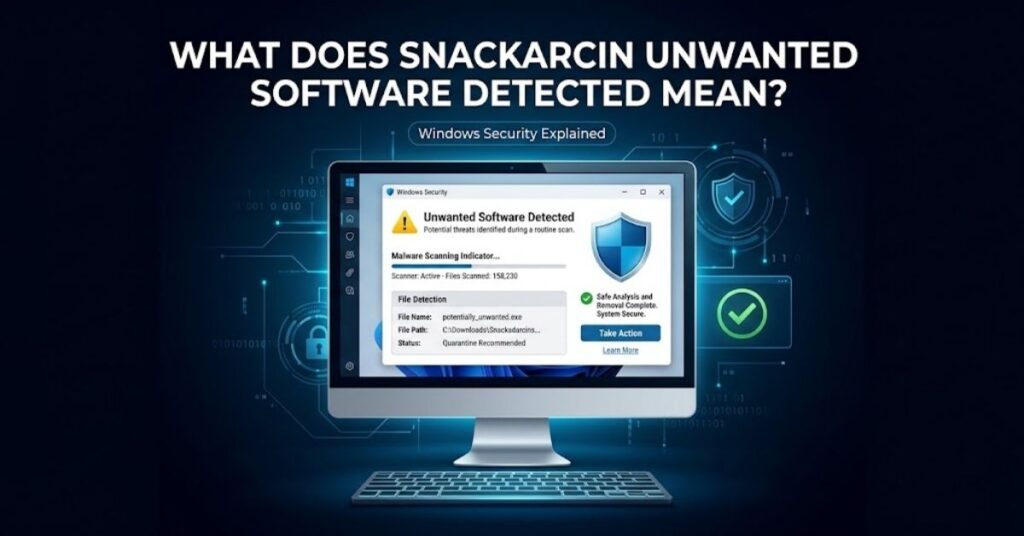
The phrase Snackarcin unwanted software detected usually appears when Microsoft Defender identifies a file or behavior associated with its Snackarcin detection family.
Microsoft’s official database lists PUADlManager: Win32/Snackarcin as a Defender detection. Microsoft says Defender detects and removes the threat.
Its public entry also lists possible signs such as slow performance, added or modified files, desktop-setting changes, crashes, and reduced storage space.
The detection name itself does not tell you everything about the affected computer.
The file path matters.
For example, Defender may identify an installer sitting inside a Downloads or temporary folder. In another case, the alert may point toward a file that another application already installed.
That difference changes the cleanup process.
Key points to understand
- Snackarcin is a Microsoft detection name.
- PUADlManager commonly indicates a potentially unwanted application or downloader classification.
- Microsoft also maintains other Snackarcin detection variants.
- The alert does not automatically prove that your entire PC has malware.
- You should still treat an active detection seriously.
- The safest first action involves Microsoft Defender.
- You should investigate repeated detections instead of repeatedly dismissing them.
Microsoft explains that potentially unwanted applications can cause unwanted advertising, slow performance, unexpected software installation, or other behavior users do not want.
Is Snackarcin Unwanted Software Dangerous?
The answer depends on the exact detection shown by Windows Security.
If Windows displays PUADlManager: Win32/Snackarcin, the detection name points to Microsoft’s potentially unwanted application/download-manager classification.
However, Microsoft also publishes other Snackarcin detections, including Behavior: Win32/Snackarcin.C.
Therefore, do not reduce every Snackarcin alert to the statement “it is just a harmless PUA.”
You should look at the complete detection name and the affected file.
A PUA also differs from classic malware. Microsoft describes PUAs as software that sits in a gray area. Such applications may show unwanted advertising, offer additional software, use system resources, or perform other unwanted actions.
A practical approach looks like this:
| Detection situation | Recommended response |
| Defender blocks a downloaded installer | Keep it blocked and remove it |
| Defender quarantines the file | Leave it quarantined and scan again |
| Detection returns after every scan | Investigate the source and installed software |
| You already ran the file | Perform a full scan and review recent changes |
| Another antivirus reports the same file | Compare the exact file path and name |
| The alert disappears after removal | Run a follow-up scan before considering the issue resolved |
Do not restore the file simply because you recognize the application you were trying to install.
A legitimate-looking installer can still bundle unwanted components.
Why Does Snackarcin Unwanted Software Get Detected?
Snackarcin alerts often raise questions about where the file came from.
In many unwanted-software cases, users download a legitimate-looking application from an unofficial source, software bundle, advertisement, modified installer, or download page.
The important question is not only “What is Snackarcin?”
Ask:
“Which file triggered the detection, and what did I download immediately before the alert?”
That question can reveal the source much faster.
Common sources to investigate
- Recently downloaded installers
- Free software bundles
- Unofficial software download websites
- Modified or repacked applications
- Suspicious browser downloads
- Fake update prompts
- Unknown download managers
- Files downloaded from advertisements
- Unknown extensions or browser add-ons
- Software installed immediately before the alert
You should also check whether you recently installed another program.
Sort your installed applications by installation date. Look for unfamiliar programs that appeared around the same time as the Snackarcin alert.
If the detection started after installing a utility, game, media converter, browser tool, or free application, investigate that installer first.
TechCrebia’s System Mechanic Software guide also highlights an important troubleshooting principle: users should understand what a program does before removing or modifying it.
How to Remove Snackarcin Unwanted Software Safely

You can usually start with Windows Security.
Microsoft recommends using Windows Security’s protection features to handle potentially unwanted software. Microsoft also explains that users can select an appropriate action after Windows Security detects a PUA.
Step 1: Open Windows Security
Open the Windows Start menu.
Search for Windows Security.
Open the application.
Then select Virus & threat protection.
Step 2: Check Snackarcin Detection History
Select Protection history.
Look for the Snackarcin detection.
Open the entry and check:
- Detection name
- Detection date
- Affected file
- File location
- Current status
- Recommended action
Do not skip the file path.
The path can tell you whether Windows detected a temporary installer, downloaded executable, or file associated with an installed application.
Step 3: Remove or Quarantine the Detected File
If Windows Security provides Remove or Quarantine, choose the recommended protective action.
Do not select Allow on device unless you have a strong reason and have independently verified the file.
Microsoft notes that a detected PUA can remain blocked without being fully removed until you select an action and Windows Security completes that action. (Microsoft Support)
Step 4: Uninstall Related Unwanted Software
If the detection came from a downloaded installer, remove the original installer after Windows Security handles the detection.
Check your:
- Downloads folder
- Desktop
- Recent download locations
- Temporary folders
Do not manually delete Windows system files simply because their names look unfamiliar.
Step 5: Uninstall Related Software
Open Settings > Apps > Installed apps.
Look for programs installed around the same time.
Remove applications you do not recognize or no longer need.
Do not remove Windows components just because they have technical names.
If you need more software-management guidance, TechCrebia’s Brother printer drivers guide shows why users should identify software by its purpose and official source before removing it.
Step 6: Restart Windows
Restart your PC.
A restart closes active processes and gives Windows a clean session.
After restarting, open Windows Security again.
Run another scan.
Step 7: Run a Full Scan
A quick scan can help, but a Full scan provides a broader check.
Open:
Windows Security > Virus & threat protection > Scan options > Full scan
Then start the scan.
Let Windows complete the process.
Do not use the PC heavily while the scan runs if you can avoid it.
What to Do When Snackarcin Detection Keeps Coming Back
A repeated Snackarcin unwanted software detected alert deserves extra attention.
A recurring alert can mean that Windows keeps finding the same source file, another copy exists, or another application recreates the detected item.
Do not simply press “dismiss” every time.
Check the Detection File Path
Open Protection History again.
Compare the file path from each detection.
If the path remains identical, identify the program or folder that creates the file.
If the path changes, investigate each location.
Review Recently Installed Software
Open Settings > Apps > Installed apps.
Sort applications by installation date.
Remove unfamiliar software that appeared around the same time as the first alert.
Review Browser Extensions
Open each browser you use.
Check installed extensions.
Remove extensions that you do not recognize.
Also review browser notification permissions.
A website can send unwanted notifications without installing traditional malware.
Check Startup Apps
Open Task Manager.
Select Startup apps.
Review unfamiliar entries.
Do not disable Windows security components blindly.
Research an unknown application before changing its startup behavior.
Run Another Full Scan
After cleanup, restart Windows and run another Full scan.
If the detection returns, consider using Microsoft Defender Offline.
Microsoft recommends an Offline scan when unwanted software continues to cause problems.
Snackarcin Symptoms and Warning Signs

A Snackarcin detection does not guarantee that you will experience visible symptoms.
However, Microsoft lists several possible signs associated with its Snackarcin detection, including slow performance, changed or added files, altered desktop settings, freezing or crashes, and reduced storage space.
Watch for changes such as:
- Unexpected browser redirects
- New browser extensions
- Frequent pop-ups
- Unknown applications
- New desktop shortcuts
- Unusual startup programs
- Unexpected notifications
- Sudden performance problems
- Unexplained storage usage
- Repeated Windows Security alerts
One symptom alone does not prove infection.
For example, a slow PC can result from low storage, excessive startup applications, overheating, or aging hardware.
You can also review TechCrebia’s iPhone data restore software guide for a broader example of why users should distinguish between genuine software problems and security-related problems.
Snackarcin vs Normal Software
The most important difference involves trust and behavior.
A normal application should have a clear purpose, identifiable publisher, and trusted download source.
An unwanted installer may bundle additional offers, modify browser settings, or create behavior that you did not expect.
| Factor | Normal software | Suspicious or unwanted software |
| Purpose | Clear | Unclear or misleading |
| Publisher | Identifiable | Unknown or questionable |
| Download source | Official website or trusted store | Random download portal |
| Installation | Transparent | Extra offers or confusing prompts |
| Browser changes | Usually intentional | May occur unexpectedly |
| Defender alert | Usually absent | May trigger a detection |
| Removal | Standard uninstall | May require additional cleanup |
You should never judge software only by its name.
Some legitimate programs have unusual technical names.
Likewise, unwanted programs can use names that sound legitimate.
Focus on the publisher, source, file path, digital signature, installation date, and Defender detection.
Common Mistakes to Avoid
Many users make the problem worse while trying to fix it.
Avoid these mistakes:
- Do not run the detected file again.
- Do not choose “Allow on device” without verification.
- Do not download random “Snackarcin removal tools.”
- Do not install several antivirus products at once.
- Do not delete random Registry entries.
- Do not remove Windows system files manually.
- Do not ignore repeated detections.
- Do not trust cracked or modified installers.
- Do not disable Defender just to run a blocked installer.
Microsoft recommends downloading applications from trusted sources and keeping security software and Windows updated. (Microsoft Support)
If you regularly install software, TechCrebia’s AI software tools guide can also help you understand why identifying software sources and purposes matters before installation.
How to Prevent Future Unwanted Software
Prevention usually works better than cleanup.
Start with your download habits.
Use official developer websites or trusted application stores whenever possible.
Avoid clicking download buttons inside aggressive advertisements.
Also pay attention during installation.
Some installers display optional software offers. Read each screen before clicking Next, Accept, or Install.
Best practices
- Download software from trusted sources.
- Keep Windows updated.
- Keep Microsoft Defender security intelligence updated.
- Keep your browser current.
- Review browser extensions regularly.
- Remove applications you no longer use.
- Avoid pirated and modified software.
- Do not open unexpected executable attachments.
- Keep important files backed up.
- Leave Windows reputation-based protection enabled.
Windows 11 also includes Smart App Control on supported systems. Microsoft says App & browser control combines reputation-based protection with other protections to help block unsafe apps, files, websites, and downloads.
Troubleshooting Snackarcin Detection Problems
A recurring alert can confuse even experienced users.
Use this simple troubleshooting sequence.
Problem: Defender detects Snackarcin after every scan.
Check Protection History and identify the exact file path. Remove the source application and run another scan.
Problem: The detected file no longer exists.
Restart Windows and run another scan. Windows may have already removed or quarantined the original file.
Problem: Defender says no current threats, but the old alert remains.
Check the status and date in Protection History. An old detection does not necessarily mean an active infection.
Problem: The detection returns after installing one particular program.
Remove that program and obtain a clean installer from its official source.
Problem: Your browser behaves strangely after the detection.
Review extensions, startup settings, notifications, and browser settings.
Problem: The computer still behaves abnormally.
Run a Full scan and consider Microsoft Defender Offline.
If you cannot identify the source, avoid experimenting with random cleanup utilities. Security troubleshooting works best when you first identify the exact file and source.
Latest Windows Security Trends

Windows security continues to move toward reputation-based and cloud-assisted detection.
Modern security tools can evaluate files, applications, downloads, and behavior instead of relying only on traditional virus signatures.
Microsoft’s App & browser control includes reputation-based protection through Microsoft Defender SmartScreen. Microsoft says this protection evaluates websites and downloads against known malicious content and helps block potentially unwanted applications. (Microsoft Support)
This approach creates an important change for users.
A security warning does not always mean that a classic virus has already infected the computer.
The system may block something because its behavior, reputation, or installation method creates a security concern.
Future Windows security tools will likely continue using cloud intelligence, behavioral analysis, automated remediation, and stronger application reputation checks.
That means users will see more security decisions happening automatically.
The best response remains the same: keep protection enabled, install software from trusted sources, and investigate detections instead of ignoring them.
Key Takeaways
- Snackarcin unwanted software detected refers to a Microsoft Defender security detection.
- PUADlManager:Win32/Snackarcin appears in Microsoft’s official threat database.
- Microsoft also lists other Snackarcin detection variants.
- The exact file path matters when investigating the alert.
- Do not run or restore the detected file without verification.
- Use Windows Security to remove or quarantine the detection.
- Remove suspicious installers and recently installed unwanted applications.
- Run a Full scan after cleanup.
- Use Microsoft Defender Offline if the problem continues.
- Review browser extensions, startup applications, and recent downloads.
- Download software from official or trusted sources.
- Keep Windows and security intelligence updated.
Conclusion
A Snackarcin unwanted software detected alert deserves attention, but you do not need to panic.
Microsoft officially recognizes Snackarcin-related detections in its security intelligence database. The exact classification and behavior can vary by detection variant, so you should examine the complete alert rather than relying only on the word “Snackarcin.”
Start with Windows Security.
Check Protection History, review the affected file path, remove or quarantine the detection, delete the original suspicious installer, and uninstall related software that you do not recognize.
Then restart Windows and run a Full scan.
If the alert keeps returning, investigate the source instead of repeatedly dismissing the notification. Review startup programs, browser extensions, recent installations, and suspicious download locations.
Most importantly, avoid unofficial removal tools and suspicious downloads. Good security habits can prevent many unwanted-software problems before they reach your PC.
FAQs
Is Snackarcin a virus?
Snackarcin can appear in different Microsoft Defender detections. PUADlManager: Win32/Snackarcin is a potentially unwanted application/download manager detection, while Microsoft also lists other Snackarcin variants. (Microsoft)
Is PUADlManager: Win32/Snackarcin dangerous?
Treat the detection seriously. Do not run or restore the flagged file, and follow Windows Security’s recommended removal action.
How do I remove Snackarcin?
Open Windows Security, check Protection History, select the Snackarcin detection, choose Remove or Quarantine, restart Windows, and run a Full scan.
Why does Snackarcin keep coming back?
A recurring alert can indicate that another copy, installer, or related application keeps recreating the detected file. Check the file path and recently installed software.
Can Windows Defender remove Snackarcin?
Yes. Microsoft states that Defender detects and removes its listed Snackarcin threats.
Should I delete the Snackarcin file manually?
No. Let Windows Security handle the detected file when possible. Manual deletion can remove the wrong file or leave related components behind.
Can Snackarcin affect browser settings?
Potentially unwanted software can cause unwanted browser behavior, so check extensions, notification permissions, and settings if you notice unexpected changes.
Should I install another antivirus after a Snackarcin alert?
Usually, you should first complete the Defender cleanup and determine whether another security product actually meets your needs. Avoid running multiple full antivirus products together unless they support that configuration.
10 SEO Tags
- Snackarcin unwanted software detected
- PUADlManager Win32 Snackarcin
- Snackarcin removal
- Snackarcin virus
- Windows Defender Snackarcin
- unwanted software detected Windows
- Microsoft Defender PUA
- Windows malware removal
- potentially unwanted application
- Snackarcin Windows Security
5 Internal Linking Suggestions With Anchor Text
- Difference Between Software and Hardware — https://techcrebia.com/difference-between-software-and-hardware/
- PhysX System Software Guide — https://techcrebia.com/physx-system-software/
- Productivity Software Guide — https://techcrebia.com/productivity-software/
- Samsung Galaxy J7 Update Software — https://techcrebia.com/samsung-galaxy-j7-update-software/
- https://techcrebia.com/system-mechanic-software/
2 Authoritative External References
- Microsoft Security Intelligence — Microsoft official threat database.
- Microsoft Support — Official Windows Security and potentially unwanted application guidance.
Social Media Title
Snackarcin Unwanted Software Detected: Safe Removal



