





Quick Answer:
The McAfee software removal tool, known as MCPR, helps Windows users remove McAfee products when normal uninstall methods fail or leave components behind. You can first try Windows Settings or Control Panel.
If McAfee remains, download MCPR from McAfee’s official support page, run it as an administrator, follow the prompts, and restart your PC.
Author Information
Author: Gulnaz Malik
Role: Founder, Publisher & Technology Content Specialist
Experience: 5+ Years in Technology, AI, Software & Digital Innovation
Content Review: All content follows Google’s latest EEAT guidelines and includes fact-checked information from official documentation, trusted technology sources, industry reports, and practical research to ensure accuracy, reliability, and up-to-date insights.
Introduction
Removing antivirus software can sometimes feel harder than removing a normal application. McAfee can install several related components, services, and browser features. A standard uninstall may work, but some users still see McAfee files, services, or installation errors afterward.
The McAfee software removal tool provides a dedicated solution for these situations. McAfee calls this utility the McAfee Consumer Product Removal Tool, or MCPR.
This tool focuses on removing McAfee consumer products from Windows when the regular uninstall process does not finish correctly. McAfee’s official support documentation specifically provides MCPR as a method for removing McAfee from a Windows PC.
This guide explains what MCPR does, when you should use it, how to run it safely, what happens after removal, and how to troubleshoot common problems.
If you are new to computer software, you can also learn the basics through TechCrebia’s guide to the difference between software and hardware. (techcrebia.com)
Table of Contents
- What Is the McAfee Software Removal Tool?
- Why Do You Need the McAfee Software Removal Tool?
- When Should You Use MCPR?
- How to Remove McAfee Normally
- How to Use the McAfee Software Removal Tool
- What Happens After MCPR Removes McAfee?
- McAfee Removal Tool vs Normal Uninstall
- Common McAfee Removal Problems
- How to Fix MCPR Problems
- What to Do Before Removing McAfee
- Common Mistakes to Avoid
- Security Tips After McAfee Removal
- Latest Trends in Antivirus Removal
- Key Takeaways
- Conclusion
- FAQs
What Is the McAfee Software Removal Tool?
The McAfee software removal tool is a Windows utility that helps remove McAfee consumer security products from a computer.
McAfee refers to the tool as MCPR, which stands for McAfee Consumer Product Removal. It provides a dedicated removal process for situations where the normal Windows uninstall process does not fully remove McAfee.
A normal uninstall usually removes an application through Windows Settings or Control Panel. Windows supports both methods for compatible applications.
However, antivirus software works more deeply than many ordinary programs. Security products can use background services, drivers, scheduled components, and other system integrations. A failed or incomplete uninstall can therefore create additional problems.
MCPR helps users handle those situations without manually deleting McAfee folders or changing Windows Registry entries.
That matters because manual removal can create new problems. Deleting the wrong system file can affect Windows or another application.
The safer approach involves using the vendor’s official removal method.
The tool also helps users who want to switch from McAfee to another security product. Removing the old security software first can reduce conflicts between security applications.
What Is the McAfee Software Removal Tool?
Most users should try the normal uninstall method first. The dedicated removal tool becomes useful when the standard method fails. Several situations can lead users toward MCPR.
A McAfee installation may become damaged after a failed update. A Windows change may also interfere with the uninstall process. In other cases, McAfee may appear in the installed-program list but refuse to uninstall.
You may also notice leftover McAfee components after an apparently successful removal.
The following table shows common situations:
| Situation | Best First Step |
| McAfee works normally | Use Windows uninstall |
| Normal uninstall fails | Try MCPR |
| McAfee installation appears damaged | Use official McAfee support instructions |
| You want another antivirus | Remove McAfee first |
| McAfee keeps appearing after removal | Restart and verify installed programs |
| You see suspicious software | Run a security scan |
McAfee also recommends using trusted software sources and security tools when dealing with unwanted or suspicious programs.
You should never download MCPR from an unknown download website. Fake removal utilities can contain malware or unwanted software.
Use McAfee’s official support documentation for the current tool and instructions.
When Should You Use the McAfee Software Removal Tool?
You do not need MCPR every time you uninstall McAfee.
Use the normal Windows uninstall process when it works correctly. Windows provides several supported methods for removing applications, including Settings and Control Panel.
MCPR makes more sense when you encounter a problem.
Use MCPR When Normal Uninstall Fails
- Windows shows an uninstall error.
- McAfee does not disappear after normal removal.
- The McAfee installation appears corrupted.
- McAfee services continue after an unsuccessful uninstall.
- You need to remove McAfee before installing another antivirus.
- McAfee’s own support instructions recommend the removal utility for your situation.
For example, imagine that you open Settings > Apps > Installed apps and select McAfee. Windows starts the uninstall process but stops with an error.
You can restart the PC and try again. If the problem continues, MCPR can provide a more direct removal route.
Do Not Use MCPR as Your First Step Every Time
- If McAfee uninstalls normally, you usually do not need MCPR.
- Do not download unofficial removal programs.
- Do not manually delete McAfee Registry entries.
- Do not delete McAfee folders randomly.
- Do not remove security software without planning your replacement protection.
This approach reduces unnecessary troubleshooting and protects system stability.
How to Use the McAfee Software Removal Tool
Before using the McAfee software removal tool, try the standard Windows process.
Windows 11 users can open Start > Settings > Apps > Installed apps. Find the McAfee application and select Uninstall.
Windows also supports uninstalling programs through Control Panel. You can open Control Panel > Programs > Programs and Features, select McAfee, and follow the uninstall instructions.
The exact wording may vary slightly between Windows versions.
After the uninstall finishes, restart the computer.
Then check Settings > Apps > Installed apps again. Search for McAfee and confirm that the relevant application no longer appears.
You should also check your browser extensions if you previously used McAfee browser features.
If the normal uninstall works and your computer no longer shows McAfee components, you can stop here.
If Windows refuses to remove McAfee or the software remains installed, move to MCPR.
How to Use the McAfee Software Removal Tool
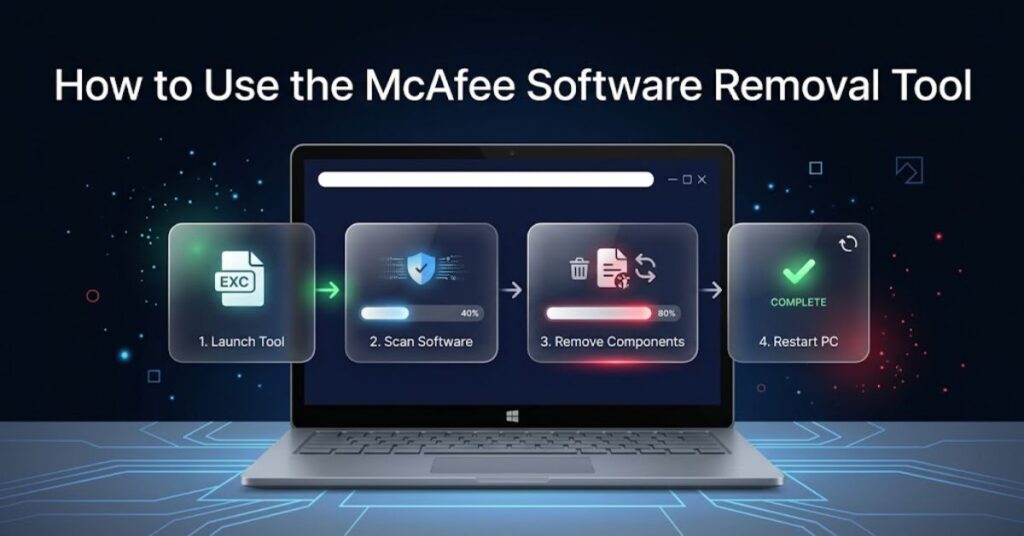
McAfee’s official documentation identifies MCPR as the dedicated removal tool for removing McAfee from a Windows PC. (McAfee)
Step 1: Prepare Your Computer
Before running the tool:
- Save your work.
- Close open applications.
- Save important documents.
- Disconnect unnecessary external devices.
- Make sure Windows has finished pending updates.
- Keep your administrator credentials available if Windows requests them.
If you plan to install another antivirus afterward, download the replacement installer from its official website before removing McAfee. Do not install multiple full antivirus products simultaneously unless the vendors specifically support that setup.
Step 2: Get MCPR From McAfee
Download the current MCPR utility through McAfee’s official support instructions.
Avoid third-party download portals.
The official McAfee support article provides instructions for downloading and running the MCPR tool.
Step 3: Run MCPR
Locate the downloaded MCPR executable.
Double-click the file.
Windows may display a security prompt. Confirm that you want to run the program if you trust the official McAfee download.
Follow the instructions displayed by MCPR.
The tool handles the removal process instead of requiring you to manually search through system folders.
Step 4: Wait for the Process to Finish
Do not close the tool while it works.
The process may take several minutes.
You may see progress information or prompts during removal. Follow the instructions shown on your screen.
Do not manually delete files while MCPR runs.
Step 5: Restart Windows
Restart your computer when the tool asks you to do so.
A restart matters because Windows may still have McAfee-related processes running in memory.
After restarting, check your installed applications again.
Also check whether McAfee notifications or services continue to appear.
Step 6: Confirm the Result
Search your installed applications for McAfee.
If you removed the software successfully, the McAfee product should no longer appear as an installed application.
You can also check your browser extensions and Windows startup applications.
If another security program now protects your computer, confirm that its real-time protection works.
What Happens After MCPR Removes McAfee?
MCPR focuses on removing McAfee software from the Windows computer. It does not automatically install a replacement antivirus.
This distinction matters.
Removing McAfee can leave your PC without real-time antivirus protection if you do not already have another security solution.
Windows includes its own security features, while some users choose another third-party security product.
You should check your protection status immediately after removal.
Open your Windows security settings and confirm that your computer has active protection.
If you plan to install another antivirus, use the vendor’s official website.
You should also restart the computer before diagnosing performance or software issues. A restart gives Windows a clean session after the removal process.
For users who frequently troubleshoot software, TechCrebia’s PhysX System Software guide provides another example of why users should understand the role of installed system software before removing it. (techcrebia.com)
McAfee Removal Tool vs Normal Uninstall
The two methods serve different purposes.
| Feature | Normal Windows Uninstall | MCPR |
| Main purpose | Standard application removal | McAfee-specific cleanup |
| Best for | Normal installations | Failed or incomplete removal |
| Built into Windows | Yes | No |
| Vendor-specific | No | Yes |
| Technical difficulty | Low | Low to moderate |
| First choice | Usually | When normal removal fails |
| Official source | Microsoft | McAfee |
Microsoft recommends its normal uninstall methods for Windows applications. (Microsoft Support)
McAfee provides MCPR for situations that require its dedicated removal process.
This makes the choice simple: try normal uninstall first, then use MCPR if necessary.
Common McAfee Software Removal Tool Problems
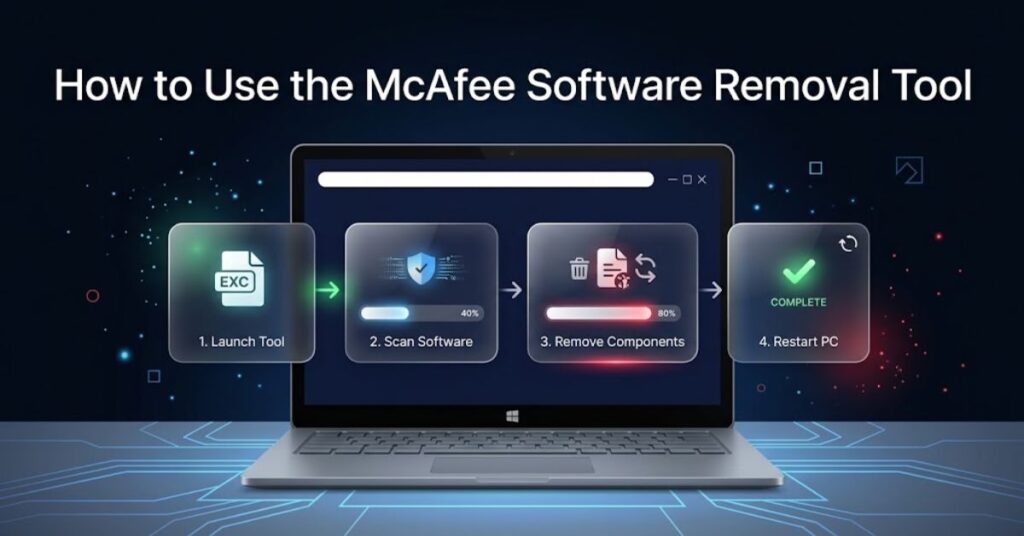
McAfee removal can sometimes produce confusing messages. One common problem occurs when the uninstall process stops before completion.
Another issue occurs when a user removes the main McAfee application but still sees related components.
A third problem can occur when another antivirus installer detects existing security software. These situations do not necessarily mean that Windows has a serious problem.
Start with simple troubleshooting. Restart the computer. Then check the installed applications list again.
If McAfee still appears or the uninstall process remains broken, use the official MCPR instructions.
Common Error Scenarios
- Uninstall button does nothing: Restart Windows and try again.
- Removal stops midway: Use MCPR from McAfee’s official support page.
- McAfee appears after restart: Run the official removal process again.
- New antivirus refuses to install: Check for remaining security software.
- Computer behaves strangely: Run a trusted security scan.
- MCPR does not complete: Follow McAfee’s current troubleshooting instructions rather than manually deleting files.
If you suspect malware rather than a normal uninstall problem, treat that as a separate security issue.
How to Fix MCPR Problems
MCPR normally provides a guided process, but problems can still occur. Start with the simplest fixes. Restart Windows.
Then download the current tool again from McAfee’s official support source. An incomplete or damaged download can cause problems.
Run the tool with appropriate Windows permissions.
Close unnecessary applications before running it.
If another McAfee process appears to block removal, follow the current McAfee support instructions instead of trying to terminate random Windows processes.
If MCPR still fails, check McAfee’s support documentation for the exact error message.
You should avoid registry cleaners and unofficial McAfee removal utilities. They can create more problems than they solve.
Microsoft also provides troubleshooting guidance for Windows programs that fail to install, uninstall, or update.
Its support guidance recommends restarting the PC, repairing supported programs, and using appropriate uninstall troubleshooting tools when necessary.
What to Do Before Removing McAfee
Good preparation makes removal easier.
First, decide what protection you will use after removal.
Second, save important work.
Third, close applications.
Fourth, make sure you can access your Windows administrator account.
Fifth, download replacement security software only from its official source if you intend to install one.
You should also check whether another user depends on the McAfee subscription.
For example, a family computer may use one McAfee account across several devices. Removing software from one PC does not automatically mean that you should cancel the entire subscription.
Separate software removal from subscription cancellation.
They are different actions.
If you only want to stop using McAfee on one computer, removing the software may be enough.
If you want to end billing, handle the subscription separately through your McAfee account.
Common Mistakes to Avoid
Many removal problems come from avoidable mistakes.
Mistake 1: Downloading MCPR From Random Websites
Search results can show unofficial download pages.
Do not trust them automatically.
Use McAfee’s official support page.
Mistake 2: Deleting McAfee Folders Manually
Deleting program folders does not provide a proper uninstall process.
It can also leave services, drivers, or configuration data behind.
Use supported removal methods instead.
Mistake 3: Editing the Windows Registry
Registry editing can create serious Windows problems.
Do not delete McAfee registry entries unless official technical support specifically instructs you and you understand the process.
Mistake 4: Installing Two Antivirus Products
Users sometimes remove McAfee and immediately install another antivirus without checking whether the old installation remains.
This can cause conflicts.
Verify the old software has gone before installing the replacement.
Mistake 5: Forgetting to Restart
A restart completes many software removal operations.
Always restart when the removal tool requests it.
Mistake 6: Leaving the PC Unprotected
Do not forget about security after removal.
Confirm that another security solution protects your computer.
Security Tips After McAfee Removal
Removing McAfee does not remove the need for cybersecurity.
Keep Windows updated.
Use a reputable security solution.
Enable firewall protection.
Avoid suspicious downloads.
Do not open unexpected email attachments.
Use strong, unique passwords.
Enable multi-factor authentication for important accounts.
You should also keep your browser updated.
If you notice unexpected pop-ups, redirects, or suspicious browser extensions after removing McAfee, investigate those issues separately. McAfee’s security guidance recommends checking browser extensions and running security scans when dealing with unwanted software.
For broader technology knowledge, TechCrebia’s productivity software guide also explains how different software categories support everyday computer tasks. (techcrebia.com)
Latest Trends in Antivirus Removal
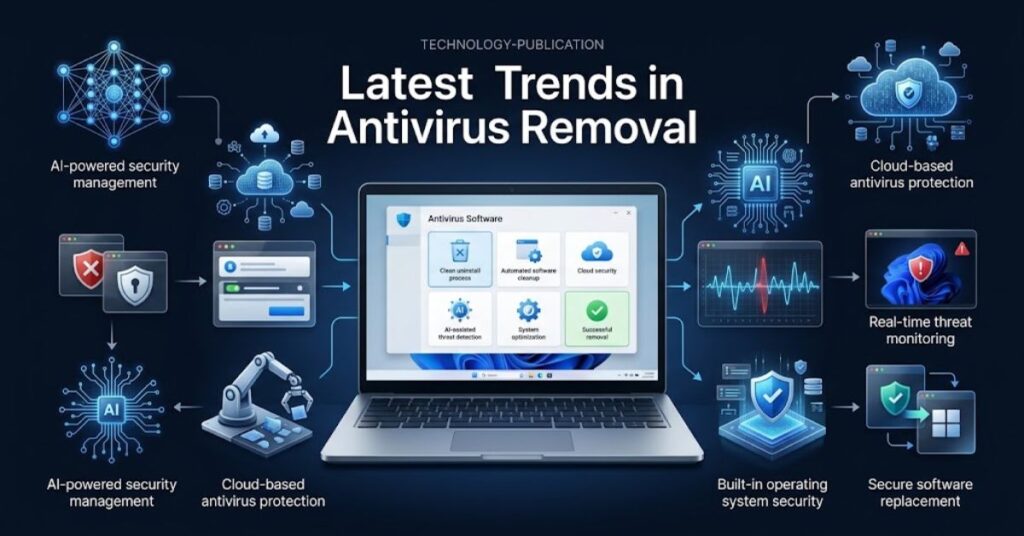
Antivirus removal has become more important as security software integrates deeply with operating systems.
Modern security products often include real-time monitoring, browser protection, web filtering, firewall features, VPN services, identity tools, and performance utilities.
This wider integration can make removal more complex than removing a basic desktop application.
Another trend involves operating-system security.
Windows increasingly provides built-in security capabilities. This means users can choose between Microsoft’s built-in protections and third-party security suites based on their needs.
Windows 10 also reached the end of support on October 14, 2025, according to Microsoft. Users who still run Windows 10 should consider their upgrade and security options carefully.
The future will likely bring more automated software management.
Security products will continue to use cloud services, behavioral detection, AI-assisted threat analysis, and automated updates.
That evolution makes official removal tools increasingly useful because security software can become more tightly integrated with the operating system.
Key Takeaways
- The McAfee software removal tool is called MCPR.
- MCPR helps remove McAfee consumer products from Windows when normal uninstall methods fail.
- Try Windows Settings or Control Panel before using MCPR.
- Download MCPR only from McAfee’s official support source.
- Restart Windows after removal.
- Check your security protection after uninstalling McAfee.
- Do not manually delete McAfee folders or Registry entries.
- Avoid unofficial removal utilities.
- Install replacement security software only after confirming the old software no longer causes conflicts.
- Keep Windows, browsers, and security software updated.
Conclusion
The McAfee software removal tool gives Windows users a practical way to remove McAfee when normal uninstall methods do not work.
For most users, the process should start with Windows Settings or Control Panel. If that approach fails, MCPR provides McAfee’s dedicated removal method.
The safest approach focuses on official tools, careful preparation, and proper verification.
Do not manually delete system files or registry entries simply because McAfee remains on the computer. Use the official removal process instead.
After removal, check your Windows security status and make sure another trusted security solution protects your computer.
With these steps, you can remove McAfee cleanly and prepare your Windows PC for your next security setup.
FAQs
What is the McAfee software removal tool?
The McAfee software removal tool is MCPR, a McAfee utility designed to remove McAfee consumer products from Windows.
Is MCPR safe to use?
Yes, when you download MCPR directly from McAfee’s official support source.
Should I uninstall McAfee before using MCPR?
Yes. Try the normal Windows uninstall process first. Use MCPR when normal removal fails or leaves McAfee installed.
Does MCPR remove all McAfee software?
MCPR targets McAfee consumer products supported by the tool. Follow McAfee’s current instructions for your specific product.
Do I need to restart after using MCPR?
Yes. Restart Windows when the tool requests it so the removal process can finish properly.
Can I install another antivirus after removing McAfee?
Yes. Confirm that McAfee has been removed, then install your preferred security solution from its official source.
Can I manually delete McAfee files?
You should not manually delete system files or Registry entries. Use McAfee’s official removal process instead.
Does removing McAfee cancel my subscription?
No. Removing the software and canceling a subscription are separate actions.
10 SEO Tags
- McAfee software removal tool
- McAfee removal tool
- MCPR tool
- McAfee uninstall tool
- uninstall McAfee
- remove McAfee from Windows
- McAfee Consumer Product Removal
- McAfee uninstall problems
- Windows antivirus removal
- antivirus software removal
5 Internal Linking Suggestions With Anchor Text
- What Is Software and How Does It Work? — Link to the relevant TechCrebia software guide.
- Difference Between Software and Hardware — https://techcrebia.com/difference-between-software-and-hardware/
- PhysX System Software Guide — https://techcrebia.com/physx-system-software/
- Productivity Software Guide — https://techcrebia.com/productivity-software/
- Samsung Galaxy J7 Update Software — https://techcrebia.com/samsung-galaxy-j7-update-software/
2 Authoritative External References
- McAfee MCPR Removal Tool — Official McAfee Support
- Microsoft: Uninstall or Remove Apps and Programs in Windows
Social Media Title
McAfee Software Removal Tool: Complete Windows Guide
Social Media Description
Learn how to remove McAfee safely with the MCPR tool. Discover normal uninstall steps, troubleshooting tips, security advice, and common removal mistakes.



