


Quick Answer
A webcam driver update installs a newer version of the software that helps Windows communicate with your webcam.
It can fix camera detection problems, improve compatibility, resolve video errors, and support newer Windows features.
You can update webcam drivers through Windows Update, Device Manager, your laptop manufacturer’s website, or the webcam manufacturer’s official support page.
Author information
Author: Gulnaz Malik Role: Founder, Publisher & Technology Content Specialist Experience: 5+ Years in Technology, AI, Software & Digital Innovation
Content Review: This article follows Google’s EEAT principles and focuses on practical, accurate guidance using official technical documentation and trusted technology resources.
Introduction
A webcam plays an important role in modern computing. People use webcams for online meetings, video calls, remote learning, live streaming, interviews, and content creation.
However, a webcam does not always work correctly. You may experience a black screen, blurry video, microphone synchronization problems, or a camera that Windows cannot detect.
An outdated or incompatible driver can cause these issues.
A webcam driver update helps your operating system communicate with the camera hardware. It can improve compatibility, fix software conflicts, and resolve certain camera problems.
Windows 11 usually installs drivers automatically. However, you may still need to update them manually when your webcam stops working or a new driver becomes available.
This guide explains how webcam drivers work, how to update them, where to find official drivers, and how to fix common camera problems.
Table of Contents
- What Is a Webcam Driver Update?
- Why Is a Webcam Driver Update Important?
- Signs Your Webcam Driver Needs an Update
- How to Check Your Current Webcam Driver
- How to Update Webcam Drivers in Windows 11
- How to Download Webcam Drivers Safely
- Webcam Driver Update for Different Devices
- Common Webcam Driver Problems and Solutions
- Webcam Driver Update Best Practices
- Webcam Driver Update vs. Webcam Software
- Latest Webcam Driver Trends
- Future of Webcam Drivers
- Key Takeaways
- Conclusion
- Frequently Asked Questions
What Is a Webcam Driver Update?
A webcam driver is a small software component that allows your computer’s operating system to communicate with a camera.
Your webcam contains physical hardware. Windows needs a compatible driver to recognize that hardware and exchange instructions with it.
For example, when you open the Windows Camera app, the operating system communicates with the webcam driver. The driver helps the application access the camera and receive video data.
A webcam driver update replaces an older driver with a newer compatible version.
It may include:
- Bug fixes for camera detection problems.
- Improved compatibility with Windows updates.
- Support for newer camera features.
- Fixes for video freezing and connection errors.
- Better communication between hardware and applications.
Most modern webcams use USB Video Class (UVC) technology. Windows supports many UVC-compatible cameras through built-in drivers. However, some webcams need additional manufacturer-specific drivers or software.
Example: Suppose you connect a USB webcam to a Windows 11 desktop. Windows recognizes the device but displays a black screen. A compatible driver update or reinstall may resolve the communication problem.
Why Is a Webcam Driver Update Important?

A webcam driver update can improve communication between your camera and computer. It also helps resolve compatibility issues that affect video applications.
Here are the main reasons to keep your webcam driver current.
- Better compatibility: New drivers can improve support for Windows updates and modern applications.
- Camera detection: A compatible driver can help Windows recognize a webcam that previously failed to connect.
- Video stability: Driver fixes may reduce freezing, unexpected disconnections, and camera errors.
- Hardware support: Some driver releases add support for newer camera models or features.
- Application compatibility: Updated drivers can resolve certain problems with Microsoft Teams, Zoom, and other video conferencing applications.
- Security and reliability: Manufacturer updates may address technical issues that affect device reliability.
However, updating a driver does not automatically improve every webcam. Video quality also depends on camera resolution, sensor quality, lighting, internet speed, and application settings.
For example, a 720p webcam cannot become a true 4K camera through a driver update.
Signs Your Webcam Driver Needs an Update
Your webcam may show several warning signs when its driver becomes outdated, corrupted, or incompatible.
Look for these common symptoms:
- Windows displays a camera error.
- Your webcam does not appear in Device Manager.
- The Camera app shows a black screen.
- Video freezes during online meetings.
- Your webcam disconnects randomly.
- Zoom or Teams cannot recognize the camera.
- Windows displays an unknown USB device.
- Your camera stops working after a Windows update.
- The webcam works on another computer but not yours.
Remember that these symptoms do not always indicate an outdated driver. Incorrect privacy settings, faulty USB ports, damaged cables, and hardware problems can produce similar errors.
Check the camera’s connection and Windows permissions before installing another driver.
How to Check Your Current Webcam Driver
Before updating anything, identify your existing webcam driver. This step helps you understand which device needs attention.
Windows 11 provides a built-in Device Manager utility for checking hardware information.
Follow these steps:
- Right-click the Windows Start button.
- Select Device Manager.
- Find the Cameras category.
- Expand the category.
- Right-click your webcam.
- Select Properties.
- Open the Driver tab.
- Check the driver provider, date, and version.
You can also check the device status under the General tab.
If Windows displays a message that the device works properly, it means Device Manager has not detected a current hardware problem. It does not guarantee that every camera application will work correctly.
If you cannot find the webcam under Cameras, check these categories:
- Imaging devices.
- Universal Serial Bus controllers.
- Other devices.
The category name depends on the camera and its driver.
How to Update Webcam Drivers in Windows 11
Windows 11 offers several ways to update webcam drivers. Start with Windows Update because it provides recommended driver updates for supported hardware.
Method 1: Update Webcam Drivers Through Windows Update
Windows Update can automatically download and install compatible driver updates.
Follow these steps:
- Open Settings.
- Select Windows Update.
- Click Check for updates.
- Wait while Windows searches for available updates.
- Open Advanced options.
- Select Optional updates.
- Expand Driver updates, if available.
- Select the relevant webcam driver.
- Click Download & install.
- Restart your computer if Windows requests it.
Optional driver updates do not always appear. Their availability depends on your hardware and Microsoft’s update catalog.
Method 2: Update Webcam Drivers Through Device Manager
Device Manager lets you search for a newer driver or install a downloaded driver manually.
Follow these steps:
- Right-click Start.
- Open Device Manager.
- Expand Cameras.
- Right-click your webcam.
- Select Update driver.
- Choose Search automatically for drivers.
- Follow the instructions.
- Restart your computer if necessary.
If Windows cannot find a newer driver, it may report that the best driver is already installed.
This does not necessarily mean the manufacturer’s website has no newer version.
You can also use Device Manager to install a driver package that you previously downloaded from the official manufacturer.
Method 3: Download a Webcam Driver From the Manufacturer
Some webcams need manufacturer-specific drivers.
For example, laptop manufacturers may provide customized camera drivers for their hardware.
Use this process:
- Identify your webcam or laptop model.
- Visit the manufacturer’s official support website.
- Search for your exact model.
- Open its driver and downloads section.
- Select your Windows version.
- Find the camera or webcam driver.
- Download the compatible package.
- Run the installer.
- Follow the installation instructions.
- Restart your computer.
Never install a driver simply because its filename contains the word webcam. Always confirm the model and operating system compatibility.
Microsoft also recommends obtaining drivers from the hardware manufacturer’s official website when Windows cannot find the required update. See its official Device Manager driver update instructions.
Method 4: Reinstall the Webcam Driver
A corrupted driver installation can stop your camera from working correctly.
Reinstalling the driver may resolve this problem.
- Open Device Manager.
- Expand Cameras.
- Right-click your webcam.
- Select Uninstall device.
- Confirm the removal.
- Restart your computer.
- Allow Windows to detect the webcam again.
Windows may reinstall a compatible driver automatically.
If it does not, use Windows Update or download the correct driver from your manufacturer’s support page. Printer Driver Update
Important: Before uninstalling a camera driver, make sure you know how to obtain the correct replacement. Some specialized webcams require a manufacturer package.
How to Download Webcam Drivers Safely
Downloading a webcam driver from a trusted source protects your computer from incompatible software and unwanted programs.
Many websites advertise free driver downloads. However, some distribute outdated, modified, or incorrect installation packages.
Follow these safety recommendations before downloading a driver.
- Visit the official laptop or webcam manufacturer’s website.
- Check the exact model number.
- Confirm Windows 11 compatibility.
- Read the driver release notes.
- Check the supported hardware IDs.
- Avoid suspicious driver download websites.
- Do not install unknown driver updater programs.
- Create a restore point before making major driver changes.
How to Find Your Webcam Model
If you do not know your webcam model, use Device Manager.
- Open Device Manager.
- Expand Cameras.
- Right-click your webcam.
- Select Properties.
- Open the Details tab.
- Select Hardware IDs from the Property drop-down.
Windows displays identification information for your camera.
You can use this information to identify compatible drivers through the manufacturer’s support website.
How to Identify the Correct Driver
Check these details before installation:
Driver information
What to check
Device model
Exact webcam model
Operating system
Windows 11 or supported version
Architecture
64-bit or 32-bit, where applicable
Driver version
Available release number
Manufacturer
Official hardware provider
Compatibility
Supported camera hardware
Never assume that every webcam from the same brand uses an identical driver.
Webcam Driver Update for Different Devices
Webcam driver installation depends on your device type. A built-in laptop camera may use a different driver package from an external USB webcam.
Laptop Webcam Driver Update
Laptop manufacturers usually provide camera drivers through their official support websites.
If your built-in webcam stops working, check your laptop model first.
For example, Dell, HP, Lenovo, and ASUS laptops may use different camera components and driver packages.
Follow these steps:
- Find your laptop’s model number.
- Visit the manufacturer’s support website.
- Open the driver download section.
- Select your Windows version.
- Find the camera-related driver.
- Install the compatible package.
- Restart Windows.
Some laptop cameras use standard Windows drivers. Others require additional manufacturer software.
USB Webcam Driver Update
External webcams connect through USB ports.
Many modern USB webcams support the USB Video Class standard. Windows can recognize compatible devices without a separate driver installation.
If your USB webcam does not work:
- Disconnect the webcam.
- Restart your computer.
- Connect it to another USB port.
- Avoid USB hubs during troubleshooting.
- Open Device Manager.
- Check whether Windows recognizes the camera.
- Install the manufacturer’s driver if required.
A faulty USB cable or port can also cause connection problems. Updating the driver will not repair damaged hardware.
HP Webcam Driver Update
HP laptops and desktop computers may use integrated or external webcams.
Visit HP’s official support website and search using your product model or serial information.
Check the available camera and chipset drivers.
Some HP devices use Windows-compatible camera drivers without requiring a separate webcam package.
Dell Webcam Driver Update
Dell users can find supported drivers through the Dell support website.
Identify your laptop or desktop model and select its operating system.
Check the camera, chipset, and relevant system driver sections.
Install only packages that match your device.
Lenovo Webcam Driver Update
Lenovo provides device-specific driver downloads through its support platform.
Search using your laptop model or machine type.
Check the camera driver and any recommended system updates.
Some Lenovo laptops also include camera privacy controls. Check the physical camera shutter or keyboard camera shortcut if Windows cannot access the webcam.
Common Webcam Driver Problems and Solutions
A webcam may stop working for several reasons. You should identify the actual cause before changing drivers.
The following troubleshooting methods cover common Windows 11 camera problems.
Webcam Not Showing in Device Manager
If Windows cannot detect your webcam, check its connection and hardware status.
Try these solutions:
- Restart your computer.
- Reconnect your external webcam.
- Test another USB port.
- Check the physical camera shutter.
- Open Device Manager and select Action > Scan for hardware changes.
- Check for unknown devices.
- Install the correct manufacturer driver.
For a built-in laptop camera, check whether your computer’s BIOS or manufacturer utility disables the camera.
Webcam Showing a Black Screen
A black screen does not always indicate a driver problem.
Another application may already use the camera. Your privacy settings may also block access.
Try these steps:
- Close video conferencing applications.
- Open the Windows Camera app.
- Check whether the camera works.
- Restart the application.
- Review camera permissions.
- Restart Windows.
If the problem continues, reinstall the camera driver.
Webcam Not Working After a Windows Update
A Windows update can sometimes introduce compatibility problems with an existing driver.
Try the following:
- Check Windows Update for additional driver updates.
- Open Device Manager.
- Select your webcam.
- Open Properties.
- Select the Driver tab.
- Choose Roll Back Driver if the option is available.
The rollback option may appear unavailable if Windows has no previous driver version stored.
You can also download a compatible driver from your laptop manufacturer’s support website.
Webcam Error 0xA00F4244
This error commonly appears with the message:
NoCamerasAreAttached.
Windows cannot detect an available camera.
Possible causes include:
- Disconnected USB webcams.
- Disabled camera hardware.
- Missing drivers.
- Corrupted driver installations.
- Hardware detection problems.
Start by checking the physical connection. Then inspect Device Manager and install a compatible driver if necessary.
Webcam Error 0xA00F4243
This error can indicate that another application already uses the camera.
Close applications such as:
- Microsoft Teams.
- Zoom.
- Skype.
- Browser video calls.
- Camera recording software.
Then reopen the application that needs your webcam.
Webcam Not Working in Zoom or Microsoft Teams
If your webcam works in Windows Camera but not in a meeting application, the problem may involve application settings.
Check the following:
- Select the correct camera in the application.
- Allow camera access in Windows.
- Check the application’s permissions.
- Close other applications using the webcam.
- Update the meeting application.
- Restart the application.
Microsoft explains camera access and application permissions in its.
Webcam Driver Update Best Practices
Regular driver maintenance can reduce camera compatibility problems.
However, installing every available driver update is not necessary.
Follow these practices to keep your webcam working reliably.
- Check compatibility first: Confirm that the driver supports your exact webcam model.
- Use official sources: Download drivers from trusted manufacturer websites.
- Create restore points: Protect your Windows installation before major driver changes.
- Restart after installation: Allow Windows to reload the updated driver.
- Avoid unnecessary updates: Do not replace a working driver without a clear reason.
- Check release notes: Review the fixes and improvements included in each update.
- Keep Windows current: Install relevant Windows updates and security improvements.
- Test your camera: Open the Camera app after completing installation.
Common Webcam Driver Update Mistakes
Avoid these mistakes when maintaining webcam drivers.
Common mistake
Better approach
Installing an incompatible driver
Check the exact model
Downloading from unknown websites
Use official support pages
Updating without checking the problem
Diagnose the camera first
Ignoring privacy settings
Review Windows permissions
Installing several driver packages
Install only the required package
Ignoring manufacturer instructions
Follow official installation steps
Another common mistake involves confusing camera software with camera drivers. Both serve different purposes.
Webcam Driver Update vs. Webcam Software
Webcam drivers and webcam applications work together, but they perform different tasks.
A driver allows Windows to communicate with the camera. Webcam software provides tools for controlling and using the camera.
Feature
Webcam driver
Webcam software
Main purpose
Hardware communication
Camera control
Installation
Windows or manufacturer
Software provider
Video access
Connects Windows to hardware
Uses camera features
Updates
Driver releases
Application releases
Examples
UVC camera driver
Camera settings application
For example, a webcam may work correctly with its standard Windows driver. However, its manufacturer software may provide additional controls for brightness, zoom, focus, and image effects.
This distinction also applies to other computer components. Read our guide to the difference between software and hardware to understand how these components work together.
Latest Webcam Driver Trends
Webcam technology continues to improve as computers support more advanced video features.
Driver development also adapts to changing hardware and operating system requirements.
Here are some important trends.
AI-powered camera features: Modern camera applications increasingly use artificial intelligence for background effects, automatic framing, noise reduction, and image enhancement. Some features rely on compatible hardware and software rather than the webcam driver alone.
Improved video processing: Newer webcams support features such as HDR, better exposure control, and improved low-light performance.
USB connectivity improvements: Modern USB webcams can support higher resolutions, faster data transfer, and more advanced video formats.
Windows camera controls: Windows 11 provides camera settings that let users manage supported camera devices and adjust image controls.
Privacy improvements: Operating systems increasingly provide camera access controls and indicators that help users understand when applications use their cameras.
Remote work compatibility: Video conferencing continues to create demand for reliable webcams and compatible camera drivers.
Future of Webcam Drivers
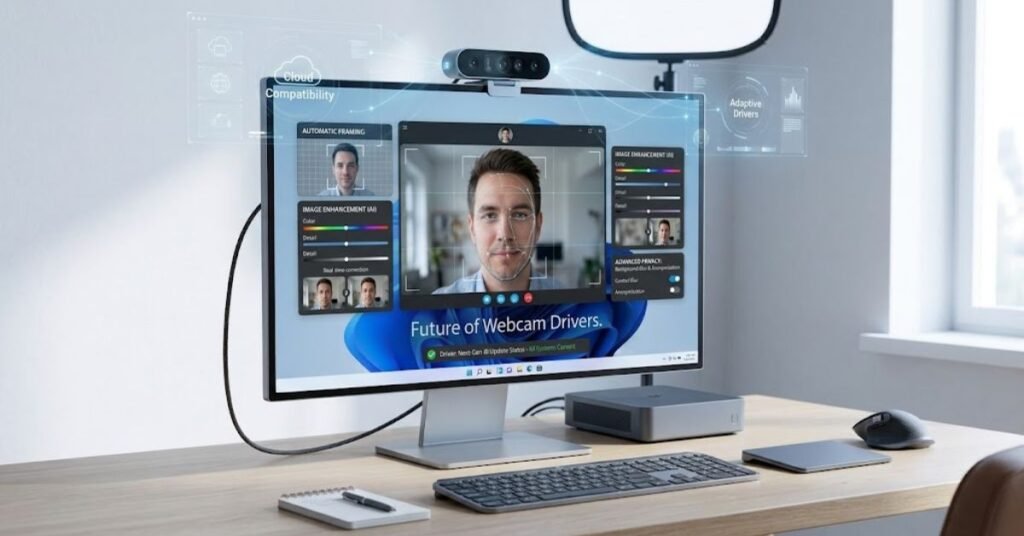
Future webcam drivers will likely focus on hardware compatibility, efficient video processing, privacy, and advanced camera features.
AI-assisted video tools may become more common. These tools can improve framing, lighting, and background effects when the camera and computer support them.
Manufacturers may also improve driver installation through automatic update systems.
Windows camera management may continue to evolve as more devices support advanced imaging technologies.
However, not every improvement requires a new driver. Some features depend on application updates, operating system capabilities, or dedicated camera hardware.
For everyday users, the main priority will remain simple: install compatible drivers, maintain updated software, and protect camera access.
Key Takeaways
- A webcam driver allows Windows to communicate with your camera hardware.
- Regular driver maintenance can improve compatibility and resolve certain camera errors.
- Windows Update and Device Manager provide built-in driver update options.
- Always download manufacturer-specific drivers from official support websites.
- Check camera permissions before assuming that an outdated driver causes the problem.
- Reinstalling or rolling back a driver can help resolve certain compatibility issues.
- USB connection problems and damaged hardware require separate troubleshooting.
- A driver update cannot improve the physical resolution or sensor quality of your webcam.
Conclusion
A webcam driver update helps maintain communication between your webcam and Windows operating system. It can resolve compatibility problems, fix certain camera errors, and improve device reliability.
Windows 11 offers several ways to manage webcam drivers. You can use Windows Update, Device Manager, or the official support website of your camera manufacturer.
Before installing a new driver, check your webcam model and operating system compatibility. Also, review camera permissions and USB connections if your webcam stops working.
Avoid unknown driver download websites and unnecessary driver updater applications. Always choose compatible software from trusted sources.
A little driver maintenance can help keep your webcam ready for video meetings, online classes, streaming, and everyday communication.
Frequently Asked Questions
1. How do I update my webcam driver in Windows 11?
Open Device Manager, expand Cameras, right-click your webcam, select Update driver, and choose Search automatically for drivers.
2. How do I know if my webcam driver is outdated?
Check the driver version and date in Device Manager. Compare available versions with your webcam manufacturer’s official support page.
3. Can I update my webcam driver for free?
Yes. Windows Update, Device Manager, and official manufacturer support websites provide free driver update options.
4. Why is my webcam not working after a driver update?
An incompatible or corrupted driver may cause problems. Try rolling back the driver, reinstalling it, or installing a compatible manufacturer version.
5. Does Windows 11 install webcam drivers automatically?
Windows 11 can automatically install compatible webcam drivers through Windows Update. Some specialized cameras require additional manufacturer drivers.
6. How do I reinstall a webcam driver?
Open Device Manager, expand Cameras, right-click your webcam, select Uninstall device, and restart your computer. Windows may reinstall a compatible driver automatically.
7. Can an outdated webcam driver cause a black screen?
Yes. An outdated or incompatible driver can cause camera display problems. However, privacy settings, application conflicts, and hardware faults can also cause a black screen.
8. Should I use third-party webcam driver updater software?
You generally do not need third-party driver updater software. Use Windows Update, Device Manager, or your hardware manufacturer’s official website.
9. How do I fix a webcam that Windows cannot detect?
Check the USB connection, restart Windows, scan for hardware changes in Device Manager, and install the correct driver if necessary.
10. Does updating a webcam driver improve video quality?
An update may fix video processing problems or enable supported features. However, it cannot increase the physical resolution or sensor capabilities of your webcam.