





Quick Answer
A USB driver update installs or replaces software that helps Windows communicate with USB controllers, hubs, and connected devices.
Windows can automatically provide many USB drivers through Windows Update, while Device Manager and the hardware manufacturer’s official support page can help with specific problems.
Author Information
Author: Gulnaz Malik
Role: Founder, Publisher & Technology Content Specialist
Experience: 5+ Years in Technology, AI, Software & Digital Innovation
Content Review: All content follows Google’s latest EEAT guidelines and includes fact-checked information from official documentation, trusted technology sources, industry reports, and practical research to ensure accuracy, reliability, and up-to-date insights.
Introduction
USB devices are part of everyday computing. You may use a USB keyboard, mouse, flash drive, external SSD, webcam, printer, phone, game controller, or USB-C dock every day without thinking about the software behind the connection.
Windows needs drivers to communicate with many hardware devices. USB support also includes built-in Windows drivers for several standard device classes.
This means you do not always need to manually download a USB driver when you connect a new device.
However, USB problems can still happen.
Windows might display USB device not recognized. A flash drive may disappear from File Explorer. A webcam may stop working.
An external hard drive may disconnect repeatedly. A USB-C device may fail to provide its expected function.
A USB driver update can help when the problem comes from an outdated, corrupted, incompatible, or incorrectly installed driver.
This guide explains what USB drivers do, when you should update them, how to update USB drivers safely, how to reinstall them, and how to troubleshoot common USB problems.
Table of Contents
- What Is a USB Driver Update?
- Why Are USB Driver Updates Important?
- When Should You Update a USB Driver?
- How to Update USB Drivers on Windows
- How to Update USB Drivers Through Device Manager
- How to Reinstall a USB Driver
- How to Fix Common USB Driver Problems
- USB Driver Update for Different Devices
- Best Practices for Safe USB Driver Updates
- Do You Need USB Driver Updater Software?
- USB Drivers vs Firmware
- Latest USB Driver and Windows Trends
- Key Takeaways
- Conclusion
- FAQ
- SEO Tags
- Internal Linking Suggestions
- Authoritative External References
- Social Media Title
What Is a USB Driver Update?
A USB driver update is a newer version of the software that helps Windows communicate with USB hardware.
The term USB driver can describe different parts of the USB software stack. Windows includes native support for USB host controllers, hubs, and several standard USB device classes. Supported class drivers can install automatically when Windows detects compatible hardware.
Think of the driver as a communication layer.
When you connect a USB mouse, for example, Windows detects the device and loads the appropriate software support.
The operating system can then receive information from the mouse and translate that information into cursor movement and clicks.
The same basic process applies to many other devices.
| USB Device | What Driver Support Helps With |
| USB mouse | Input and pointer control |
| USB keyboard | Keyboard input |
| USB webcam | Camera communication |
| USB printer | Printing communication |
| USB flash drive | Storage access |
| External SSD | Storage communication |
| USB audio device | Audio input and output |
| USB Wi-Fi adapter | Wireless networking |
| USB Bluetooth adapter | Bluetooth connectivity |
| USB controller | Game and input commands |
Some USB devices use standard Windows class drivers. Others require additional software from the manufacturer.
That difference explains why one USB device may work immediately while another may require a specific driver package.
For a broader explanation of how drivers connect software with physical components, see TechCrebia’s guide to the difference between software and hardware.
Why Is a USB Driver Update Important?
A USB driver update can improve compatibility between Windows and connected hardware.
You may notice problems such as:
- USB devices disconnecting randomly.
- Windows showing a USB error.
- A webcam failing to appear.
- A printer refusing to communicate.
- A USB storage device disappearing.
- A USB controller showing a warning icon.
- A USB device working on one computer but not another.
- A device failing after a Windows update.
A driver update can address some of these problems when the underlying cause involves software.
However, a driver update cannot repair every USB problem.
A damaged cable, defective USB port, faulty external drive, insufficient power, or failing device can create symptoms that look like driver problems.
That is why good troubleshooting starts with the simplest possibilities.
Windows Update provides recommended hardware drivers automatically for many devices. Microsoft also advises users to check the manufacturer’s website when Windows Update cannot find a suitable driver.
When Should You Update a USB Driver?
You do not need to update USB drivers simply because a newer version exists.
If your USB devices work correctly, unnecessary driver changes can create additional troubleshooting variables.
Consider a USB driver update when:
- Windows reports a driver problem.
- Device Manager displays a warning icon.
- A USB device stopped working after a Windows update.
- A manufacturer released a driver to fix a known compatibility issue.
- A specific USB device requires newer software.
- Your USB controller repeatedly disconnects devices.
- A device works incorrectly after installing new hardware.
- Windows cannot properly identify compatible USB hardware.
Signs That a Driver Problem May Exist
Look for these clues:
- Code 10: Windows reports that a device cannot start.
- Code 31: Windows cannot load the required drivers.
- Code 43: Windows reports that the device has encountered a problem.
- Unknown USB device: Windows cannot properly identify the connected hardware.
Microsoft’s Device Manager documentation recommends updating or reinstalling the relevant driver for several driver-related error codes.
A driver problem becomes more likely when the same device works correctly on another computer with the same cable and accessory.
Still, test the physical connection before changing drivers.
How to Update USB Drivers on Windows
Windows provides several ways to update drivers. Start with Windows Update because it can automatically obtain recommended drivers for supported hardware.
Method 1: Use Windows Update
On Windows 11, follow these steps:
- Open Start.
- Select Settings.
- Select Windows Update.
- Select Check for updates.
- Install available updates.
- Restart your computer if Windows requests it.
Windows may automatically install recommended driver updates.
You can also check for optional driver updates.
Open:
Settings → Windows Update → Advanced options → Optional updates
If Windows lists a relevant driver, review its device name before installing it.
Microsoft notes that optional drivers are not installed automatically, so users must select them when available.
Do not install every optional driver without checking what hardware it belongs to.
A driver listed for a device you do not own has no useful purpose.
Method 2: Use Device Manager
Device Manager gives you more direct control over individual hardware components.
It can help you identify the USB controller or device causing the problem.
Typical USB-related entries may appear under:
- Universal Serial Bus controllers
- USB devices
- Other devices
- Human Interface Devices
- Portable Devices
The exact names vary between computers and hardware.
Microsoft provides Device Manager as a built-in method for updating or reinstalling drivers in Windows.
Method 3: Use the Manufacturer’s Official Driver
Sometimes Windows cannot provide the driver you need.
In that situation, identify the exact computer, motherboard, USB adapter, dock, or peripheral model.
Then visit the manufacturer’s official support page.
This method can be particularly useful for:
- USB-C docks
- USB Ethernet adapters
- USB Wi-Fi adapters
- USB Bluetooth adapters
- Specialized webcams
- Professional audio interfaces
- Gaming peripherals
- Motherboard USB controllers
Always match the driver with your Windows version and hardware model.
Avoid downloading drivers from random websites.
How to Update USB Drivers Through Device Manager
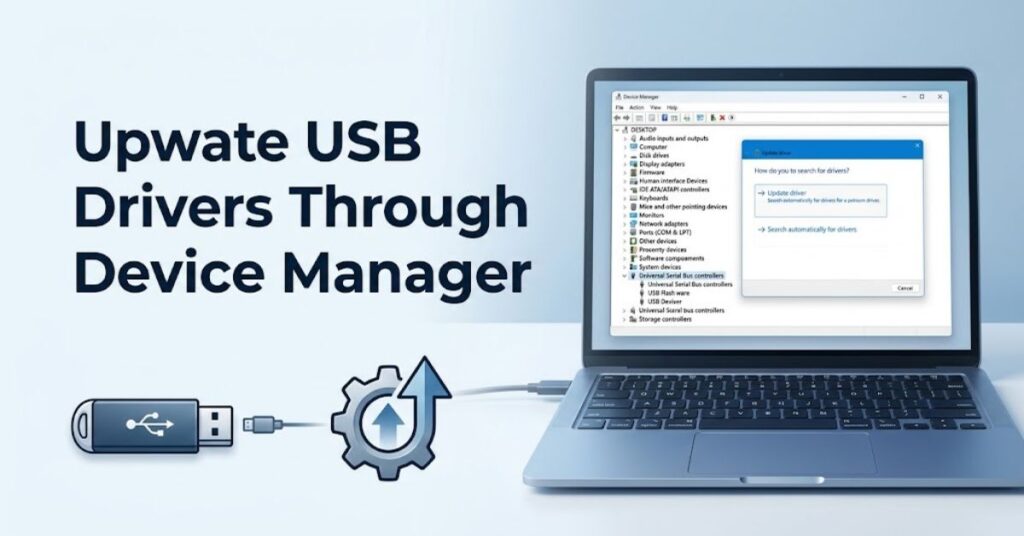
Device Manager is especially useful when a USB device has a visible error.
Automatic USB Driver Update
Follow these steps:
- Press Windows + X.
- Select Device Manager.
- Expand Universal Serial Bus controllers.
- Find the relevant USB controller or device.
- Right-click it.
- Select Update driver.
- Select Search automatically for drivers.
- Follow the instructions.
- Restart Windows if required.
Windows may report that the best driver is already installed.
That message does not always mean the hardware manufacturer has never released another version. A newer compatible driver may exist on the manufacturer’s official support page.
Manual Driver Installation
If you already downloaded the correct driver:
- Open Device Manager.
- Locate the device.
- Right-click it.
- Select Update driver.
- Choose Browse my computer for drivers.
- Select the folder containing the driver files.
- Continue with the installation.
- Restart Windows when necessary.
Microsoft recommends using the correct driver for the Windows version and system architecture when installing drivers manually.
How to Reinstall a USB Driver
A USB driver update does not always solve a corrupted installation.
In that situation, reinstalling the driver may help.
Reinstall Through Device Manager
- Open Device Manager.
- Expand Universal Serial Bus controllers.
- Identify the affected device or controller.
- Right-click it.
- Select Uninstall device.
- Confirm the action.
- Restart the computer.
Windows may automatically reinstall the appropriate driver after the restart.
You can also use Action → Scan for hardware changes in Device Manager.
Microsoft documents this approach for devices that require driver reinstallation.
Do not uninstall several USB controllers at once unless you understand the consequences.
If you remove the wrong controller or device, you may temporarily lose access to connected peripherals.
A safer approach involves identifying one problematic device, recording its name, and changing one item at a time.
How to Fix Common USB Driver Problems
USB problems can have several causes. A structured process helps you avoid unnecessary driver changes.
USB Device Not Recognized
Try these steps:
- Disconnect the device.
- Wait a few seconds.
- Connect it to another USB port.
- Restart Windows.
- Test another USB cable if possible.
- Test the device on another computer.
- Check Device Manager for warnings.
- Install available Windows updates.
- Update or reinstall the relevant driver.
If the device works on another computer, the problem may involve your Windows configuration, USB controller, or port.
If the device fails everywhere, the hardware or cable may have a problem.
USB Device Keeps Disconnecting
Repeated disconnections can result from software, power management, cables, ports, or hardware.
Start with simple tests.
Try another USB port. If the device uses a detachable cable, test another compatible cable.
Also check whether the problem affects one device or every USB device.
If only one device disconnects, investigate that device first.
If several devices disconnect, investigate the computer’s USB controllers, power management, chipset drivers, and system updates.
USB Device Has a Yellow Warning Icon
A yellow warning icon in Device Manager means Windows has detected a problem.
Double-click the device and read the Device status message.
The error code can provide a useful starting point.
For example, Microsoft documents Code 10 as a device that cannot start and recommends updating the driver as one possible resolution.
Do not guess the cause from the warning icon alone.
USB Works Slowly
Slow USB performance does not automatically mean you need a driver update.
Check:
- USB port type.
- Device capabilities.
- Cable quality.
- Storage health.
- File size and transfer pattern.
- Other applications using the drive.
- Whether the device supports the expected USB generation.
A USB 2.0 device will not become a USB 3.x device through a driver update.
Drivers can help communication, but they cannot change the physical capabilities of hardware.
USB Driver Update for Different Devices
USB devices come in many different types, and each one may use different driver software. For this reason, the right USB driver update method depends on the device you are using and how Windows manages its hardware.
USB Storage Devices
USB flash drives and external SSDs often use standard Windows storage support.
If a storage device fails to appear, check:
- Another USB port.
- Another computer.
- Disk Management.
- Device Manager.
- Cable and power requirements.
- Windows updates.
Do not immediately format a drive that contains important files.
If Windows detects the drive but cannot access its data, the problem may involve the file system rather than the USB driver.
For storage-related software topics, TechCrebia’s Mac Data Recovery Software guide provides additional information about recovering files when storage problems become serious.
USB Webcams
Webcams may use standard Windows camera support or manufacturer-specific software.
If a USB webcam stops working:
- Check Windows camera permissions.
- Test another USB port.
- Close applications that may already be using the camera.
- Check Device Manager.
- Install the manufacturer’s software when required.
- Update the relevant driver if Windows identifies a driver problem.
USB Printers
Printers can require more than basic USB connectivity.
The printer manufacturer may provide a complete software package containing drivers and utilities.
If Windows detects the printer but printing fails, check both the printer software and Windows printer settings.
USB Wi-Fi Adapters
USB Wi-Fi adapters depend on both USB communication and wireless networking software.
If the adapter disappears:
- Check Device Manager.
- Test another USB port.
- Reinstall the adapter driver.
- Check the manufacturer’s support page.
- Restart the computer.
USB Bluetooth Adapters
USB Bluetooth adapters also need compatible driver support.
If Bluetooth disappears after connecting the adapter, check Device Manager and the adapter manufacturer’s official support resources.
For broader wireless driver troubleshooting, TechCrebia’s Bluetooth Driver Update guide covers Windows Bluetooth driver problems and reinstall methods.
Best Practices for Safe USB Driver Updates
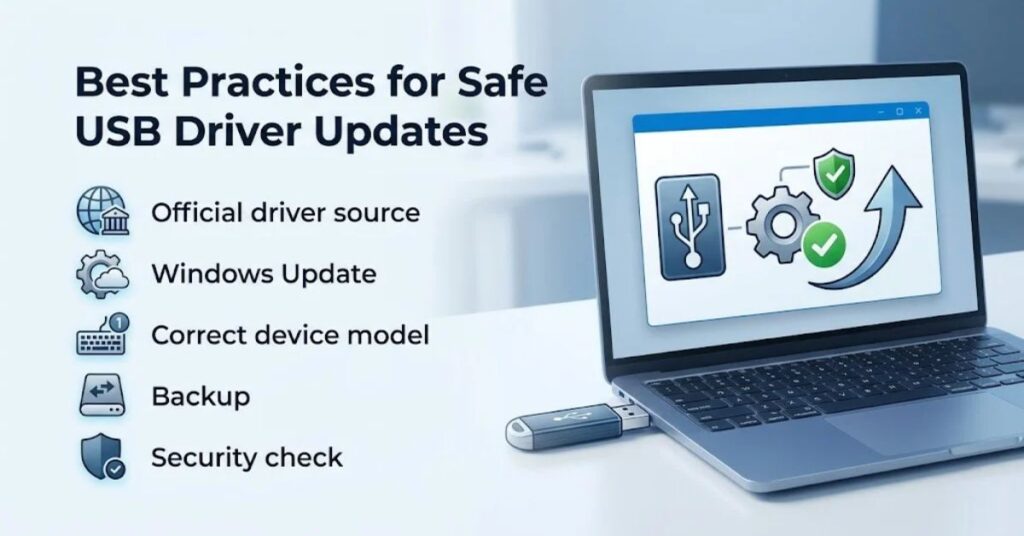
Safe driver management matters because drivers interact closely with Windows and hardware.
Follow these practices:
- Use Windows Update as your first option.
- Download manufacturer drivers from official support pages.
- Confirm your exact hardware model.
- Check your Windows version before installation.
- Record the existing driver version before making major changes.
- Restart after important driver installations.
- Change one driver at a time when troubleshooting.
- Keep important files backed up.
- Avoid random driver-download websites.
- Avoid unnecessary driver-update utilities.
- Do not install modified drivers unless you understand the risks.
- Keep Windows updated.
A driver file from an unknown source can introduce unnecessary security and compatibility risks.
Microsoft also recommends contacting the hardware manufacturer when Windows cannot provide an appropriate driver.
If your PC uses several hardware utilities, keep the software environment simple. TechCrebia’s Fan Controller RGB Software guide provides another example of how Windows software can communicate with physical PC hardware.
Do You Need USB Driver Updater Software?
Most users do not need third-party driver updater software.
Windows already provides Windows Update and Device Manager for driver management.
Third-party utilities can scan a computer and list drivers that they consider old. However, an old driver does not automatically mean a problematic driver.
A stable system does not require constant driver replacement.
There is also a security reason to be cautious.
Drivers operate closer to the operating system than ordinary applications. Installing the wrong driver can cause instability, compatibility problems, or device failures.
For that reason, official sources matter.
If you need a specific driver, identify the hardware first. Then obtain the appropriate package from Windows Update or the hardware manufacturer’s official website.
For a broader look at maintaining software without unnecessary changes, TechCrebia’s Windows Driver Update guide explains how Windows Update, Device Manager, and manufacturer drivers work together.
USB Drivers vs Firmware
USB drivers and firmware are related, but they are not the same thing.
A driver is software that Windows uses to communicate with hardware.
Firmware is software stored within a device or hardware component. It controls functions built into that hardware.
For example, a USB dock may contain firmware that controls its internal functions. Windows may also use a driver to communicate with that dock.
This distinction becomes important during troubleshooting.
If a manufacturer releases a firmware update for a USB-C dock, installing a USB driver may not provide the same fix.
Likewise, updating firmware does not necessarily replace a Windows driver.
Always read the manufacturer’s update instructions before installing either type of update.
Latest USB Driver and Windows Trends
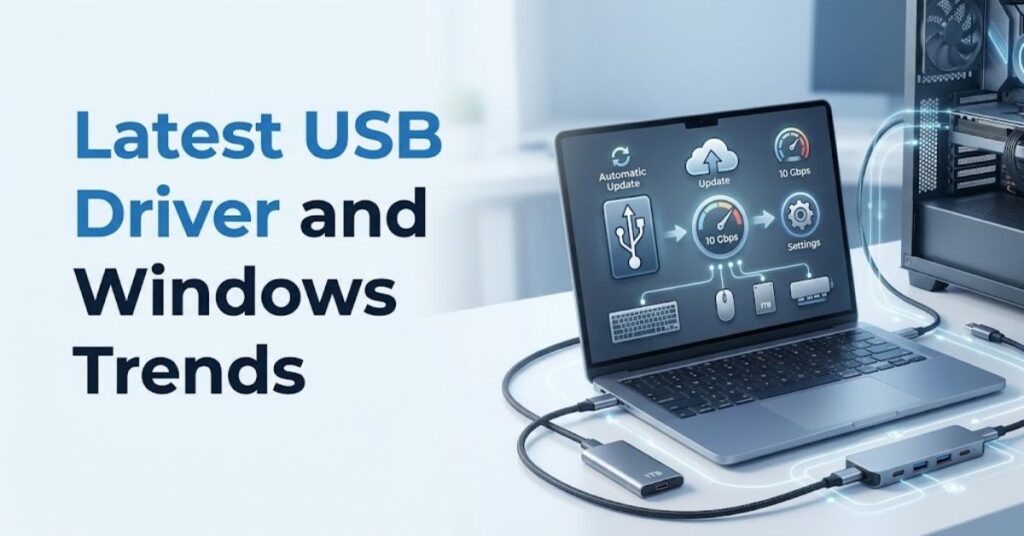
USB support continues to evolve as computers move toward faster ports, USB-C connectivity, docking stations, and higher-speed storage.
Windows already includes native support for several USB device classes. Microsoft explains that compatible class drivers can install automatically and receive updates through Windows Update.
This reduces the need for users to manually search for basic USB drivers.
Modern USB-C systems also combine multiple capabilities through a single connector. Depending on the hardware, a USB-C port may handle data, display output, charging, networking, or other functions.
That creates a greater need for correct device, chipset, controller, and firmware support.
Another important trend involves automatic driver delivery.
Windows can obtain recommended hardware drivers through Windows Update, which reduces manual maintenance for many users.
Security also remains important. Microsoft continues to use driver signing and compatibility requirements to help maintain the reliability of Windows hardware drivers.
In the future, driver management will likely become increasingly automatic. Windows will continue identifying compatible hardware and delivering appropriate updates while manufacturers provide specialized packages for devices that need additional functionality.
Key Takeaways
- A USB driver helps Windows communicate with USB hardware.
- Many standard USB drivers come built into Windows.
- Windows Update should usually be your first update method.
- Device Manager helps identify and update individual USB devices.
- Manufacturer websites can provide specialized USB drivers.
- A driver update cannot repair damaged cables, ports, or hardware.
- Reinstalling a driver can help when an installation becomes corrupted.
- Do not update every driver simply because a newer version exists.
- Avoid random driver-download websites.
- USB drivers and device firmware are different.
- Always identify the exact hardware before installing a manual driver.
- Back up important files before major troubleshooting.
Conclusion
A USB Driver Update can help Windows communicate correctly with USB controllers, adapters, storage devices, webcams, printers, and other peripherals.
The safest approach starts with Windows Update. If Windows cannot resolve the problem, Device Manager provides more control. For specialized hardware, the manufacturer’s official support page may provide the correct driver or additional software.
Remember that not every USB problem comes from a driver. A faulty cable, damaged port, inadequate power, failing device, or firmware problem can create similar symptoms.
For that reason, test the physical connection before making major software changes.
If you follow a controlled troubleshooting process, use official driver sources, and update only when there is a clear reason, you can keep USB devices reliable without unnecessary system changes.
FAQ
What is a USB driver update?
A USB driver update installs newer software that helps Windows communicate correctly with USB hardware.
How do I update USB drivers on Windows?
Use Windows Update first, or open Device Manager and select the relevant USB device to check for a driver update.
Does Windows automatically update USB drivers?
Yes. Windows can automatically install recommended drivers for supported hardware through Windows Update.
How do I fix a USB device that Windows does not recognize?
Try another USB port and cable, restart Windows, check Device Manager, and update or reinstall the relevant driver.
Can a USB driver update increase USB speed?
Not beyond the physical limits of the hardware. A driver can improve compatibility, but it cannot turn USB 2.0 hardware into USB 3.x hardware.
Should I use third-party USB driver updater software?
Most users do not need it because Windows Update and Device Manager already provide built-in driver-management options.
What should I do if a USB driver update fails?
Restart Windows, check Device Manager, reinstall the correct driver, or download the appropriate driver from the manufacturer’s official support page.
Are USB drivers and firmware the same?
No. A driver helps Windows communicate with hardware, while firmware runs inside a device and controls its built-in functions.
Can a driver fix a damaged USB port?
No. A driver cannot repair physical hardware damage. Test another port or computer to determine whether the hardware itself works.
Why does my USB device keep disconnecting?
Possible causes include drivers, power management, a faulty cable, a damaged port, insufficient power, firmware, or failing hardware.
SEO Tags
- USB Driver Update
- USB drivers Windows 11
- update USB drivers
- USB driver Windows 10
- USB device not recognized
- USB driver problems
- reinstall USB driver
- USB controller driver
- USB driver troubleshooting
- Windows USB drivers
Internal Linking Suggestions With Anchor Text
- Windows Driver Update — use for general Windows driver-management topics.
- Bluetooth Driver Update — use when discussing USB Bluetooth adapters.
- Difference Between Software and Hardware — use when explaining how drivers connect software and hardware.
- Fan Controller RGB Software — use when discussing software-to-hardware communication.
- PhysX System Software — use for related PC hardware and system software topics.
Authoritative External References
- Microsoft: Automatically Get Recommended Hardware Drivers
- Microsoft Learn: USB Device Class Drivers Included in Windows
Social Media Title
USB Driver Update: How to Update, Reinstall & Fix USB Problems



