Quick Answer
USB Data Recovery means restoring deleted, lost, formatted, or inaccessible files from a USB flash drive.
Stop using the USB drive immediately to reduce the chance of overwriting lost data. You can then try Windows File Recovery, PhotoRec, or another trusted recovery method. If the USB has physical damage, professional recovery may provide a safer option.
Author Information
Author: Gulnaz Malik
Role: Founder, Publisher & Technology Content Specialist
Experience: 5+ Years in Technology, AI, Software & Digital Innovation
Content Review: All content follows Google’s latest EEAT guidelines and includes fact-checked information from official documentation, trusted technology sources, industry reports, and practical research to ensure accuracy, reliability, and up-to-date insights.
Introduction
USB flash drives make file storage simple and portable. You can carry documents, photos, videos, presentations, backups, and other important files in a small device.
However, USB drives can also experience data loss.
You might accidentally delete a folder. You might format the drive without realizing that important files remain on it.
Windows may suddenly ask you to format the USB. The drive might become corrupted, disappear from File Explorer, or show an incorrect storage capacity.
These situations can feel serious, but data loss does not always mean permanent loss.
USB Data Recovery uses software and other techniques to locate recoverable information on a storage device.
Your chances depend on what happened, how much you used the drive afterward, the condition of its file system, and whether the physical hardware still works.
The most important rule comes first: stop writing new data to the affected USB drive.
When you delete a file, the operating system can mark the space as available instead of immediately removing every piece of the underlying data.
New files can later occupy that space. Microsoft specifically recommends minimizing computer use when trying to recover lost files because new activity can overwrite recoverable data.
This guide explains USB Data Recovery from beginner to advanced level. It covers deleted files, formatted drives, corrupted USB devices, recovery software, Windows methods, troubleshooting, best practices, and situations where professional help makes more sense.
Table of Contents
- What Is USB Data Recovery?
- Why Do USB Drives Lose Data?
- What Causes USB Data Loss?
- How USB Data Recovery Works
- How to Recover Deleted Files From a USB Drive
- USB Data Recovery Methods Compared
- How to Recover Files From a Formatted USB Drive
- How to Recover Data From a Corrupted USB
- USB Data Recovery With Windows File Recovery
- USB Data Recovery With PhotoRec
- Common USB Recovery Problems
- Best Practices for Successful USB Data Recovery
- When Should You Use Professional Data Recovery?
- Latest USB Data Recovery Trends
- Key Takeaways
- Conclusion
- FAQs
What Is USB Data Recovery?
USB Data Recovery is the process of retrieving files that you can no longer access from a USB storage device.
The missing data may include:
- Photos
- Videos
- Word documents
- PDF files
- Spreadsheets
- Presentations
- Audio files
- ZIP archives
- Project files
- School assignments
- Business documents
A USB drive normally uses a file system such as FAT32, exFAT, or NTFS. The file system helps the operating system organize and locate files.
When you delete a file, the file system may remove its reference while leaving some or all of the underlying data available until new information overwrites it.
That explains why recovery software can sometimes find files that no longer appear in File Explorer.
However, recovery does not guarantee success.
If new data overwrites the old data, recovery becomes much harder or impossible. Physical damage can also prevent normal recovery software from accessing the storage.
If you want to understand the difference between physical storage and the software that manages it, TechCrebia’s Difference Between Software and Hardware guide provides useful background.
Why Do USB Drives Lose Data?
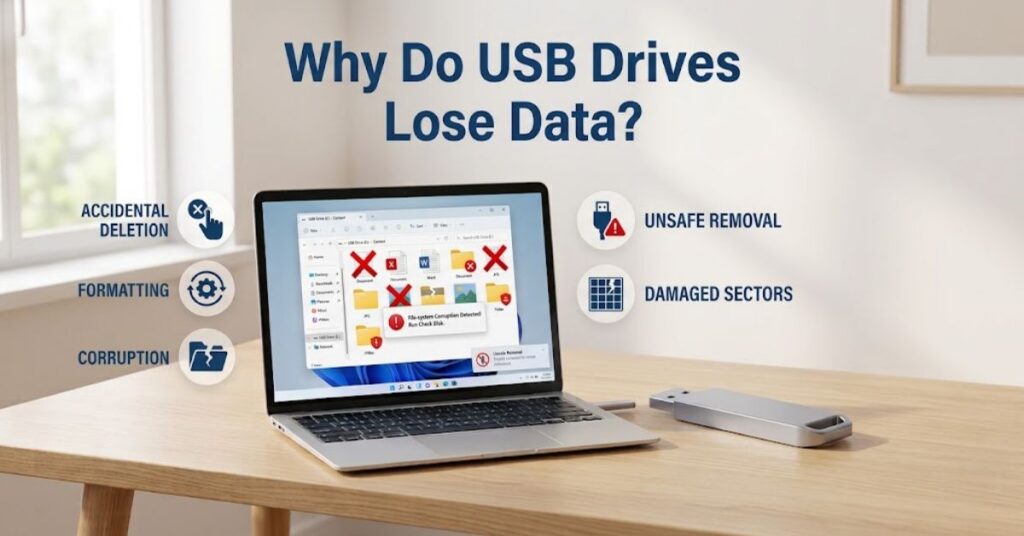
USB data loss can happen for many reasons.
Accidental deletion remains one of the most common situations. A user may select the wrong folder and press Delete or permanently remove files without checking their contents.
Formatting creates another common problem. Windows may display a message asking you to format a USB drive before you can access it. Formatting the drive without first checking for important files can make recovery more complicated.
File-system corruption can also cause problems. A sudden removal, interrupted write operation, malware infection, or software failure can damage the information that tells Windows where files are stored.
Physical problems create a different category of risk. A damaged USB connector, failing flash memory, broken circuit board, or electrical problem can prevent the computer from communicating with the drive.
Understanding the cause helps you choose the right recovery approach.
What Causes USB Data Loss?
Accidental File Deletion
- You delete a file accidentally.
- You empty the Recycle Bin after deleting files from an accessible USB.
- You permanently delete a folder with Shift + Delete.
- You remove files while organizing the drive.
Deleted data may remain recoverable until another operation overwrites its storage area.
USB Formatting
- You accidentally select the wrong drive during formatting.
- Windows asks you to format the drive, and you accept.
- You change the file system without backing up your files.
- A formatting process stops unexpectedly.
A formatted drive may still contain recoverable data, especially when you stop using it immediately.
File-System Corruption
- Windows cannot open the USB.
- The drive appears as RAW.
- File names become unreadable.
- Folders disappear.
- Windows reports that the drive needs to be formatted.
- The storage capacity appears incorrectly.
File-system corruption can sometimes occur even when the flash memory itself still works.
Physical USB Damage
- The connector becomes bent.
- The USB drive breaks physically.
- The device becomes unusually hot.
- The computer cannot detect it on multiple systems.
- The drive repeatedly disconnects.
- The USB shows no capacity or an incorrect capacity.
Software recovery tools cannot repair a physically failed flash-memory chip or damaged controller.
How USB Data Recovery Works
USB recovery software generally scans the storage device for information that can help reconstruct files.
Different tools use different approaches.
A file-system recovery method can use existing file-system structures to locate deleted files and preserve useful names and folder information.
A signature-based recovery method looks for recognizable file patterns. This approach can sometimes recover files when the file system has suffered serious damage.
PhotoRec, for example, uses file signatures and can recover files from severely damaged or reformatted file systems. Its documentation also warns users to avoid writing data to the affected storage because new data can overwrite lost files.
The recovered files should always go to a different storage device.
Never save recovered files back to the same USB drive that contains the lost data.
How to Recover Deleted Files From a USB Drive
If you accidentally deleted files from a USB drive, follow a careful recovery process.
Step 1: Stop Using the USB
Immediately stop copying files to the drive.
Immediately stop copying files to the drive. Avoid installing recovery software on the affected USB, creating new folders, or moving additional files onto it. Any new activity can change the storage area where your missing data may still exist.
Step 2: Check for Another Copy
Before running recovery software, check whether you have:
- A cloud backup
- An external backup
- Another USB copy
- A computer copy
- An email attachment
- A previous project folder
A backup provides a simpler recovery path than scanning a damaged device.
Step 3: Check Whether Windows Detects the Drive
Connect the USB and open File Explorer.
If Windows shows the drive with the correct capacity, recovery software may have a straightforward path to the data.
If Windows detects the device but cannot open it, avoid formatting it immediately.
Step 4: Choose a Recovery Tool
Windows users can consider Microsoft’s Windows File Recovery for supported scenarios. Microsoft states that the utility can attempt recovery from local storage devices, including USB devices.
For more advanced file carving, PhotoRec provides another option.
Step 5: Save Recovered Files Elsewhere
Use another internal drive or external storage device as the destination.
This protects the original USB from additional writes.
USB Data Recovery Methods Compared
| Recovery Method | Best For | Difficulty | Main Limitation |
| Backup restore | Existing backup copies | Easy | Requires a backup |
| Windows File Recovery | Deleted files on supported systems | Moderate | Command-line interface |
| PhotoRec | Corrupted or formatted media | Moderate | File names and folders may not remain |
| Recovery software with GUI | Beginners | Easy | Features vary by tool |
| Professional recovery | Physical or severe hardware damage | Advanced | Can cost more |
Choose the least invasive method that matches the problem.
If you have a healthy USB with recently deleted files, software recovery may be appropriate. If the drive makes unusual noises, overheats, disappears repeatedly, or fails to detect on multiple computers, avoid aggressive software scans.
How to Recover Files From a Formatted USB Drive
Formatting does not always mean every physical piece of data disappears immediately.
Recovery success depends on the type of formatting, the file system, subsequent use, and the storage technology.
If you formatted a USB by mistake, stop using it.
A recovery tool can then scan the drive for remaining file information.
PhotoRec can recover files from storage where the file system has been damaged or reformatted because it searches underlying data rather than relying entirely on the original file system. However, recovered files may lose their original names and folder structure.
This creates an important trade-off.
A file-system-based recovery method may preserve more organization when the file system remains readable. A signature-based method may find files when the file system is severely damaged, but the results can require manual sorting.
How to Recover Data From a Corrupted USB
A corrupted USB can show several warning signs.
Windows may display messages such as:
- “You need to format the disk before you can use it.”
- “The file or directory is corrupted and unreadable.”
- “Location is not available.”
- The USB appears as RAW.
- The drive appears without its normal folders.
Do not immediately click Format.
First determine whether the data matters.
If the files are important, create a recovery strategy before making changes. Repeated repair attempts can make a difficult recovery more complicated.
If the USB still appears in Disk Management, record its displayed capacity and file-system status.
You should also try another USB port and, if possible, another computer. This helps separate a computer-side problem from a USB-side problem.
TechCrebia’s Windows Driver Update guide explains how Windows communicates with hardware through drivers. This can help when a USB device has detection problems caused by the computer rather than the storage itself.
USB Data Recovery With Windows File Recovery
Windows File Recovery is Microsoft’s command-line recovery utility for Windows 10 and Windows 11.
Microsoft documents support for recovering deleted files from local storage, including USB devices. The general command format is:
winfr source-drive: destination-drive: /mode
The source and destination drives must be different. Microsoft provides Regular and Extensive modes and explains that Extensive mode supports FAT and exFAT recovery scenarios, while it can also help with corrupted or formatted NTFS storage.
For example, if your affected USB uses drive E: and your recovery destination uses D:, the basic structure would use:
winfr E: D: /extensive
You can also use filters to target particular file types or names.
For example, a recovery attempt for JPEG files can use a file-type filter such as:
/n *.jpg
Microsoft automatically creates a recovery folder on the destination drive.
Remember these rules:
- Identify the correct source drive.
- Use a different destination drive.
- Avoid writing anything to the source USB.
- Use the appropriate recovery mode.
- Check the recovered files after the scan.
Command-line recovery can feel intimidating for beginners, so read Microsoft’s official Windows File Recovery documentation before running commands.
USB Data Recovery With PhotoRec
PhotoRec is an open-source file recovery utility from CGSecurity.
It can recover many types of files from hard drives, SSDs, memory cards, and USB storage. Its signature-based approach allows it to work even when a file system has suffered serious damage.
PhotoRec works differently from a typical file browser.
Instead of depending entirely on the original folder structure, it searches the storage for recognizable file signatures.
This can make it useful when:
- The USB has been reformatted.
- The file system is severely corrupted.
- Normal recovery methods cannot locate files.
- The original directory structure has become unusable.
However, PhotoRec has an important limitation.
It may not restore original filenames or folder structures. You may need to sort the recovered files manually.
For advanced recovery situations, this trade-off can still make signature-based scanning useful.
Common USB Recovery Problems
USB Drive Is Not Detected
- Try another USB port.
- Connect the device directly instead of through a hub.
- Test the USB on another computer.
- Check Disk Management.
- Avoid repeatedly reconnecting a physically damaged drive.
- Check whether the USB appears with the correct capacity.
If the USB does not appear on multiple computers, the problem may involve the device’s controller or flash memory rather than Windows.
Windows Asks You to Format the USB
- Do not format the drive if you need the files.
- Disconnect it safely.
- Check whether Windows detects its capacity.
- Consider recovery software.
- Avoid running multiple repair operations before securing important data.
A format prompt does not automatically mean that your files have disappeared.
Recovered Files Will Not Open
- Check whether the file has the correct extension.
- Try opening the file with another compatible application.
- Recover another copy if possible.
- Check whether the file size looks reasonable.
- Consider that the original data may have been partially overwritten.
A recovery program finding a filename does not guarantee that the complete file remains intact.
Recovery Software Finds Too Many Files
- Use file-type filters.
- Search by filename when the tool supports it.
- Sort recovered files by extension.
- Separate photos, documents, videos, and archives into different folders.
- Do not save the results back to the affected USB.
Large scans can produce many partial or unrelated files, especially with signature-based recovery.
USB Shows the Wrong Capacity
- Test the USB on another computer.
- Check Disk Management.
- Avoid formatting it.
- Avoid running destructive repair tools.
- Consider professional recovery if important files remain inaccessible.
An incorrect capacity can indicate a serious device or controller problem.
Best Practices for Successful USB Data Recovery
The recovery process becomes safer when you follow a few basic rules.
1. Stop using the drive.
Every new write can reduce the amount of recoverable information.
2. Do not install recovery software on the affected USB.
Install the software on your computer or another storage device.
3. Save recovered files somewhere else.
Never use the source USB as the recovery destination.
4. Avoid unnecessary formatting.
Formatting can change the storage structure and make recovery harder.
5. Do not run random repair commands first.
Some repairs modify the file system. Preserve the original state when the data has high value.
6. Check backups before scanning.
A backup can provide a cleaner and safer copy.
7. Use trusted recovery software.
Download tools from their official websites.
8. Recover the most important files first.
If the USB appears unstable, prioritize critical documents and irreplaceable photos.
9. Keep a second copy after recovery.
Recovered files should become part of a proper backup strategy.
For broader knowledge of software maintenance, TechCrebia’s Productivity Software guide explains how software tools can support organized digital workflows.
When Should You Use Professional Data Recovery?
Software recovery works best when the storage hardware still responds normally.
Professional recovery becomes more appropriate when the USB has physical or severe electronic problems.
Consider professional help when:
- The USB is physically broken.
- The connector has separated from the circuit board.
- The device becomes extremely hot.
- The drive disconnects repeatedly.
- Multiple computers fail to detect it.
- The drive reports an incorrect capacity.
- Recovery software causes repeated read errors.
- The data has high financial or personal value.
- Previous recovery attempts failed.
Do not open a USB drive unless you have the appropriate technical knowledge and equipment.
A professional laboratory may have specialized tools for working with damaged flash storage and controllers.
The cost can vary significantly, so ask about diagnostic fees and recovery conditions before authorizing work.
USB Data Recovery vs Backup
USB Data Recovery should not replace a backup strategy.
Recovery attempts become necessary because users often keep only one copy of important information.
A better approach follows the basic principle of maintaining multiple copies in different locations.
For example:
| Data Type | Primary Copy | Second Copy | Additional Protection |
| Family photos | Computer | External drive | Cloud backup |
| Work documents | PC | External storage | Cloud storage |
| School projects | Laptop | USB drive | Cloud account |
| Business files | Work system | Backup drive | Off-site backup |
Microsoft distinguishes backup from recovery. A backup creates another copy before something goes wrong, while recovery focuses on retrieving or restoring data after a loss event.
That difference matters.
A backup gives you another copy. Recovery software attempts to find data that you have already lost.
Latest USB Data Recovery Trends
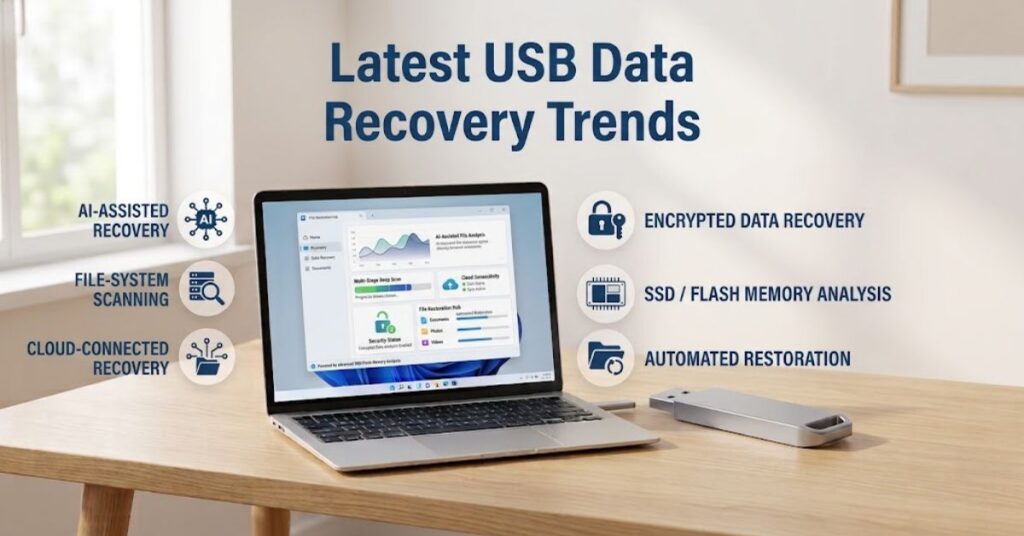
USB storage continues to evolve, and recovery technology continues to adapt.
Modern recovery tools increasingly support more file systems and file formats. They also provide improved scanning methods that can identify file signatures when normal file-system information becomes unavailable.
Another trend involves simpler graphical interfaces. Traditional command-line tools remain powerful, but many recovery applications now guide users through drive selection, scanning, filtering, and recovery.
AI-assisted file classification may also become more useful for large recovery jobs. When hundreds or thousands of files lose their original names, automated classification can help group images, documents, videos, and other file types.
However, better software does not eliminate the basic limitations of storage recovery.
Overwritten data remains difficult or impossible to recover. Physical failures can still require specialized hardware techniques.
Future recovery tools will likely focus on:
- Better damaged-file detection
- Smarter file classification
- Improved file-system reconstruction
- Faster scanning
- Better support for modern storage technologies
- More user-friendly recovery workflows
- Safer read-only recovery processes
The best recovery strategy will still start with prevention.
Key Takeaways
- USB Data Recovery can restore some deleted, formatted, or inaccessible files.
- Stop using the affected USB as soon as you notice data loss.
- New data can overwrite information that recovery software needs.
- Never save recovered files back to the source USB.
- Windows File Recovery supports recovery from USB devices in supported scenarios.
- PhotoRec can help recover files from corrupted or reformatted storage.
- Signature-based recovery may lose original filenames and folder structures.
- Do not format a USB simply because Windows displays a format prompt.
- Physical USB damage may require professional recovery.
- A backup provides better protection than relying on recovery software.
- Always download recovery tools from trusted official sources.
- After recovery, create additional copies of important files.
Conclusion
USB Data Recovery can help retrieve files after accidental deletion, formatting, corruption, and other data-loss events. However, the recovery process requires caution.
The first step is always to stop using the affected USB. Do not copy new files to it, format it, or install recovery software directly onto it.
For a USB that Windows still detects, software-based recovery may provide a practical solution. Windows File Recovery offers a Microsoft-supported command-line option, while PhotoRec provides signature-based recovery for more difficult file-system situations.
The situation changes when the USB has physical damage, incorrect capacity, repeated disconnects, or complete detection failure. In those cases, aggressive software scans may not help, and professional recovery may be safer.
Most importantly, do not depend on recovery after every data-loss event. Keep multiple copies of important files and use USB drives mainly as part of a broader storage and backup strategy.
FAQs
Can I recover permanently deleted files from a USB?
Yes, recovery may be possible if the deleted data has not been overwritten.
Can I recover files from a formatted USB drive?
Sometimes. Stop using the USB immediately and use an appropriate recovery tool to scan the remaining data.
Does Windows have USB recovery software?
Yes. Microsoft provides Windows File Recovery, which can attempt to recover deleted files from supported USB storage devices.
Can PhotoRec recover USB files?
Yes. PhotoRec can recover files from USB storage and can work with severely damaged or reformatted file systems.
Should I format a USB that asks for formatting?
Not if you need the files. Formatting can make recovery more difficult.
Why does my recovered file not open?
The file may be partially overwritten or corrupted. A successful filename or signature match does not guarantee that the complete file remains intact.
Can I recover data from a physically damaged USB?
Possibly, but physical damage may require specialized professional recovery rather than normal software.
Where should I save recovered files?
Save them to a different drive. Never save recovered files to the USB containing the lost data.
How can I prevent USB data loss?
Keep multiple backups, safely eject removable storage, avoid unnecessary formatting, and replace unreliable USB drives before they fail.
Is USB data recovery always successful?
No. Recovery depends on deletion, overwriting, file-system damage, physical condition, and the storage technology involved.
SEO Tags
- USB Data Recovery
- USB Recovery Software
- Recover Deleted Files From USB
- USB File Recovery
- Recover Formatted USB
- Corrupted USB Recovery
- Flash Drive Data Recovery
- USB Recovery Tool
- Deleted USB Files
- Windows USB Recovery
Internal Linking Suggestions With Anchor Text
- Deleted File Recovery — link from sections discussing accidentally deleted USB files.
- Free Data Recovery Software — link from recovery-software comparison content.
- Hard Drive Recovery Software — link when comparing USB recovery with other storage recovery.
- Mac Data Recovery Software — link when discussing recovery across operating systems.
- iPhone Data Recovery — link when expanding the topic to mobile-device recovery.
Authoritative External References
- Microsoft Windows File Recovery: https://support.microsoft.com/en-us/windows/experience/backup-recovery/windows-file-recovery
- CGSecurity PhotoRec Documentation: https://www.cgsecurity.org/testdisk_doc/photorec.html
Social Media Title
USB Data Recovery: How to Recover Deleted & Lost Files Safely