





Quick Answer
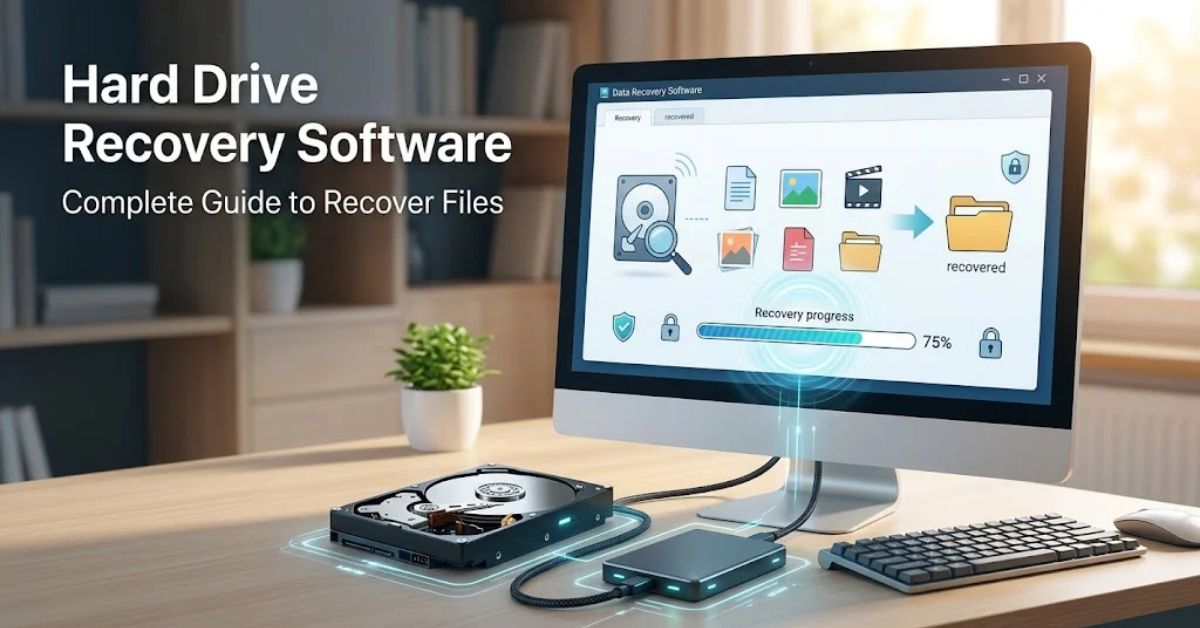
Hard drive recovery software helps recover deleted, lost, formatted, or inaccessible files from HDDs and some other storage devices.
It works by scanning the drive for recoverable file data. For the best chance of recovery, stop using the affected drive and save recovered files to a different storage device.
Author Information
Author: Gulnaz Malik
Role: Founder, Publisher & Technology Content Specialist
Experience: 5+ Years in Technology, AI, Software & Digital Innovation
Content Review: All content follows Google’s latest EEAT guidelines and includes fact-checked information from official documentation, trusted technology sources, industry reports, and practical research to ensure accuracy, reliability, and up-to-date insights.
Introduction
Losing important files from a hard drive can feel stressful. A deleted folder, accidental format, corrupted partition, or failing HDD can make valuable photos, documents, videos, and work files seem impossible to recover.
The good news is that some lost data remains recoverable.
Hard drive recovery software scans storage media and looks for file information that the operating system can no longer access normally. Depending on the situation, recovery software may find recently deleted files, files from formatted partitions, or data that remains on a damaged file system.
However, recovery does not always work. The condition of the drive matters. Your actions after data loss also matter.
This guide explains how hard drive recovery software works, when you should use it, how to recover files safely, and when software recovery may not be enough.
Table of Contents
- What Is Hard Drive Recovery Software?
- How Hard Drive Recovery Software Works
- What Types of Files Can It Recover?
- When Should You Use Hard Drive Recovery Software?
- How to Recover Deleted Files From a Hard Drive
- How to Choose Hard Drive Recovery Software
- HDD Recovery Software vs Professional Data Recovery
- Common Hard Drive Recovery Problems
- Best Practices for Safer Data Recovery
- Latest Trends in Hard Drive Recovery
- Key Takeaways
- Conclusion
- FAQ
- SEO Tags
- Internal Linking Suggestions
- Authoritative External References
- Social Media Title
What Is Hard Drive Recovery Software?
Hard drive recovery software is a utility designed to find and recover files that users cannot access through normal file management tools.
A hard drive can lose data for many reasons. You may accidentally delete a folder, format the wrong partition, or experience file-system corruption. Malware, power problems, hardware errors, and operating-system issues can also make files inaccessible.
Recovery software does not magically recreate every lost file. Instead, it searches the storage device for information that still exists.
For example, when you delete a file, the operating system may mark the space occupied by that file as available for future use. The original data can remain on the drive until another process overwrites that space.
That creates a potential recovery opportunity.
Microsoft’s Windows File Recovery documentation also warns users to minimize computer use after data loss because new activity can overwrite space that previously contained deleted files.
For a broader explanation of how storage hardware and software interact, see TechCrebia’s Difference Between Software and Hardware guide.
How Hard Drive Recovery Software Works
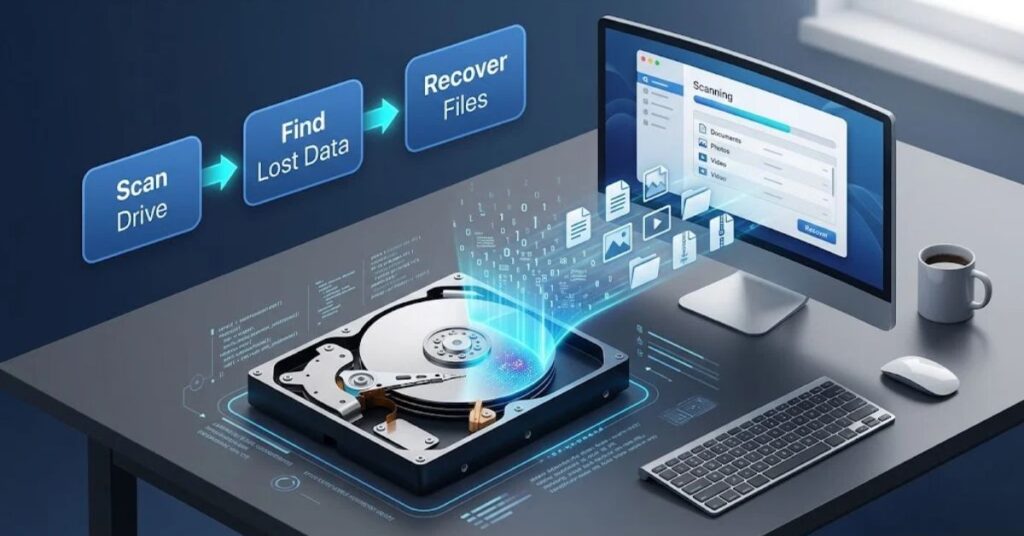
Recovery tools use different scanning techniques to locate recoverable information.
A basic scan may examine file-system records and identify recently deleted files. A deeper scan can search the drive more thoroughly for recognizable file structures.
The exact process depends on the recovery software and the file system.
1. Drive Detection
The software first identifies available storage devices.
You may see:
- Internal HDDs
- External hard drives
- USB storage
- Partitions
- Memory cards
- Other compatible storage devices
If the drive does not appear at all, software recovery may not solve the problem.
2. File-System Analysis
The software examines information such as partitions, directories, file records, and file-system structures.
Common Windows file systems include NTFS, FAT32, and exFAT.
The file system helps the recovery tool understand where files existed and how the operating system organized them.
3. Deep Scanning
If a normal scan cannot find the required files, many recovery tools offer a deep or extensive scan.
A deep scan can take much longer because the software examines more storage information.
It may find files when directory information has become damaged or unavailable.
4. File Preview
Many recovery programs provide a preview function.
Previewing a file before recovery can help you determine whether the software found usable data.
For example, a recovery application may display a thumbnail for a photo or show part of a document.
5. Saving Recovered Files
The final step involves copying recovered files to another storage device.
Never save recovered data back to the same damaged or affected drive when you can avoid it.
Using a separate destination reduces the risk of overwriting other recoverable information.
What Types of Files Can It Recover?
Hard drive recovery software can potentially recover many common file types.
The results depend on the condition of the storage device and whether new data has overwritten the old information.
Common examples include:
| File Type | Examples |
| Documents | DOCX, PDF, TXT, XLSX |
| Images | JPG, PNG, RAW, GIF |
| Videos | MP4, MOV, AVI, MKV |
| Audio | MP3, WAV, FLAC |
| Archives | ZIP, RAR, 7Z |
| Design files | PSD, AI, CAD files |
| Email data | Supported mailbox formats |
| Other files | Software-specific formats |
A file extension alone does not guarantee successful recovery. The actual data must still exist in a usable form.
When Should You Use Hard Drive Recovery Software?
Recovery software makes sense when the drive still works, and the operating system can recognize it.
Typical situations include:
- Accidentally deleted files
- Emptying the Recycle Bin
- Accidental formatting
- Lost partitions
- File-system corruption
- Missing folders
- Accidentally deleted documents
- Files disappearing after a software problem
- Data loss from an external HDD
For example, imagine you accidentally delete a folder containing several years of family photos. If you immediately stop using the drive, recovery software may have a better opportunity to locate those files.
Windows also provides its own command-line Windows File Recovery tool for certain local-storage recovery scenarios. Microsoft recommends using a different destination drive for recovered data and explains that NTFS and other file systems may require different recovery modes.
You can also read TechCrebia’s Windows Driver Update guide if storage problems appear alongside broader Windows hardware or driver issues.
How to Recover Deleted Files From a Hard Drive
The safest recovery process starts before you install or scan anything.
Stop Using the Affected Drive
Immediately stop unnecessary activity on the drive.
Avoid:
- Installing large applications
- Downloading files
- Copying new folders
- Running unnecessary system utilities
- Creating new partitions
- Saving recovered files to the same drive
Every new write can potentially replace data that recovery software could otherwise find.
Identify the Storage Device
Determine where the lost files originally existed.
It could be:
- C: drive
- Another internal partition
- External HDD
- USB hard drive
- Secondary computer drive
Make sure you select the correct source drive before starting recovery.
Choose a Recovery Tool
Select software that supports your drive’s file system and the type of data you lost.
Look for features such as:
- File preview
- Deep scanning
- Partition recovery
- File-system support
- External-drive support
- Recovery filters
- Read-only scanning
- Recovery-status information
Avoid unknown downloads that make unrealistic promises about recovering every file.
Scan the Drive
Start with a standard scan if the software offers one.
If the scan does not locate the required files, use a deeper scan.
Deep scans often take considerably longer, especially on large hard drives.
Filter the Results
Recovery software may find thousands of files.
Use filters to narrow the results by:
- File name
- File extension
- Folder
- Date
- File category
For example, search for JPG files if you are trying to recover photographs.
Preview the Files
Preview important files before recovering them.
A successful file listing does not always mean that the file will open correctly.
Previewing helps you identify usable results before spending time recovering hundreds of files.
Recover to Another Drive
Choose a different physical storage device as the recovery destination whenever possible.
For example:
Source: Failed or affected HDD
Destination: Healthy external HDD
This approach protects the original source from unnecessary writes.
How to Choose Hard Drive Recovery Software
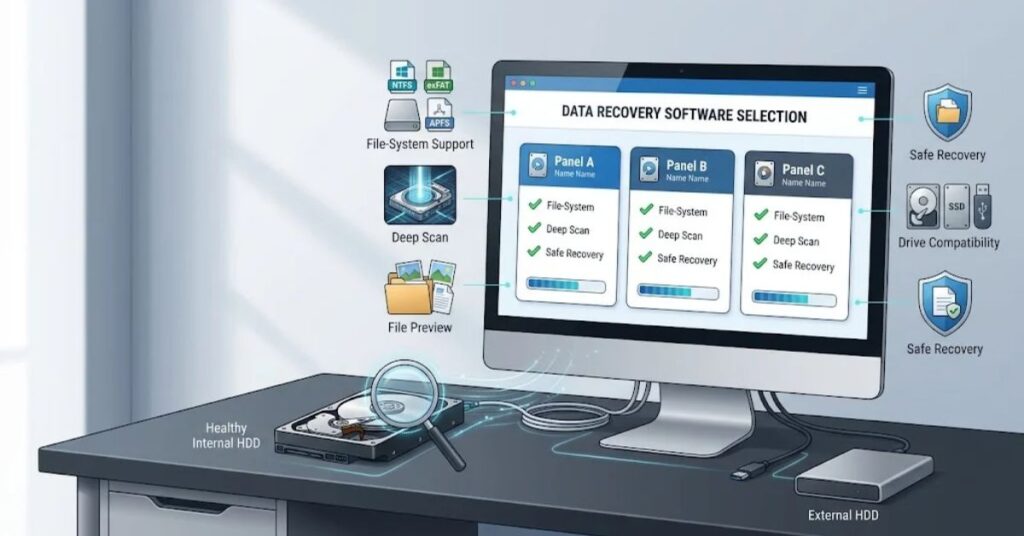
Not every recovery tool offers the same features.
Your choice should depend on the type of data loss rather than marketing claims.
Check File-System Support
First identify your file system.
NTFS commonly appears on Windows computers, while FAT and exFAT appear on many removable storage devices.
The recovery tool should support the file system used by your affected drive.
Check Scan Options
A useful recovery application should provide more than one scanning method.
Look for:
- Quick scan
- Deep scan
- Partition scan
- File-type scanning
- File-system-specific recovery
A simple scan can save time when the deletion happened recently.
Check Preview Support
Preview support can save considerable time.
Instead of recovering every result, you can identify important files first.
Check Recovery Destination Options
The software should allow you to recover files to another drive.
This feature matters because writing recovered data to the source can make additional recovery harder.
Check Drive Compatibility
Some tools support internal HDDs, external drives, USB devices, and memory cards.
Check compatibility before starting a scan.
HDD Recovery Software vs Professional Data Recovery
Software recovery works best when the drive still functions well enough for the computer to read it.
Professional data recovery becomes more relevant when the storage device has serious physical problems.
| Situation | Software Recovery | Professional Service |
| Accidentally deleted files | Often appropriate | Usually unnecessary |
| Formatted partition | Often worth trying | Possible alternative |
| File-system corruption | May help | Useful if software fails |
| Drive not detected | Limited | More appropriate |
| Clicking HDD | Avoid repeated scans | Professional assessment |
| Severe physical damage | Usually unsuitable | More appropriate |
| Water or fire damage | Not suitable | Specialist required |
| Failed electronics | Not suitable | Specialist required |
If an HDD makes unusual clicking, grinding, or repeated spin-up sounds, avoid repeatedly powering it on.
Mechanical hard drives contain moving components. Continued operation can potentially make physical damage worse.
Common Hard Drive Recovery Problems
Recovery software can encounter several problems.
Drive Does Not Appear
If Windows does not recognize the drive, check whether the problem involves:
- USB connection
- Power supply
- Enclosure
- Cable
- Drive letter
- Disk Management
- Hardware failure
Try another compatible cable or port only when doing so does not create additional risk for a failing drive.
Recovered Files Will Not Open
A recovered file may appear in the results but still contain damaged data.
This can happen when:
- The file was partially overwritten
- The file structure was damaged
- The storage device developed errors
- Recovery software found fragments rather than a complete file
Try another recovery method if appropriate, but avoid repeatedly writing to the affected drive.
Recovery Scan Takes Too Long
Large hard drives can take many hours to scan.
The process can take even longer when you use deep scanning.
Do not interrupt a scan without a reason. If the drive shows signs of physical failure, however, stop and consider professional recovery instead.
The Software Finds Too Many Files
Deep scans can produce many results with generic names.
Use file-type and folder filters to narrow the results.
For example, searching specifically for PDF files can be much easier than reviewing every recovered item.
Best Practices for Safer Data Recovery
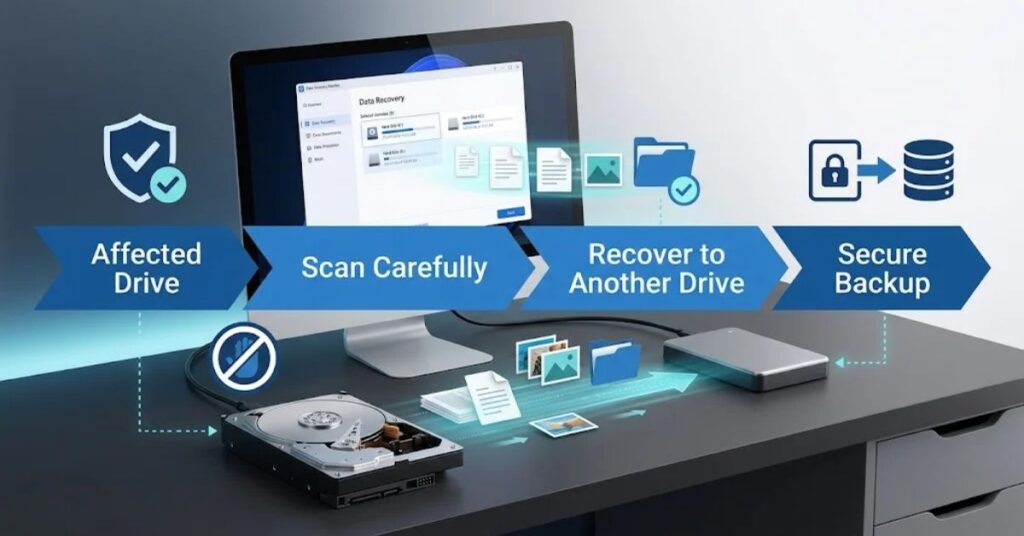
Good recovery habits can protect your remaining data.
- Stop using the affected drive immediately.
- Do not install recovery software on the affected drive.
- Save recovered files somewhere else.
- Avoid formatting the drive again.
- Do not create a new partition after data loss.
- Keep the original drive unchanged during recovery.
- Use trusted recovery software.
- Maintain regular backups.
- Do not repeatedly power-cycle a physically failing HDD.
- Consider professional help when the drive makes unusual mechanical noises.
Microsoft’s recovery guidance similarly emphasizes backups and warns that some recovery operations can result in data loss.
For general file-management and system-maintenance knowledge, TechCrebia’s Productivity Software guide provides additional context on software tools used for managing digital work.
Latest Trends in Hard Drive Recovery
Data recovery technology continues to change as storage systems become more complex.
One important trend involves the growing use of SSDs alongside traditional HDDs.
SSDs use different storage technology and data-management processes. That means recovery techniques that work well for an HDD may not produce the same results on an SSD.
Another trend involves smarter scanning.
Modern recovery applications can use advanced file signatures, improved partition detection, and automated filtering to process large amounts of storage information more efficiently.
Cloud-connected workflows also affect how users handle lost data. Many people now keep copies of important files in cloud services, which can reduce dependence on physical-drive recovery.
However, cloud storage does not eliminate the need for local backups. Synchronization is not always the same as an independent backup.
Future Developments in Data Recovery
Future recovery tools will likely focus on:
- Faster storage analysis
- Better damaged-file detection
- Improved partition reconstruction
- Smarter file classification
- Better support for modern storage formats
- More automated recovery workflows
- Improved forensic analysis
AI may also help classify recovered files and identify useful results from large scan sets.
The technology will continue evolving as storage capacities increase and users create larger volumes of digital data.
Key Takeaways
- Hard drive recovery software can help recover deleted, lost, formatted, or inaccessible files.
- Stop using the affected drive as soon as possible.
- Deleted data can remain recoverable until new information overwrites it.
- Use a different drive to store recovered files.
- Deep scans can find more data but usually take longer.
- Preview recovered files when the software supports the feature.
- Software recovery has limits when an HDD suffers physical damage.
- Clicking or grinding sounds can indicate a serious hardware problem.
- Regular backups remain the safest protection against data loss.
- Choose recovery software based on your file system, drive type, and recovery situation.
Conclusion
Hard drive data loss does not always mean that your files are gone forever. In many logical data-loss situations, recovery software can locate information that the operating system no longer displays.
The most important step is to act carefully.
Stop using the affected drive, avoid unnecessary writes, select a suitable recovery tool, and save recovered files to another storage device.
These steps can improve your chances of recovering important documents, photos, videos, and other files.
However, recovery software cannot solve every problem. A severely damaged HDD may require professional data recovery.
If the drive makes unusual mechanical sounds or repeatedly disconnects, avoid aggressive troubleshooting.
The best recovery strategy starts before data loss happens. Maintain multiple backups and keep important files on more than one storage location.
That approach can save far more time and stress than trying to recover data after a failure.
FAQ
What is hard drive recovery software?
Hard drive recovery software scans a storage device for deleted, lost, formatted, or inaccessible files that may still exist on the drive.
Can hard drive recovery software recover permanently deleted files?
It can sometimes recover deleted files permanently if their data has not been overwritten by new information.
Can I recover files from a formatted hard drive?
Yes, recovery software may recover files from a formatted drive, especially when you stop using the drive immediately after formatting.
Should I install recovery software on the damaged hard drive?
No. Install the recovery tool on another drive when possible to avoid overwriting potentially recoverable data.
Can recovery software fix a physically damaged hard drive?
Usually not. Physical problems such as clicking sounds, damaged electronics, or severe mechanical failure may require professional recovery.
Can I recover files from an external hard drive?
Yes. Many recovery applications support external HDDs, provided the computer can communicate with the drive.
Why are recovered files sometimes corrupted?
The original file data may have been partially overwritten or damaged, so the recovery program may recover only part of the file.
Is free hard drive recovery software safe?
Some free tools can be useful, but download recovery software only from trustworthy sources and check its supported features before scanning your drive.
Should I save recovered files to the same hard drive?
No. Save recovered files to a different physical storage device whenever possible.
How can I prevent future hard drive data loss?
Use regular backups, keep important files in multiple locations, monitor drive health, and avoid storing your only copy of important data on one drive.
SEO Tags
- Hard Drive Recovery Software
- Hard Drive Data Recovery
- HDD Recovery Software
- Deleted File Recovery
- Recover Deleted Files
- Data Recovery Software
- Hard Drive File Recovery
- HDD Data Recovery
- Recover Lost Files
- Windows Data Recovery
Internal Linking Suggestions with Anchor Text
- Difference Between Software and Hardware → https://techcrebia.com/difference-between-software-and-hardware/
- Windows Driver Update → https://techcrebia.com/windows-driver-update/
- Productivity Software → https://techcrebia.com/productivity-software/
- PhysX System Software → https://techcrebia.com/physx-system-software/
- Fan Controller RGB Software → https://techcrebia.com/fan-controller-rgb-software/
Authoritative External References
- Microsoft Support — Windows File Recovery
- Microsoft Support — Backup, Restore, and Recovery in Windows
Social Media Title
Hard Drive Recovery Software: Recover Lost Files Safely



