


Quick Answer
Deleted photo recovery means restoring photos that you accidentally deleted from a phone, computer, SD card, USB drive, or cloud service.
The safest first step is to check Trash, Recently Deleted, Recycle Bin, or an available backup. If no backup exists, stop using the storage device immediately because new data can overwrite deleted photo data and reduce recovery chances.
Author Information
Author: Gulnaz Malik
Role: Founder, Publisher & Technology Content Specialist
Experience: 5+ Years in Technology, AI, Software & Digital Innovation
Content Review: All content follows Google’s latest EEAT guidelines and includes fact-checked information from official documentation, trusted technology sources, industry reports, and practical research to ensure accuracy, reliability, and up-to-date insights.
Introduction
Photos capture important moments that people often cannot replace. A family event, vacation, business document, school project, or personal memory can disappear after one wrong tap.
Fortunately, deleting a photo does not always mean losing it permanently.
Many phones and computers move deleted photos to a temporary trash or recycle folder. Cloud services can also keep backup copies. In other cases, recovery software may find deleted photo data that still exists on a storage device.
However, deleted photo recovery does not guarantee success. The recovery process depends on where you stored the photo, how you deleted it, whether a backup exists, and whether new data has overwritten the old data.
This guide explains how photo recovery works and what you should do after accidental deletion. It covers Android phones, iPhones, Windows PCs, SD cards, USB drives, cloud backups, and recovery software.
Table of Contents
- What Is Deleted Photo Recovery?
- Why Do Photos Get Deleted?
- What Happens When You Delete a Photo?
- How to Recover Deleted Photos on Android
- How to Recover Deleted Photos on iPhone
- How to Recover Deleted Photos on Windows
- How to Recover Photos From an SD Card or USB Drive
- How Deleted Photo Recovery Software Works
- Deleted Photo Recovery: Free vs Paid Methods
- Common Deleted Photo Recovery Problems
- Best Practices for Successful Photo Recovery
- Latest Deleted Photo Recovery Trends
- Key Takeaways
- Conclusion
- FAQs
- SEO Tags
- Internal Linking Suggestions
- Authoritative External References
- Social Media Title
What Is Deleted Photo Recovery?
Deleted photo recovery is the process of restoring images that you removed from a digital storage device or service.
The process can involve several methods:
- Restoring a photo from a phone’s Trash folder
- Recovering an image from Windows Recycle Bin
- Restoring photos from Google Photos or another cloud backup
- Restoring an iPhone from an available backup
- Scanning an SD card or USB drive
- Using data recovery software
- Using professional recovery services for seriously damaged storage
The easiest recovery method usually involves a temporary deleted-items folder or backup.
For example, if you delete a photo from a phone today, your gallery app may move it to Recently Deleted or Trash instead of removing it immediately. You can then restore it with a few taps.
When no temporary copy or backup exists, recovery becomes more complicated.
Understanding the difference between software and physical storage can also help. TechCrebia’s Difference Between Software and Hardware guide explains how software interacts with physical storage devices.
Why Do Photos Get Deleted?

People lose photos for many reasons. Accidental deletion remains one of the most common causes.
Other causes include:
- Accidentally selecting multiple photos
- Emptying a phone’s gallery trash
- Formatting an SD card
- Deleting files from a USB drive
- Factory resetting a smartphone
- Removing photos during storage cleanup
- Failed file transfers
- Corrupted storage
- Operating system problems
- Malware or unwanted software
- Damaged memory cards
- Failed hard drives or SSDs
- Incorrect cloud synchronization
- Deleting photos from a synced service
A photo can also appear missing when it has not actually been deleted.
For example, the image may exist in another folder, another cloud account, an archive, or a different device.
Before using recovery software, search carefully.
Check:
- Your gallery or Photos app.
- Trash or Recently Deleted.
- Archive folders.
- Cloud storage.
- Device folders.
- External storage.
- Your computer’s Recycle Bin.
- Existing backups.
This simple process can save time and reduce unnecessary recovery attempts.
What Happens When You Delete a Photo?
The result depends on the storage system.
On many storage devices, deleting a file does not instantly destroy every piece of its underlying data. The system can mark the space as available for new information.
That creates a possible recovery window.
If the storage system has not reused that space, recovery software may identify parts of the deleted file.
But if new data replaces the old photo data, recovery becomes much harder or impossible.
This explains why you should act quickly after accidental deletion.
For example, imagine that you delete 500 vacation photos from an SD card. If you immediately stop using the card, some recovery options may remain available. If you then take 1,000 new photos on the same card, the camera can overwrite space that previously held the deleted images.
The same basic principle applies to many computer storage systems.
For Windows users, Microsoft explains that deleted file space can remain recoverable until other data overwrites it. Microsoft also recommends minimizing computer use when trying to recover lost files. Microsoft Windows File Recovery guidance
How to Recover Deleted Photos on Android
Android recovery starts with the simplest options.
Do not immediately install several recovery applications. First check whether your phone already has a temporary deleted-items folder.
Check the Gallery Trash
Many Android gallery applications provide a Trash or Recycle Bin feature.
The exact menu depends on the phone manufacturer and Android version.
Try these general steps:
- Open the Gallery or Photos application.
- Look for Albums, Collections, or Library.
- Find Trash, Bin, or Recently Deleted.
- Select the missing photo.
- Tap Restore.
The restored image usually returns to its original gallery location.
Check Google Photos
If you use Google Photos, check its Trash before attempting advanced recovery.
Google currently states that photos in Google Photos Trash remain there for 30 days under its current retention policy. Permanently deleted items cannot be restored through the normal restore process.
You can:
- Open Google Photos.
- Sign in to the correct Google Account.
- Open Collections.
- Select Trash.
- Find the photo.
- Select Restore.
Also check whether you are using the correct Google Account. A missing photo may belong to another account.
Google recommends checking backup settings and device folders when photos seem to disappear.
If you regularly use Samsung devices, you can also review TechCrebia’s Samsung Galaxy J7 Software Update guide for device-maintenance information that can help you keep older phones stable.
How to Recover Deleted Photos on iPhone
iPhone users should first check the Recently Deleted section in the Photos app.
The location and available options can vary with the current iOS version, but the general process remains simple:
- Open Photos.
- Find Recently Deleted.
- Authenticate if requested.
- Select the deleted photo.
- Tap Recover.
If the image is no longer there, check your available backups.
Possible sources include:
- iCloud Photos
- iCloud backup
- Computer backup
- Another Apple device
- Imported copies on a Mac or PC
- Shared albums
Do not immediately reset the iPhone in an attempt to recover a photo. A reset can remove data that you might still have a chance to preserve.
For users who need broader iPhone recovery information, TechCrebia’s iPhone Data Restore Software guide explains backup-based recovery and the limitations of recovery tools.
The most important rule remains simple: check existing backups before paying for third-party recovery software.
How to Recover Deleted Photos on Windows
Windows provides several possible recovery paths.
Start with the Recycle Bin.
Check the Recycle Bin
If you deleted photos from a normal Windows folder, they may still be in the Recycle Bin.
Follow these steps:
- Open the Recycle Bin.
- Search for the deleted photo.
- Right-click the file.
- Select Restore.
Windows normally returns the file to its previous location.
If you emptied the Recycle Bin, the situation becomes more difficult.
Use Windows File Recovery
Microsoft provides Windows File Recovery for certain lost files on local storage.
The tool can attempt recovery from internal drives, external drives, and USB devices when normal restoration does not work. Microsoft recommends using a different destination drive for recovered files.
Microsoft provides examples for recovering JPEG and PNG images with Windows File Recovery.
The basic command structure looks like this:
winfr source-drive: destination-drive: /mode
For example, a recovery operation may scan a source drive and place recovered files on another drive.
This method suits users who are comfortable with command-line tools. Beginners should read Microsoft’s instructions carefully before running recovery commands.
Do not save recovered files back to the same storage device when possible. Doing so can increase the risk of overwriting additional recoverable data.
How to Recover Photos From an SD Card or USB Drive
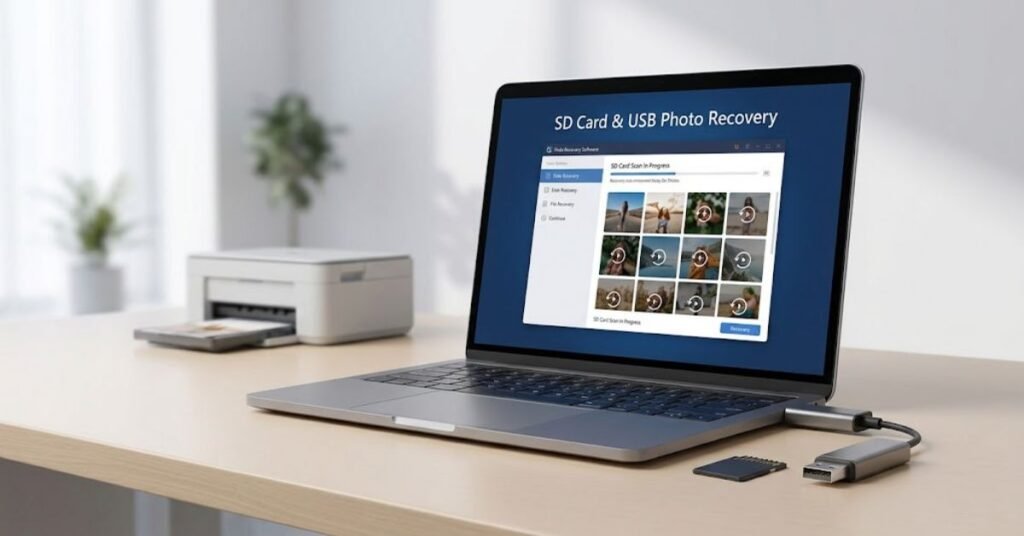
SD cards and USB drives often store photos from cameras, phones, and computers.
If you accidentally delete photos from one of these devices, stop using it immediately.
Do not:
- Take more photos
- Copy new files
- Format the card
- Run unnecessary repair tools
- Create new folders
- Install recovery software directly onto the affected storage
- Save recovered files onto the affected device
Instead, connect the storage to a computer using a suitable card reader or adapter.
Then choose a recovery method that supports the card’s file system and image formats.
Microsoft notes that Windows File Recovery supports local storage devices such as USB devices and can work with file systems including NTFS, FAT, and exFAT, depending on the recovery mode.
If your recovery problem involves a broader USB data-loss situation, TechCrebia’s USB Data Recovery guide can serve as a related resource.
How Deleted Photo Recovery Software Works
Deleted photo recovery software usually scans storage for information associated with deleted files.
Different programs use different recovery methods.
A basic scan may look for recently deleted files and recognizable file-system records.
A deeper scan may search storage more thoroughly for file signatures and fragments.
Common image formats include:
- JPG
- JPEG
- PNG
- GIF
- TIFF
- RAW camera formats
- HEIC
- BMP
A recovery tool may show a preview before restoration.
That preview can help you determine whether a photo remains usable.
When Recovery Software Helps
Recovery software can help when:
- You emptied the Recycle Bin.
- You deleted files from an SD card.
- You removed photos from a USB drive.
- A file disappeared from a local drive.
- A storage device still appears normally.
- No recent backup exists.
However, recovery software cannot guarantee that every deleted photo will return.
When Recovery Software Has Limitations
Recovery becomes difficult when:
- New data overwrote the old photo.
- The storage device has serious physical damage.
- Encryption prevents access.
- The file system has severe corruption.
- The device has failed electronically.
- An SSD has already discarded deleted blocks through storage-management processes.
In these cases, professional data recovery may offer a better option than repeatedly scanning the device.
Deleted Photo Recovery: Free vs Paid Methods
You do not always need paid software.
The best recovery method depends on the situation.
| Recovery Method | Cost | Difficulty | Best Use |
| Gallery Trash | Free | Easy | Recently deleted phone photos |
| Google Photos Trash | Free | Easy | Backed-up Google Photos |
| Recently Deleted on iPhone | Free | Easy | Recent iPhone deletions |
| Windows Recycle Bin | Free | Easy | Recently deleted PC photos |
| Existing Backup | Usually free | Easy–Medium | Previously backed-up photos |
| Windows File Recovery | Free | Advanced | Local Windows storage |
| Recovery Software | Free/Paid | Medium | Deleted storage files |
| Professional Recovery | Expensive | Professional | Severe hardware failure |
Start with free and low-risk options.
Do not purchase expensive recovery software simply because an advertisement promises a guaranteed recovery rate.
No legitimate tool can guarantee recovery of data that no longer exists or that has been overwritten.
Common Deleted Photo Recovery Problems
Photo recovery can fail for several reasons.
Photos Do Not Appear in Trash
The photo may have passed the service’s retention period, or you may have permanently deleted it.
Check backups and other devices before giving up.
Recovery Software Finds Corrupted Images
A scan may find photo fragments rather than complete files.
A recovered file can appear in the results but still fail to open.
This often indicates incomplete data or overwritten sections.
The Storage Device Is Not Detected
If a computer cannot detect an SD card or USB drive, try a different compatible card reader or USB port.
Do not repeatedly format the device.
If the device shows serious physical symptoms, stop experimenting and consider professional recovery.
Recovered Photos Have Strange Names
Recovery tools sometimes reconstruct files without their original folder structure or names.
You may need to organize recovered images manually after the process.
Photos Recover but Will Not Open
Try opening the recovered file with another image viewer.
If every viewer reports corruption, the recovery process may have restored only part of the original data.
Best Practices for Successful Photo Recovery
Good recovery habits can make a major difference.
Stop Using the Affected Storage
This is the most important rule.
Do not continue taking photos on the affected SD card. Do not download applications to the same phone storage if you are trying to recover local files. Avoid copying large files to the affected computer drive.
New data can overwrite recoverable information.
Recover to Another Location
Save recovered photos to a different drive whenever possible.
For example:
- Source: SD card
- Destination: Computer drive
or:
- Source: Internal drive
- Destination: External drive
This protects the remaining recoverable data.
Check Backups First
Backups often provide the safest recovery route.
Check:
- Google Photos
- iCloud
- OneDrive
- External hard drives
- Computer backups
- NAS storage
- Camera backups
- Shared albums
A backup is generally safer than deep-scanning the original device.
Avoid Unknown Recovery Apps
Some recovery applications may request broad permissions or ask users to upload private files.
Photos can contain highly personal information.
Choose reputable software, review permissions, and avoid cracked or suspicious applications.
For broader guidance on recovery tools, TechCrebia’s iPhone Data Restore Software guide also covers privacy, backup sources, and recovery limitations.
Keep Regular Backups
The best recovery strategy starts before data loss.
Use more than one copy for important photos.
A simple approach is:
Phone → Cloud Backup → External Backup
This gives you multiple recovery paths if one copy fails.
Latest Deleted Photo Recovery Trends

Photo recovery technology continues to change as storage and mobile devices evolve.
One important trend involves cloud-first recovery.
People increasingly store photos in services such as Google Photos and iCloud instead of relying only on local storage.
This changes the recovery process. Users may recover a missing photo from an account or backup instead of scanning physical storage.
Another trend involves smarter file analysis.
Modern recovery tools can analyze large storage devices and identify image formats more efficiently. Advanced tools can also recognize fragmented file data and provide previews.
AI may further improve the user experience by helping classify recovery results, identify likely photo files, and reduce the time users spend reviewing thousands of scan results.
However, AI cannot recreate original photo data that has been completely overwritten.
Storage technology also affects recovery.
SSDs manage deleted data differently from traditional hard drives. Modern phones also use encryption and advanced file-system protections. These technologies improve security but can make direct recovery more difficult in some situations.
Future recovery tools will likely focus on:
- Faster scanning
- Better image reconstruction
- Smarter file classification
- Improved cloud-backup integration
- Better support for modern photo formats
- Privacy-focused local processing
- Easier recovery interfaces
- Automated backup recommendations
The goal is moving from simple file recovery toward complete data-protection systems.
Key Takeaways
- Check Trash, Recently Deleted, and Recycle Bin before using recovery software.
- Check Google Photos, iCloud, and other backups.
- Stop using the affected storage after accidental deletion.
- Do not save new files to the affected device.
- Save recovered photos to a different storage location.
- Windows File Recovery can help recover certain local files.
- Recovery software cannot guarantee success after overwriting.
- Professional recovery may help with seriously damaged storage.
- Avoid unknown or cracked recovery applications.
- Regular backups provide the strongest protection against permanent photo loss.
Conclusion
Deleted photo recovery can be simple or complicated depending on where the photo disappeared.
If you recently deleted an image, start with the easiest option. Check your phone’s Trash, Recently Deleted folder, Google Photos, iCloud, or Windows Recycle Bin. These methods can restore photos without complicated software.
If those options fail, stop using the affected storage. Continued use can overwrite deleted information and reduce your recovery chances.
For Windows computers, Microsoft provides Windows File Recovery for certain local storage situations. SD cards and USB drives may also support recovery when their data remains accessible.
Most importantly, do not trust claims that promise guaranteed recovery of permanently deleted photos. Recovery depends on the condition of the storage and whether the original data still exists.
The best long-term solution is prevention. Keep automatic cloud backups enabled and maintain another backup for important memories. A few minutes spent creating backups can save hours of recovery work later.
FAQs
Can I recover permanently deleted photos?
Sometimes recovery software may find remaining data, but permanently deleted and overwritten photos may not be recoverable.
How can I recover deleted photos without software?
Check your Gallery Trash, Recently Deleted folder, Recycle Bin, Google Photos, iCloud, and existing backups first.
Can I recover deleted photos from an SD card?
Yes, recovery may work if the deleted photo data has not been overwritten or the card has not suffered serious physical damage.
Can Google Photos recover permanently deleted photos?
No. Google states that permanently deleted photos cannot be restored through the normal Google Photos recovery process.
Can I recover photos after emptying the Recycle Bin?
You may have a chance with compatible recovery software or Windows File Recovery if the deleted data has not been overwritten.
Should I keep using my phone after deleting photos?
No. Minimize use if the photos were stored locally because new data can overwrite recoverable information.
Is free deleted photo recovery software safe?
Some reputable free tools can help, but users should avoid unknown, cracked, or suspicious applications.
Can recovery software restore corrupted photos?
It may recover complete or partial image data, but severely corrupted or overwritten photos may remain unusable.
Is professional photo recovery worth it?
Professional recovery can make sense when the storage device has serious physical damage or contains extremely important data.