





Quick Answer:
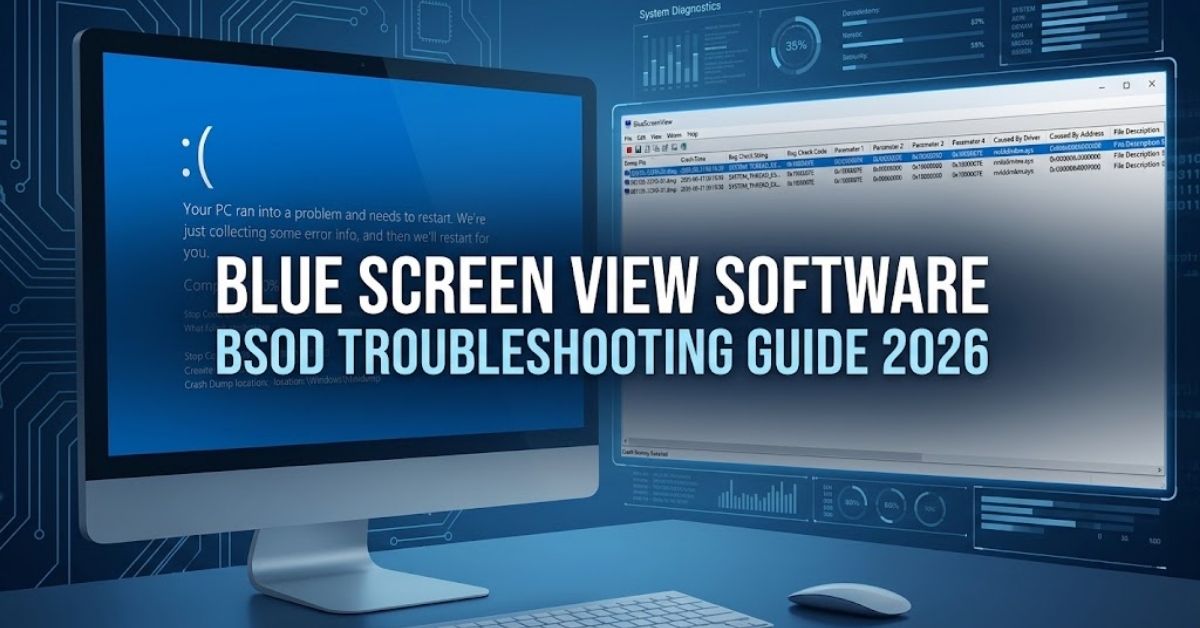
Blue Screen View software, commonly called Blue Screen View, is a free Windows utility from Nir Soft that analyzes Mini Dump files created after Blue Screen of Death (BSOD) crashes.
It shows crash times, bug check codes, parameters, suspected drivers, and loaded modules. The tool helps users investigate crashes quickly, but its suspected-driver result does not always identify the true root cause.
Author Information
Author: Gulnaz Malik
Role: Founder, Publisher & Technology Content Specialist
Experience: 5+ Years in Technology, AI, Software & Digital Innovation
Content Review: All content follows Google’s latest EEAT guidelines and includes fact-checked information from official documentation, trusted technology sources, industry reports, and practical research to ensure accuracy, reliability, and up-to-date insights.
Introduction
A Windows Blue Screen of Death can interrupt your work without warning. Windows may restart before you can read the error message. This makes troubleshooting difficult, especially when the crash happens repeatedly.
Blue Screen View software helps solve this problem by reading Windows MiniDump files. The utility presents important crash information in a simple table. You can review the crash time, bug check code, parameters, and drivers that appeared in the crash stack.
BlueScreenView does not repair Windows by itself. Instead, it works as a diagnostic tool. It helps you understand what happened during a crash so you can investigate the underlying problem.
Microsoft explains that BSOD errors can result from hardware, drivers, or software. Therefore, you should treat a suspected driver as a clue rather than absolute proof.
This guide explains how Blue Screen View software works, how to use it, what its results mean, and how to troubleshoot common BSOD problems.
Table of Contents
- What Is Blue Screen View Software?
- How Blue Screen View Software Works
- Key Features of Blue Screen View Software
- How to Download BlueScreenView Safely
- How to Use Blue Screen View Software
- Understanding BlueScreenView Results
- BlueScreenView and Windows MiniDump Files
- How to Troubleshoot a BSOD With BlueScreenView
- Common Problems and Fixes
- BlueScreenView vs Other BSOD Troubleshooting Methods
- Best Practices for Using BlueScreenView
- Limitations of Blue Screen View Software
- Latest Trends in Windows Crash Troubleshooting
- Key Takeaways
- Conclusion
- FAQs
What Is Blue Screen View Software?
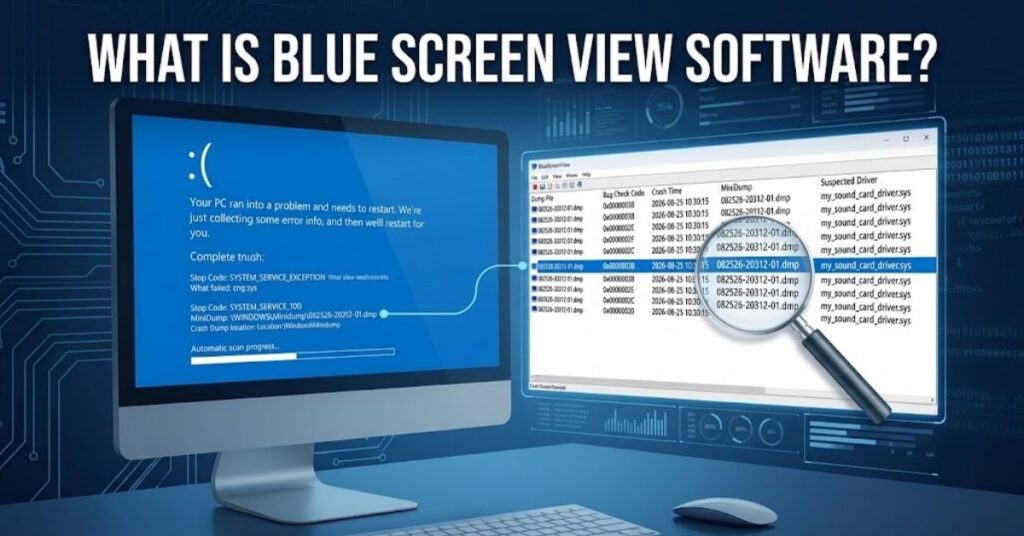
Blue Screen View software refers to BlueScreenView, a lightweight Windows crash-analysis utility developed by NirSoft.
The program scans MiniDump files that Windows creates after certain blue-screen crashes. It then organizes the available crash information into an easy-to-read interface.
Instead of manually opening individual dump files, you can use BlueScreenView to review several crashes in one place.
For each detected crash, the program can show:
- MiniDump filename
- Crash date and time
- Bug Check String
- Bug Check Code
- Four crash parameters
- Suspected driver
- Suspected crash address
- Driver file description
- Product name
- Company name
- File version
The lower section can also show drivers and modules loaded during the crash. BlueScreenView highlights modules whose addresses appear in the crash stack, which can help narrow down the investigation.
For beginners, this makes crash analysis much easier.
If you want a broader understanding of how software interacts with computer components, TechCrebia’s guide to the difference between software and hardware provides useful background.
How Blue Screen View Software Works
BlueScreenView does not continuously monitor every Windows process. It mainly analyzes crash information that Windows has already saved in MiniDump files.
The basic process looks like this:
- Windows encounters a serious system problem.
- Windows records crash information.
- Windows creates a MiniDump file when the system configuration allows it.
- BlueScreenView scans the MiniDump folder.
- The software extracts information from the dump.
- The program displays the results in its interface.
- You investigate the suspected driver, code, and related hardware or software.
The key point matters: BlueScreenView analyzes existing crash data. It does not prevent BSOD errors.
Microsoft also recommends memory-dump analysis as an advanced troubleshooting method for blue-screen problems.
Blue Screen View Software Features
BlueScreenView offers several useful features for Windows troubleshooting.
Crash History
- Multiple crash records: You can review previous crashes from available MiniDump files.
- Crash timestamps: The software shows when each crash occurred.
- Bug check information: You can see the Windows bug check string and numerical code.
- Driver information: The program identifies drivers and modules that appeared relevant to the crash.
- Lower-pane analysis: You can inspect loaded drivers associated with a selected crash.
- Export options: BlueScreenView can save crash information to formats such as TXT, CSV, HTML, XML, and tab-delimited files.
- These features make the utility useful for both individual users and IT technicians.
For example, imagine a computer crashes every few days. You open BlueScreenView and notice that several crashes repeatedly involve the same third-party driver. That pattern gives you a strong starting point for further testing.
How to Download Blue Screen View Safely
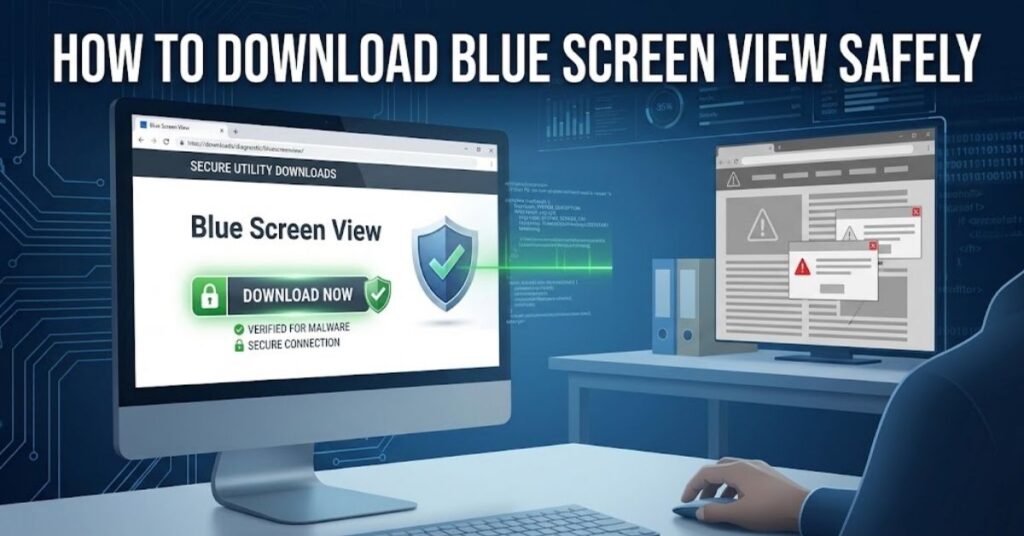
You should download Blue Screen View software from the official NirSoft website rather than random download portals.
The official BlueScreenView page currently lists version 1.55 and provides ZIP, installer, and 64-bit download options. NirSoft also publishes file hashes for download verification.
BlueScreenView does not require a traditional installation when you use the ZIP version. You can extract the package and run the executable.
Before downloading any Windows diagnostic tool, follow these practices:
- Use the developer’s official website.
- Avoid modified or repacked installers.
- Check the file name before running it.
- Keep Windows security protections enabled.
- Verify hashes when you need stronger file-integrity assurance.
- Choose the correct build for your environment.
NirSoft describes BlueScreenView as freeware.
How to Use Blue Screen View
Using BlueScreenView requires very little technical knowledge.
After downloading the program, extract the ZIP package if necessary. Then run BlueScreenView.exe.
The program automatically scans the default MiniDump folder and displays available crash information.
A simple workflow looks like this:
- Download BlueScreenView from NirSoft.
- Extract the program.
- Run BlueScreenView.
- Select a crash from the upper pane.
- Review the Bug Check String.
- Check the Bug Check Code.
- Examine the suspected driver.
- Review the lower driver/module pane.
- Compare multiple crashes.
- Investigate the most consistent pattern.
You do not need to modify Windows system files just to view existing dump information.
If BlueScreenView shows no crashes, do not immediately assume the program has failed. Your computer may not have created MiniDump files.
Blue Screen View Results
The BlueScreenView interface contains several fields. Each field can provide a different clue.
| Result | What It Tells You |
| Dump File | Name of the crash dump |
| Crash Time | Approximate time of the crash |
| Bug Check String | Human-readable Windows error name |
| Bug Check Code | Numerical stop code |
| Parameter 1–4 | Values associated with the bug check |
| Caused By Driver | Driver that BlueScreenView suspects |
| Caused By Address | Address associated with the suspected component |
| File Description | Description stored with the driver |
| Product Name | Product associated with the driver |
| Company | Driver publisher |
| File Version | Driver version |
| Crash Address | Memory address linked to the crash |
The Caused By Driver field often attracts the most attention. However, you should not automatically blame that file.
NirSoft specifically warns that its driver-detection mechanism is not 100% accurate. You should also examine the lower pane and other crash information.
That distinction can prevent unnecessary driver removal.
Blue Screen View Mini Dump Files
MiniDump files provide the information that BlueScreenView needs.
If Windows does not create a usable dump, BlueScreenView cannot magically reconstruct the crash.
This explains one of the most common situations: a user launches the program but sees an empty list.
Possible reasons include:
- Windows did not create a MiniDump.
- The dump folder contains no usable files.
- The dump files became corrupted.
- The system configuration does not save the required crash information.
- A particular dump file contains insufficient information.
- The crash happened before Windows could create the dump.
NirSoft notes that BlueScreenView requires Windows to save MiniDump files during BSOD crashes.
Windows crash analysis therefore starts with the proper creation of a dump.
Troubleshoot BS OD With Blue Screen View

BlueScreenView works best when you combine its results with normal Windows troubleshooting.
Identify the Pattern
- Check whether several crashes show the same bug check code.
- Look for repeated driver names.
- Compare crash dates and times.
- Note whether crashes started after an update.
- Check whether a new hardware component appeared before the crashes.
Investigate the Suspected Driver
- Search for the driver on the hardware manufacturer’s official website.
- Check its version.
- Compare the version with the installed hardware.
- Update the driver when appropriate.
- Roll back the driver if the problem started immediately after an update.
- Avoid deleting random .sys files manually.
Check Hardware and Windows
- Run Windows Memory Diagnostic when memory problems seem possible.
- Check temperatures if crashes happen under heavy workloads.
- Inspect recently installed hardware.
- Check Device Manager for warning symbols.
- Install available Windows updates.
- Remove recently installed software if the crashes began afterward.
Microsoft recommends checking new hardware, Safe Mode, Device Manager, available disk space, Windows updates, Event Viewer, and memory diagnostics when troubleshooting a blue screen.
For users who regularly work with system utilities, TechCrebia’s PhysX System Software guide also provides an example of how system-level software can interact with Windows components and drivers.
Blue Screen View Problems
BlueScreenView itself usually has a simple interface, but users can still encounter confusing situations.
| Problem | Likely Reason | What to Try |
| No crashes appear | No usable MiniDump files | Check Windows dump settings |
| Driver looks suspicious | Driver appeared in crash stack | Investigate before removing it |
| Old crash appears | Previous dump remains stored | Check crash time |
| Some information looks empty | Dump lacks that data | Analyze another dump |
| Repeated BSODs continue | Root cause remains unresolved | Investigate hardware, drivers, and software |
| 64-bit crash analysis needed | System uses x64 Windows | Use a compatible BlueScreenView build |
One serious mistake involves blaming ntoskrnl.exe immediately.
Windows system components can appear in crash reports even when another driver or hardware problem triggered the failure. Treat the displayed module as evidence rather than a final diagnosis.
If Windows reports a recurring stop code, use Microsoft’s official troubleshooting guidance alongside your dump analysis. (Microsoft Support)
Blue Screen View vs Other Tools
BlueScreenView offers convenience, but it represents only one part of crash analysis.
| Method | Best Use | Difficulty |
| BlueScreenView | Quick MiniDump review | Easy |
| Event Viewer | System and application events | Easy–Medium |
| Windows Memory Diagnostic | Memory testing | Easy |
| Device Manager | Driver and device checks | Easy |
| Reliability Monitor | Crash history and reliability trends | Easy |
| Advanced dump debugging | Deep crash investigation | Advanced |
Advanced users may need deeper debugging tools when the MiniDump does not provide enough evidence.
This layered approach works better than relying on a single application.
Blue Screen View Best Practices

Use Blue Screen View software as a diagnostic assistant, not an automatic repair tool.
Follow these best practices:
- Keep several crash records. Patterns become easier to identify when you compare multiple crashes.
- Record recent system changes. Note driver, Windows, BIOS, hardware, and application changes.
- Do not delete drivers immediately. Investigate the driver first.
- Check hardware symptoms. A driver-looking crash can sometimes involve faulty RAM, overheating, storage problems, or unstable hardware.
- Use official driver sources. Download drivers from the hardware manufacturer whenever possible.
- Back up important data. Frequent BSODs can indicate a serious system problem.
- Keep Windows updated. Updates can address compatibility and stability issues.
- Compare timestamps. A crash that starts immediately after a software or driver change deserves extra attention.
You can also use TechCrebia’s Fan Controller RGB Software guide if your troubleshooting involves PC cooling, fan behavior, or thermal management.
Blue Screen View Limitations
BlueScreenView provides useful information, but it cannot diagnose every BSOD with certainty.
Its biggest limitation involves driver attribution. NirSoft states that its suspected-driver mechanism does not guarantee that the displayed driver caused the crash.
Other limitations include:
- It depends on available MiniDump files.
- It does not repair corrupted Windows installations.
- It does not replace hardware diagnostics.
- It cannot prove that a suspected driver caused every crash.
- It may require deeper debugging for complicated cases.
- Some dump files may contain limited information.
Therefore, use BlueScreenView as the first layer of investigation.
For serious recurring crashes, combine its results with Windows diagnostics and professional debugging methods.
Blue Screen View Trends
Windows troubleshooting continues to become more data-driven.
Modern support workflows increasingly combine crash dumps, Event Viewer records, driver information, hardware diagnostics, and system reliability history.
AI-assisted troubleshooting also continues to influence technical support. AI tools can help explain unfamiliar stop codes and organize diagnostic information. However, users should still verify recommendations against official documentation and actual system evidence.
Another important trend involves hardware and driver complexity. Modern PCs combine CPUs, GPUs, storage controllers, Wi-Fi adapters, USB devices, virtualization technologies, and security software. Any unstable component can create complicated crash patterns.
This makes historical crash analysis more useful.
For example, if three BSODs across two weeks repeatedly point toward the same driver family, that pattern deserves more attention than one isolated crash.
The future of Windows troubleshooting will likely combine automated diagnostics with human verification. Diagnostic tools can identify patterns, but technicians still need to confirm the underlying cause.
Key Takeaways
- Blue Screen View software usually refers to NirSoft BlueScreenView.
- The tool analyzes Windows MiniDump files from BSOD crashes.
- It displays bug check codes, crash times, parameters, drivers, and modules.
- The suspected driver provides a clue, not guaranteed proof.
- BlueScreenView cannot repair Windows or prevent BSODs.
- Empty results usually mean that usable MiniDump files do not exist.
- You should combine BlueScreenView with Windows troubleshooting tools.
- Repeated crash patterns provide more useful evidence than a single crash.
- Always investigate hardware, drivers, software, and recent system changes.
Conclusion
Blue Screen View software provides a simple way to investigate Windows crashes without immediately diving into complex debugging tools.
BlueScreenView reads MiniDump files and organizes important information into a practical interface. You can review crash codes, timestamps, suspected drivers, and loaded modules within seconds.
The tool works best when you use it as part of a broader troubleshooting process. A suspected driver does not automatically represent the true cause.
Hardware faults, memory problems, overheating, incompatible software, and other drivers can produce similar symptoms.
If your Windows PC experiences repeated BSOD errors, start by collecting crash information. Then compare multiple dumps, check recent changes, verify drivers, test hardware, and follow Microsoft’s recommended troubleshooting steps.
That approach gives you much better evidence than simply guessing which driver caused the blue screen.
FAQs
What is Blue Screen View software?
Blue Screen View software usually means NirSoft BlueScreenView, a free utility that reads Windows MiniDump files and displays BSOD crash information.
Is BlueScreenView free?
Yes. NirSoft distributes BlueScreenView as freeware.
Does BlueScreenView fix BSOD errors?
No. BlueScreenView analyzes crash information but does not repair the underlying Windows, driver, or hardware problem.
Where does BlueScreenView get crash information?
It reads MiniDump files created by Windows after supported blue-screen crashes.
Is the “Caused By Driver” result always correct?
No. NirSoft states that the driver-detection mechanism is not 100% accurate, so you should investigate additional crash information.
Why does BlueScreenView show no crashes?
Windows may not have created usable MiniDump files, or the available dump files may not contain readable crash information.
Can BlueScreenView analyze 64-bit crashes?
Yes. BlueScreenView can read MiniDump files from both 32-bit and x64 Windows systems.
Should I delete a driver that BlueScreenView identifies?
No. First verify the driver, check updates or rollbacks, and investigate hardware or software causes.
Can BlueScreenView analyze crashes from another computer?
Yes. NirSoft documents options for loading MiniDump folders from other Windows computers when you have the required administrative access. (NirSoft)
SEO Tags
- Blue Screen View software
- BlueScreenView
- Blue Screen of Death
- BSOD troubleshooting
- Windows crash analyzer
- Windows MiniDump
- BSOD error codes
- Windows driver troubleshooting
- Windows crash dump
- Blue screen troubleshooting
Internal Linking Suggestions with Anchor Text
- Difference Between Software and Hardware → https://techcrebia.com/difference-between-software-and-hardware/
- PhysX System Software → https://techcrebia.com/physx-system-software/
- Fan Controller RGB Software → https://techcrebia.com/fan-controller-rgb-software/
- Productivity Software → https://techcrebia.com/productivity-software/
- Samsung J7 Software Update Guide → https://techcrebia.com/samsung-j7-software-update-guide/
Authoritative External References
Social Media Title
Blue Screen View Software: BSOD Guide 2026



