





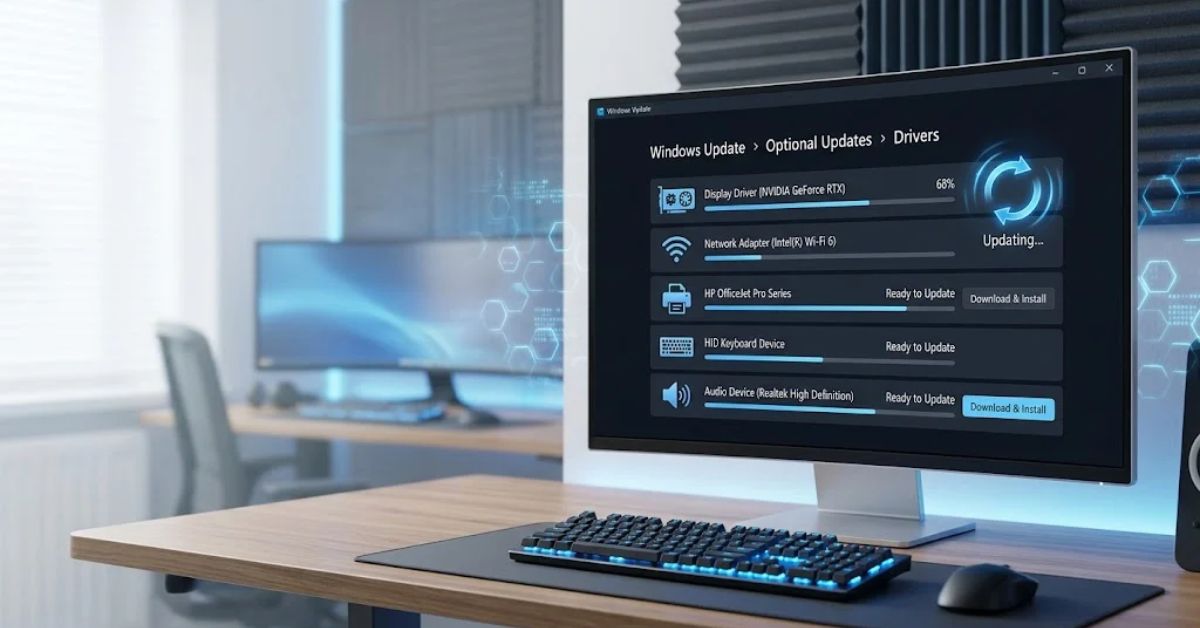
Quick Answer:
A Windows Driver Update installs newer software that helps Windows communicate correctly with hardware such as graphics cards, printers, Wi-Fi adapters, audio devices, and USB components.
The safest approach is to use Windows Update first, then Device Manager or the hardware manufacturer’s official website when Windows cannot find a suitable driver.
Author Information
Author: Gulnaz Malik
Role: Founder, Publisher & Technology Content Specialist
Experience: 5+ Years in Technology, AI, Software & Digital Innovation
Content Review: All content follows Google’s latest EEAT guidelines and includes fact-checked information from official documentation, trusted technology sources, industry reports, and practical research to ensure accuracy, reliability, and up-to-date insights.
Introduction
A Windows PC depends on many small software components that most users never notice. These components are called device drivers.
A driver allows Windows to communicate with a particular hardware component. A graphics card needs a driver to display images correctly.
Windows also relies on drivers to communicate with Wi-Fi adapters and connect to the internet. Printers, keyboards, audio devices, touchpads, and storage controllers can depend on drivers as well.
When a driver becomes outdated, corrupted, incompatible, or incorrectly installed, problems can appear.
You might experience missing sound, unstable Wi-Fi, poor graphics performance, USB connection failures, printer errors, or unexpected crashes.
That makes a Windows Driver Update an important part of PC maintenance.
However, updating every driver simply because a newer version exists is not always necessary. Windows can manage many recommended drivers automatically. For specialized hardware, the manufacturer’s driver may offer additional fixes or features.
This guide explains how Windows driver updates work, when you should update them, which methods are safest, and what to do when a driver update causes problems.
Table of Contents
- What Is a Windows Driver Update?
- Why Are Windows Driver Updates Important?
- How Windows Driver Updates Work
- How to Update Drivers Through Windows Update
- How to Update Drivers With Device Manager
- How to Update Drivers From the Manufacturer
- When Should You Update a Windows Driver?
- Windows Driver Update Methods Compared
- How to Find Your Current Driver Version
- Common Windows Driver Update Problems
- How to Fix a Failed Driver Update
- Best Practices for Safe Driver Updates
- Do You Need Driver Updater Software?
- Windows Driver Updates for Different Hardware
- Latest Windows Driver Update Trends
- Key Takeaways
- Conclusion
- FAQs
What Is a Windows Driver Update?
A Windows Driver Update is a newer version of the software that allows Windows to communicate with a hardware device.
Microsoft describes drivers as software that acts as a translator between Windows and hardware. Windows can automatically obtain many recommended driver updates through Windows Update. (Microsoft Support)
For example, imagine you connect a printer to your PC.
Windows needs to understand:
- Which commands the printer supports.
- How to send documents to it.
- Which printing features are available.
- How to report errors.
- How to communicate with the printer through USB or a network.
The printer driver handles this communication.
The same basic idea applies to other hardware.
| Hardware | What the Driver Helps Windows Control |
| Graphics card | Display and graphics functions |
| Wi-Fi adapter | Wireless network communication |
| Audio device | Speakers, microphones, and sound |
| Printer | Printing and device communication |
| Bluetooth adapter | Bluetooth connections |
| Touchpad | Touch and gesture input |
| USB controller | USB-connected devices |
| Storage controller | Communication with storage hardware |
A driver update can introduce compatibility improvements, bug fixes, performance improvements, or support for newer hardware and Windows versions.
For a broader explanation of how software interacts with physical components, see TechCrebia’s Difference Between Software and Hardware. (techcrebia.com)
Why Are Windows Driver Updates Important?

Drivers sit between Windows and your hardware. If that communication becomes unreliable, the hardware may not behave as expected.
A driver update can sometimes solve problems that appear unrelated to software.
For example, a laptop might have:
- Random Wi-Fi disconnects.
- No sound after a Windows update.
- Screen flickering.
- Bluetooth connection problems.
- Poor gaming performance.
- A printer that suddenly stops responding.
- A USB device that Windows cannot recognize.
Updating the relevant driver may resolve the problem.
However, a driver update does not automatically make every computer faster. If your hardware already works correctly, changing drivers without a specific reason can introduce unnecessary variables.
A better approach is to update drivers when Windows recommends an update, when the manufacturer releases an important fix, or when a hardware problem points toward a driver issue.
How Windows Driver Updates Work
Windows does not simply install every driver it finds online.
Hardware manufacturers develop many drivers. Compatible drivers become available through Windows Update through cooperation between Microsoft and hardware partners.
In addition, Windows can provide certain drivers directly, especially for Microsoft hardware and supported devices.
This approach helps Windows deliver suitable drivers without requiring users to manually search for every update.
Windows can then determine which driver is appropriate for your system.
This process helps reduce compatibility problems because Windows knows important information about your operating system, hardware, and driver package.
Another important point involves driver dates.
You may see a driver with an apparently older date and assume that Windows selected an outdated version. That conclusion can be wrong.
Microsoft explains that Windows Update uses targeting information from the driver provider when selecting drivers, so the displayed driver date does not always tell you which driver is best. (Microsoft Support)
This is why you should not judge a driver only by its date.
How to Update Drivers Through Windows Update
For most users, Windows Update provides the safest starting point.
Microsoft recommends Windows Update for obtaining recommended hardware drivers. (Microsoft Support)
Windows 11 Driver Update Steps
- Open Start.
- Select Settings.
- Open Windows Update.
- Select Check for updates.
- Install available updates.
- Restart your PC if Windows requests it.
Windows can download and install recommended drivers automatically.
You may also find optional driver updates.
How to Check Optional Driver Updates
- Open Settings.
- Select Windows Update.
- Open Advanced options.
- Look for Optional updates.
- Select Driver updates when available.
- Review the listed drivers.
- Install the appropriate update.
- Restart the computer if necessary.
Optional drivers are not necessarily bad or unnecessary. They simply require more user involvement.
Before installing one, check the device name and manufacturer. If your computer works perfectly and the optional driver does not address a known issue, you may not need to install it immediately.
Microsoft also continues to improve how Windows handles driver updates. In 2026, Windows 11 began aligning many driver, firmware, and other updates around the monthly security-update restart cycle, while critical or expedited driver updates can still install sooner when needed. (Microsoft Support)
How to Update Drivers With Device Manager
Device Manager provides another built-in method for managing hardware drivers.
It can be especially useful when you know which device has a problem.
Update a Driver Through Device Manager
- Press Windows + X.
- Select Device Manager.
- Find the hardware category.
- Expand the category.
- Right-click the device.
- Select Update driver.
- Choose Search automatically for drivers.
- Follow the instructions.
- Restart the PC if necessary.
For example, if your sound stops working, you might expand Sound, video and game controllers and inspect the audio device.
If Windows says the best driver is already installed, that does not always mean the manufacturer has no newer driver. A newer compatible driver may exist on the manufacturer’s support website. Microsoft makes this distinction clear in its driver guidance. (Microsoft Support)
Device Manager can also help you identify driver problems.
A yellow warning icon usually indicates that Windows has detected a problem with the device or its driver.
Do not immediately uninstall every device showing an error. First identify the device and determine what caused the problem.
How to Update Drivers From the Manufacturer
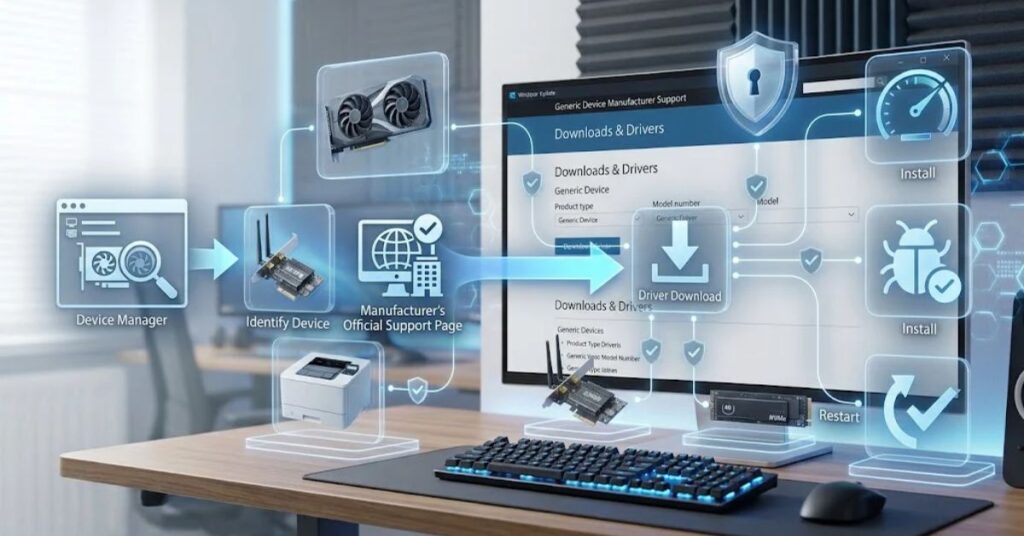
Sometimes Windows Update does not provide the driver you need.
This often happens with specialized hardware, gaming components, professional devices, or recently released products.
In that situation, visit the hardware manufacturer’s official support page.
For example, you may need to find drivers from:
- NVIDIA for supported graphics hardware.
- AMD for supported Radeon graphics or chipset hardware.
- Intel for supported processors, graphics, Wi-Fi, and other hardware.
- Dell, HP, Lenovo, ASUS, Acer, or another PC manufacturer for laptop-specific drivers.
- A printer manufacturer for printer-specific drivers.
Always identify the exact hardware model before downloading a driver.
Check These Details First
- PC or laptop model.
- Windows version.
- 64-bit or ARM architecture.
- Hardware model.
- Existing driver version.
- Manufacturer’s recommended driver.
Do not download a driver simply because the name looks similar.
Laptop manufacturers may customize drivers for specific models. A generic driver can sometimes work, but the manufacturer-specific package may provide better compatibility.
For security-sensitive or kernel-level drivers, Microsoft also recommends checking Windows Update and the manufacturer’s official support page. Windows uses driver signing and integrity controls to help protect the operating system from untrusted kernel drivers. (Microsoft Support)
When Should You Update a Windows Driver?
You do not need to update every driver every week.
A better strategy involves updating the driver when there is a clear reason.
Good Reasons to Update
- A hardware device stops working correctly.
- Windows recommends a driver update.
- The manufacturer releases an important compatibility fix.
- A game requires a newer graphics driver.
- A new Windows version needs updated hardware support.
- You experience repeated crashes related to a device.
- Wi-Fi or Bluetooth becomes unstable.
- A printer or scanner stops communicating correctly.
- The manufacturer fixes a known security problem.
When You Should Be Careful
Avoid changing a stable driver simply because a website claims that every outdated driver must be replaced.
Some third-party driver tools create a sense of urgency by listing many old drivers. Driver age alone does not prove that a driver needs replacement.
Stability matters.
If your graphics card, audio, network adapter, and other devices work correctly, you should have a specific reason before making large numbers of driver changes.
Windows Driver Update Methods Compared
| Method | Ease | Best Use | Risk Level |
| Windows Update | Very easy | Most users | Low |
| Optional driver updates | Easy | Recommended optional drivers | Low |
| Device Manager | Moderate | Specific device problems | Low to moderate |
| Manufacturer website | Moderate | Specialized hardware | Moderate |
| Third-party updater | Easy | General scanning | Higher |
| Manual driver installation | Advanced | Specific technical situations | Higher |
For normal users, Windows Update should usually be the first choice.
For gaming graphics drivers or specialized hardware, the manufacturer’s official support page can provide more control.
How to Find Your Current Driver Version
Before updating a driver, it can help to record the current version.
Find Driver Details
- Open Device Manager.
- Locate the device.
- Right-click it.
- Select Properties.
- Open the Driver tab.
- Check the driver provider.
- Check the driver date.
- Check the driver version.
This information helps you compare your installed driver with the manufacturer’s available version.
It also gives you a reference point if something goes wrong after an update.
For example, suppose your Wi-Fi stops working immediately after a driver update. Knowing the previous version makes rollback much easier.
Common Windows Driver Update Problems
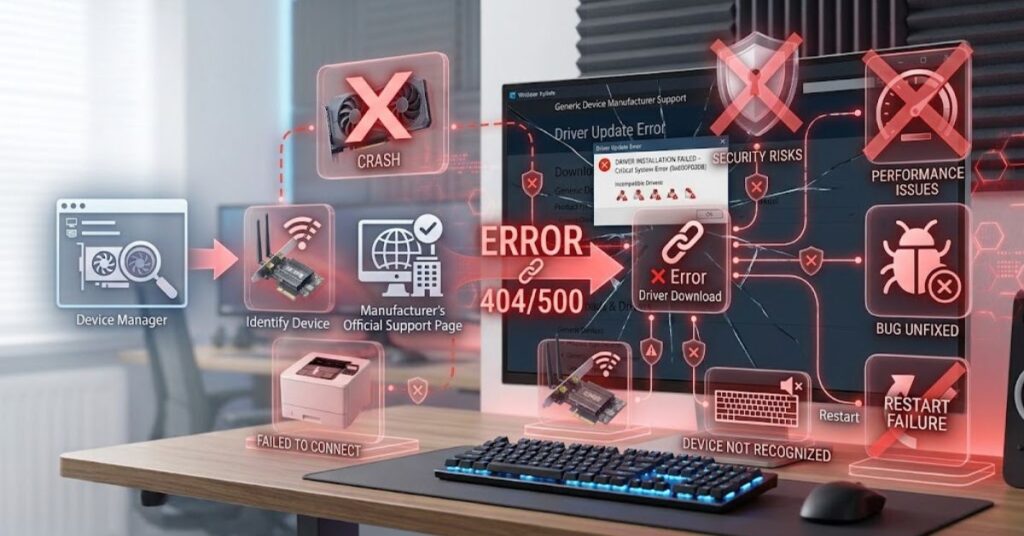
Driver updates do not always go smoothly.
Several problems can occur during or after installation.
Windows Cannot Find a Driver
Windows may report that it could not find an appropriate driver.
Try these steps:
- Check Windows Update again.
- Restart the PC.
- Confirm the device appears in Device Manager.
- Visit the hardware manufacturer’s support page.
- Search using the exact hardware model.
- Download the driver designed for your Windows version.
Driver Update Fails to Install
An installation can fail because of incompatible software, a corrupted package, insufficient system resources, or an incorrect driver.
Try restarting Windows before attempting another installation.
If the problem continues, download the driver again from the official manufacturer.
Hardware Stops Working After an Update
This situation needs a different approach.
If the device worked before the update, the new driver may have introduced an incompatibility.
You can use Device Manager to inspect the device and, when Windows provides the option, roll back to the previous driver.
Do not keep installing random versions until something works. That can make troubleshooting harder.
Windows Shows a Driver Warning
A warning symbol in Device Manager means Windows has detected a device problem.
Open the device properties and check the error message or status information.
The error code can help you identify the next troubleshooting step.
How to Fix a Failed Driver Update
If a Windows Driver Update creates a problem, follow a controlled troubleshooting process.
Step 1: Restart the Computer
A restart can complete pending driver installation tasks and reload hardware services.
Step 2: Check Windows Update
Return to Windows Update and look for additional updates.
Step 3: Inspect Device Manager
Look for warning symbols or devices that have disappeared.
Step 4: Roll Back the Driver
If the problem started immediately after an update, check the device’s Driver tab for a Roll Back Driver option.
Step 5: Reinstall the Driver
If rollback does not help, you can reinstall the correct driver from the manufacturer.
Step 6: Check Hardware Connections
Do not assume every driver problem comes from software.
A loose USB cable, damaged cable, disconnected Wi-Fi antenna, failing storage device, or faulty peripheral can create similar symptoms.
This distinction matters because software cannot repair physically damaged hardware.
Best Practices for Safe Driver Updates
Good driver management does not mean installing the newest file for every component.
Follow these practices instead:
- Use Windows Update whenever it provides the appropriate driver.
- Download manufacturer drivers only from official support pages.
- Record the existing driver version before major changes.
- Create a restore point when appropriate before significant system changes.
- Restart after important driver installations.
- Update graphics drivers when a game or application requires a newer version.
- Avoid random driver-download websites.
- Avoid installing multiple driver-management utilities.
- Do not use unofficial modified drivers unless you fully understand the risks.
- Keep Windows itself updated.
- Back up important files before major system maintenance.
Microsoft recommends obtaining driver information from the driver provider when you need details about a particular driver. (Microsoft Support)
A simple maintenance strategy is often better than aggressive updating.
Do You Need Driver Updater Software?
For most Windows users, no.
Windows already includes driver-management features through Windows Update and Device Manager.
Third-party driver updater programs can scan your PC and display drivers that they consider old. However, you should not assume every listed driver requires an update.
There is also a security consideration.
A driver operates at a deeper level than an ordinary application. Installing the wrong driver can cause instability or hardware problems. Installing a malicious or tampered driver can create a much more serious security issue.
That makes the source more important than the promise of automatic updates.
If you use a third-party tool, research the developer carefully and verify the driver source. For most people, however, Windows Update plus official manufacturer support pages provide a simpler approach.
Windows Driver Updates for Different Hardware
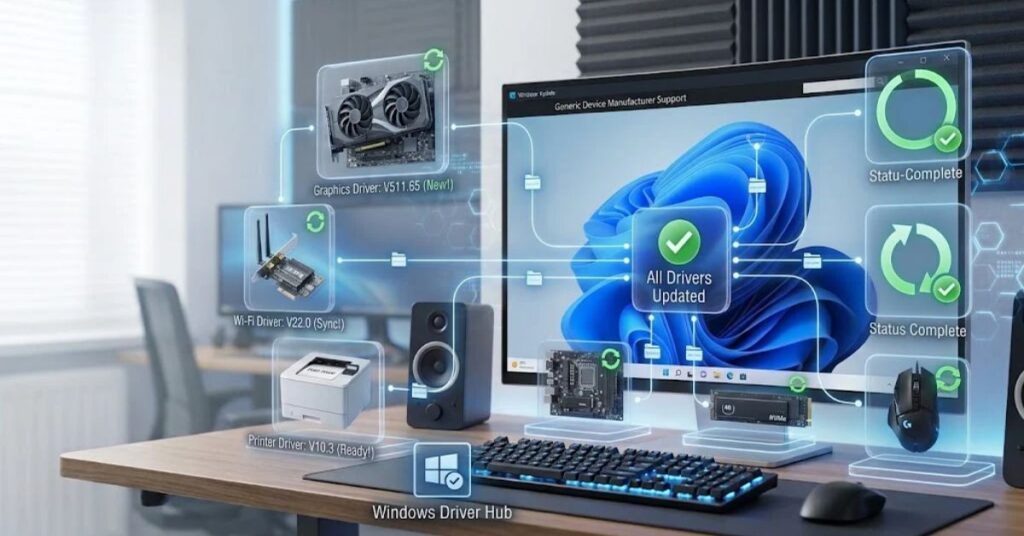
Different devices benefit from different update strategies.
Graphics cards:
Graphics drivers receive frequent updates because games, creative applications, operating systems, and new GPU features continue to evolve. Gamers may have a stronger reason to check manufacturer releases.
Wi-Fi and Bluetooth:
Update these drivers when you experience connection problems, compatibility issues, or manufacturer-recommended fixes.
Audio:
If you experience missing sound, microphone problems, crackling, or distorted audio, check Windows Update and the PC or audio-device manufacturer’s driver. Microsoft specifically recommends Windows Update as the first method for audio-driver updates. (Microsoft Support)
Printers:
Printer manufacturers may provide specialized packages that include device-specific features beyond the basic Windows driver.
Chipset and motherboard components:
These drivers can influence communication between the operating system and motherboard hardware. Use your PC or motherboard manufacturer’s official support page when a chipset update is necessary.
External devices:
USB, webcams, scanners, storage devices, and other peripherals may require drivers depending on their design.
For example, TechCrebia also covers specialized PC hardware software in its Fan Controller RGB Software guide, which explains how Windows software can communicate with compatible PC hardware. (techcrebia.com)
Latest Windows Driver Update Trends
Driver management continues to change as Windows becomes more automated.
One major trend involves automatic driver delivery. Windows can identify compatible drivers and deliver them through Windows Update without requiring users to search manually. (Microsoft Support)
Another trend involves security and driver signing.
Modern Windows versions use stronger protections around kernel-level drivers. Microsoft says Windows requires new drivers to meet its signing requirements through the Windows Hardware Compatibility Program. (Microsoft Support)
Windows 11 is also changing how it handles restarts. Since updates released from late July 2026, many driver and firmware updates can align with the monthly security update restart process, while critical driver updates can still install sooner. (Microsoft Support)
AI-powered PCs may also increase the importance of specialized drivers. Modern systems can contain CPUs, GPUs, and NPUs that work together for AI workloads. As hardware becomes more specialized, driver compatibility will remain important for applications that use these components.
The future of driver management will likely focus on automatic compatibility detection, stronger security validation, faster problem recovery, and less manual configuration.
Key Takeaways
- A Windows Driver Update improves or replaces the software that connects Windows with hardware.
- Windows Update should usually be your first driver-update method.
- Optional driver updates require more careful selection.
- Device Manager helps diagnose and manage individual devices.
- Manufacturer websites can provide specialized or newer drivers.
- A newer driver does not automatically mean better performance.
- Driver dates alone do not determine which driver Windows considers best.
- Always download drivers from trusted and official sources.
- Roll back a driver when a new installation causes a clear problem.
- Avoid unnecessary third-party driver-updater software.
- Keep important files backed up before major system changes.
- Driver security and signing are becoming increasingly important.
Conclusion
A Windows Driver Update is an important part of maintaining a reliable PC, but updating drivers does not need to be complicated.
For most users, Windows Update provides the safest and simplest starting point. It can automatically deliver recommended drivers and reduce the need for manual searches.
When Windows cannot solve a hardware problem, Device Manager can help identify the affected device. If you need a specialized driver, use the manufacturer’s official support page and verify the exact hardware model and Windows version.
Most importantly, do not treat every old driver as a problem. A stable computer does not need constant driver changes. Focus on compatibility, security, known issues, and actual hardware needs.
With a careful approach, you can keep your graphics, audio, network, printer, USB, and other devices working reliably without taking unnecessary risks.
FAQs
What is a Windows Driver Update?
A Windows Driver Update installs newer software that helps Windows communicate correctly with a specific hardware device.
How do I update drivers in Windows?
Open Settings > Windows Update > Check for updates. You can also review available optional driver updates.
Is Windows Update safe for drivers?
Yes. Windows Update is the recommended starting point for obtaining compatible hardware drivers.
Should I update all outdated drivers?
No. Update drivers when Windows recommends them, when the manufacturer provides an important fix, or when a device has a problem.
Can a driver update improve PC performance?
It can improve stability, compatibility, or performance in specific situations, but not every driver update produces a noticeable speed increase.
What should I do if a driver update causes problems?
Restart the PC, check Windows Update, inspect Device Manager, and consider rolling back the affected driver if the problem started after the update.
Is Device Manager good for updating drivers?
Yes. Device Manager is useful for updating or troubleshooting individual hardware devices.
Where should I download drivers?
Use Windows Update or the hardware manufacturer’s official support website. Avoid unknown driver-download websites.
Do I need a third-party driver updater?
Usually not. Windows Update and official manufacturer support pages are sufficient for most users.
How often should I update Windows drivers?
There is no universal schedule. Check for updates when Windows recommends them or when you experience a hardware compatibility or performance problem.
SEO Tags
- Windows Driver Update
- Windows driver updates
- update drivers Windows 11
- Windows driver software
- how to update drivers
- Device Manager drivers
- Windows hardware drivers
- automatic driver updates
- driver troubleshooting Windows
- PC driver update guide
Internal Linking Suggestions With Anchor Text
- Difference Between Software and Hardware — Use when explaining the relationship between drivers and physical computer components. Difference Between Software and Hardware
- PhysX System Software — Use when discussing graphics drivers and software that interacts with PC hardware. PhysX System Software
- Fan Controller RGB Software — Use for related hardware-control software and PC maintenance topics. Fan Controller RGB Software
- Samsung J7 Software Update Guide — Use as an example of troubleshooting device software updates. Samsung J7 Software Update Guide
- Productivity Software — Use when discussing software maintenance and choosing useful utilities without unnecessary tools. Productivity Software
Authoritative External References
Social Media Title
Windows Driver Update: Complete Guide to Updating PC Drivers



