






Quick Answer
Mac data recovery software helps recover deleted, formatted, corrupted, or inaccessible files from Mac storage and connected drives.
It scans available storage for recoverable file data and lets you preview and restore files. For the best chance of recovery, stop using the affected drive, avoid formatting it, and save recovered files to a different storage device.
Author Information
Author: Gulnaz Malik
Role: Founder, Publisher & Technology Content Specialist
Experience: 5+ Years in Technology, AI, Software & Digital Innovation
Content Review: All content follows Google’s latest EEAT guidelines and includes fact-checked information from official documentation, trusted technology sources, industry reports, and practical research to ensure accuracy, reliability, and up-to-date insights.
Introduction
Losing important files on a Mac can happen in seconds. You may accidentally delete a folder, empty the Trash, format an external drive, or lose access to files after a storage error.
The situation becomes more stressful when the missing files contain work documents, photos, videos, business records, or personal projects.
Fortunately, deleted data does not always disappear immediately. In many situations, the storage device still contains recoverable information. The right recovery method can help you find that data before new information overwrites it.
Mac data recovery software provides one option for recovering lost files. These tools scan storage devices and look for information that macOS can no longer display normally.
However, recovery software does not guarantee success. Your chances depend on what caused the data loss, how much the drive has been used afterward, the condition of the storage device, and whether you have a backup.
This guide explains Mac data recovery from beginner to advanced level. You will learn how recovery software works, when to use it, how to recover files safely, which mistakes to avoid, and when professional recovery makes more sense.
Table of Contents
- What Is Mac Data Recovery Software?
- How Mac Data Recovery Software Works
- When Do You Need Mac Data Recovery Software?
- What Types of Files Can You Recover?
- How to Recover Deleted Files on Mac
- Time Machine vs Recovery Software
- Free vs Paid Mac Data Recovery Software
- How to Choose Recovery Software
- Common Mac Data Recovery Mistakes
- Troubleshooting Mac Data Recovery Problems
- Advanced Data Recovery Situations
- Latest Trends in Mac Data Recovery
- Best Practices to Prevent Data Loss
- Key Takeaways
- Conclusion
- FAQs
- SEO Tags
- Internal Linking Suggestions
- Authoritative External References
- Social Media Title
What Is Mac Data Recovery Software?
Mac data recovery software is a specialized utility that searches Mac storage for files that users can no longer access through Finder.
These applications can scan internal storage, external hard drives, SSDs, USB drives, memory cards, and other compatible storage devices.
When you delete a file, the operating system may remove its normal reference while the underlying data remains on the storage device. Until another file overwrites that space, recovery software may locate some or all of the original information.
This process explains why acting quickly matters.
For example, imagine that you accidentally delete a folder containing 500 photos. If you immediately stop using the affected storage and start a careful recovery process, the software may find many of those photos.
If you continue downloading files, installing applications, editing large videos, or copying data to the same drive, new information may overwrite the deleted data.
You can also read TechCrebia’s SD memory recovery software guide for a related explanation of file recovery from removable storage.
Mac recovery software can potentially help with:
- Accidentally deleted files
- Emptied Trash
- Formatted drives
- Missing partitions
- Corrupted file systems
- Inaccessible folders
- Failed file transfers
- Lost photos and videos
- Deleted documents
- Some external-drive errors
However, recovery software cannot repair every problem. Severe physical damage requires a different approach.
How Mac Data Recovery Software Works
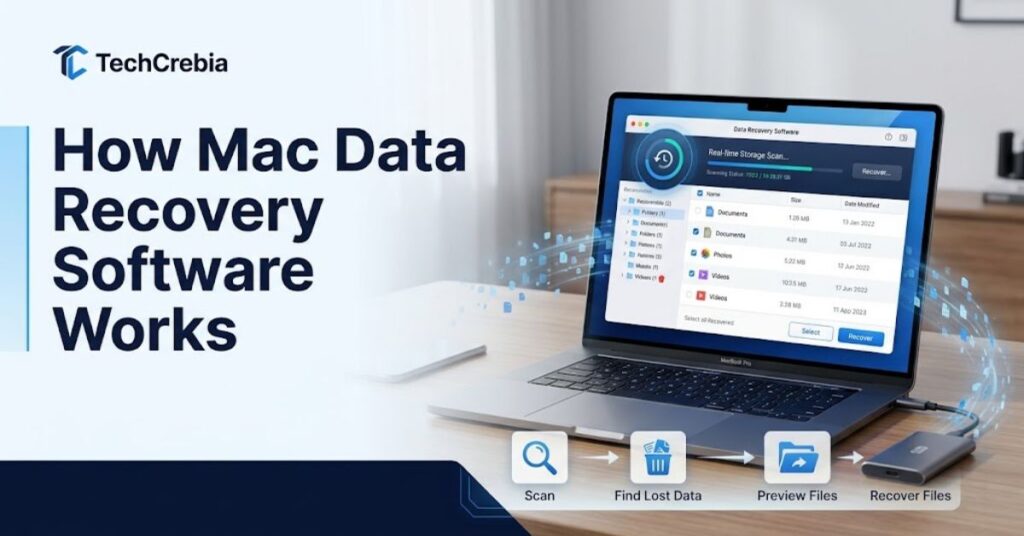
Most recovery applications use several scanning methods to identify recoverable information.
A basic scan may examine file-system records and recently deleted information. A deeper scan can search storage more extensively for recognizable file structures and file signatures.
The process usually follows these stages:
- Connect or identify the storage device.
- Select the correct disk or volume.
- Start a scan.
- Allow the software to analyze the storage.
- Review discovered files.
- Preview important files when supported.
- Select the files you need.
- Save them to another storage location.
Quick Scan
A quick scan usually checks existing file-system information. It can work well when files were recently deleted and the file system remains healthy.
This method normally takes less time than a deep scan.
Deep Scan
A deep scan examines storage more extensively. It can help when the file system has become damaged or when a normal scan cannot find useful results.
Deep scanning can take much longer, especially on large SSDs, hard drives, and external storage.
File Signature Recovery
Some recovery applications search for recognizable patterns associated with specific file formats.
This approach can help when the original folder structure no longer works.
For example, a recovery tool may identify common image, video, document, archive, or RAW camera formats even when the original filenames are missing.
The recovered results may not always preserve the original folder structure or filenames.
When Do You Need Mac Data Recovery Software?
You may need recovery software when normal macOS recovery methods cannot restore your files.
Common situations include accidental deletion, formatting, corruption, or storage errors.
Accidental File Deletion
Accidental deletion remains one of the most common recovery situations.
If you delete an important file and cannot find it in the Trash, avoid using the affected drive unnecessarily. Recovery software may locate remaining data.
Emptied Trash
Emptying the Trash removes the normal Finder recovery option. It does not automatically mean that every underlying data block has disappeared.
Recovery success depends heavily on whether the storage space has been reused.
Formatted Storage
Formatting can remove the normal file structure used by macOS to organize data.
Some recovery applications can scan formatted storage and find older files. However, continued use after formatting can overwrite recoverable information.
Corrupted File System
A damaged file system can make a drive appear empty, inaccessible, or unreadable.
The physical storage may still contain data even when Finder cannot display it.
External Drive Problems
Mac users often store files on external HDDs, SSDs, USB drives, and memory cards.
If an external drive suddenly stops showing files, first determine whether the Mac detects the device. Avoid immediately erasing or formatting it if the data matters.
For another Mac-focused software topic, see TechCrebia’s Mac software update guide.
What Types of Files Can You Recover?
The exact file types depend on the recovery application and the condition of the storage device.
Commonly supported data includes:
- JPG and PNG images
- RAW camera photos
- MP4 and MOV videos
- PDF documents
- Word documents
- Spreadsheets
- Presentations
- ZIP archives
- Audio files
- Text files
- Project files
- Database files
- Application-related files
Professional users should pay particular attention to RAW photos, large video files, project folders, and business documents.
File preview support can also help. If the software can preview a recovered image or document correctly, you have stronger evidence that the recovery result contains usable information.
How to Recover Deleted Files on Mac
Before starting, follow one important rule:
Stop using the affected storage device as much as possible.
Do not install recovery software on the same drive that contains the missing files. Install the application on another safe location when practical.
Step 1: Stop Writing New Data
Do not download large files, install applications, copy videos, or create new documents on the affected storage.
Every new write can potentially replace deleted information.
Step 2: Check Simple Recovery Options
Before using third-party recovery software, check whether the file still exists in:
- Trash
- iCloud Drive
- A recent backup
- Time Machine
- Another synchronized device
- An external backup
Backups can provide a cleaner recovery method than scanning deleted data.
Step 3: Connect the Storage Carefully
If you need to recover data from an external drive, connect it through a reliable cable, adapter, or enclosure.
Avoid repeatedly reconnecting a drive that makes unusual noises or disconnects constantly.
Step 4: Scan the Drive
Open your selected recovery application and choose the correct physical disk or volume.
Start with a standard scan if the application provides one.
If the scan does not find the missing files, a deeper scan may provide additional results.
Step 5: Preview the Results
Do not recover everything automatically.
Search for the files you actually need. Check filenames, folders, file types, dates, sizes, and previews when available.
Step 6: Recover to Another Drive
Always save recovered files to a different storage device when possible.
For example, if the lost files came from an external SSD, save the recovered files to the Mac’s internal storage or another external drive.
Never use the damaged source drive as the recovery destination.
Time Machine vs Recovery Software
Time Machine is a backup system. Recovery software generally attempts to locate data that no longer appears normally in the file system.
| Feature | Time Machine | Recovery Software |
| Main purpose | Backup and restoration | Lost-data recovery |
| Deleted files | Excellent if backed up | May recover some deleted data |
| Formatted drive | Usually not the main method | May help |
| File-system corruption | Limited | Can sometimes help |
| Requires previous backup | Yes | Usually no |
| Recovery from external drives | Depends on backup | Often supported |
| Risk of overwriting | Low when used correctly | Higher if used incorrectly |
Apple explains that Time Machine can restore individual files and folders from available backups.
Apple Support: Restore items with Time Machine
If you already have a recent Time Machine backup, start there. It can provide a more predictable restoration method than deleted-file scanning.
If no backup exists, recovery software may become more useful.
Free vs Paid Mac Data Recovery Software
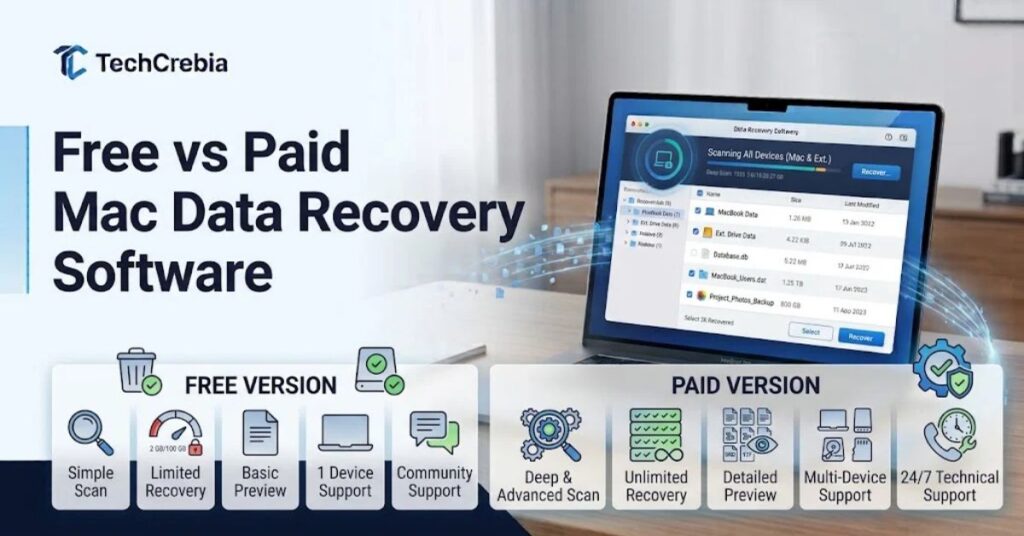
Free recovery tools can work for simple situations, but they often have limitations.
Paid applications may provide deeper scans, larger recovery limits, better file previews, broader format support, and technical support.
| Feature | Free Tools | Paid Tools |
| Basic scanning | Usually | Yes |
| Deep scanning | Varies | Usually |
| File preview | Varies | Often |
| Recovery limits | Common | Usually higher |
| Advanced file support | Limited | Broader |
| Customer support | Limited | Often available |
| Ease of use | Varies | Usually polished |
Do not select a recovery product simply because its website claims an extremely high recovery rate.
Instead, look for practical features such as preview capability, macOS compatibility, supported file systems, secure installation, and recovery to another drive.
A free trial or scan can also help you determine whether the software can actually detect your missing files before you pay.
How to Choose Recovery Software
The best recovery application depends on your specific situation.
Consider these factors before installing any tool.
Compatibility and Storage Support
Check whether the application supports your macOS version and storage type.
Consider support for:
- Internal Mac storage
- External HDDs
- External SSDs
- USB drives
- SD and microSD cards
- Common file systems
- Large-capacity drives
Scanning and Preview Features
A useful recovery tool should offer reliable scanning and, ideally, file preview.
Preview helps you distinguish usable files from corrupted or incomplete results.
Security and Privacy
Recovery software may access sensitive documents, photographs, financial files, and business information.
Download applications from trusted sources. Avoid cracked versions and suspicious installers.
Never grant unnecessary permissions simply because an application requests them.
For a broader explanation of how software interacts with physical components, read TechCrebia’s difference between software and hardware guide.
Recovery Destination
The application should let you choose a different destination for recovered data.
This feature matters because saving recovered files to the source drive can overwrite additional recoverable information.
Common Mac Data Recovery Mistakes
Many failed recovery attempts result from incorrect actions rather than the recovery tool itself.
Avoid these mistakes:
- Continuing to use the affected drive.
- Installing recovery software on the source drive.
- Saving recovered files to the source drive.
- Formatting the drive before recovery.
- Running unnecessary repair operations.
- Repeatedly reconnecting a physically failing drive.
- Downloading cracked recovery applications.
- Assuming every deleted file can return.
- Ignoring available backups.
- Recovering files without checking their integrity.
One particularly serious mistake involves formatting a drive simply because macOS displays an error message.
If the drive contains important data, stop and assess your recovery options first.
Troubleshooting Mac Data Recovery Problems
Recovery software does not always detect a storage device or find useful files.
The following steps can help identify the problem.
Mac Does Not Detect the Drive
Check whether the storage device appears in Disk Utility.
You can also try:
- A different USB port.
- Another cable.
- A different adapter.
- Another compatible Mac.
- A reliable external enclosure.
- System Information.
If the drive does not appear anywhere and shows signs of physical failure, software recovery may not provide a solution.
Drive Appears, but Files Do Not
If macOS detects the device but Finder cannot open the volume, avoid formatting it.
Disk Utility may provide diagnostic information and repair options for some logical storage problems.
Apple’s Disk Utility documentation explains that First Aid can check and repair certain storage problems, but it does not solve every disk issue.
Apple Support: Disk Utility Guide
Recovery Software Finds Corrupted Files
A recovery tool may locate a file but fail to produce a usable result.
This can happen because:
- New data overwrote part of the original file.
- The file was fragmented.
- The storage device has physical problems.
- The file system suffered extensive corruption.
- The recovery software cannot reconstruct the format correctly.
Try previewing multiple results before deciding that recovery has failed.
Advanced Data Recovery Situations

Some situations require more caution than ordinary accidental deletion.
Modern Mac storage can use technologies such as SSDs, APFS, encryption, and hardware-level security features. These technologies can affect how traditional deleted-file recovery works.
SSD Recovery
SSD recovery can differ from traditional hard-drive recovery.
Storage management technologies can make deleted-data recovery more difficult in some situations. Therefore, users should avoid unnecessary writes after data loss.
APFS Storage
Modern macOS installations commonly use APFS.
APFS provides advanced storage management features, including snapshots. If an appropriate snapshot or backup exists, it may provide a better recovery route than raw file scanning.
Encrypted Storage
Encryption protects data from unauthorized access, but it can also affect recovery workflows.
If your Mac uses encryption and you lose access to authentication credentials or a volume, recovery may require a different process.
Physically Damaged Drives
Software cannot repair a broken connector, failed controller, damaged NAND, or physically damaged drive.
If the data has high value, stop experimenting with the device.
A professional data recovery laboratory may have specialized equipment for damaged storage.
Latest Trends in Mac Data Recovery
Mac data recovery continues to change as storage technology evolves.
One major trend involves larger SSD capacities. Users now store large photo libraries, 4K and 8K video, creative projects, virtual machines, and business data on relatively small physical devices.
Another trend involves cloud-connected workflows. Many users now keep important files in services such as iCloud and other cloud storage platforms.
AI-assisted analysis may also improve future recovery workflows. Recovery applications can potentially use smarter classification to organize large numbers of recovered files and identify useful results more efficiently.
File-signature recognition also continues to matter. When folder structures become unavailable, recovery tools can sometimes identify data based on recognizable file patterns.
Privacy will remain another major concern. Recovery applications often handle extremely sensitive files, so local processing, secure permissions, transparent privacy policies, and trusted software sources will become increasingly important.
Users can also explore TechCrebia’s productivity software guide for broader information about software tools that help organize and manage digital work.
Best Practices to Prevent Data Loss
Recovery should always remain a backup plan rather than your primary data-protection strategy.
Follow these practices:
- Use Time Machine regularly.
- Keep another copy of critical files.
- Use external backup storage for important projects.
- Consider cloud synchronization for suitable files.
- Avoid storing the only copy of important data on one device.
- Safely eject removable storage when appropriate.
- Replace unreliable drives before they fail completely.
- Keep macOS and important software updated.
- Protect important files with appropriate security controls.
- Test your backups occasionally.
Apple recommends maintaining backups on storage separate from the Mac’s internal disk so users can restore their information if the internal storage fails.
Key Takeaways
- Mac data recovery software can help recover deleted, formatted, corrupted, or inaccessible files.
- Stop using the affected storage immediately after data loss.
- Never save recovered files to the same source drive.
- Check Trash, backups, iCloud, and Time Machine before attempting advanced recovery.
- Use preview features to confirm that recovered files are usable.
- Free tools may work for simple recovery, while paid tools often provide more advanced features.
- Disk Utility can diagnose or repair some storage problems but does not replace dedicated recovery software.
- SSDs, encryption, APFS, and physical damage can complicate recovery.
- Physically damaged drives may require professional recovery.
- Regular backups remain the strongest defense against permanent data loss.
Conclusion
Mac data loss can feel permanent, but deleted or inaccessible files may remain recoverable in some situations.
The most important decision happens immediately after the problem appears. Stop using the affected storage and avoid formatting it. Every new write can reduce the chance of recovering deleted information.
Start with simple options such as Trash, Time Machine, iCloud, or another backup. If no backup exists, reliable Mac data recovery software can scan the storage and search for recoverable files.
Choose recovery software carefully. Check macOS compatibility, storage support, scanning features, file previews, privacy practices, and recovery limits.
Most importantly, never save recovered files back to the source drive.
If the drive has serious physical damage or contains irreplaceable data, professional recovery may offer a safer path than repeated software experiments.
The best recovery strategy is still prevention. Keep multiple copies of important files, maintain regular backups, and treat recovery software as a second chance rather than your only protection.
FAQs
Can Mac data recovery software recover permanently deleted files?
It may recover some deleted files if their storage space has not been overwritten, but no software can guarantee recovery.
What should I do first after deleting important files?
Stop using the affected drive and avoid downloading, installing, formatting, or copying new data to it.
Can recovery software recover files from an external Mac drive?
Yes. Many recovery tools support external HDDs, SSDs, USB drives, and memory cards.
Is free Mac data recovery software safe?
Some free tools are legitimate, but download software only from trusted sources and review its permissions and privacy practices.
Can Time Machine recover deleted Mac files?
Yes. If the files exist in a Time Machine backup, you can restore them without relying on deleted-file scanning.
Can Disk Utility recover deleted files?
Disk Utility can diagnose or repair certain storage problems, but it does not function as a dedicated deleted-file recovery application.
Can recovery software recover files from a formatted drive?
It may recover some files if the original data remains available and new data has not overwritten it.
Can software recover a physically damaged SSD?
Usually not. Physical storage failures may require professional data recovery equipment and expertise.
10 SEO Tags
- Mac Data Recovery Software
- Mac file recovery
- recover deleted files Mac
- Mac data recovery
- deleted file recovery Mac
- Mac recovery software
- recover lost files Mac
- external drive recovery Mac
- SSD data recovery Mac
- Mac file recovery tools
5 Internal Linking Suggestions with Anchor Text
- SD card data recovery software — https://techcrebia.com/sd-memory-recovery-software/
- SD recovery software for Mac — https://techcrebia.com/sd-recovery-software-mac/
- iPhone data restore software — https://techcrebia.com/iphone-data-restore-software/
- software and hardware explained — https://techcrebia.com/difference-between-software-and-hardware/
- Mac software update guide — https://techcrebia.com/mac-software-update/
2 Authoritative External References
- Apple Support — Time Machine file restoration — Apple Support
- Apple Support — Disk Utility Guide — Apple Support
Social Media Title
Mac Data Recovery Software: Recover Deleted Files Safely



