






Quick Answer:
System Mechanic Software is a Windows PC optimization tool from iolo. It helps users clean junk files, manage startup programs, optimize selected system settings, and automate routine maintenance.
It can improve PC responsiveness, but it cannot replace hardware upgrades, Windows updates, backups, or proper security protection.
Author Information
Author: Gulnaz Malik
Role: Founder, Publisher & Technology Content Specialist
Experience: 5+ Years in Technology, AI, Software & Digital Innovation
Content Review: All content follows Google’s latest EEAT guidelines and includes fact-checked information from official documentation, trusted technology sources, industry reports, and practical research to ensure accuracy, reliability, and up-to-date insights.
Introduction
A slow Windows computer can turn simple tasks into frustrating work. Programs may open slowly, Windows may take longer to start, and limited storage can affect everyday performance.
System Mechanic Software gives Windows users a collection of tools for cleaning, optimizing, and maintaining their computers. iolo, the company behind System Mechanic, designed the software to handle tasks such as junk-file cleanup, startup optimization, resource management, and automated maintenance.
The software also focuses on automated optimization. Its newer Smart ActiveCare technology aims to identify and handle many maintenance tasks automatically when the computer sits idle.
However, PC optimization software does not solve every performance problem. A slow SSD, failing hard drive, limited RAM, overheating processor, malware infection, or outdated driver can still cause serious issues.
This guide explains System Mechanic Software from beginner to advanced level. You will learn what it does, how to install it, how to use its main features, how it compares with Windows tools, and how to troubleshoot common problems.
Table of Contents
- What Is System Mechanic Software?
- How System Mechanic Software Works
- Main Features of System Mechanic Software
- System Mechanic Software System Requirements
- How to Install System Mechanic Software
- How to Use System Mechanic Software
- System Mechanic Software for Different Users
- System Mechanic Software vs Windows Built-In Tools
- Common Problems and Troubleshooting
- Is System Mechanic Software Safe?
- Best Practices for PC Optimization
- Latest System Mechanic Software Trends in 2026
- Key Takeaways
- Conclusion
- FAQ
What Is System Mechanic Software?
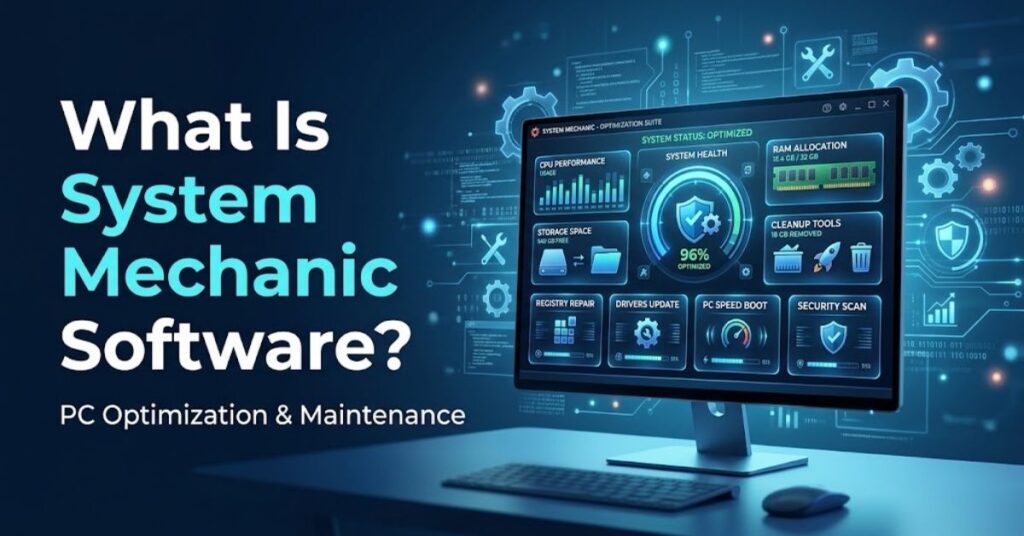
System Mechanic Software is a Windows PC optimization and maintenance suite from iolo. It combines several tools that help users manage common performance and maintenance tasks.
The software focuses on areas such as temporary-file cleanup, startup management, system optimization, resource management, and automated maintenance.
For beginners, the biggest advantage comes from having several maintenance functions inside one application.
Instead of searching through multiple Windows settings, users can access many optimization options from the System Mechanic interface.
For example, a PC may contain temporary files created by browsers and applications. It may also have programs that launch automatically every time Windows starts. Over time, these factors can contribute to a less responsive experience.
System Mechanic can help users identify these areas and decide which maintenance actions make sense.
It also helps explain an important difference between software and hardware. Software can optimize how Windows uses available resources, but software cannot physically upgrade a processor, increase installed RAM, or replace a damaged storage drive.
For beginners who want to understand this difference, read our Difference Between Software and Hardware guide.
The software can therefore work as a maintenance layer. It does not replace Windows itself, hardware upgrades, or a reliable security strategy.
How System Mechanic Software Works
System Mechanic Software uses scanning, optimization, cleanup, and automation to maintain a Windows computer.
The process usually starts with a system scan. The software examines selected areas of the PC and identifies potential maintenance issues.
After the scan, users can review the recommendations. Depending on the feature, System Mechanic may identify unnecessary files, startup programs, system clutter, or other optimization opportunities.
Users can then apply appropriate changes.
The software also supports automated maintenance. Smart ActiveCare can perform certain maintenance tasks when the PC remains idle.
This approach helps users who often forget to perform routine maintenance manually.
A typical optimization process looks like this:
- Open System Mechanic.
- Check the current system status.
- Run a scan.
- Review the detected issues.
- Select appropriate cleanup or optimization actions.
- Apply the changes.
- Restart Windows when necessary.
- Compare performance before and after maintenance.
This process gives users more control than simply clicking a large “optimize” button without reviewing the results.
You should also create a backup before making major system changes. A backup gives you a recovery option if an unexpected problem occurs.
Main Features of System Mechanic Software
System Mechanic offers several features designed to improve Windows maintenance. The exact tools can vary by product edition.
PC Cleanup
PC Cleanup searches for unnecessary files that accumulate during normal computer use.
These files can include temporary data, browser clutter, cached files, and other removable items.
Removing unnecessary files can free storage space. It can also make storage management easier.
However, users should review cleanup categories carefully. Never remove personal files simply because a utility lists them as large or old.
Windows also provides built-in storage management features, so users should understand what System Mechanic adds beyond the operating system.
Startup Optimization
Startup optimization helps users control programs that automatically launch with Windows.
Too many startup programs can increase boot time and consume system resources.
For example, a user may have several launchers, messaging apps, cloud tools, and update utilities configured to start automatically.
System Mechanic can help identify these programs and give users more control over startup behavior.
Only disable programs that you understand. Some startup components support drivers, security software, hardware utilities, or important applications.
LiveBoost
LiveBoost focuses on system resources such as CPU, RAM, and drive activity.
The feature aims to make more resources available during demanding activities.
Gamers, video editors, and users who run resource-heavy applications may find this type of optimization useful.
Still, software cannot overcome major hardware limitations. A computer with insufficient RAM or an outdated processor will continue to face those limitations.
ActiveCare
ActiveCare automates selected maintenance tasks.
Instead of requiring users to remember every maintenance action, the software can perform supported tasks when the computer sits idle.
This feature suits users who want a more hands-off maintenance approach.
Automation can save time, but users should still review important settings and keep backups.
NetBooster
NetBooster focuses on selected Windows network settings.
The feature aims to improve the way Windows handles certain internet-related operations.
However, internet performance depends on many factors. Your ISP, router, Wi-Fi signal, network congestion, DNS configuration, and remote server can all affect speed.
A PC optimizer cannot turn a 50 Mbps internet plan into a 500 Mbps connection.
Privacy and Security Features
Some System Mechanic editions include additional privacy, antivirus, or malware-protection capabilities.
Users should check their specific edition before assuming that every feature comes with their license.
Windows also includes security tools such as Microsoft Defender Antivirus and Windows Security.
You should avoid running multiple real-time antivirus products simultaneously unless their vendors specifically support the configuration.
System Mechanic Software System Requirements
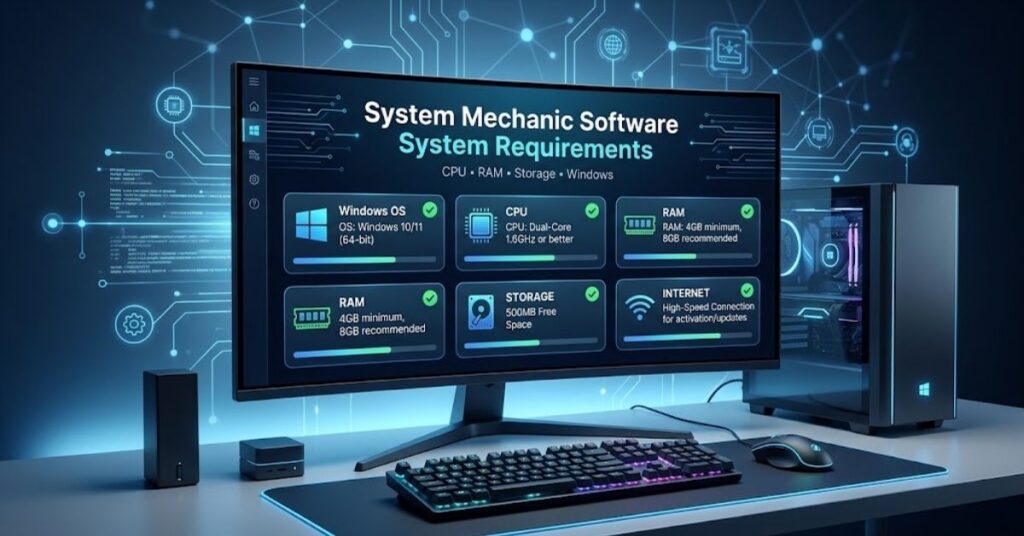
System requirements can change as developers release new versions.
Before installation, check the current official requirements for your specific System Mechanic edition.
You should generally verify:
| Requirement | What to Check |
| Windows version | Confirm current compatibility |
| RAM | Meet the minimum requirement |
| Storage | Keep enough free space |
| Internet | Required for activation and updates |
| Account | Use appropriate Windows permissions |
| Updates | Keep Windows current |
Older Windows versions may have different support policies than newer releases.
Always check the current product requirements before installing or purchasing the software.
How to Install System Mechanic Software
Installing System Mechanic normally takes only a few steps.
Before Installation
- Back up important documents.
- Install pending Windows updates.
- Check available storage.
- Close unnecessary programs.
- Remove unwanted software.
- Download the installer from the official iolo website.
Avoid unofficial or modified installers. They can create security risks.
Installation Process
- Visit the official System Mechanic website.
- Download the appropriate installer.
- Open the setup file.
- Follow the installation instructions.
- Sign in or activate your license.
- Allow the installation to finish.
- Open System Mechanic.
- Run the initial scan.
- Review the recommendations before making changes.
After installation, keep the software updated.
How to Use System Mechanic Software
You do not need to change every setting on your first day.
Start with the basic maintenance functions.
Open the System Mechanic dashboard and review the system status. Look for storage, startup, and maintenance recommendations.
Run a scan and examine the results. Pay attention to categories that involve personal files or system settings.
For startup optimization, identify programs that you do not need when Windows starts.
For automated maintenance, configure ActiveCare based on your normal computer usage.
A practical testing method can help you determine whether an optimization actually helps.
- Record your normal startup time.
- Check free storage.
- Note RAM and CPU usage.
- Run the cleanup process.
- Review startup programs.
- Restart Windows.
- Test your normal applications.
- Compare the results.
This method helps you avoid making changes without measuring their effect.
System Mechanic Software for Different Users
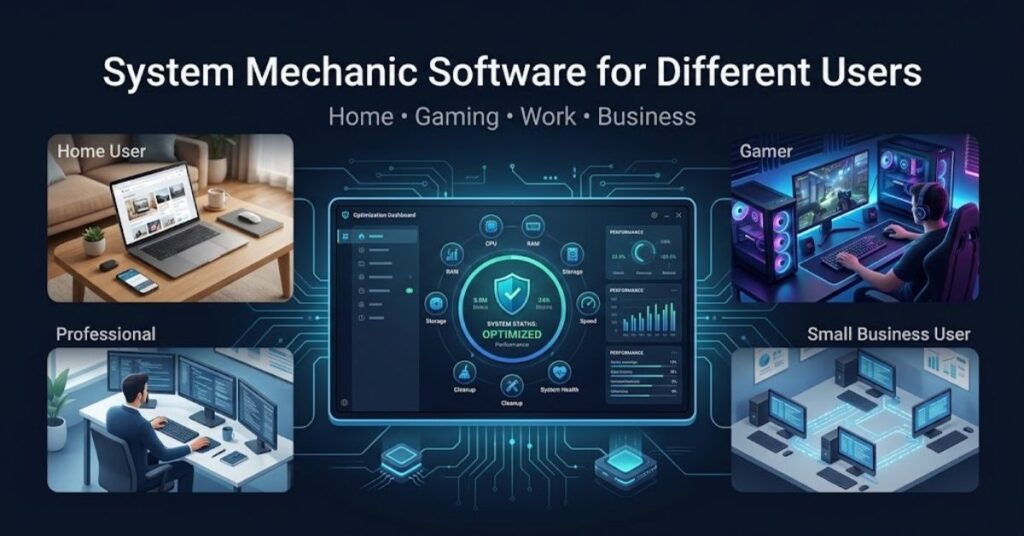
System Mechanic can help different types of Windows users.
Home Users
Home users can use System Mechanic for regular cleanup, startup management, and automated maintenance.
A family PC that has accumulated years of applications and temporary files may benefit more than a newly installed computer.
Gamers
Gamers often care about CPU, RAM, background applications, and system responsiveness.
LiveBoost and startup optimization can help reduce unnecessary resource use.
However, GPU performance, cooling, drivers, game settings, and hardware specifications remain important.
Older PC Users
Older PCs may benefit from removing accumulated clutter and unnecessary startup applications.
However, hardware upgrades often provide larger gains.
For example, replacing an old mechanical hard drive with an SSD can dramatically improve boot and application loading times.
Small Businesses
Small businesses can use PC maintenance tools to simplify routine system care.
Businesses should still maintain proper backups, security protection, Windows updates, and access controls.
Optimization software should support these practices rather than replace them.
System Mechanic Software vs Windows Built-In Tools
Windows already provides several useful maintenance features.
| Task | System Mechanic | Windows Tools |
| Junk cleanup | Yes | Yes |
| Storage management | Yes | Yes |
| Startup management | Yes | Yes |
| Security | Depends on edition | Windows Security |
| Automated maintenance | Yes | Some automation |
| Network tools | Yes | Basic tools |
| System diagnostics | Multiple tools | Built-in options |
| Third-party suite | Yes | No |
Windows Storage Sense can automatically remove certain unnecessary files based on configured settings.
This means users do not always need third-party optimization software.
The main advantage of System Mechanic comes from bringing multiple maintenance functions together in one interface.
If you prefer manual Windows maintenance, the built-in tools may provide enough functionality.
You can also learn more about software categories through our Productivity Software Guide.
Common Problems and Troubleshooting
System Mechanic cannot solve every PC problem. When an issue remains, investigate the underlying cause.
System Mechanic Runs Slowly
- Restart Windows.
- Close resource-heavy applications.
- Check free storage.
- Update System Mechanic.
- Install Windows updates.
- Check CPU and RAM usage.
- Run a security scan.
Cleanup Does Not Free Much Space
Your computer may simply have little removable clutter.
Check Windows Storage settings for large applications, videos, downloads, and other personal files.
Do not delete important files simply to increase free space.
PC Remains Slow
Check these areas:
- CPU usage
- RAM usage
- Storage health
- Startup programs
- Windows updates
- Malware
- Background applications
- Overheating
- Available storage
If your hardware cannot handle your workload, optimization software will not provide a complete solution.
Internet Remains Slow
Test your connection on multiple devices.
Restart your router and compare Wi-Fi with a wired connection when possible.
If every device experiences slow speeds, contact your internet provider or investigate your network.
Software Errors Continue
Restart the computer first.
Then update Windows and System Mechanic.
If an error continues, record the exact message and check official iolo support resources instead of deleting system files manually.
Is System Mechanic Software Safe?
System Mechanic Software comes from iolo, an established software developer.
You should download the application from an official source rather than an unknown third-party website.
Safe usage also requires good PC habits.
- Download the installer from iolo.
- Keep Windows updated.
- Maintain reliable backups.
- Keep security protection active.
- Review cleanup recommendations.
- Avoid cracked or modified installers.
- Check subscription details before purchasing.
- Do not disable security tools without understanding the consequences.
You should also remember that an optimization warning does not always mean your PC has a serious problem.
Some recommendations may provide convenience or performance improvements without representing a security emergency.
Best Practices for PC Optimization
System Mechanic works best alongside normal Windows maintenance.
First, keep Windows updated. Updates can improve security, stability, and compatibility.
Second, maintain enough free storage. A nearly full system drive can create problems with updates and application operations.
Third, uninstall applications you no longer use.
Fourth, review startup applications periodically.
Fifth, maintain backups of important files.
Sixth, use reliable security protection.
Seventh, monitor temperatures on systems that frequently perform demanding workloads.
For example, users who experience graphics or gaming problems should also investigate supporting software. Our PhysX System Software guide explains another type of software that can affect graphics-related workloads.
You should also avoid repeatedly running aggressive optimization tools without understanding what they change.
A clean PC is useful, but unnecessary system changes can create new problems.
Latest System Mechanic Software Trends in 2026
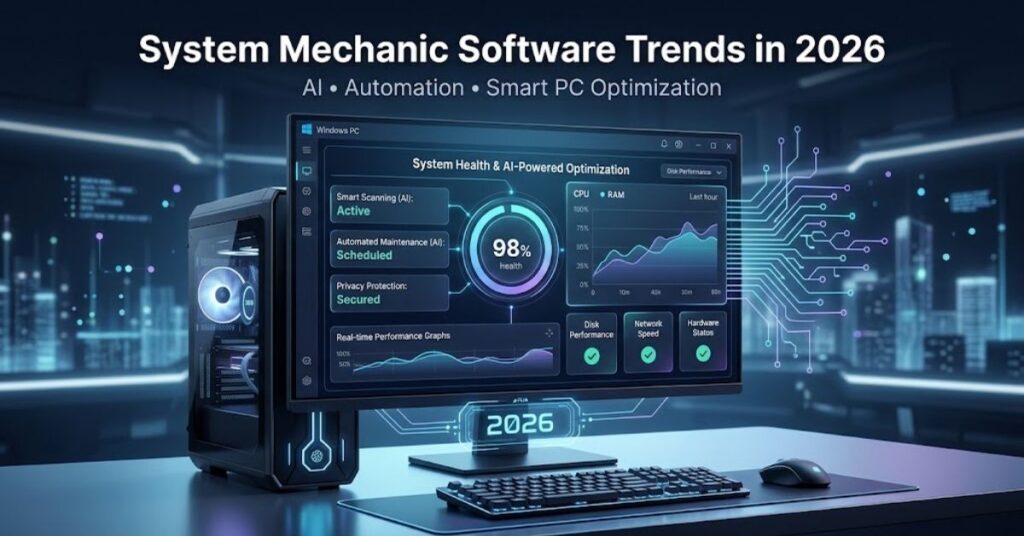
PC optimization software continues to move toward automation and AI-assisted maintenance.
System Mechanic’s recent development direction emphasizes Smart ActiveCare and SmartScan. These features aim to make system maintenance more automatic and reduce the amount of manual work users need to perform.
This trend reflects a larger change in consumer software.
Older optimization utilities often required users to understand individual settings. Modern tools increasingly analyze the system and recommend actions automatically.
Important trends include:
- AI-assisted system diagnostics
- Automatic maintenance
- Smarter startup management
- Automated junk detection
- Resource optimization
- Privacy-focused cleanup
- Better Windows integration
- Performance optimization for demanding workloads
Future PC optimization tools will likely become more context-aware.
For example, a tool could recognize when a user starts gaming and adjust supported background processes automatically. It could also detect unusual resource usage and recommend troubleshooting steps.
However, automation needs transparency. Users should know what software changes and why.
Software updates also remain important for stability. Our Samsung J7 Software Update Guide provides another example of why users should keep software current when updates remain available for a device.
When another software utility creates compatibility problems, targeted troubleshooting can help. Our AMD Software Error Guide covers another example of diagnosing software-related issues.
Key Takeaways
- System Mechanic Software provides Windows cleanup and optimization tools.
- PC Cleanup can remove different types of unnecessary files.
- Startup optimization can reduce unnecessary programs at Windows startup.
- LiveBoost focuses on CPU, RAM, and drive resources.
- ActiveCare provides automated maintenance.
- NetBooster focuses on selected Windows network settings.
- Different editions can provide different security features.
- Windows already includes useful maintenance and security tools.
- Software optimization cannot replace necessary hardware upgrades.
- Always back up important files before major system changes.
- Use official download sources and keep Windows updated.
Conclusion
System Mechanic Software provides a convenient collection of tools for Windows PC maintenance and optimization.
It can help users manage unnecessary files, startup programs, system resources, and routine maintenance. Its automation features can also reduce the amount of manual work required.
However, users should maintain realistic expectations. Optimization software cannot repair damaged hardware or replace inadequate components.
A slow computer may need more RAM, a faster SSD, better cooling, updated drivers, or a malware investigation.
The best approach combines System Mechanic with Windows updates, security protection, backups, storage management, and sensible troubleshooting.
For users who want several PC maintenance tools inside one interface, System Mechanic Software can remain a practical option in 2026.
FAQ
What is System Mechanic Software?
System Mechanic Software is a Windows optimization suite that helps users clean, maintain, and optimize their computers.
Is System Mechanic an antivirus?
Some System Mechanic editions include security features, while performance-focused editions mainly target PC optimization.
Can System Mechanic make my PC faster?
It can improve responsiveness in some cases, especially by reducing clutter and unnecessary startup activity.
Does System Mechanic remove junk files?
Yes. Its cleanup tools target different categories of unnecessary files.
Does System Mechanic work with Windows 11?
Yes. Current System Mechanic versions support Windows 11 according to iolo’s published product information.
Is System Mechanic free?
iolo offers trial and paid options, but pricing and licensing terms can change.
Can System Mechanic fix slow internet?
Its network optimization features may adjust selected Windows settings, but they cannot increase your internet plan’s physical speed.
Should I use System Mechanic with Windows Security?
A performance-focused edition can generally complement Windows Security, but avoid running multiple real-time antivirus products together without compatibility guidance.
Can System Mechanic repair hardware?
No. It can optimize software and system settings but cannot physically repair or upgrade hardware.
How often should I optimize my PC?
Routine automated maintenance can reduce manual work, but you should avoid unnecessary aggressive optimization.
SEO Tags
- System Mechanic Software
- System Mechanic
- PC Optimization Software
- Windows Optimization
- PC Cleaner Software
- Windows PC Cleaner
- PC Performance Software
- System Mechanic 2026
- Windows Cleanup Software
- PC Speed Optimization
Internal Linking Suggestions
- Difference Between Software and Hardware — Explain how software optimization differs from physical hardware upgrades.
- Productivity Software Guide — Connect PC optimization with everyday software usage.
- PhysX System Software — Provide another example of software supporting graphics workloads.
- Samsung J7 Software Update Guide — Discuss the importance of keeping supported software updated.
- AMD Software Error Guide — Connect System Mechanic with broader software troubleshooting.
Authoritative External References
- iolo explains that System Mechanic provides tools for PC cleanup, optimization, and automated maintenance. Read the official System Mechanic information for current features.
- Microsoft also recommends Windows storage management features for freeing up drive space. See the official Microsoft Storage Sense guide for more information.
Social Media Title
System Mechanic Software 2026: Complete Guide to Optimizing Your Windows PC



