





Modern devices do more than connect to a computer. Users now expect customization, speed, automation, and better control. Logitech software helps users unlock these features.
Whether you use a Logitech mouse, keyboard, webcam, headset, or gaming device, the right software improves your experience. You can change buttons, adjust sensitivity, create shortcuts, update firmware, control lighting, and automate daily tasks.
Many users buy hardware but never install software. That mistake limits performance and removes advanced controls.
This guide explains everything about Logitech software in simple language.
Logitech Software Overview
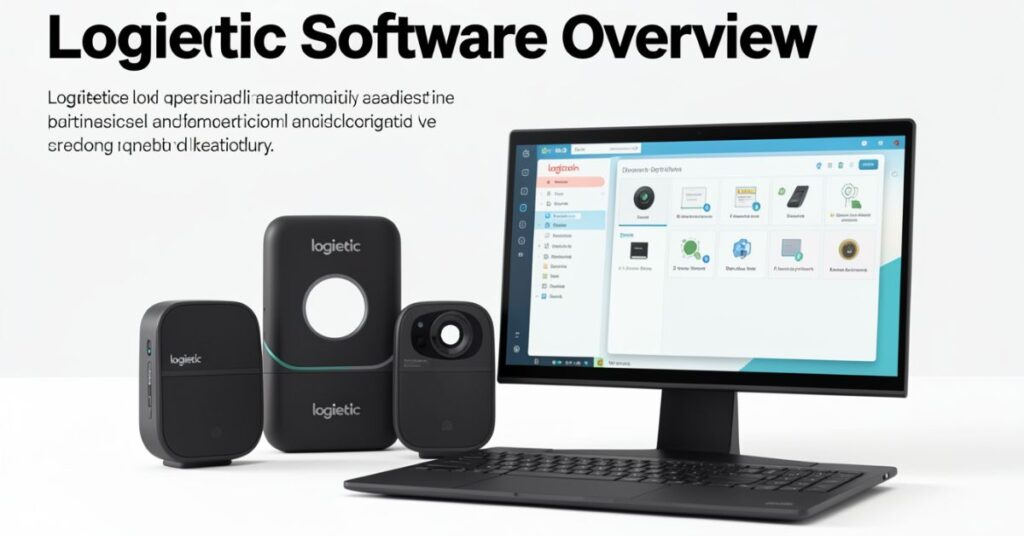
Logitech software includes different applications designed for different device categories.
The company no longer depends on one app for all products. Instead, Logitech created dedicated for work devices, gaming products, webcams, and streaming tools.
The most popular Logitech software includes:
| Software | Main Use | Best For |
| Logi Options+ | Productivity devices | Mouse and keyboard |
| Logitech G HUB | Gaming devices | Gaming mouse and keyboard |
| Logi Tune | Webcam control | Meetings |
| Onboard Memory Manager | Gaming settings | Lightweight setup |
| Streamlabs Desktop | Streaming | Content creators |
Each application focuses on a different type of user.
If you install the wrong application, your device may not appear in the software. Community discussions often show this issue with gaming devices and productivity devices.
Logitech Software Features That Improve Daily Use
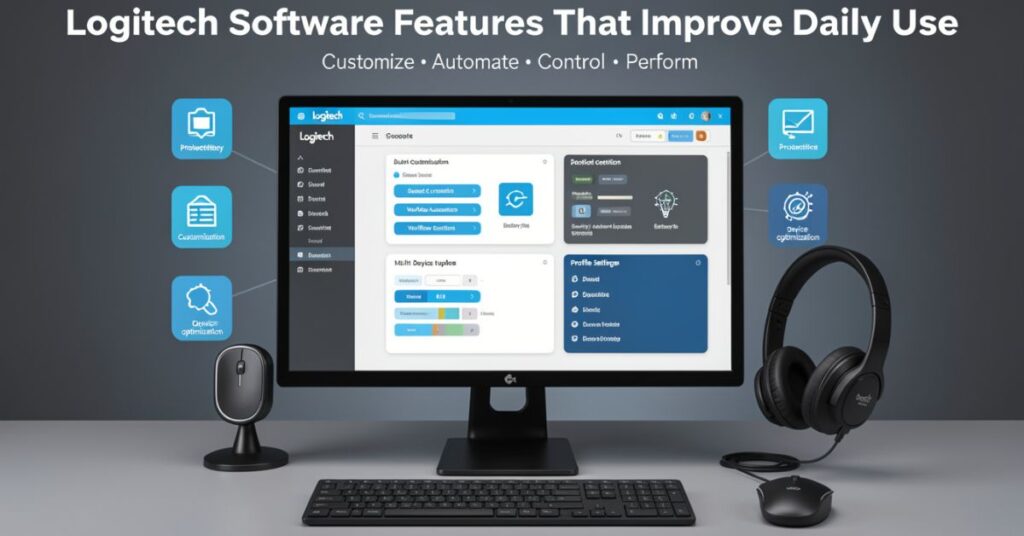
Logitech software does more than install drivers.
It gives users complete control over connected devices.
Users can personalize behavior and create faster workflows.
customization features
- Change mouse button actions
- Assign keyboard shortcuts
- Adjust pointer speed
- Control scrolling behavior
- Create automation actions
- Configure gestures
- Manage multiple computers
- Monitor battery status
- Update firmware
- Save profiles
Logi Options+ also includes Smart Actions and Flow features that help automate repetitive work and move between computers more smoothly.
productivity features
- App-specific controls
- Workflow automation
- Multi-device switching
- Profile management
- Quick settings access
These features save time during office work, editing, studying, and content creation.
Logitech Software Download Process
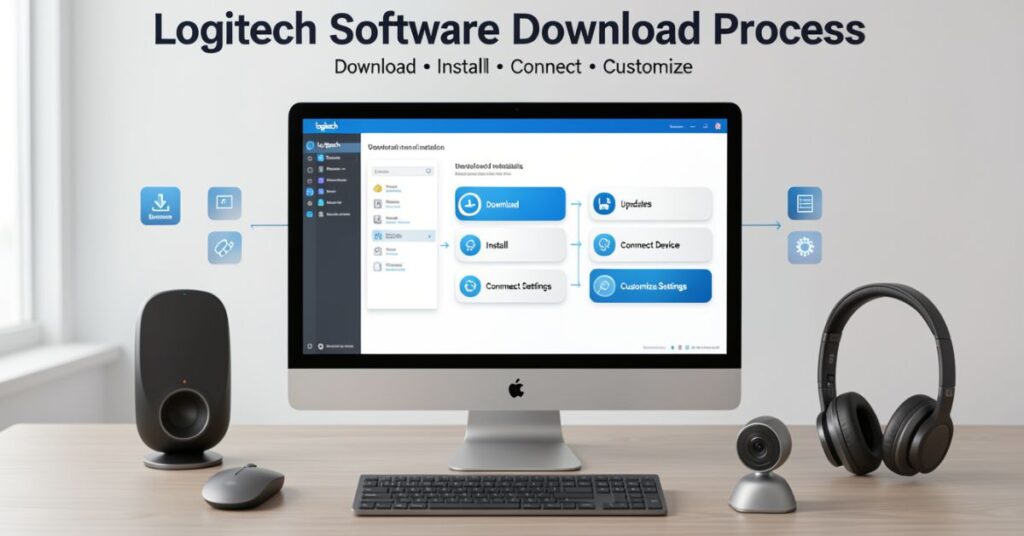
Installing Logitech software takes only a few minutes.
Always download software from the official Logitech website.
Official software reduces compatibility problems and improves security.
Steps to download
- Open the Logitech software page
- Select your product category
- Choose the correct software
- Download the installer
- Run installation
- Restart if required
- Connect your device
- Open software and configure settings
You should match the software with the device category.
Use Logi Options+ if you use:
- MX Master series
- MX Keys
- Pebble devices
- Ergo products
- Productivity devices
Use G HUB if you use:
- Logitech G series
- Gaming mice
- Gaming keyboards
- Gaming headsets
Logi Options+ supports Windows 10+ and macOS 13+.
Logitech Software Installation Guide for Windows
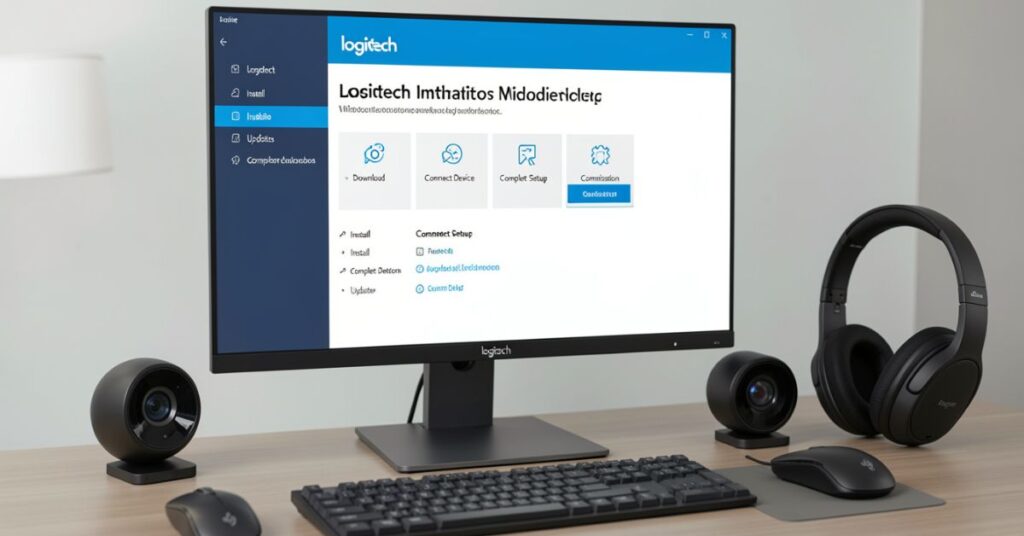
Windows installation remains simple.
Most users complete the setup without problems.
Start by removing older versions if conflicts appear.
Install Logitech on Windows
- Download installer
- Double-click setup
- Allow permissions
- Complete installation
- Sign in if needed
- Connect hardware
- Check updates
After installation:
- Open settings
- Detect device
- Customize controls
- Save profile
If software does not detect hardware:
- Change USB ports
- Turn Bluetooth off and on
- Restart software
- Update Windows
Logitech Software Installation Guide for Mac
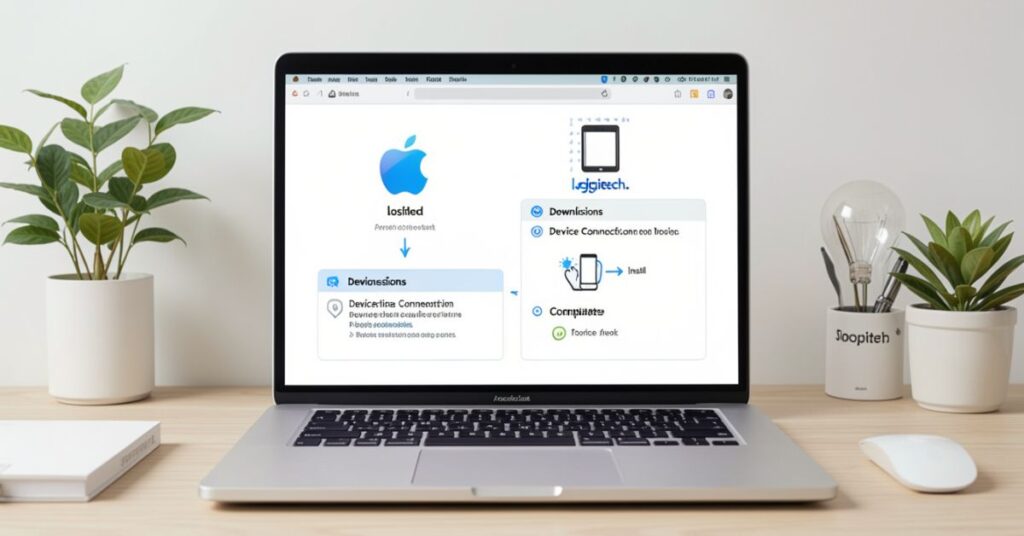
Mac users sometimes face permission issues.
Logitech may require additional approvals.
Recent updates also solved a macOS certificate issue that temporarily affected some users. Logitech released updated installers to restore functionality.
Install software on Mac
- Download installer
- Open Applications
- Grant Accessibility access
- Grant Bluetooth permissions
- Restart system
- Launch application
Fix Mac installation problems
- Update macOS
- Reinstall software
- Allow device permissions
- Download the latest installer
- Avoid uninstalling before patching if settings matter
Logitech Software Customization Options
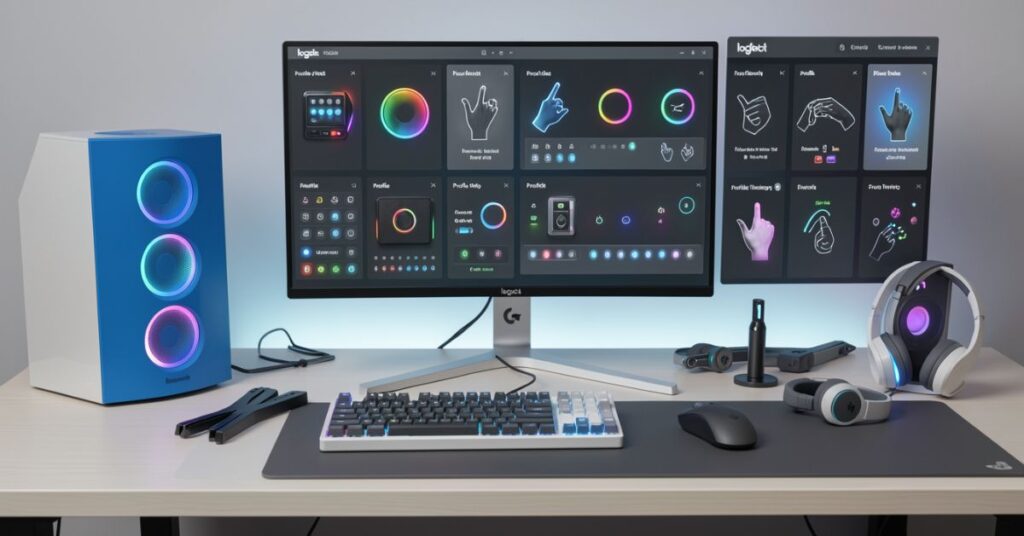
Customization makes software valuable.
Many users install the software only for updates, but later discover automation and productivity tools.
Logi Options+ supports application-specific controls. Users can assign actions for apps like Chrome, Word, Zoom, Excel, Photoshop, and Teams.
mouse customization
- DPI control
- Scroll adjustment
- Side button actions
- Gesture shortcuts
- Pointer speed
keyboard customization
- Function remapping
- Macro creation
- Shortcut setup
- App switching
webcam customization
- Exposure
- Brightness
- Framing
- Camera profiles
These settings create a more comfortable experience.
Logitech Software for Gaming
Gaming users usually need G HUB.
G HUB acts as the control center for gaming devices.
It manages performance, macros, lighting, and profiles.
software gaming features
- RGB lighting
- DPI profiles
- Audio controls
- Macro recording
- Game profiles
- Stream integration
gaming advantages
- Faster reactions
- Better consistency
- Personalized controls
- Saved profiles
Many gamers also share custom profiles inside G HUB.
Logitech Software Troubleshooting Guide
Software problems happen.
Most issues have simple fixes.
Software is not detecting the device
- Reconnect hardware
- Restart application
- Update software
- Switch USB ports
- Remove duplicate drivers
software crashes
- Install the latest version
- Delete corrupted profiles
- Restart computer
- Update the operating system
Logitech update errors
- Download the installer again
- Disable antivirus temporarily
- Run as administrator
software connection issues
- Reset Bluetooth
- Re-pair device
- Restart background services
Users often solve detection problems by installing the correct application for their device category.
Logitech Software Performance Tips
Small changes improve performance.
Improve Logitech speed
- Keep software updated
- Remove unused profiles
- Disable startup if unnecessary
- Close background tools
Improve software stability
- Install official updates
- Avoid beta versions
- Keep firmware current
- Restart occasionally
Good maintenance improves long-term reliability.
Logitech Software Security and Updates
Updates improve features and fix issues.
Logitech continues adding improvements to Logi Options+.
Recent releases improved device support, interface design, and automation features. (Logitech)
Update benefits
- Better performance
- Device support
- Bug fixes
- Security improvements
Update best practices
- Enable notifications
- Backup settings
- Download official installers
Logitech Software Comparison Table
| Feature | Logi Options+ | G HUB |
| Productivity | Yes | Limited |
| Gaming | No | Yes |
| RGB Control | Limited | Yes |
| Macros | Yes | Yes |
| Multi-device | Yes | Limited |
| Streaming | No | Yes |
| Workflow Automation | Yes | Limited |
Choose the software based on your device type.
Logitech Software Common Mistakes
Many users make simple mistakes.
Avoid these mistakes
- Installing the wrong software
- Ignoring updates
- Skipping permissions
- Using unofficial downloads
- Forgetting firmware updates
Avoiding these mistakes improves the experience.
Conclusion
Logitech software gives users more than device control.
It improves speed, customization, automation, gaming performance, and daily workflow.
Install the correct application for your device and keep it updated.
Productivity users should start with Logi Options+.
Gaming users should use G HUB.
Small setting changes can create a much better experience.
FAQs
1. Is Logitech software free?
Yes. Logitech provides its software without cost.
2. Which Logitech should I install?
Install Logi Options+ for productivity devices and G HUB for gaming devices.
3. Does software work on Mac?
Yes. Software supports mac OS and Windows.
4. Why does the software not detect my device?
You may have installed the wrong application or missed permissions.
5. Can software update firmware?
Yes. Supported devices can receive firmware updates through the software.
6. Does Logitech slow down computers?
Most users do not notice problems, but keeping profiles and background processes optimized helps performance.
7. Can I use Logitech without creating an account?
Many features work without an account, but some cloud and sync features may benefit from sign-in.



