

Introduction
Device Manager Error Code 43 is a common Windows problem that can stop your computer from using a hardware device correctly. You may see this error when connecting a USB device, graphics card, Bluetooth adapter, webcam, or external hard drive.
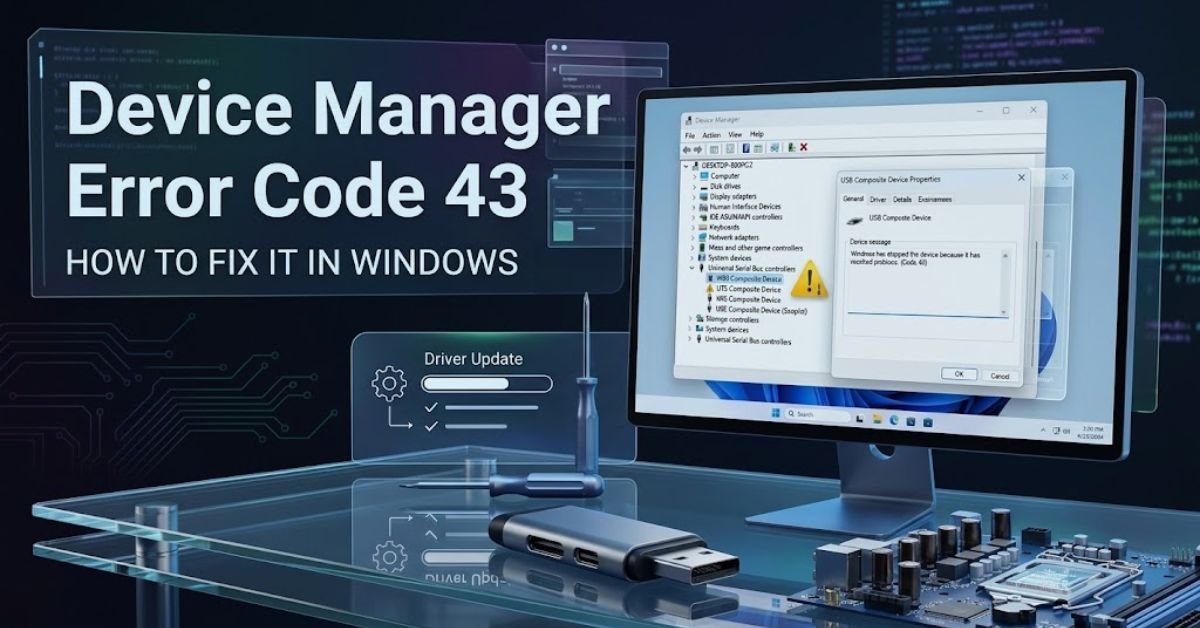
Windows displays a yellow warning symbol next to the affected device and shows an error message in its properties.
The message usually says, “Windows has stopped this device because it has reported problems. (Code 43).” This means a driver controlling the hardware has informed Windows that the device has experienced a problem. Windows then stops the device to prevent it from operating incorrectly.
Microsoft Learn+1
However, Device Manager Error Code 43 does not always mean your hardware is permanently damaged. Sometimes, an outdated driver, incorrect update, damaged cable, or temporary communication issue causes this problem. You can often fix it without buying a new device.
In this guide, you will learn what Device Manager Error Code 43 means, why Windows displays it, and how to fix it using practical troubleshooting methods. You will also discover how to prevent this error and when you should consider professional hardware repair.
What Is Device Manager Error Code 43?
Device Manager Error Code 43 is a hardware-related error that appears when Windows receives a failure report from a device driver. Device Manager is a built-in Windows tool that helps you view connected hardware and manage its drivers.
Every hardware component needs a driver to communicate with Windows. For example, a graphics card uses a graphics driver, while a Bluetooth adapter uses a Bluetooth driver. These drivers help Windows recognize the device and use its features.
When a driver reports that a device has failed, Windows may stop that hardware from working. You can identify the problem through Device Manager by opening the affected device’s properties and checking its status.
This error can affect internal and external hardware. A graphics card may stop working correctly, a USB device may become unavailable, or a Bluetooth adapter may disappear from Windows settings.
The important thing to understand is that Code 43 describes a reported device failure. It does not identify one specific cause. You must check the driver, connection, and hardware to find the actual problem.
What Causes Device Manager Error Code 43?
Several problems can cause Device Manager Error Code 43 on a Windows computer. One common cause is a driver that cannot communicate with its hardware correctly. This may happen when Windows installs an incompatible driver or when an existing driver becomes damaged.
A recent Windows or driver update can also trigger the problem. Sometimes, a new driver version contains a compatibility issue with a particular device. In that situation, the device may stop working even though it worked correctly before the update.
Physical connections can also cause this error. A damaged USB cable, loose connector, faulty port, or unstable power supply may interrupt communication between Windows and the hardware.
Hardware failure is another possibility. A graphics card, USB controller, Bluetooth adapter, or storage device may develop an internal fault. Firmware problems can also affect how some devices communicate with the operating system.
| Possible cause | How it affects the device |
| Outdated driver | Creates compatibility or communication problems |
| Corrupted driver | Prevents Windows from using the device correctly |
| Incompatible update | Causes the device to stop working after an update |
| Damaged cable | Interrupts the hardware connection |
| Faulty USB port | Prevents stable communication |
| Hardware failure | Stops the device from operating correctly |
| Firmware problem | Affects communication between hardware and software |
You should not assume that every Code 43 problem comes from a damaged device. Start by checking the software and connection before considering hardware replacement.
How to Identify Device Manager Error Code 43

Before applying a fix, identify which hardware displays Error Code 43. Windows Device Manager helps you find the affected device without installing extra software.
Open the Start menu and search for Device Manager. Select it from the results. You can also press Windows + R, type devmgmt.msc, and press Enter.
When Device Manager opens, check the hardware categories for a device with a warning symbol. Open its Properties to view the error message.. Find the device with a yellow warning triangle. This symbol indicates that Windows has detected a problem with the device.
Microsoft Support – Device Manager Error Codes
Right-click the affected device and select Properties. Under the General tab, check the Device status section. If the device has this error, Windows will display the Code 43 message.
You can also open the Driver tab to check the driver provider, version, and installation date. These details can help you understand whether a recent driver change caused the problem.
Once you identify the affected hardware, you can choose a suitable troubleshooting method instead of changing unrelated Windows settings.
How to Fix Device Manager Error Code 43 in Windows
You can try several solutions to fix Device Manager Error Code 43. Start with basic troubleshooting before making major changes to your computer. This approach helps you find the cause without creating unnecessary problems.
Restart Your Computer to Fix Device Manager Error Code 43
Restarting Windows is a simple first step when you experience Device Manager Error Code 43. Sometimes, a temporary system problem prevents Windows from communicating with a connected device. A restart closes active processes and allows Windows to load its drivers and hardware services again.
Save your work before restarting the computer. Open the Start menu, select the Power option, and click Restart. Wait until Windows loads completely.
After restarting, open Device Manager and locate the affected hardware. Right-click the device, select Properties, and check its status. If Windows displays “This device is working properly,” the problem may have been temporary.
You should also test the device to make sure its main features work correctly. For example, check whether your webcam opens or your Bluetooth adapter can connect to another device.
If Device Manager Error Code 43 remains, move to the next solution. A restart cannot repair damaged driver files or physical hardware, so you may need additional troubleshooting.
Update the Device Driver
An outdated or incompatible driver can prevent Windows from communicating with hardware. Updating the driver may fix Device Manager Error Code 43, especially when the problem started after installing new software or connecting a new device.
Open Device Manager and find the hardware showing the error. Right-click it and select Update driver. Choose Search automatically for drivers and allow Windows to check for an available version.
If Windows finds a suitable driver, follow the instructions to install it. Restart your computer if necessary and check whether the device works.
You can also check Windows Update for optional driver updates. Open Settings, select Windows Update, and look under Advanced options for Optional updates.
If Windows cannot find a suitable driver, visit the official website of your device manufacturer. Search for your exact hardware model and download the compatible driver.
Avoid downloading drivers from unknown websites. An incorrect or modified driver can create more problems. You can also read our Windows Driver Update guide for more information about driver maintenance.
Uninstall and Reinstall the Device Driver
If updating the driver does not solve Device Manager Error Code 43, reinstalling it may help. This method can fix problems caused by damaged driver files or an incorrect driver installation.
Open Device Manager and locate the affected device. Right-click it and select Uninstall device. Confirm the action when Windows asks you to continue.
After uninstalling the driver, restart your computer. Windows may automatically detect the hardware and install a compatible driver again.
If Windows does not reinstall the driver, open Device Manager. Select your computer name at the top of the device list. Open the Action menu and choose Scan for hardware changes.
Windows will search for connected hardware and attempt to install the required driver. If automatic installation fails, download the correct driver from the manufacturer’s website.
Once the installation finishes, open the device properties again. Check the Device status section to confirm whether Windows has removed the error.
Microsoft also recommends uninstalling and reinstalling the device when Code 43 appears.
Microsoft Learn+1
Roll Back a Recently Updated Driver
Sometimes, a new driver update creates compatibility problems instead of fixing them. If Device Manager Error Code 43 appeared after updating a driver, returning to the previous version may solve the issue.
Open Device Manager and find the affected hardware. Right-click it and select Properties. Open the Driver tab and look for the Roll Back Driver option.
If Windows allows you to use this option, select it and follow the instructions. The system will attempt to restore the previously installed driver version.
Restart your computer after completing the process. Then check the device status again.
The Roll Back Driver option may be unavailable if Windows does not have an earlier driver version stored on your computer. In that case, you may need to download a previous compatible version from the device manufacturer’s official website.
This method can be particularly helpful for graphics cards, Bluetooth adapters, and network devices. However, do not install an older driver from an untrusted source just to remove the error. Always confirm that the version supports your hardware and Windows edition.
Disconnect and Reconnect the Hardware Device
A loose connection or damaged cable can sometimes cause Windows to report a hardware problem. This is especially common with USB devices, external storage drives, webcams, and wireless adapters.
If an external device displays Code 43, disconnect it safely and wait a few seconds. Connect it again and check whether Windows recognizes it correctly.
Try another compatible USB port if the problem continues. A faulty port may prevent the device from communicating with your computer. Microsoft Learn – Code 43 Device Failure
You should also inspect the cable and connector. Look for visible damage, bent pins, or loose connections. If possible, test the device with another compatible cable.
Testing the hardware on another computer can also help. If it works on another system, your Windows installation, driver, or USB port may be responsible. If the same error appears on multiple computers, the hardware itself may have a problem.
Avoid forcing a connector into a port. A damaged connector can make the situation worse and may affect other hardware.
Install Available Windows Updates
Windows updates can include system improvements, security fixes, and compatible driver updates. Installing suitable updates may help resolve Device Manager Error Code 43 when a Windows compatibility problem causes it.
Open Settings and select Windows Update. Click Check for updates and allow Windows to search for available updates.
Install the updates that apply to your computer. You can also check Optional updates for additional driver versions. Review the available drivers before installing them to make sure they match your hardware.
Restart your computer if Windows requests it. After the restart, open Device Manager and check the affected device.
If the error started immediately after a Windows update, do not assume that installing more updates will fix it. Check whether a recent driver update caused the problem and consider rolling back that driver.
You should also avoid interrupting an update while Windows is installing important system files. A proper installation helps maintain system stability and reduces the risk of additional driver problems.
Check USB Ports and Power Connections
Some USB devices need a stable connection and enough power to operate correctly. If a device receives inconsistent power, Windows may fail to communicate with it.
Start by connecting the affected device to another USB port. If your computer has multiple USB ports, test another compatible port. Connect the device directly to the computer instead of using a USB hub.
If you use an external hard drive, check whether it requires a separate power adapter. Make sure the adapter and cable work correctly.
You can also disconnect unnecessary USB accessories temporarily. This helps you identify whether another connected device or an overloaded hub contributes to the problem.
After checking the connections, restart your computer and open Device Manager again.
If Code 43 remains, the issue may involve the driver, firmware, or internal hardware. Avoid changing advanced power or BIOS settings without understanding their purpose. Use the manufacturer’s instructions when a device requires special configuration.
Reinstall the Graphics Driver for Code 43
Graphics cards can also display Device Manager Error Code 43. When this happens, your computer may experience display flickering, poor graphics performance, missing display settings, or problems running games.
Open Device Manager and expand Display adapters. Right-click the graphics card and select Properties to confirm the error.
If the problem started after a graphics driver update, try rolling back to the previous version. If the driver appears damaged, uninstall it and install a compatible version from the official graphics card or computer manufacturer’s website.
Laptop users should check their laptop manufacturer’s support page because some laptops require customized graphics drivers.
Restart your computer after installing the driver. Open Device Manager again and check whether the graphics card works correctly.
If the error continues, check the graphics card’s physical condition and power connections. Desktop users should switch off the computer and disconnect it from power before checking internal components. If you are not comfortable handling hardware, contact a qualified technician.
For more help, read our Graphics Driver Update guide. Microsoft also provides specific troubleshooting guidance for graphics devices showing Code 43.
Device Manager Error Code 43 on Different Hardware Devices
Device Manager Error Code 43 can affect several types of hardware. The symptoms depend on the device that Windows has stopped. Understanding these differences can help you select the correct solution.
Graphics Card Error Code 43
When a graphics card displays Code 43, Windows may stop using it correctly. You might notice a black screen, lower screen resolution, display flickering, or poor performance in games.
The problem may come from an incompatible graphics driver, a failed driver installation, or a hardware fault. Start by checking the driver version and installation date. If you recently installed a new version, try rolling it back.
You can also uninstall the current driver and install a compatible version from the official NVIDIA, AMD, Intel, or computer manufacturer’s website.
Do not replace your graphics card before testing it. A driver problem can create symptoms that look similar to hardware failure.
Device Manager Error Code 43 on a USB Device
USB devices may show Code 43 when Windows cannot communicate with them correctly. This can affect flash drives, external hard drives, USB adapters, and other accessories.
Start by disconnecting the affected device. Connect it to another compatible USB port and check whether Windows recognizes it.
If the problem continues, test another cable when possible. A damaged cable can interrupt communication even when the device receives power.
You should also test the USB device on another computer. If it works normally there, investigate the drivers and USB ports on your main computer.
For external storage devices, protect important files before attempting repairs. Do not format a drive simply because Device Manager displays Code 43.
Bluetooth Error Code 43
A Bluetooth adapter may display Code 43 when its driver or hardware stops working correctly. Your computer may lose its Bluetooth settings or fail to connect to wireless headphones, keyboards, and other accessories.
Open Device Manager and expand the Bluetooth category. Find the adapter showing the warning symbol and open its properties.
Check the driver information and install a compatible update from your laptop or adapter manufacturer’s website. If the problem started after a recent update, try rolling back the driver.
You should also restart your computer and check whether Bluetooth appears in Windows Settings.
Error Code 43 on External Hard Drives
An external hard drive may show Code 43 when Windows cannot communicate with its hardware correctly. You may notice that the drive disappears from File Explorer or repeatedly disconnects.
First, check its USB cable and power connection. Try another compatible USB port and avoid using an unreliable USB hub.
You can also test the drive on another computer. This helps you determine whether the problem comes from your Windows system or the external drive.
If the drive contains important data, avoid formatting it or repeatedly running repair tools. These actions may create additional problems if the drive is physically failing.
Listen for unusual clicking or grinding sounds. These sounds can indicate a physical problem that needs professional attention.
Remember that Code 43 does not automatically mean your files are lost. The problem may involve communication between Windows and the drive rather than the data stored on it.
How to Check If Error Code 43 Is Fixed
After trying a troubleshooting method, check whether Windows has restored the affected device. Do not assume the problem is solved simply because the yellow warning symbol disappears.
Open Device Manager and locate the hardware you repaired. Right-click it and select Properties. Under the General tab, look at the Device status section.
If Windows displays “This device is working properly,” it means Device Manager no longer reports a problem with that device.
You should also test its main functions. For example, open your webcam application to check the camera. Play audio if you repaired an audio device. Connect a Bluetooth accessory if you fixed a Bluetooth adapter.
For a graphics card, check the display resolution and open an application that uses graphics. For a USB device, transfer a small test file if it is a storage device.
If Code 43 returns after a few minutes or after restarting Windows, the underlying problem may still exist. Check the driver version, hardware connection, and manufacturer support information.
How to Prevent Device Manager Error Code 43
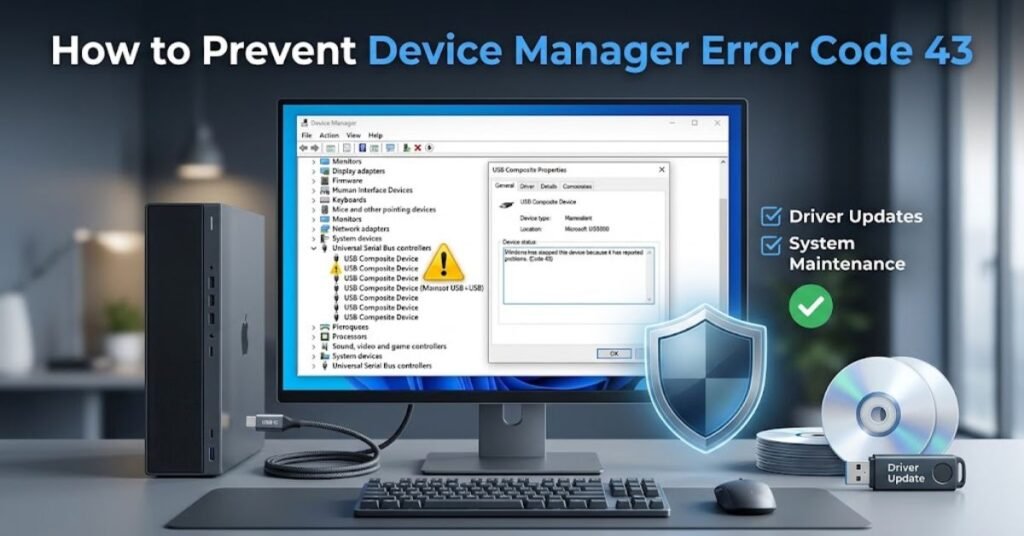
Preventing Device Manager Error Code 43 starts with good driver and hardware maintenance. You cannot prevent every hardware failure, but a few simple habits can reduce common problems.
Keep Your Device Drivers Updated
Use compatible drivers from Windows Update or the official hardware manufacturer’s website. Check important graphics, chipset, Bluetooth, network, and USB drivers when you experience hardware problems.
Do not install every available driver update without checking its purpose. A driver designed for another hardware model may create compatibility issues.
You should also keep a record of driver versions that work correctly. This information can help you restore a previous version if a new update causes problems.
Avoid Untrusted Driver Download Websites
Some websites offer automatic driver update tools that promise to repair every Windows hardware problem. However, not every tool provides correct or safe drivers.
An incorrect driver may create new errors or make a working device unstable. Download drivers from trusted manufacturer websites whenever possible.
Check the hardware model and Windows compatibility before installation. This simple habit can protect your computer from unnecessary driver conflicts.
Protect Your Computer From Power Problems
Unexpected power loss can interrupt hardware operations and sometimes create system problems. Use a reliable power supply and avoid disconnecting devices while Windows is accessing them.
For external storage devices, close open files before removing the drive. Use the safe removal option when appropriate.
You should also keep your computer’s cooling system clean. Excessive heat can affect hardware performance and may contribute to hardware failure.
Check Hardware Connections Regularly
Loose cables and damaged connectors can interrupt communication between Windows and connected devices.
Check external cables when a device stops working. Avoid pulling cables by their wires or forcing connectors into ports.
For desktop computers, make sure internal hardware connections remain secure. Always shut down the computer and disconnect power before checking internal components.
If you are unsure how to handle internal hardware, ask a qualified technician for help.
When Should You Replace the Hardware?
Sometimes, software troubleshooting cannot fix Device Manager Error Code 43. If the device has physical damage or an internal failure, Windows may continue to stop it even after you reinstall the driver.
Consider hardware repair or replacement when the device repeatedly fails on different computers. Physical damage, broken connectors, overheating, and unstable performance may indicate a hardware problem.
For example, a graphics card may have an internal fault that prevents Windows from using it correctly. Similarly, an external hard drive may stop responding because of a damaged cable or failing internal components.
Before replacing anything, check the manufacturer’s warranty and contact its support team. A repair or replacement may be available without purchasing a completely new device.
If you are unsure about the cause, ask a qualified technician to test the hardware. This can help you avoid spending money on a replacement when the actual problem comes from a driver or connection.
Remember that Device Manager Error Code 43 is a warning about device operation. It does not prove that the hardware is permanently damaged.
Device Manager Error Code 43: Troubleshooting Comparison
Different solutions work for different causes. This table helps you select a suitable troubleshooting method based on the symptoms.
| Problem | Recommended solution |
| Error appeared suddenly | Restart Windows |
| Error started after a driver update | Roll back the driver |
| Driver files may be damaged | Reinstall the driver |
| USB device is not working | Check the cable and USB port |
| Graphics card shows Code 43 | Reinstall the graphics driver |
| Windows cannot find a suitable driver | Visit the manufacturer’s website |
| Device fails on multiple computers | Check for hardware damage |
You do not need to perform every solution at once. Start with the method that matches your problem and check the device after each change.
FAQs
What does Device Manager Error Code 43 mean?
It means Windows stopped a hardware device because its driver reported a problem.
Can I fix Error Code 43 without replacing hardware?
Yes. Updating, reinstalling, or rolling back the device driver may fix it.
Why does my graphics card show Code 43?
Common causes include driver problems, incompatible updates, or hardware faults.
Does Code 43 mean my USB device is damaged?
No. A faulty cable, USB port, or driver can also cause this error.
How do I know if Code 43 is fixed?
Check Device Manager. If the device status says “This device is working properly,” the error is resolved.
Conclusion
Device Manager Error Code 43 can interrupt your computer’s normal operation and prevent connected hardware from working correctly. However, this error does not always indicate permanent hardware damage.
In many cases, you can solve the problem by restarting Windows, updating a driver, reinstalling the affected device, or checking its physical connection. Rolling back a recent driver update may also help when a new version creates compatibility problems.
Start with simple troubleshooting methods and test the device after each change. Always download drivers from trusted sources and avoid replacing hardware before checking its condition.
If the error continues after software troubleshooting, test the device on another computer or contact its manufacturer. A proper diagnosis will help you find the cause and choose the right solution.
With careful troubleshooting and regular driver maintenance, you can reduce hardware problems and keep your Windows computer working reliably.
Author Information
Gulnaz Malik Technology Writer & Software Guide Expert
Gulnaz Malik has over five years of experience writing about technology, software updates, computer hardware, and troubleshooting guides. She focuses on providing practical information that helps readers solve everyday technology problems.