


Introduction
A Device Driver Update helps your computer communicate properly with hardware such as the keyboard, mouse, monitor, printer, speakers, network adapter, and graphics card.
Each device needs a suitable driver to work correctly with your operating system. Updating these drivers can fix errors, improve compatibility, and help your computer run smoothly.
A Device Driver Update helps your computer use hardware correctly and handle changes in software. It can fix certain errors, improve compatibility, and add support for new features. It may also solve problems that appear after a Windows update or hardware change.
However, updating every driver without a clear reason is not always a good idea. An incorrect driver can cause new problems. Some older drivers may also work better with specific devices than newer releases.
This guide explains how a Device Driver Update works, why it matters, when you should install one, and how to avoid common mistakes. You will also learn how to identify driver problems and keep your computer running reliably.
What Is a Device Driver Update?
A device driver is a small software program that helps your operating system communicate with a hardware component. For example, your computer needs a graphics driver to communicate with its graphics hardware. It also needs suitable drivers for audio devices, network adapters, printers, and other connected equipment.
A Device Driver Update replaces an older driver with a newer version when a compatible release becomes available. Manufacturers release these updates to fix known problems, improve hardware support, and address certain security or compatibility issues.
Think of a driver as a translator. Your operating system sends instructions, and the driver helps the hardware understand them. Without the correct driver, a device may not work properly.
For example, an outdated printer driver may cause printing errors. An older graphics driver may create display problems in certain applications. A network driver may also affect wireless connections.
A Device Driver Update does not always change how your computer looks or feels. Some updates work quietly in the background. Their main purpose is to keep communication between hardware and software reliable.
You can learn more about the difference between physical components and software in our guide to software and hardware.
Why Is a Device Driver Update Important?
Your computer depends on drivers to manage its hardware. When a driver becomes outdated or develops a problem, the related device may stop working as expected. A suitable Device Driver Update can help correct these issues.
Manufacturers sometimes release updates to fix errors found in earlier versions. These fixes can improve stability and help a device work with newer operating system features. For example, a manufacturer may release a graphics driver that fixes a problem in a particular game or creative application.
Compatibility is another important reason. A new operating system version may change how it communicates with certain hardware. An updated driver can help the device work correctly with that version.
Some driver updates also include security improvements. These changes may address weaknesses that affect how a device handles system instructions or data.
However, not every update provides a noticeable improvement. Some updates only support a new device or fix a problem that does not affect your computer.
The best approach is to check the release information before installing anything. Choose updates that solve a real issue or improve support for your hardware. Intel Driver & Support Assistant
How Does a Device Driver Update Work?
A Device Driver Update changes the software that controls communication between your operating system and a hardware device. The process starts when a manufacturer prepares a newer driver version for a particular product.
The manufacturer tests the driver to check whether it works with the supported hardware and operating systems. Some drivers also go through compatibility and certification processes before Microsoft distributes them through Windows Update.
When your computer receives an update, the operating system checks the available driver package against the device. It then determines whether the package is suitable for installation.
After installation, the system may replace the older driver and load the updated version. Some changes take effect immediately, while others require a restart.
The exact process depends on the device and the update method. A graphics driver may include additional software, while a basic keyboard driver may install with little user interaction.
A successful Device Driver Update should allow the hardware to communicate correctly with the operating system. If the new version creates a problem, you may need to reinstall the previous driver or contact the manufacturer.
Signs That Your Computer Needs a Device Driver Update
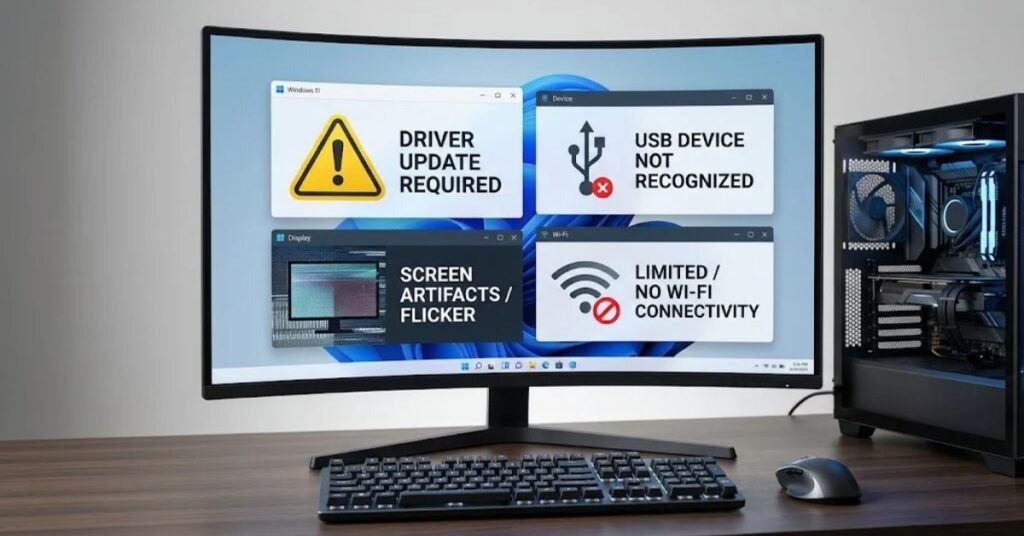
Your computer may show different signs when a driver stops working correctly. These problems do not always mean that the driver is outdated. Hardware damage, software conflicts, and system settings can also cause similar issues.
One common sign is a device that suddenly stops responding. For example, your printer may not receive print commands, or your speakers may produce no sound. A wireless adapter may also disconnect from the network without a clear reason.
You may notice unusual display behavior, such as flickering, incorrect screen resolution, or application crashes. These issues can sometimes relate to graphics driver problems.
Windows Device Manager can also help you identify certain driver errors. A warning symbol beside a device may indicate that Windows has detected a problem. An unknown device may mean that Windows cannot identify or properly manage the connected hardware.
Another possible sign is a device that works after a restart but stops responding later. This behavior can point to a driver conflict or another system issue. Microsoft Update Drivers Through Device Manager
Before installing a Device Driver Update, check the exact device and error message. This step helps you choose the correct solution instead of changing drivers without a clear reason.
Types of Device Drivers That May Need Updates
Different hardware components use different drivers. Each driver supports a particular device or group of related functions. Understanding these types can help you identify which update matters when a problem appears.
| Driver type | Main purpose | Common problems |
| Graphics driver | Controls display and graphics hardware | Flickering, crashes, display errors |
| Audio driver | Manages sound devices | No sound, microphone problems |
| Network driver | Supports network connections | Wi-Fi or Ethernet interruptions |
| Bluetooth driver | Manages Bluetooth communication | Pairing and connection failures |
| Printer driver | Connects the printer with the system | Printing and detection errors |
| USB driver | Supports USB connections | Devices not recognized |
| Chipset driver | Supports motherboard components | Hardware communication problems |
| Touchpad driver | Controls laptop touchpad functions | Gestures or movement issues |
Not every device needs frequent updates. Some hardware works well with the driver already installed. Other devices receive regular updates because manufacturers continue to improve their software support.
A Device Driver Update should match the exact device model and supported operating system. Never assume that two similar products use the same driver package.
How to Check Your Current Device Driver Version
Before installing an update, it helps to know which driver your computer currently uses. This information can help you compare the installed version with the version available from the manufacturer.
On a Windows computer, Device Manager provides basic driver information. Open the Start menu and search for Device Manager. Open the application and find the hardware category you want to check.
Expand that category and select the device. Right-click the device and open Properties. Select the Driver tab to view details such as the driver provider, driver date, and driver version.
You can compare these details with the information on the manufacturer’s official support website. Make sure the product model matches before deciding whether to install a newer version.
The driver date alone does not always show whether an update is necessary. Some manufacturers use older-looking dates for drivers that remain suitable for a particular device. Other drivers may receive a newer release without offering any feature that you need.
A Device Driver Update should solve a problem or provide a useful improvement. Checking the installed version first helps you make a more informed decision.
Best Ways to Get a Safe Device Driver Update
The source of a driver matters as much as the update itself. An incorrect or modified driver can create serious problems. It may also expose your computer to unwanted software.
Windows Update is a useful starting point for supported hardware. Microsoft provides recommended driver updates for many devices through its update service. Some optional driver updates may require you to select them manually.
You can also visit the official website of your computer or hardware manufacturer. Laptop makers often provide drivers designed for specific models. These versions may include settings or changes intended for their hardware.
For branded components, use the manufacturer’s official support pages or trusted update utilities. For example, Intel provides the Intel Driver and Support Assistant to identify supported Intel products and display available updates.
Read the release notes before installing a Device Driver Update. Check the supported operating system, hardware model, version details, and known issues.
Avoid websites that offer large collections of unknown driver downloads. Do not trust a website simply because it promises one-click updates for every device. A reliable source should clearly identify the manufacturer, product, and driver version.
Device Driver Update Through Windows Update
Windows Update provides a convenient way to receive supported driver releases. It can help users maintain hardware compatibility without searching for every driver manually.
Open Settings on your Windows computer and select Windows Update. Choose Check for updates and allow Windows to search for available updates.
Depending on your Windows version and available releases, you may also see an optional updates section. Open it when available and look for driver updates. Review the listed hardware and select only the updates that apply to your computer.
Windows may install recommended drivers automatically. Optional drivers generally require your approval. You should not install every optional update without checking its description.
After a Device Driver Update finishes, restart your computer if Windows requests it. Then check whether the related hardware works correctly.
Windows Update may not provide every driver available from a manufacturer. If a specific device still has a problem, check the official support page for your computer or hardware model.
For detailed instructions about the Windows-specific process, read our separate Windows Driver Update guide.
Manual Device Driver Update From the Manufacturer
A manual installation can help when Windows Update does not offer the driver you need. It can also be useful when a manufacturer provides a specific fix for a known hardware problem.
Start by identifying the exact model of your device. Check its model number, hardware revision, and supported operating system. These details help you avoid downloading an incompatible package.
Visit the official manufacturer’s support website and search for your product. Open the driver or downloads section and review the available versions.
Read the installation notes before downloading anything. Some packages require a specific operating system version. Others may support only certain hardware revisions.
Download the correct file and follow the manufacturer’s installation instructions. Some drivers use a standard setup program, while others require you to select the downloaded folder through Device Manager.
A Device Driver Update may require administrator permission or a restart. Save your work before beginning the installation.
Once the process finishes, check the device again. If it works correctly, you can continue using your computer. If the problem remains, review the manufacturer’s troubleshooting instructions instead of repeatedly installing different driver versions.
Automatic vs Manual Device Driver Update
Both automatic and manual methods can help you install suitable drivers. However, they serve slightly different needs.
Automatic updates are useful for everyday maintenance. Windows Update can identify supported hardware and provide compatible drivers. Manufacturer utilities can also scan supported components and display available releases.
Manual updates give you more control. You can select a specific driver version after checking its release notes and compatibility details. This approach may help when you need a particular fix or when automatic services cannot find the correct package.
| Feature | Automatic update | Manual update |
| Ease of use | Usually easier | Requires more attention |
| Driver selection | Managed by the update service | Selected by the user |
| Compatibility checks | Built into the service | User must verify details |
| Best for | Regular maintenance | Specific hardware problems |
| Main risk | An update may not suit every need | Wrong package selection |
For most everyday users, automatic updates through trusted services offer a practical starting point. Manual installation is useful when you understand the device and know which release you need.
A safe Device Driver Update depends on compatibility, not simply on choosing the newest available version.
Common Problems During a Device Driver Update
Driver installation does not always go smoothly. Sometimes Windows cannot find a suitable driver. In other cases, an installation may fail or the device may stop working after the update.
An incompatible driver is one common cause. This can happen when you download a package for a different hardware model or operating system version.
A damaged download can also interrupt installation. If the setup file appears incomplete or produces an error, download the package again from the official source.
Another issue involves conflicts between older and newer driver versions. Some devices may need a clean installation or a restart before the new version works correctly.
Insufficient permissions can also prevent installation. Use an administrator account when the manufacturer requires it.
If a Device Driver Update causes a new problem, do not keep repeating the same installation. Check the error message and the manufacturer’s instructions. You may need to roll back the driver, reinstall the previous version, or use Windows troubleshooting tools.
You should also consider hardware failure. A damaged cable, faulty USB port, or failing device can produce symptoms that look like driver problems.
How to Fix a Failed Device Driver Update
A failed installation can be frustrating, but you can investigate the problem without making unnecessary changes. Start by checking the exact error message. It may identify an unsupported version, missing file, or installation problem.
Next, confirm that you downloaded the correct package. Compare the product model, operating system, and system architecture with the manufacturer’s requirements.
Restart the computer if the installer requests it. A pending restart or another update process can sometimes interrupt installation.
You can also open Device Manager and check the affected device. If Windows displays a warning symbol, open its Properties window and review the Device status message.
If the update still fails, download the driver again from the official manufacturer website. Follow the installation instructions carefully.
A Device Driver Update may also fail because the hardware itself has a problem. Try another USB port when appropriate, check cable connections, and test the device on another compatible computer if possible.
Avoid deleting driver files or changing advanced system settings unless the manufacturer recommends those steps. If you cannot identify the cause, contact the device manufacturer’s support team.
Should You Update Every Device Driver?
No, you do not need to update every driver whenever a new version appears. A driver that works correctly may not need replacement.
Some updates provide important security fixes or solve known compatibility issues. These updates may deserve attention, especially when the manufacturer recommends them for your hardware.
Other releases may add support for a product you do not own or fix an issue that does not affect your system. Installing them may provide no useful benefit.
Before choosing a Device Driver Update, read the release notes and check whether the update applies to your hardware. Consider the reason for the release rather than focusing only on its version number.
You should also avoid changing several drivers at the same time when troubleshooting a problem. If something stops working, it becomes harder to identify which change caused the issue.
A sensible maintenance routine is better than constant updating. Use trusted update services, check important manufacturer notices, and install compatible releases when they provide a clear benefit.
How to Prepare Your Computer Before Updating Drivers
Preparation can reduce the risk of problems during a Device Driver Update. Although most driver installations are straightforward, it is wise to protect your work and important files before changing system software.
First, save open documents and close applications that use the affected hardware. For example, close video editing software before updating a graphics driver.
Check that your computer has enough free storage space. Some installation packages need extra space to extract temporary files.
Create a restore point when appropriate, especially before making major driver changes. Windows System Protection can help you return system settings to an earlier state if a supported restore point exists.
For important files, maintain a separate backup. A restore point is not a replacement for a personal file backup.
You should also keep your laptop connected to power. Avoid interrupting an installation by shutting down the computer or disconnecting it unexpectedly.
Finally, download the correct driver before starting the process. Keep the manufacturer’s installation instructions available so you can follow them if an error appears.
These simple steps can make driver maintenance safer and easier.
How to Roll Back a Problematic Device Driver Update
Sometimes a new driver causes more problems than it solves. You may notice crashes, poor performance, display issues, or a device that no longer responds correctly.
In this situation, rolling back the driver may help. Windows provides a rollback option for supported devices when it retains a previous driver version.
Open Device Manager and find the hardware that has developed a problem. Right-click the device and select Properties. Open the Driver tab and check whether the Roll Back Driver option is available.
If Windows allows the rollback, follow the instructions on the screen. You may need to choose a reason before confirming the change.
Restart your computer when the process finishes. Then test the device to see whether the earlier problem has disappeared.
The rollback option may not always appear. Windows might not have an earlier driver available, or the device may not support this process.
If rollback is unavailable, check the manufacturer’s website for an earlier compatible version or contact its support team.
Do not assume that an older driver is always better. Choose a previous version only when it is compatible and addresses the problem you experienced.
Device Driver Update and Computer Performance
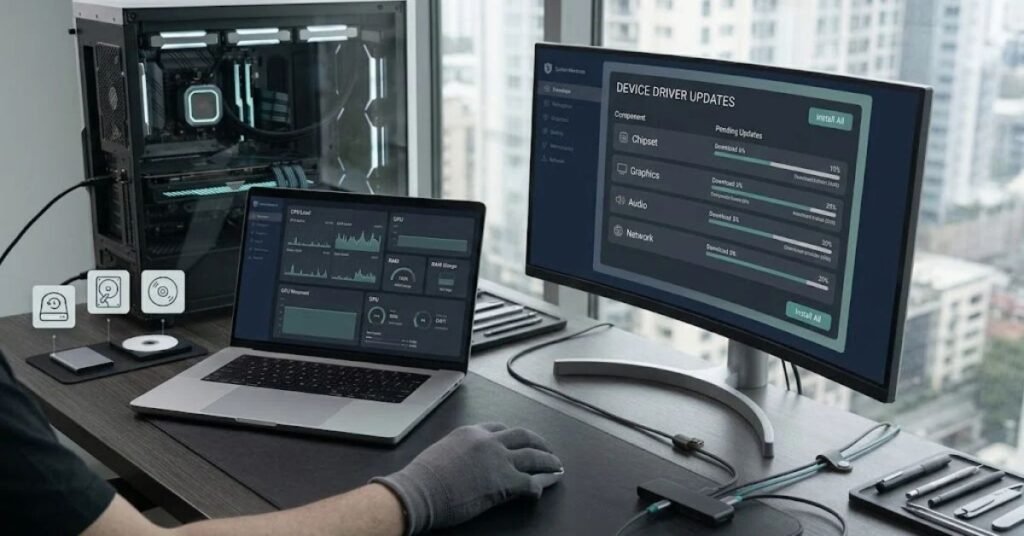
Drivers can influence how efficiently your computer uses its hardware. A suitable update may improve stability, fix slowdowns linked to a device, or resolve application compatibility problems.
Graphics drivers are one example. A manufacturer may release an update that improves support for a new game or creative application. A network driver update may also correct connection drops that interrupt online work.
However, a Device Driver Update does not automatically make every computer faster. It cannot replace missing memory, repair a damaged hard drive, or solve every operating system problem.
Performance also depends on hardware condition, available storage, background applications, system settings, and software quality.
If your computer feels slow, identify the cause before changing drivers. Check Task Manager for high resource usage and review the condition of your storage device. Look for application errors and unwanted background programs.
Update a driver when its release notes address the problem you are facing. This approach is more useful than installing updates simply because they have newer version numbers.
Safe Driver Update Habits for Long-Term Maintenance
Good driver maintenance is about keeping your system stable and compatible. It does not require you to check every device every day.
Use Windows Update for supported hardware and visit official manufacturer websites when you need a specific driver. Keep a record of important driver versions, especially when you manage a work computer or several devices.
Read release notes before installation. They can explain what the update fixes, which products it supports, and whether the manufacturer knows about any remaining issues.
Avoid unknown driver download websites and tools that make unrealistic promises. Never disable security protections just to install a driver from an untrusted source.
When a device works properly, do not replace its driver without a good reason. If you do install a Device Driver Update, test the affected hardware afterward.
These habits can reduce unnecessary changes and make problems easier to diagnose. They also help you keep a clear record of what changed when a device starts behaving differently.
Frequently Asked Questions
What is a Device Driver Update?
A Device Driver Update replaces an older driver with a newer compatible version. It can fix hardware errors, improve compatibility, and provide support for certain features or security changes.
How often should I update device drivers?
There is no fixed schedule for every device. Check trusted manufacturer updates and install suitable releases when they fix a problem, improve compatibility, or address a security issue.
Is it safe to update device drivers?
Yes, when you use compatible drivers from Windows Update or the official hardware manufacturer’s website. Always check the device model and supported operating system before installation.
Can an outdated driver make a computer slow?
An outdated or faulty driver can affect certain hardware functions and may cause errors or poor performance. However, slow performance can also come from other hardware or software problems.
What should I do if a driver update causes problems?
Check whether Windows offers the Roll Back Driver option in Device Manager. You can also reinstall a compatible earlier version from the manufacturer’s official website or contact its support team.
Conclusion
A Device Driver Update plays an important role in keeping your computer hardware working with its operating system. Suitable updates can fix errors, improve compatibility, and support new features. However, installing every available driver is not necessary.
The safest approach is to identify the device, check its current driver, and review compatible updates from trusted sources. Windows Update and official manufacturer websites are good places to start.
If a new driver creates problems, investigate the error and consider rolling back to a previous compatible version. Regular checks, careful installation, and good backup habits can help you maintain a stable computer.
Remember that the goal of driver maintenance is not to install the newest version of everything. It is to keep your hardware reliable, secure, and compatible with the software you use.
About the Author
Gulnaz Malik is a Technology Writer and Software Guide Expert with over five years of experience covering software updates, computer hardware, AI, and digital technology. She creates practical guides that help readers understand technology and solve everyday computer problems.