


Quick Answer
Android Data Recovery helps you restore deleted or lost photos, videos, contacts, messages, documents, and other files.
Start by checking Google Photos, Files by Google Trash, Google Drive, and your Android backup.
If no backup exists, recovery software may help in some situations, but success depends on how the data disappeared and whether new data has overwritten it.
Author Information
Author: Gulnaz Malik
Role: Founder, Publisher & Technology Content Specialist
Experience: 5+ Years in Technology, AI, Software & Digital Innovation
Content Review: All content follows Google’s latest EEAT guidelines and includes fact-checked information from official documentation, trusted technology sources, industry reports, and practical research to ensure accuracy, reliability, and up-to-date insights.
Introduction
Losing important data from an Android phone can happen in seconds. You may accidentally delete a photo, remove a document, lose contacts after a reset, or discover that important files disappeared after a storage problem.
The good news is that deleted data does not always mean permanent data loss.
Android phones now offer several bnn t-in recovery and backup options.Google Account backups can store contacts, call history, device settings, SMS and MMS messages, app data, and other supported information.
Backed-up photos and videos can also remain available through Google Photos. The available recovery options depend on your Android device, backup settings, and the type of data you need to restore.
However, recovery depends on the situation. A file sitting in a Trash folder has a much better recovery path than a file permanently deleted from internal storage with no backup.
This Android Data Recovery guide explains practical recovery methods from beginner to advanced level. You will learn what to check first, how Android backups work, how to recover deleted photos and files, what recovery software can and cannot do, common mistakes, troubleshooting steps, and the latest recovery trends.
Table of Contents
- What Is Android Data Recovery?
- Why Do Android Users Lose Data?
- Android Data Recovery Methods Compared
- How to Recover Deleted Photos and Videos on Android
- How to Recover Deleted Files on Android
- How Android Backup Helps With Data Recovery
- Android Data Recovery Without a Backup
- Android Data Recovery From an SD Card
- Common Android Data Recovery Problems
- Best Practices for Android Data Recovery
- Latest Android Data Recovery Trends
- Key Takeaways
- Conclusion
- FAQs
- SEO Tags
- Internal Linking Suggestions
- Authoritative External References
- Social Media Title
What Is Android Data Recovery?
Android Data Recovery is the process of restoring lost, deleted, inaccessible, or accidentally removed information from an Android phone or supported storage device.
The type of data you may want to recover includes:
- Photos and videos
- Contacts
- SMS and MMS messages
- Documents and PDFs
- Downloaded files
- Audio files
- App data
- WhatsApp-related data
- Call history
- Files stored on an SD card
The recovery method depends on where the data existed.
For example, a deleted photo that remains in Google Photos Trash has a simple recovery path. A document deleted from Files by Google may remain in Trash for a limited period. Google states that Files by Google can keep supported deleted files in Trash for 30 days.
A permanently deleted file with no backup presents a much harder situation.
This is why you should always start with built-in recovery options before installing third-party recovery software.
For a broader understanding of how software interacts with physical devices, you can read TechCrebia’s Difference Between Software and Hardware guide.
Why Do Android Users Lose Data?

Android data loss can happen for many reasons. Some cases involve simple mistakes, while others involve storage, software, or device problems.
Common causes include:
- Accidental deletion
- Factory reset
- Failed system update
- Phone replacement
- Lost or damaged SD card
- App data removal
- Storage corruption
- Malware or unsafe applications
- Forgotten screen lock
- Broken or damaged phone
- Failed file transfer
- Accidental formatting
- Cloud synchronization problems
Common Android Data Loss Situations
- Accidental deletion: You remove an important photo, video, or document without realizing it.
- Factory reset: A reset erases local device data, although supported backups may remain available through your Google Account.
- Broken phone: The phone may stop working even though some data still exists on its storage.
- SD card failure: Photos and documents stored on removable storage may become inaccessible.
- Missing cloud data: You may sign into the wrong Google Account and assume that your backup disappeared.
- App removal: Some app data may disappear when you remove an application if that data did not have an independent backup.
Android also encrypts data to protect users. Google notes that some backed-up information receives additional encryption tied to the device’s screen lock.
That security improves privacy, but it also means recovery does not work like scanning an ordinary unprotected folder.
Android Data Recovery Methods Compared
Different situations require different recovery methods. Do not immediately install recovery software when a simple backup or Trash option can solve the problem.
| Recovery Method | Best For | Difficulty | Main Limitation |
| Google Photos Trash | Deleted photos and videos | Easy | Only available during the retention period |
| Files by Google Trash | Deleted supported files | Easy | Files eventually leave Trash |
| Google Account Backup | Device and supported app data | Easy | Only restores backed-up information |
| Google Drive | Cloud files | Easy | Works only for files available through Drive recovery |
| SD Card Recovery | Lost removable-storage files | Moderate | Results depend on storage condition |
| Recovery Software | Some deleted or inaccessible data | Moderate to Advanced | No guaranteed recovery |
| Professional Recovery | Severe physical damage | Advanced | Can be expensive |
The safest approach is to move from the simplest option to the more advanced one.
First check your backups and Trash folders. Then investigate cloud storage. Only after those options fail should you consider recovery software.
TechCrebia also covers broader recovery topics in its Free Data Recovery Software guide.
How to Recover Deleted Photos and Videos on Android
Photos and videos often represent the most important files on a phone. Fortunately, Google Photos provides a built-in recovery option when deleted media remains in Trash.
Google states that photos and videos in Google Photos Trash can generally be restored while they remain there. Items that have been permanently deleted cannot be restored through that Trash function. (Google Help)
Android Data Recovery for Photos
- Open Google Photos.
- Select Collections.
- Open Trash.
- Find the deleted photo or video.
- Select the item.
- Tap Restore.
The restored item can return to your Google Photos library and supported device locations.
If you cannot find the photo, check the correct Google Account. Many users have multiple accounts and may accidentally look at the wrong library.
Also check the Archive section. A missing photo may not actually be deleted.
What If the Photo Is Not in Trash?
If the photo does not appear in Trash, check whether Google Photos previously backed it up.
You should also check:
- Another Google Account
- Another Android device
- Google Drive
- The phone’s Gallery Trash
- An SD card
- A computer backup
- A messaging app where you previously shared the image
Google recommends enabling backup to make future photo recovery easier.
Do not immediately download random recovery applications. If the photo was permanently deleted without a backup, recovery may be limited.
How to Recover Deleted Files on Android
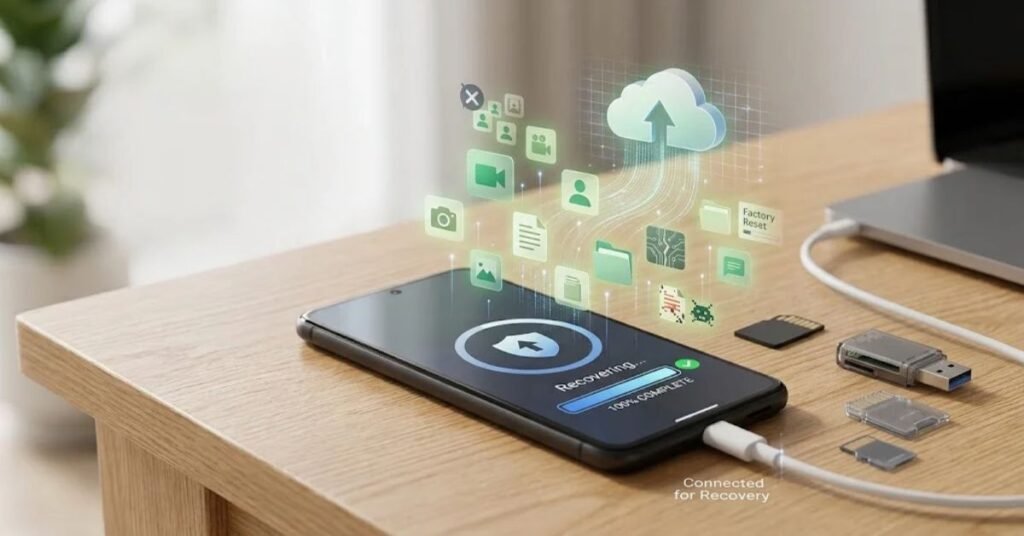
Android phones use file-management applications to store downloads, documents, images, videos, and other files.
If you use Files by Google, check its Trash before trying advanced recovery.
Google’s current documentation says supported files can remain in Files by Google Trash for 30 days before automatic deletion.
Android Data Recovery With Files by Google
- Open Files by Google.
- Tap the menu.
- Select Trash.
- Find the missing file.
- Select Restore.
- Confirm the restoration.
This method works best when the file remains inside Trash.
If you permanently deleted the file from Trash, this simple recovery method will no longer work.
Also check the Downloads folder, Documents folder, cloud storage, and other applications that may have created or received the file.
For broader guidance on deleted-file recovery, TechCrebia’s Deleted File Recovery guide provides additional information on lost files and recovery limitations.
How Android Backup Helps With Data Recovery
Backups provide one of the safest ways to restore Android data.
Google says Android backups can include supported apps and app data, call history, contacts, device settings, and SMS and MMS messages. Additional information can also come from Google services such as Google Photos and Google Messages. (Google Help)
What Android Backup Can Protect
- Contacts
- Call history
- SMS and MMS messages
- Device settings
- Supported app data
- Photos and videos through Google Photos
- Some additional Google service data
However, not every application backs up every piece of information.
That distinction matters.
You should not assume that every app’s private data will automatically return after a reset. Check the app’s own backup and restore options when necessary.
How to Check Android Backup
On supported Android versions, you can generally find backup controls through:
Settings → Google → All services → Backup
The exact menu can vary by Android version and manufacturer.
Google also recommends using a PIN, pattern, or password screen lock to help protect backed-up data.
Restoring Data After a Factory Reset
If your phone already has a backup, Android can offer restoration during the setup process.
Google notes that restoration depends on the Android versions involved. Moving a backup from a newer Android version to an older version can result in incomplete data transfer.
Therefore, avoid resetting a phone until you understand what data the backup contains.
Android Data Recovery Without a Backup
This is the most difficult situation.
If you permanently deleted a file and have no Google backup, cloud copy, Trash copy, computer backup, or second device, your options become limited.
Modern Android devices use encryption and storage technologies that can make traditional undelete techniques unreliable. Recovery software cannot promise that it will restore every deleted file.
What You Should Do First
- Stop unnecessary activity on the phone.
- Avoid downloading large applications.
- Avoid recording new photos or videos.
- Avoid copying large amounts of data.
- Do not repeatedly factory-reset the phone.
- Check every possible cloud account.
- Check Google Photos and Drive.
- Check application-specific backups.
- Consider professional recovery for valuable data.
If the phone still works, make a backup of currently available important data before experimenting with recovery methods.
If the device has serious physical damage, repeated recovery attempts can make the situation more complicated.
TechCrebia’s Hard Drive Recovery Software guide also explains why storage condition matters when attempting file recovery.
Android Data Recovery From an SD Card
SD cards provide a different recovery situation because they use removable storage.
If you accidentally delete photos from an SD card, stop using the card immediately.
Do not:
- Take new photos with the card.
- Record new videos.
- Download files to the card.
- Format the card.
- Move files onto the card.
- Install recovery software directly onto the card.
Instead, remove the card and connect it to a computer using a suitable card reader.
Recovery software may then scan the card for remaining file information.
The result depends on the file system, card condition, deletion method, and amount of new data written after deletion.
If the SD card contains irreplaceable family photos or important business documents, consider creating a sector-level image before advanced recovery work when you have the technical knowledge to do so.
Never save recovered files to the same SD card.
Common Android Data Recovery Problems

Android recovery can fail for several reasons. Understanding the problem helps you avoid making the situation worse.
The Phone Was Factory Reset
A factory reset removes local data. Before resetting a phone, always check the available Google backup.
If you already reset the phone, sign into the Google Account used before the reset and follow the restoration options during setup.
The Phone Cannot Be Unlocked
Do not assume that a locked phone can simply reveal all local data without the screen credentials.
Google states that if you cannot unlock an Android device, you may need to erase it and set it up again. Erasing the device removes locally stored data, although backed-up information may remain restorable. (Google Help)
This makes backups especially important.
Google Photos Shows No Deleted Photo
Check the correct Google Account first.
Then check:
- Trash
- Archive
- Other devices
- Backup settings
- Recently added photos
- Shared albums
If the photo never had a backup and no longer appears in Trash, recovery options may be very limited.
Files by Google Shows an Empty Trash
If the file already left Trash or you permanently deleted it, Files by Google cannot simply restore it from that location.
At this point, check backups and other copies before considering advanced recovery.
WhatsApp Messages Are Missing
WhatsApp uses its own backup and restoration system. A Google Account may store the backup, but the application controls how its backup gets restored.
Google notes that it cannot directly access or restore messages and media from a WhatsApp backup. (Google Help)
Always follow WhatsApp’s current restoration process instead of relying on generic Android recovery software.
For another mobile recovery perspective, TechCrebia’s iPhone Data Restore Software guide explains how mobile-device recovery differs across platforms.
Best Practices for Android Data Recovery
Good recovery practices start before data loss happens.
- Turn on Android backup.
Regular backups give you a safer restoration option. - Enable Google Photos backup.
This protects important photos and videos against many local-device problems. - Keep important files in more than one place.
Store critical documents in cloud storage and another trusted location. - Stop using a device after accidental deletion.
New activity can reduce recovery opportunities in some storage situations. - Check Trash before using recovery software.
Built-in recovery is usually safer and simpler. - Do not install unknown recovery applications.
Untrusted apps can create security and privacy risks. - Never save recovered data to the affected storage.
Use a separate storage destination when a recovery tool supports it. - Do not reset a phone without checking backups.
A reset can remove local data. - Use official recovery instructions.
Android recovery steps can vary by manufacturer and Android version. - Treat important data differently.
If the information has major personal, legal, or business value, professional recovery may make more sense than repeated experiments.
A good backup strategy reduces the need for recovery software in the first place.
Latest Android Data Recovery Trends

Android Data Recovery continues to change as mobile storage, encryption, cloud services, and operating systems evolve.
Cloud backup now plays a much larger role than traditional file-recovery software. Instead of scanning raw phone storage, users can often restore data from synchronized services or account backups.
Another major trend involves stronger device security.
Modern Android devices use encryption and security protections that help prevent unauthorized access to personal information. These protections improve privacy but can also make low-level recovery more difficult.
AI may also influence future recovery tools.
Future recovery applications could use machine learning to classify recovered photos, recognize damaged file structures, organize large collections, and identify duplicate or corrupted files.
However, users should be careful with claims such as “AI can recover anything.”
No recovery technology can guarantee restoration of data that no longer exists or that has been securely removed.
Future Android recovery tools will likely focus on:
- Better cloud restoration
- Smarter backup management
- Improved file classification
- Faster recovery scanning
- Better damaged-file detection
- More secure recovery workflows
- Improved support for encrypted devices
- Easier recovery for ordinary users
The most effective strategy will remain prevention through reliable backups.
Key Takeaways
- Android Data Recovery can restore some deleted or lost information.
- Always check Google Photos, Files by Google, Google Drive, and Android backups first.
- Google Photos Trash can restore eligible deleted photos and videos while they remain there.
- Files by Google can keep supported deleted files in Trash for 30 days.
- Android backups can include contacts, messages, call history, settings, and supported app data.
- Permanently deleted data without a backup may be difficult or impossible to recover.
- Avoid unnecessary activity after important data loss.
- Do not trust recovery software that promises guaranteed results.
- Backups remain safer than relying on recovery tools.
- Important or severely damaged data may require professional assistance.
Conclusion
Android Data Recovery gives users several ways to recover lost information, but the best method depends on how the data disappeared.
Start with simple options. Check Google Photos, Files by Google, Google Drive, device backups, and application-specific backups. These methods can often restore data without risky recovery software.
If no backup exists, stop unnecessary activity on the affected device. Avoid downloading large applications, recording new media, or repeatedly changing the phone’s storage.
Recovery software may help in certain situations, especially with supported removable storage such as SD cards. However, modern Android security, encryption, and storage technologies can limit what software can recover.
The best long-term strategy remains simple: back up important Android data before you need to recover it.
A few minutes spent checking backup settings can save hours of recovery work later.
FAQs
Can Android Data Recovery recover permanently deleted files?
Sometimes, but success depends on the storage technology, backups, and whether the deleted data remains available.
How can I recover deleted photos on Android?
Check Google Photos Trash first. If the photos were backed up and remain in Trash, you may be able to restore them.
Can I recover Android data after a factory reset?
You can restore supported information if you created a backup before the reset.
Is Android recovery software safe?
Only use trusted recovery tools from reputable sources and avoid applications that promise guaranteed recovery.
Can I recover deleted files without a backup?
Recovery may sometimes work, but modern Android security and storage technology can make this difficult.
How long do deleted files stay in Files by Google Trash?
Supported files generally remain in Trash for 30 days before automatic deletion.
Can I recover deleted WhatsApp messages?
Recovery normally depends on an available WhatsApp backup and the restoration process supported by WhatsApp.
Can I recover files from an Android SD card?
Yes, recovery may be possible if the card remains readable and deleted data has not been overwritten.
Does a factory reset delete everything?
A factory reset removes locally stored data from the device, although previously backed-up information may remain available for restoration.
Is Android Data Recovery always successful?
No. Recovery depends on deletion, overwriting, backups, storage condition, encryption, and the recovery method.