

Overview
A chipset driver update can help Windows recognize and manage important parts of your computer correctly. The chipset connects the processor with other parts of the system, including storage devices, USB ports, and other motherboard features. When Windows uses suitable chipset software, it can identify supported hardware and work with the motherboard as intended.
Many users update their graphics or audio drivers but forget about chipset software. Others install driver updates only when their computer starts showing errors. Both approaches can confuse because not every computer needs a new chipset package after every release.
This guide explains what a chipset driver update does, when you should consider one, and how to find the correct package for your PC. You will also learn how to install Intel and AMD chipset software, check your existing setup, and troubleshoot common installation problems.
The most important rule is simple: always choose software that matches your processor platform, motherboard, and Windows version. A newer package is not automatically the right choice for every computer.
What Is a Chipset Driver Update?
A chipset driver update means installing a newer, compatible version of the software or system components that help Windows identify and work with hardware on the motherboard. The exact contents depend on your computer platform and the manufacturer.
A chipset is part of the motherboard design. It helps coordinate communication between the processor and other system components. Depending on the platform, chipset-related features may include USB connections, storage communication, power management, and other motherboard functions.
There is an important detail that many users miss. The term chipset driver does not always describe one single driver. Intel, for example, explains that its Chipset Device Software package mainly provides information that helps Windows identify chipset hardware correctly.
A chipset driver update may therefore improve hardware identification, address a known issue, or provide support for a compatible platform. It does not automatically increase your computer’s speed.
Before downloading anything, identify your motherboard or computer model. This simple step helps you avoid incompatible files and unnecessary installations.
Why Is a Chipset Driver Update Important?
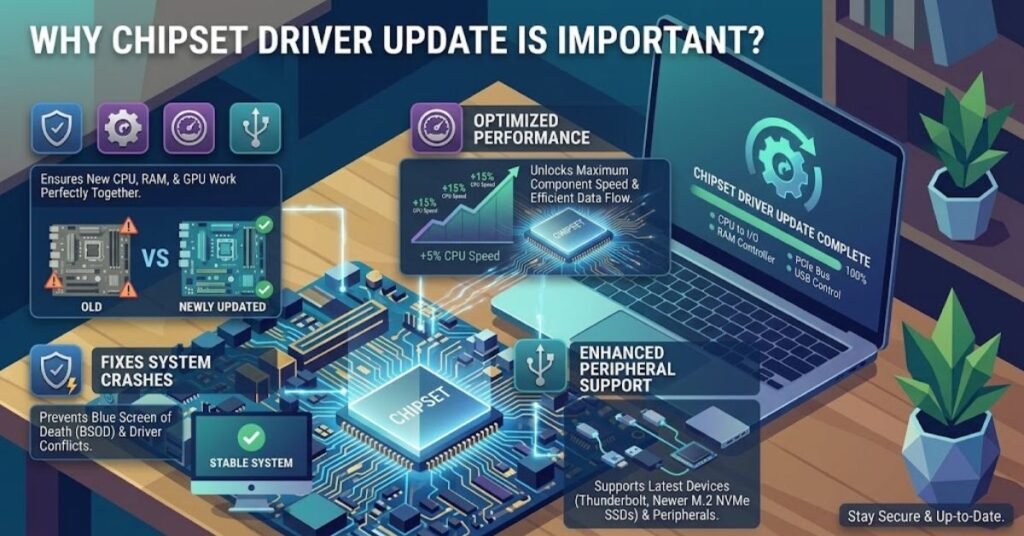
A chipset driver update matters when your current software has a known problem or lacks support for a feature you need. The correct package can help Windows identify motherboard components and communicate with supported hardware properly.
For example, you may have installed Windows again and noticed an unknown device in Device Manager. A suitable chipset package from your computer or motherboard manufacturer may help Windows identify that component. Some platforms also receive updates that fix specific issues or improve support for newer hardware and software.
However, you should not expect every update to make your PC noticeably faster. A chipset package is different from a graphics driver, which may directly affect game compatibility or graphics performance. The benefits of a chipset driver update depend on the changes included in the release and the hardware in your system.
It is also important to understand that an update cannot repair every hardware problem. A damaged USB port, failing storage drive, faulty cable, or overheating processor may need a different solution.
The best approach is to check the official release notes before installing a new package. If the update addresses a problem you have, installing it may be worthwhile. If your computer works correctly and the update offers no relevant benefit, you may not need to rush.
Signs That Your PC May Need a Chipset Driver Update
You do not need to update chipset software simply because a new version exists. Instead, look for a specific reason to check your current setup.
One possible sign is an unknown device in Windows Device Manager. This can happen after a fresh Windows installation or when the operating system does not recognize a motherboard component. A chipset package may help, but you should identify the device first, as it may require a different driver.
Another reason is a known compatibility problem. Your motherboard manufacturer may publish an update that addresses an issue affecting USB connections, power management, or a supported system feature. Read the release notes to confirm that the update applies to your hardware.
You should also check chipset software after replacing a motherboard, changing your Windows installation, or upgrading important system hardware. These changes may require you to install the appropriate software for the new configuration.
Unexpected crashes, sleep problems, or unstable connections can have many causes. A chipset driver update may help when the problem relates to a documented driver issue, but it is not a guaranteed fix.
Before making changes, record the current driver details and create a restore point when available. This preparation gives you a safer starting point if troubleshooting becomes necessary.
How to Check Your Current Chipset Information
Before updating the chipset driver, find out which processor and motherboard your computer uses. This information helps you choose the right download and avoid installing a package for a different platform.
On Windows, you can begin with System Information. Press the Windows key and R together, type msinfo32, and press Enter. The System Information window shows details such as your system manufacturer, system model, processor, and other hardware information. On a branded laptop or desktop, the model number is often enough to find the manufacturer’s support page.
You can also open Device Manager. Right-click the Start button and select Device Manager. Expand the relevant categories to inspect the hardware listed there. Depending on your platform, chipset-related devices may appear under System devices or other categories.
Remember that Device Manager does not always display a simple, clearly named chipset driver entry. Some chipset packages install several components, while Intel’s Chipset Device Software mainly helps Windows identify chipset hardware.
For a desktop PC, you can also check the motherboard model in your computer documentation or the manufacturer’s system information utility. Once you know the exact model, visit its official support page and select your Windows version before downloading anything.
How to Perform a Chipset Driver Update on Windows 11
Windows 11 can receive recommended hardware drivers through Windows Update. This is a useful starting point if you want to check for available updates without searching for every driver yourself.
Open Settings from the Start menu, select Windows Update, and click Check for updates. Let Windows complete its check and install any updates you want to apply. Some compatible driver updates may appear under Advanced options and Optional updates. Open that section if it is available, review the listed drivers, and select only the updates that apply to your system.
Windows Update may not offer every chipset package provided by your motherboard manufacturer. If you need a particular fix or your computer has a missing system component, visit the official support website for your computer or motherboard.
Find the exact model, select Windows 11, and look for the chipset or system driver category. Read the package details and release notes before downloading it. Close open applications, run the installer, and follow the on-screen instructions.
Restart your computer if the installer requests it. After restarting, check Device Manager and test the feature that led you to update the software. If Windows reports an error, record the message before trying another package.
How to Update Chipset Drivers on Windows 10
The general chipset driver update process on Windows 10 is similar to the process on Windows 11. You should begin by identifying your computer model and checking whether a suitable update is available from Windows Update or the hardware manufacturer.
Open Settings and select Update & Security, followed by Windows Update. Click Check for updates and wait for Windows to finish. If the View optional updates option appears, open it and review any available driver updates. Install only the compatible updates you need.
If Windows Update does not provide the correct chipset package, visit the official support website for your motherboard or computer brand. Select the correct model and Windows 10 edition, then look for chipset drivers. Check the release date, supported hardware, and installation notes before downloading the file.
One important point: Microsoft ended standard support for Windows 10 on October 14, 2025. Ordinary Windows 10 installations no longer receive free standard security updates and technical support through the usual support program, although separate extended security options may apply. This does not mean every Windows 10 computer stops working, but it does make your operating system’s support status important when planning updates. See Microsoft’s Windows Update guidance.
If your computer supports Windows 11, consider your upgrade options and the manufacturer’s hardware requirements. Do not install a Windows 11 chipset package on Windows 10 unless the manufacturer explicitly supports that combination.
How to Download and Install an Intel Chipset Driver Update
If your computer uses an Intel platform, start with the computer or motherboard manufacturer’s website. This is especially important for laptops and prebuilt desktops because the manufacturer may provide packages tested for the exact model.
Open the support page, enter your model number, and select the installed Windows version. Find the chipset section and read the available package descriptions. If the manufacturer recommends an Intel chipset package for your system, download it from that official page.
You can also consult Intel’s official Chipset Software and Drivers page to learn about supported downloads. Intel notes that its Chipset Device Software, also called the Chipset INF Utility, helps Windows identify chipset hardware. It is not the same as a universal package of drivers for every motherboard component.
Once you download the correct package, open the file and follow the setup instructions. Some packages may only update hardware identification information, so you might not notice a visible change after installation.
Restart if requested, then check Device Manager for any remaining unknown devices. If a device still has a warning symbol, identify its hardware ID or consult the manufacturer’s support documentation rather than repeatedly reinstalling the same package.
How to Perform an AMD Chipset Driver Update
AMD systems may use chipset software that includes several individual driver components. The correct package depends on your motherboard chipset, processor platform, operating system, and the version supported by AMD.
Select your compatible chipset or platform and choose the appropriate Windows version. Review the listed package and its release notes before downloading it. If you use a laptop or a prebuilt desktop, check the system manufacturer’s support page too.
After downloading the installer, save your work and close open applications. Run the installation file and follow the prompts. Review the components that the installer selects and leave the default selections in place unless the official instructions tell you otherwise. Allow the installation to finish, then restart your computer if requested.
Avoid removing individual chipset components manually through Device Manager. Some components support important system functions, and removing them incorrectly can cause additional problems. If an installation fails, note the error message and use the official troubleshooting guidance before trying another version.
Intel vs. AMD Chipset Driver Update: What Is the Difference?
Intel and AMD provide chipset software for their own supported platforms, but their installation packages and included components can differ. The safest method is to identify your hardware first and use the correct official support page.
| Feature | Intel chipset software | AMD chipset software |
| Main purpose | Helps Windows identify supported chipset hardware; other components have separate drivers | Installs supported chipset-related driver components |
| Where to start | Computer or motherboard support page, or Intel support | Computer or motherboard support page, or AMD support |
| Compatibility | Depends on the Intel platform and supported Windows version | Depends on the AMD chipset, platform, and supported Windows version |
| Installation | Follow the instructions for the specific Intel package | Follow the AMD chipset installer instructions |
| Restart | Follow the installer prompts | Follow the installer prompts |
| Best advice | Do not assume every package is needed | Do not assume every package is needed |
These differences are important because the words chipset driver update can describe different types of software. A package that works for one motherboard may not work for another, even if both computers run Windows 11.
Do not choose Intel or AMD software based only on your computer’s brand. For example, a laptop brand can sell models with different processor platforms. Always check the exact hardware model and confirm compatibility before installing anything.
Common Chipset Driver Update Problems and How to Fix Them
A chipset driver update does not always install successfully on the first attempt. The cause may be an incompatible package, an interrupted download, a pending Windows update, or a problem with the installer itself. The right solution depends on the error.
If the installer says that your system is unsupported, stop and check your motherboard model and Windows version. Downloading a different version at random is unlikely to help unless the manufacturer confirms that it supports your system.
If the installation stops or reports an error, restart Windows and run the installer again only after checking the official troubleshooting instructions. Make sure you have downloaded the complete file and have permission to install software. Avoid shutting down your PC while the installation is running.
If the installer completes but Device Manager still shows an unknown device, the device may need a different driver. Check its properties and hardware information, then search the computer manufacturer’s official support page.
If you experience a new problem after updating, check whether the manufacturer provides a supported earlier version or a documented recovery method. Do not delete random system files or remove individual chipset components to force a fix. AMD provides specific installation and troubleshooting advice for its supported chipset packages.
AMD
When a problem continues, save the error message and contact the system or motherboard manufacturer’s support team.
Should You Update Chipset Drivers Regularly?
You do not need to install every chipset driver update as soon as it appears. A better approach is to check for updates when you have a reason, such as a known hardware issue, a motherboard change, a fresh Windows installation, or a manufacturer recommendation.
Some updates fix specific problems or add support for compatible hardware. Others may offer little benefit to a computer that already works correctly. That is why reading the release notes matters more than simply choosing the newest version.
You should also avoid using third-party driver updater programs that promise to update every driver with one click. Some programs may recommend unnecessary software or offer packages without enough compatibility information. Official manufacturer websites provide a safer starting point.
For general maintenance, keep Windows updated where supported, check your computer manufacturer’s support page when needed, and save important files before making major system changes.
If your PC works properly and the manufacturer does not recommend a chipset driver update, there may be no need to change anything. Stability is a useful result, too. Update when the available fix or improvement applies to your computer, not simply because a newer version exists.
Best Practices for a Safe Chipset Driver Update

A safe chipset driver update starts with the correct download. Before installing a package, confirm your computer model, motherboard chipset, processor platform, and Windows version. These details help you avoid incompatible software.
Download files from the official computer, motherboard, Intel, or AMD support website. Avoid unfamiliar download pages that do not explain where their files come from. If you are using a laptop, check the laptop manufacturer’s guidance before installing a generic package because the manufacturer may provide a version tested for that system.
Read the release notes and save your work before starting the installer. If the manufacturer recommends a restart, allow Windows to restart normally. Do not turn off the computer during installation unless the system has become unresponsive and you have no safer option.
It is also helpful to create a restore point when System Protection is available. Keep a note of the installed package and any error messages. These details can help you troubleshoot problems later.
Finally, do not confuse chipset software with graphics, audio, Wi-Fi, or Bluetooth drivers. Each serves a different purpose. If you have a specific graphics problem, for example, a Graphics Driver Update may be more relevant than a chipset package. Choose the driver category that matches the problem you want to solve.
FAQs
What does a chipset driver update do?
It helps Windows communicate with motherboard components and may fix hardware or system issues.
How do I know if my chipset drivers need updating?
Check your computer manufacturer’s official website for compatible updates and important fixes.
Can a chipset driver update make my PC faster?
It may improve stability or fix performance problems, but it does not guarantee a faster PC.
Is it safe to update chipset drivers on Windows 11?
Yes, download the correct driver for your hardware and Windows version from an official source.
Should I uninstall old chipset drivers before updating?
Usually, no. Follow the manufacturer’s instructions and uninstall drivers only when necessary.
Final Thought
A chipset driver update can help your Windows computer identify supported hardware, address certain system problems, and maintain compatibility with the motherboard platform. However, installing the wrong package can create unnecessary problems, and updating does not guarantee a performance improvement.
Start by identifying your exact computer or motherboard model. Check Windows Update and the manufacturer’s official support page, then review the package details before installing anything. Follow the installation instructions, restart when requested, and check whether the original problem has improved.
If your computer works properly, you do not need to chase every new release. Focus on updates that support your hardware or solve a real issue.
For more guidance, explore TechCrebia’sWindows Driver Update guide and Software Verification and Validation guide to learn more about driver maintenance and reliable software practices.
About the Author
Gulnaz Malik is a Technology Writer and Software Guide Expert at TechCrebia. She writes practical guides about Windows, software updates, device drivers, and technology troubleshooting to help readers solve everyday computer problems.
Disclaimer: Driver availability and installation steps can vary by device, chipset, and Windows version. Always follow the instructions provided by your computer or motherboard manufacturer.