





Quick Answer
Free data recovery software can help restore deleted documents, photos, videos, and other files when the storage space has not been overwritten.
Results depend on the file system, storage device, damage level, and how quickly you stop using the drive.
Windows File Recovery, PhotoRec, and TestDisk are examples of free recovery tools with different recovery methods.
Author Information
Author: Gulnaz Malik
Role: Founder, Publisher & Technology Content Specialist
Experience: 5+ Years in Technology, AI, Software & Digital Innovation
Content Review: All content follows Google’s latest EEAT guidelines and includes fact-checked information from official documentation, trusted technology sources, industry reports, and practical research to ensure accuracy, reliability, and up-to-date insights.
Introduction
Losing an important file can happen in seconds.
You might accidentally delete a folder, format a USB drive, empty the Recycle Bin, or remove photos from an SD card. A sudden system problem can also make files difficult to access.
The good news is that deletion does not always mean permanent destruction.
When you delete a file, the operating system may mark the storage space as available for reuse instead of immediately removing every piece of the file. If new data does not overwrite that space, recovery software may find and restore some or all of the lost data.
That is where free data recovery software can help.
Free recovery tools can scan hard drives, SSDs, USB flash drives, memory cards, and other supported storage devices. However, no recovery program can guarantee success in every situation.
This guide explains how free recovery software works, when you should use it, which recovery methods exist, how to recover files safely, and what to do when normal recovery fails.
Table of Contents
- What Is Free Data Recovery Software?
- How Free Data Recovery Software Works
- When Should You Use Free Data Recovery Software?
- How to Recover Deleted Files on Windows
- Recover Files From USB Drives and SD Cards
- Free Data Recovery Software vs Paid Recovery Tools
- How to Choose a Free Data Recovery Tool
- Common Data Recovery Mistakes
- Troubleshooting Failed File Recovery
- Data Recovery Best Practices
- Latest Trends in File Recovery
- Key Takeaways
- Conclusion
- FAQs
- SEO Tags
- Internal Linking Suggestions
- Authoritative External References
- Social Media Title
What Is Free Data Recovery Software?
Free data recovery software is a program that searches storage media for files that users can no longer access normally.
These files may include:
- Documents
- Photos
- Videos
- Music
- ZIP archives
- PDFs
- Office files
- Deleted folders
- Files from removable storage
The word free can mean different things. Some tools are completely free and open source. Others offer a free recovery limit and require payment for larger recovery jobs.
Before installing any tool, check its recovery limits, supported file systems, operating systems, and storage devices.
Recovery software also differs in how it searches for files.
Some programs use file-system information to locate deleted files. Others search the raw storage for recognizable file patterns. The second approach can recover data when the file system is severely damaged, but it may lose the original filenames or folder structures.
Understanding the basic relationship between software and physical storage can help here. TechCrebia’s Difference Between Software and Hardware guide explains how software interacts with physical computer components.
How Free Data Recovery Software Works
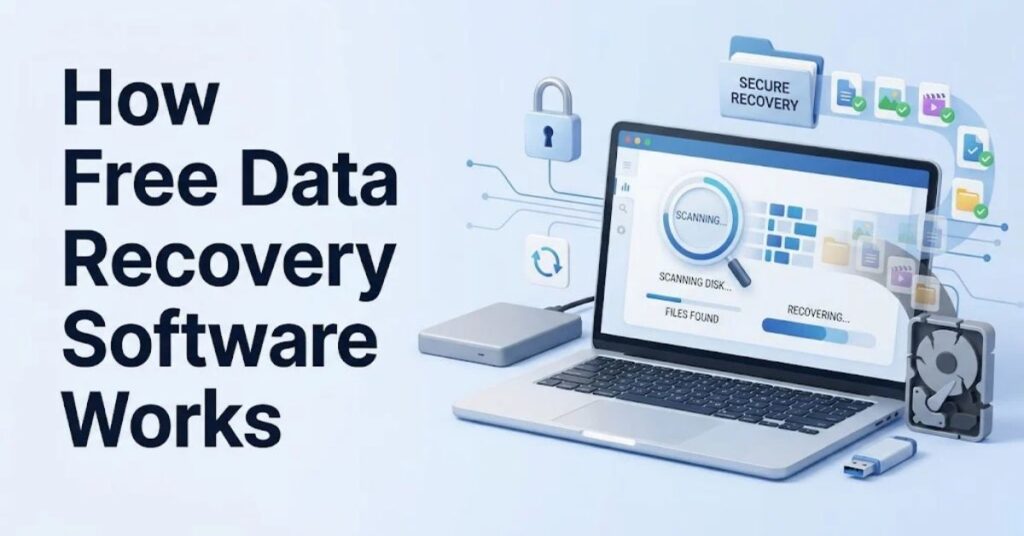
File deletion does not always erase every byte immediately.
Imagine that you delete a photo from a hard drive. The operating system may remove the file’s reference from the file system and mark the space as available. Until another file uses that space, some of the original data may remain.
Recovery software searches for those remaining traces.
Microsoft explains that deleted file data can remain recoverable until other activity overwrites the space. Microsoft also recommends minimizing computer use when trying to recover an important deleted file.
File-System Recovery
File-system recovery looks for information that identifies files and folders.
It can sometimes restore:
- Original filenames
- Folder locations
- File dates
- File sizes
- File contents
This method can work well when the file system remains relatively healthy.
Signature-Based Recovery
Signature-based recovery searches for recognizable patterns inside storage.
For example, a recovery tool may recognize the internal structure of a JPEG, PDF, ZIP, or Microsoft Office file.
PhotoRec uses this type of file carving. Its documentation explains that it can recover files from corrupted file systems, although it does not preserve original filenames or folder structures.
Why Overwriting Matters
Overwriting creates one of the biggest recovery problems.
Suppose you delete an important document and then install several large applications on the same drive. Those installations may use the space where the deleted document existed.
Once new information overwrites the old data, software recovery becomes much more difficult.
For that reason, stop unnecessary activity as soon as you notice important data loss.
When Should You Use Free Data Recovery Software?
Free recovery software can help in several common situations.
Accidentally Deleted Files
You may delete a document, photo, folder, or video by mistake.
First, check the Recycle Bin on Windows or the relevant trash location on your operating system. Recovery software becomes more useful when the file no longer appears there.
Formatted Storage
Formatting can remove normal access to files while leaving some underlying data recoverable.
However, recovery results depend heavily on the type of format, subsequent disk activity, file system, and storage technology.
Do not format the device again after losing important files.
Corrupted File Systems
A damaged file system can make an otherwise healthy drive appear empty or inaccessible.
Recovery utilities may scan the underlying storage to locate files that the operating system can no longer display normally.
USB and Memory Card Problems
USB flash drives and SD cards can develop file-system errors after unsafe removal, interrupted transfers, or hardware problems.
Free recovery tools can sometimes retrieve photos and documents from these devices.
Accidentally Emptied Recycle Bin
If you empty the Recycle Bin and later realize that you needed one of those files, recovery may still work if the deleted data has not been overwritten.
Act quickly and avoid saving new files to the affected drive.
How to Recover Deleted Files With Free Recovery Software
Windows users have several recovery options.
Start with the least complicated method. If the file exists in the Recycle Bin, restore it from there.
If it does not, you can use a dedicated recovery utility.
Microsoft provides Windows File Recovery, a command-line application available through the Microsoft Store. It can attempt to recover files from local storage, including internal drives, external drives, and USB devices.
Use Windows File Recovery
The basic workflow looks like this:
- Stop unnecessary activity on the affected drive.
- Install Windows File Recovery if appropriate.
- Connect a separate destination drive.
- Open Windows File Recovery.
- Choose the source and destination drives.
- Select the appropriate recovery mode.
- Add file or folder filters when possible.
- Start the recovery process.
- Check the destination drive for recovered files.
Microsoft requires different source and destination drives for its recovery workflow. This prevents the recovery process from writing recovered data back onto the source location.
The tool provides Regular and Extensive modes.
Regular mode can work well for recently deleted files on supported NTFS storage. Extensive mode provides a deeper approach and supports situations such as formatted or corrupted storage.
Microsoft also notes that FAT and exFAT recovery requires Extensive mode.
Use PhotoRec for Deeper Scanning
PhotoRec provides another approach.
It focuses on file signatures rather than relying entirely on the file system. That makes it useful when the file system has significant damage.
The trade-off is important.
You may recover the contents of files without recovering their original names or folder structure.
PhotoRec is part of the TestDisk project, which provides free and open-source recovery utilities.
Use TestDisk for Partition Problems
TestDisk focuses more heavily on partitions and file systems.
It can help with situations involving:
- Lost partitions
- Damaged partition structures
- Boot-sector problems
- Certain deleted files
- File-system problems
TestDisk supports several file systems, including NTFS, FAT, exFAT, ext2, ext3, and ext4.
If the problem involves an entire missing partition rather than one accidentally deleted document, a partition-focused tool may provide a more suitable recovery path.
Recover Files From USB Drives and SD Cards
USB drives and SD cards require careful handling after data loss.
Do not immediately copy new photos, videos, or documents onto the affected device.
Instead:
- Stop using the device.
- Disconnect it safely.
- Connect it to a working computer.
- Check whether Windows recognizes the device.
- Avoid formatting it if the system asks.
- Choose a recovery tool.
- Save recovered files to another storage device.
For example, if you accidentally delete vacation photos from an SD card, do not continue taking photographs with the same card. New photos may overwrite the deleted data.
PhotoRec can scan memory cards and other storage media for supported file types.
A separate destination drive matters because recovered files need somewhere safe to go.
Never save recovered files back onto the same device during the recovery process.
Free Data Recovery Software vs Paid Recovery Tools
Free and paid recovery tools serve different situations.
| Feature | Free Recovery Software | Paid Recovery Software |
| Cost | Free or limited | Usually paid |
| Basic deleted-file recovery | Often available | Usually available |
| Advanced scanning | Depends on tool | Often available |
| File-system support | Varies | Often broader |
| Recovery limits | May apply | Usually higher |
| Technical features | Varies | Often more extensive |
| User interface | Basic to advanced | Usually more polished |
| Best use | Personal and simple recovery | Larger or complex recovery jobs |
A free tool may provide everything you need for one accidentally deleted document.
A paid product may provide additional convenience or features, but paying for software does not guarantee successful recovery.
The condition of the storage device matters more than the price of the recovery application.
If the drive has severe physical damage, professional data recovery may become more appropriate than repeatedly scanning it with software.
How to Choose Free Data Recovery Software
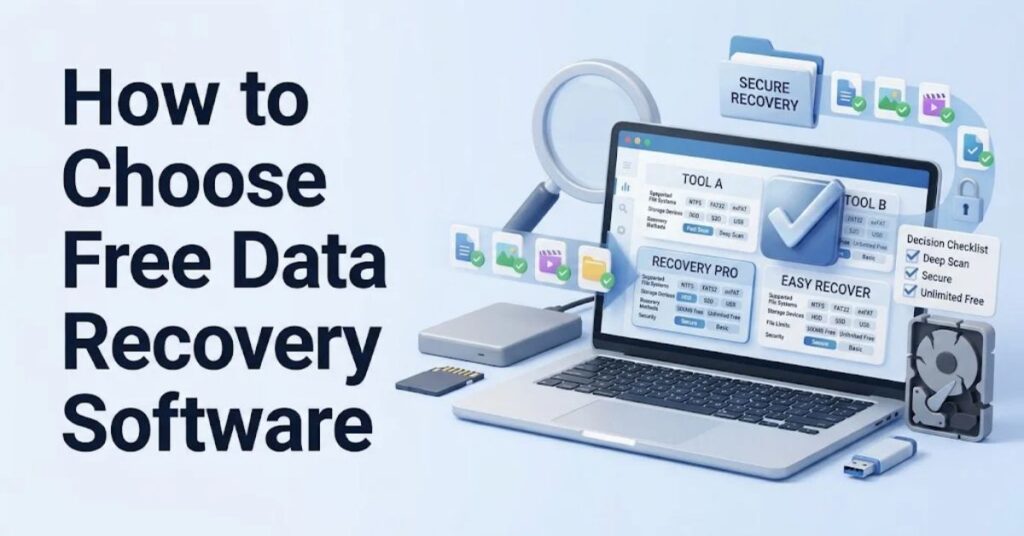
Choosing recovery software requires more than searching for the word “free.”
Check these factors first.
Supported Operating System
Make sure the tool supports your version of Windows, macOS, or Linux.
A recovery utility designed for another operating system may not provide the features you need.
Supported File Systems
Check whether the software supports the file system on your storage device.
Common examples include:
- NTFS
- FAT32
- exFAT
- APFS
- HFS+
- ext4
Support varies between programs.
Storage Device Compatibility
Confirm support for your device type.
You may need recovery for:
- HDD
- SSD
- USB flash drive
- SD card
- External hard drive
- Memory card
- Camera storage
Recovery Method
Some tools focus on file-system recovery. Others use signature-based scanning.
A tool with multiple scan methods can provide more flexibility.
Recovery Destination
Always check whether the program lets you save recovered files to another drive.
This is a basic but important safety feature.
User Interface
Graphical tools can help beginners. Command-line utilities can provide more control but require additional technical knowledge.
Choose the approach that matches your experience.
Common Data Recovery Software Mistakes
People often reduce their own recovery chances without realizing it.
Avoid these mistakes:
- Continuing to use the affected drive.
- Installing recovery software on the same drive.
- Saving recovered files to the source drive.
- Formatting the device again.
- Running unnecessary disk-cleaning tools.
- Downloading unknown recovery applications.
- Assuming every deleted file can be restored.
- Repeatedly scanning a failing physical drive.
- Ignoring unusual clicking or grinding sounds from an HDD.
- Choosing a recovery mode without understanding the storage file system.
One particularly serious mistake involves physical failure.
If an HDD makes unusual mechanical noises, repeated scanning can place additional stress on the hardware. In that situation, consider stopping software recovery attempts and seeking professional help.
For broader software-management practices, TechCrebia’s Productivity Software guide covers how different software tools support everyday computing workflows.
Troubleshooting Free Data Recovery Software
A failed scan does not always mean the files are permanently gone.
Start by identifying why the first attempt failed.
The Drive Does Not Appear
Check:
- USB cable
- USB port
- External power
- Disk Management
- Another computer
- Device Manager
If the device appears intermittently, avoid unnecessary repeated connections.
The Scan Finds No Files
Try another supported scan method.
A file-system scan may fail when the file system has serious corruption. A signature-based tool may find files that the first method missed.
PhotoRec specifically targets underlying file signatures and can work with corrupted file systems.
Recovered Files Will Not Open
A recovery result does not always mean the file is complete.
A file may contain only fragments if another file has overwritten part of its original storage area.
Try recovering another copy if one exists on a backup, cloud service, or secondary device.
The SSD Was Used After Deletion
SSDs introduce additional complexity.
Modern SSDs can use technologies such as TRIM to manage unused storage blocks. Because of this, software recovery may have fewer options after deletion than users expect.
Do not assume that a successful scan guarantees usable files.
The Drive Requests Formatting
Do not immediately click Format.
Formatting can change the storage structure and may complicate recovery.
Instead, stop using the device and investigate recovery options first.
Best Practices for File Recovery
The safest recovery strategy starts before data loss happens.
Keep Regular Backups
Backups provide a much safer recovery path than undelete software.
Maintain copies of important documents, family photos, work files, and other irreplaceable data.
Use more than one backup location when the data matters.
Stop Using the Drive Quickly
If deletion happens, stop unnecessary activity immediately.
This simple step can reduce the chance that new data overwrites the deleted files.
Use a Separate Recovery Destination
Never save recovered files to the same source device.
Use another internal drive, external drive, or suitable storage destination.
Download Recovery Tools Carefully
Use official project pages whenever possible.
Free software from an unknown download site can create security and privacy risks.
Understand Recovery Limits
No recovery tool can guarantee success.
Recovery depends on:
- Overwriting
- File-system condition
- Storage technology
- Physical device health
- Encryption
- File fragmentation
- Recovery method
For a better understanding of how software and hardware interact, TechCrebia’s PhysX System Software guide provides another example of software working closely with physical computer components.
Latest Trends in Data Recovery Software

Data recovery continues to change as storage technology evolves.
SSDs have changed recovery behavior because modern storage systems manage blocks differently from traditional hard drives.
Cloud storage has also changed how people restore lost files. Many services now provide version history, recycle bins, synchronization, and backup features.
AI may also improve future recovery tools.
Machine-learning techniques can potentially help classify recovered fragments, identify file patterns, detect damaged structures, and organize large sets of recovered data.
However, users should not assume that an “AI recovery” label guarantees better results.
The fundamentals still matter.
The less new data written to the affected storage device, the better the potential recovery conditions.
Modern operating systems also provide more built-in recovery features. Windows File Recovery is one example of Microsoft providing a native recovery utility instead of requiring users to depend entirely on third-party programs.
Storage capacity continues to increase as well. Larger drives mean that deep scans can take considerably longer.
Recovery software therefore needs to balance scanning depth, performance, file-system support, and usability.
Free Data Recovery Software for Different Situations
Different problems require different approaches.
| Situation | First Step | Possible Recovery Approach |
| Deleted document | Check Recycle Bin | File recovery |
| Emptied Recycle Bin | Stop using drive | File recovery |
| Formatted USB | Stop writing data | Deep scan |
| Deleted SD photos | Stop using card | Photo/file carving |
| Lost partition | Avoid formatting | Partition recovery |
| Corrupted file system | Do not write to drive | Deep scan |
| Physically failing HDD | Stop repeated scans | Professional recovery |
| SSD deleted files | Stop using SSD | Check backups and recovery options |
| Missing cloud file | Check service history | Cloud restore |
The important point is that recovery software should match the problem.
You do not need a complex forensic tool for every accidental deletion. At the same time, a basic undelete utility may not solve a damaged partition problem.
Key Takeaways
- Free data recovery software can restore some deleted files when their data remains available.
- Stop using the affected drive as soon as you notice data loss.
- Never save recovered files to the original storage device.
- Windows File Recovery provides a Microsoft-supported recovery option for local storage.
- PhotoRec uses file signatures and can help with corrupted file systems.
- TestDisk focuses on partitions and file-system recovery.
- Free does not mean unlimited or guaranteed.
- SSDs can behave differently from traditional hard drives after deletion.
- Physical drive damage may require professional recovery.
- Backups remain the safest way to protect important files.
Conclusion
Free data recovery software can provide a useful way to recover accidentally deleted files without immediately paying for a commercial application.
The most important factor is timing. Once you notice data loss, stop unnecessary activity on the affected device. New files can overwrite the storage space that still contains parts of your deleted data.
Choose a recovery method based on the problem. Simple deleted files may need a basic recovery scan. A damaged file system may require a deeper signature-based approach. A lost partition may require partition recovery tools.
Windows File Recovery, TestDisk, and PhotoRec each use different approaches. Understanding those differences helps you choose a suitable recovery method.
Most importantly, treat recovery software as a last line of defense rather than a replacement for backups. Regular backups provide a much safer way to restore important files when something goes wrong.
FAQ
Is free data recovery software really free?
Some tools are completely free, while others limit the amount of data you can recover without upgrading.
Can free software recover permanently deleted files?
It can sometimes recover deleted files if their storage space has not been overwritten.
What is the safest first step after deleting a file?
Stop using the affected storage device and check the Recycle Bin or backup before attempting recovery.
Can recovery software recover files from a formatted drive?
Yes, some tools can recover files from formatted storage, but success depends on the formatting method and later disk activity.
Can I recover files from an SD card for free?
Yes. Free recovery tools can scan supported SD cards and may recover photos, videos, and other files.
Is PhotoRec completely free?
PhotoRec is a free and open-source recovery utility distributed as part of the TestDisk project.
Can data recovery software recover files from an SSD?
Recovery may be possible, but SSD technology and features such as TRIM can make deleted-file recovery more difficult.
Should I save recovered files to the same drive?
No. Save recovered files to a different storage device to avoid overwriting other recoverable data.
What if the hard drive makes clicking noises?
Stop repeated recovery attempts. Mechanical noises can indicate physical failure, and professional data recovery may be safer.
SEO Tags
- free data recovery software
- free file recovery software
- deleted file recovery
- recover deleted files
- data recovery software
- free recovery tools
- Windows file recovery
- USB data recovery
- SD card recovery
- file recovery tools
Internal Linking Suggestions With Anchor Text
- Deleted File Recovery Guide. — Use when discussing deleted files and file recovery methods.
- Mac Data Recovery Software — Use when discussing recovery on Mac computers.
- iPhone Data Recovery — Use when discussing iPhone data recovery.
- Samsung Galaxy J7 Update Software — Use in broader software-maintenance content.
- Bluetooth Driver Update — Use when discussing software and hardware-related utilities.
Authoritative External References
- Microsoft Windows File Recovery — Official Microsoft documentation for Windows File Recovery.
- CGSecurity TestDisk & PhotoRec Documentation — Official documentation for TestDisk and PhotoRec.
Social Media Title
Free Data Recovery Software: Recover Deleted Files Safely



