






Quick Answer:
Fan control software lets you monitor temperatures and adjust compatible PC fans based on CPU, GPU, motherboard, or other sensor readings. It can reduce noise, improve cooling, and create custom fan curves.
Desktop users usually get the most control because motherboard and GPU hardware expose fan controls. Laptop support varies widely.
Author Information
Author: Gulnaz Malik
Role: Founder, Publisher & Technology Content Specialist
Experience: 5+ Years in Technology, AI, Software & Digital Innovation
Content Review: All content follows Google’s latest EEAT guidelines and includes fact-checked information from official documentation, trusted technology sources, industry reports, and practical research to ensure accuracy, reliability, and up-to-date insights.
Introduction
A PC fan does more than move air. It protects important components from excessive heat. Your CPU, GPU, motherboard, storage devices, and power system all produce heat during normal operation. Gaming, video editing, rendering, AI workloads, and other demanding tasks can increase that heat quickly.
Modern motherboards and graphics cards often manage fan speed automatically. However, automatic control does not always match your personal needs. You may want quieter operation during light work or stronger cooling during gaming.
That is where fan control software can help.
This software reads temperature sensors and lets you create rules for compatible fans. You can connect fan speed to CPU temperature, GPU temperature, motherboard temperature, or another supported sensor.
This guide explains how fan control software works, what features matter, how to configure fan curves, which users benefit from it, and how to troubleshoot common problems.
Table of Contents
- What Is Fan Control Software?
- How Fan Control Software Works
- Why Fan Control Software Matters
- Key Features to Look For
- Best Fan Control Software Options
- How to Set Up Fan Control Software
- How to Create a Safe Fan Curve
- Fan Control Software for Gaming PCs
- Fan Control Software for Laptops
- Common Problems and Troubleshooting
- Best Practices for Safe Fan Control
- Latest Trends in PC Fan Control
- Key Takeaways
- Conclusion
- FAQs
- SEO Tags
- Internal Linking Suggestions
- Authoritative External References
- Social Media Title
What Is Fan Control Software?
Fan control software is a Windows utility that monitors system temperatures and manages compatible cooling fans. It gives you more control than basic automatic fan settings.
A typical PC contains several cooling devices. You may have a CPU cooler, front intake fans, rear exhaust fans, top exhaust fans, GPU fans, or radiator fans for liquid cooling.
Each fan may react differently to heat.
For example, your CPU may reach 70°C while your GPU stays at 55°C. If all case fans respond only to CPU temperature, they may increase speed even when the GPU does not need extra airflow.
Fan control software can create smarter rules.
The software can use sensor data and adjust fan speed according to your selected curve. Some tools also support profiles, mixing several temperature sources, startup settings, and response delays.
This approach can make a PC quieter during light tasks while keeping stronger airflow available during demanding workloads.
If you are new to PC components, TechCrebia’s guide to the difference between software and hardware provides useful background on how software interacts with physical computer components.
How Fan Control Software Works

Fan control software depends on hardware sensors and thermal controls. For example, Intel’s official thermal guidance explains how processors monitor temperature and reduce performance when they reach thermal limits. Intel Processor Thermal Management Guide
Next, the software compares the temperature with your fan curve.
Finally, it sends an appropriate control signal to a compatible fan controller, motherboard header, GPU controller, or supported device.
For example, imagine this basic fan curve:
| Temperature | Fan Speed |
| 35°C | 25% |
| 45°C | 35% |
| 55°C | 45% |
| 65°C | 60% |
| 75°C | 80% |
| 85°C | 100% |
The exact numbers should depend on your hardware and cooling system. Do not copy one curve blindly.
Fan Control, a popular Windows utility, supports multiple temperature sources, custom curves, mixed sensor logic, profiles, hysteresis, response time, and other advanced controls. Its official project documentation also explains that hardware compatibility depends heavily on the underlying sensor and control hardware.
This distinction matters. Software cannot magically control every fan. The motherboard, GPU, controller, firmware, and physical connection must expose compatible controls.
Why Fan Control Software Matters
Good fan management balances three things: temperature, noise, and performance.
If fans run too slowly, temperatures can rise. If they run too quickly all the time, your PC can become unnecessarily loud.
A properly designed fan curve can keep fans quiet during browsing while increasing airflow when the system reaches higher temperatures.
Thermal management also affects performance. Modern processors can reduce clock speed when temperatures reach protection thresholds. Intel explains that thermal throttling can reduce CPU clock speed when temperature reaches a processor’s thermal limit.
Fan control therefore becomes useful for:
- Gaming PCs
- Workstations
- Video editing systems
- Streaming computers
- AI and machine-learning PCs
- Content-creation systems
- Quiet home-office computers
- Systems with custom liquid cooling
However, fan software cannot fix every cooling problem. Dust, poor airflow, an incorrectly mounted cooler, weak thermal contact, or a failing fan can still cause high temperatures.
Key Features to Look For
The best fan control software should provide enough control without making basic tasks confusing.
Temperature Monitoring
- CPU temperature readings
- GPU temperature readings
- Motherboard sensor readings
- Storage temperature readings
- Fan RPM readings
- Multiple sensor sources
Custom Fan Curves
- Graph-based curve editing
- Multiple temperature points
- Minimum fan speed
- Maximum fan speed
- Start and stop percentages
- Response time
- Hysteresis
Profiles and Automation
- Quiet profile
- Gaming profile
- Performance profile
- Automatic startup
- Profile switching
- Saved configurations
Fan Control, for example, supports multiple profiles and several curve functions. Its current release documentation also lists support for different sensor sources and community plugins for additional hardware.
A useful fan utility should also show clear sensor names. Confusing labels can lead users to connect a fan to the wrong temperature source.
Best Fan Control Software Options
The right tool depends on your hardware.
| Software Type | Best For | Main Advantage | Main Limitation |
| Fan Control | Windows desktop users | Detailed custom curves | Hardware compatibility varies |
| Motherboard utility | Beginners | Easy hardware integration | May use more system resources |
| GPU manufacturer utility | Graphics card fans | GPU-specific control | Limited case-fan control |
| BIOS/UEFI fan control | Basic setup | Works before Windows starts | Fewer advanced automation options |
| Hardware monitoring utility | Monitoring | Detailed sensor information | May not control every fan |
Fan Control stands out for users who want detailed customization on Windows desktops. The project describes it as highly customizable and supports Windows 10 and Windows 11. It also supports profiles, multiple temperature sources, custom curves, and sensor mixing.
Motherboard software can work well when you want simple control. ASUS, MSI, Gigabyte, and ASRock systems often provide their own fan-management features through motherboard utilities or firmware.
GPU software can also control graphics-card fans. However, GPU fan behavior often depends on the graphics card firmware and controller.
For pure monitoring, LibreHardwareMonitor provides a useful reference point because it can monitor temperatures, fan speeds, voltages, loads, and clock speeds across supported hardware.
How to Set Up Fan Control Software
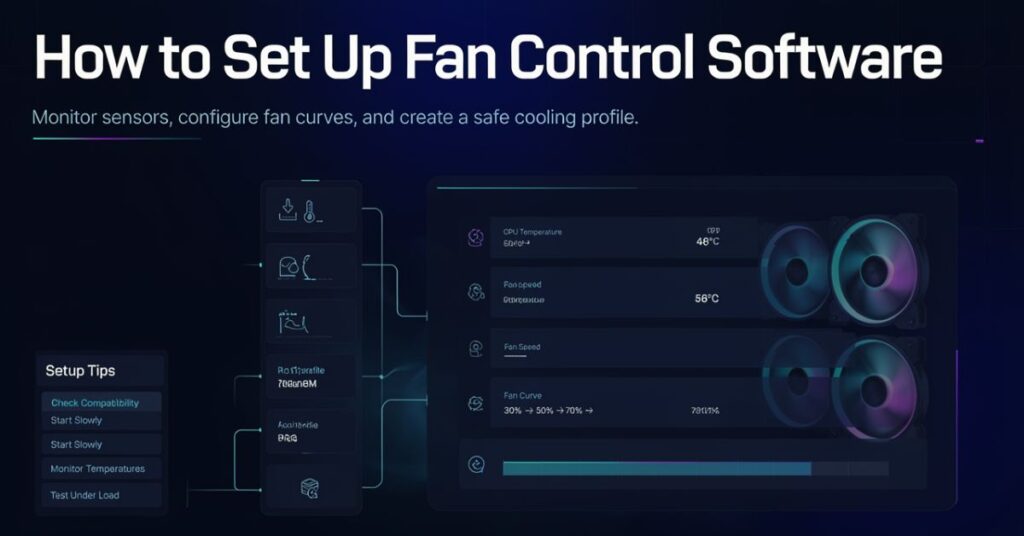
Start with a simple configuration. Do not immediately create complicated curves for every fan.
First, identify your hardware. Check the motherboard model, CPU, GPU, cooling system, and fan connections.
Next, install software from a trusted source. Avoid random download sites because hardware-control utilities require deep system access.
After installation, open the software and allow it to detect supported sensors.
You may see several readings with names such as CPU Package, GPU Core, GPU Hotspot, System, Motherboard, SSD, or Fan 1.
Do not assume every sensor represents the same physical location. Now identify each fan.
Run the fan calibration process if the software provides one. Watch the RPM readings as the software changes fan speeds. If a fan responds correctly, connect it to a suitable control source.
For case fans, GPU temperature can make sense for a gaming-focused build. CPU temperature can work better for CPU-heavy workloads. A mixed curve can provide better overall airflow when your software supports it.
Create one profile first. Test it. Then add additional profiles.
How to Create a Safe Fan Curve
A fan curve tells your system how quickly fans should spin as temperature changes.
A good curve should respond early enough to prevent unnecessary heat buildup without causing constant speed changes.
For a general desktop, you could start with a moderate curve such as:
| Temperature | Suggested Starting Point |
| Below 40°C | 20–30% |
| 40–50°C | 30–40% |
| 50–60°C | 40–55% |
| 60–70°C | 55–70% |
| 70–80°C | 70–85% |
| Above 80°C | 85–100% |
These values provide a starting framework, not a universal rule.
Your processor and graphics card have their own thermal specifications. Intel specifically notes that typical temperatures depend on workload and system design, so you should check your processor’s specifications rather than rely on one universal temperature target.
Use hysteresis when your software supports it. Hysteresis prevents the fan from repeatedly increasing and decreasing speed when the temperature sits around one point.
For example, instead of moving from 40% to 50% and back every few seconds, the software can wait for a meaningful temperature change.
This improves both noise and fan longevity.
Fan Control Software for Gaming PCs
Gaming creates rapidly changing workloads. A game can increase GPU and CPU temperatures within minutes.
A good gaming profile should therefore prioritize cooling under sustained load.
Case fans can respond to GPU temperature because the GPU often becomes one of the biggest heat sources during gaming. CPU fans should normally respond to CPU temperature.
This setup can work better than making every fan respond to the same sensor.
For example:
CPU cooler: CPU temperature
Front intake fans: GPU temperature
Rear exhaust fan: Higher of CPU or GPU temperature
Radiator fans: CPU temperature
GPU fans: GPU controller or supported GPU software
The exact configuration depends on your hardware.
You should test your system after creating the curve. Run a game or another normal workload and monitor temperatures, clock speeds, fan RPM, and noise.
Do not chase the lowest possible temperature. A slightly higher temperature with much lower noise can provide a better everyday experience.
Fan Control Software for Laptops
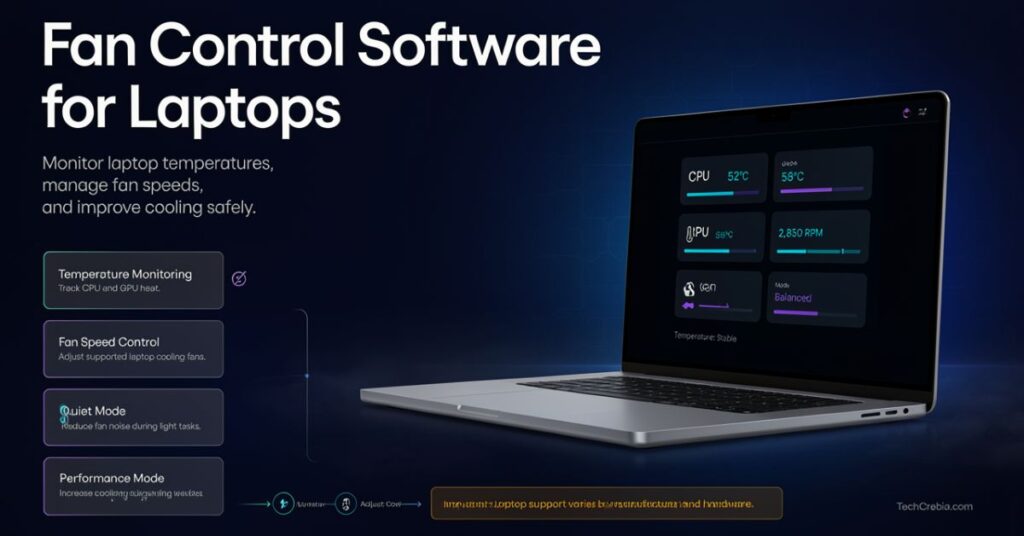
Laptop fan behavior can differ from desktop PCs because manufacturers often manage cooling through firmware and system controls.
Microsoft’s official Surface documentation explains how workload and power settings can affect fan speed and noise. Microsoft Surface Fan Behavior Guide
Fan Control’s own documentation warns that laptop support remains limited because many laptops do not expose their fans to third-party software in the same way as desktop systems.
That means you should not force a laptop fan-control utility when the hardware does not support it.
A laptop manufacturer utility or BIOS setting may provide safer control.
Microsoft also notes that Surface devices automatically change fan behavior according to workload, temperature, charging, and power mode.
If your laptop runs hot, first check:
- Air vents
- Dust buildup
- Power mode
- Background applications
- CPU usage
- GPU usage
- Manufacturer cooling settings
- BIOS or firmware updates
Fan software should come after these basic checks.
Common Problems and Troubleshooting
Fan control software can create confusion when the hardware does not expose the expected controls.
Fans Do Not Appear
Check whether the fan connects directly to the motherboard or to a separate controller.
Some proprietary controllers need their own software or a supported plugin.
Also check BIOS settings and motherboard fan headers.
Fan Speed Does Not Change
The header may use PWM or DC control. Check which mode your motherboard supports.
Fan Control’s documentation specifically recommends checking PWM and DC settings when configuring compatible motherboard headers.
Also verify that another program does not control the same fan at the same time.
Temperature Readings Look Wrong
Different sensors measure different locations.
CPU Package, CPU Core, GPU Core, GPU Hotspot, and motherboard sensors can show very different values.
Use a trusted monitoring tool to compare readings before building your curve.
LibreHardwareMonitor can help users inspect supported temperature and fan sensors when troubleshooting hardware monitoring.
Fans Constantly Speed Up and Slow Down
Increase hysteresis or response time.
You can also create smoother curve steps instead of making large speed changes between nearby temperatures.
PC Gets Too Hot
Do not assume software caused the problem.
Check physical cooling first. Intel recommends checking fan operation, airflow, dust, cooler installation, thermal interface material, and BIOS settings when troubleshooting overheating.
If the fan physically fails, software cannot repair it.
Best Practices for Safe Fan Control
Use conservative settings when you first configure fan control software.
Start with automatic motherboard control if you do not understand your hardware. Change one fan or one profile at a time.
Keep the original BIOS configuration documented. If your software stops working, you can return to the motherboard’s built-in fan management.
Avoid setting every fan to 100% permanently. Maximum speed creates unnecessary noise and may not improve temperatures enough to justify it.
Avoid extremely low speeds if a fan becomes unstable at low RPM.
Never stop a critical cooling fan during heavy workloads unless the hardware specifically supports fan-stop operation.
Keep your software updated from the official project or hardware manufacturer.
Also avoid installing multiple utilities that attempt to control the same hardware simultaneously. Two control systems can fight over fan speed and create unstable behavior.
If your PC still runs hot, review the broader cooling system. TechCrebia’s software and hardware guide can help beginners understand why software settings cannot replace physical hardware maintenance.
Latest Trends in PC Fan Control

Fan control has become more intelligent as PC hardware becomes more complex.
Modern tools increasingly combine several sensors instead of relying on one temperature value. A gaming PC may react to both CPU and GPU heat.
Profiles also play a larger role. Users can maintain quiet settings for office work and stronger cooling for gaming or rendering.
Fan-control software is also becoming more modular. Fan Control’s current release ecosystem includes plugins for hardware such as NVIDIA sensors, AMD GPUs, liquid-cooling devices, Lian Li controllers, Corsair devices, and other systems.
Another important trend involves startup behavior. Recent Fan Control releases added a service-based startup option that can allow fan management to begin without requiring a normal user session.
Hardware monitoring also continues to improve. Tools such as LibreHardwareMonitor support readings from CPUs, GPUs, motherboards, storage devices, and other components.
In the future, fan control may become more predictive. Software could use workload patterns, temperature changes, power usage, and system profiles to adjust cooling before temperatures rise sharply.
AI could also help automate these decisions, although users should still keep manual control and safety limits.
For broader technology trends, TechCrebia’s coverage of the latest news in 2026 provides additional context about how intelligent software continues to influence computing.
Key Takeaways
- Fan control software manages compatible PC fans using temperature and hardware sensor data.
- Desktop PCs usually offer better third-party fan-control support than laptops.
- Custom fan curves can balance cooling and noise.
- CPU, GPU, motherboard, and other sensors can provide different control sources.
- Do not use one universal temperature curve for every PC.
- PWM and DC settings matter for compatible motherboard fan headers.
- Avoid running multiple fan-control utilities at the same time.
- Physical cooling problems require physical solutions.
- Dust, poor airflow, incorrect cooler installation, and failing fans can cause overheating.
- Current fan-control tools increasingly support profiles, sensor mixing, plugins, and automatic startup.
Conclusion
Fan control software gives PC users more control over cooling performance. It can reduce unnecessary fan noise, improve airflow management, and create different profiles for everyday work, gaming, and demanding workloads.
The most important step involves understanding your hardware first. A desktop motherboard may provide excellent fan-control options, while a laptop may restrict third-party access.
Start with simple settings. Monitor temperatures. Test your fan response. Then make gradual changes.
Do not focus only on the lowest possible temperature. A balanced system should provide enough cooling without creating unnecessary noise.
Most importantly, remember that software works alongside physical cooling hardware. Good airflow, clean fans, proper thermal contact, and suitable cooling components still matter.
With the right setup, fan control software can be a useful part of a reliable, quieter PC cooling strategy.
FAQs
What is fan control software?
Fan control software monitors hardware temperatures and adjusts compatible fan speeds according to user-defined rules or automatic profiles.
Is fan control software safe?
Yes, reputable fan-control software can safely manage supported hardware when users configure appropriate limits and avoid unsupported controls.
Can fan control software reduce PC noise?
Yes. A properly tuned fan curve can keep fans slower during light workloads and increase their speed only when temperatures rise.
Does fan control software work on laptops?
Sometimes, but support varies greatly. Many laptops use proprietary fan controllers that third-party software cannot access.
What is a fan curve?
A fan curve defines how fan speed should increase as a temperature sensor reaches higher values.
Should case fans follow CPU or GPU temperature?
It depends on the workload. Gaming systems often benefit from case fans responding to GPU temperature, while CPU-focused workloads may favor CPU temperature.
Can fan control software prevent overheating?
It can improve cooling control, but it cannot fix physical problems such as blocked vents, dust, poor thermal contact, or a damaged fan.
Can I use multiple fan-control programs?
You should avoid using multiple programs to control the same fans because they can conflict and produce unpredictable fan behavior.
What is PWM fan control?
PWM, or pulse-width modulation, lets compatible hardware regulate fan speed through a control signal. The motherboard must support the appropriate fan-control mode.
Should I set my fans to 100%?
Usually no. Full speed creates more noise and may provide little extra benefit during normal workloads. Use a temperature-based curve instead.
SEO Tags
- fan control software
- PC fan control
- CPU fan control software
- GPU fan control
- fan curve software
- PC cooling software
- Windows fan control
- custom fan curve
- computer temperature monitoring
- PC cooling guide 2026
Internal Linking Suggestions with Anchor Text
- Software and hardware explained
- Productivity software guide
- PhysX System Software guide
- Samsung J7 software update guide
- Samsung Galaxy J7 update software
Authoritative External References
- Fan Control official project documentation and releases — Rem0o/FanControl.Releases
- Intel official processor thermal management and throttling guidance
Social Media Title
Fan Control Software: The Complete PC Cooling Guide for 2026



