





Many users buy a NexiGo webcam and connect it directly to their computer. The webcam often works instantly. But users who want better image quality, more control, and custom settings usually install Nexigo webcam software.
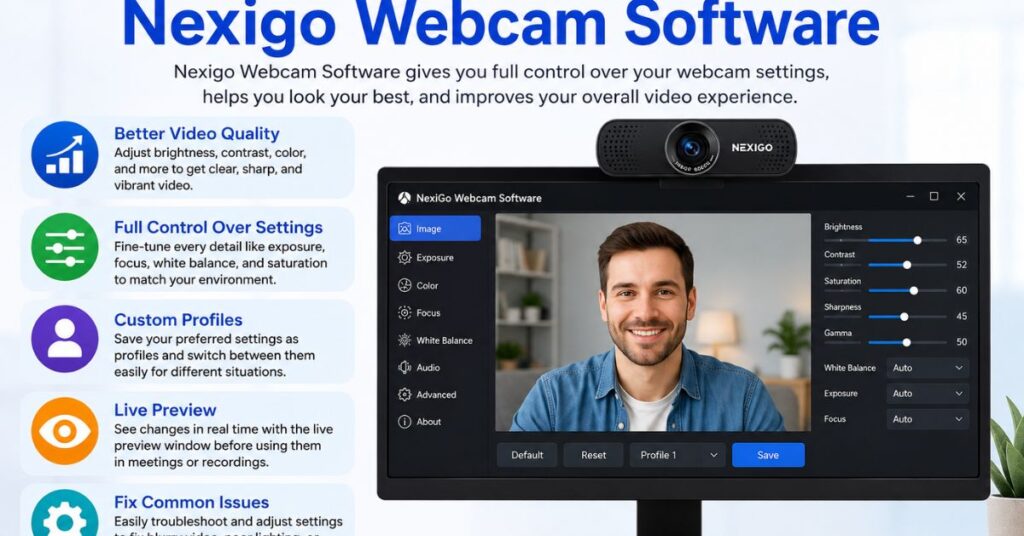
This software gives extra control over webcam performance. You can change brightness, contrast, focus, exposure, saturation, and many other settings. You can also save custom profiles and improve your camera experience.
In this guide, you will learn everything about Nexigo webcam software, including installation steps, supported features, compatibility, common problems, and practical fixes.
What is Nexigo webcam software?
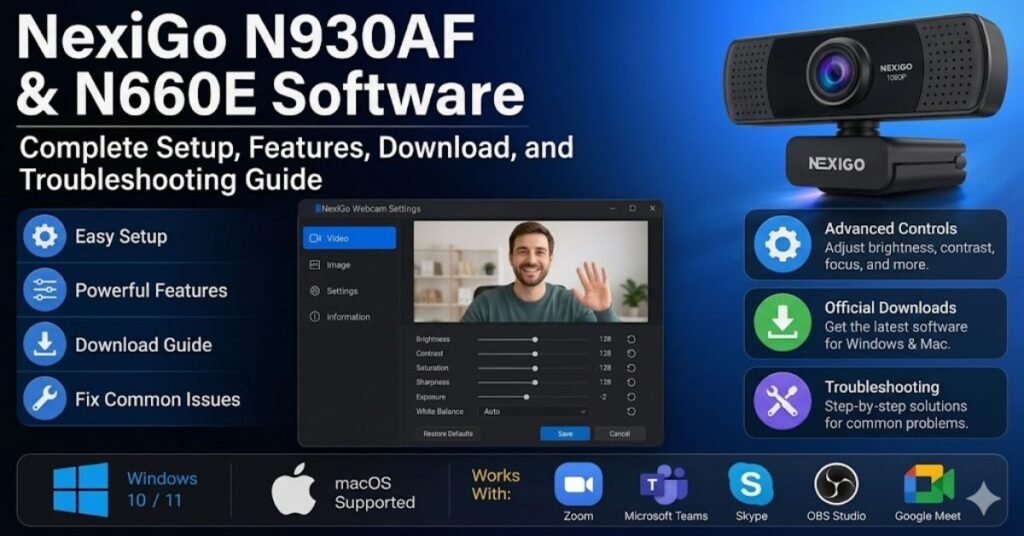
NexiGo Webcam Software is the official camera control application for supported webcams.
The software helps users customize webcam performance rather than relying solely on default system settings.
According to Nexi Go support documentation, the company provides Webcam Settings for both Windows and mac OS. Some webcam models support more controls than others.
Users commonly install the software to:
- Improve video appearance
- Adjust the camera image manually
- Save preferred webcam profiles
- Control focus and exposure
- Reduce lighting problems
- Test webcam operation
- Optimize meetings and streaming
Many people use this software for:
- Remote work
- Online classes
- Video meetings
- Streaming
- Recording videos
- Virtual interviews
The software works as a control center for supported NexiGo webcams.
Why You Should Use Nexigo Webcam Software
Many webcams work without software. But default settings do not always create the best image.
Installing the Nexigo webcam gives more control.
Benefits of using
- Better video quality
- Manual brightness control
- Exposure adjustment
- Contrast customization
- Saturation settings
- Focus controls
- Camera testing tools
- Profile saving options
Comparison Table
| Feature | Without Software | With Nexigo webcam software |
| Basic camera access | Yes | Yes |
| Brightness control | Limited | Full |
| Contrast adjustment | Limited | Full |
| Manual focus | Limited | Supported |
| Preset profiles | No | Yes |
| Preview window | No | Yes |
| Advanced tuning | No | Yes |
Users who attend meetings daily usually notice a visible improvement after adjusting settings.
How To Download Nexigo Webcam Software
Downloading the correct version matters.
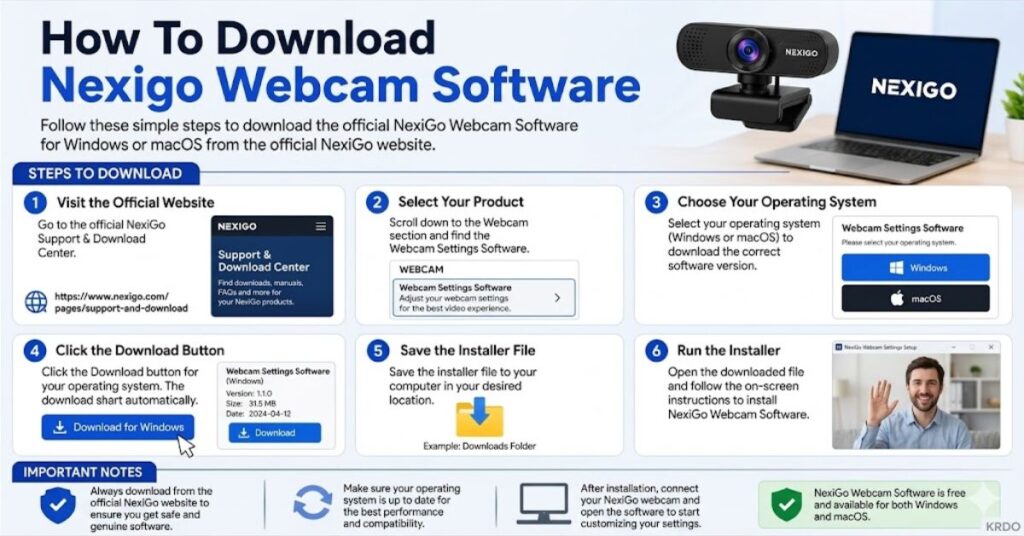
NexiGo officially provides separate software versions for Windows and Mac systems.
Steps to download
Windows
- Visit the official support page
- Open webcam downloads
- Select Webcam Settings
- Download the Windows version
- Run installer
- Finish setup
Mac
- Open the official support page
- Select Mac version
- Download application
- Install
- Open settings
Official sources show Webcam Settings V1.1 for Windows and macOS support files. Do not download software from random websites.
Use official files only.
How To Install nexigo webcam
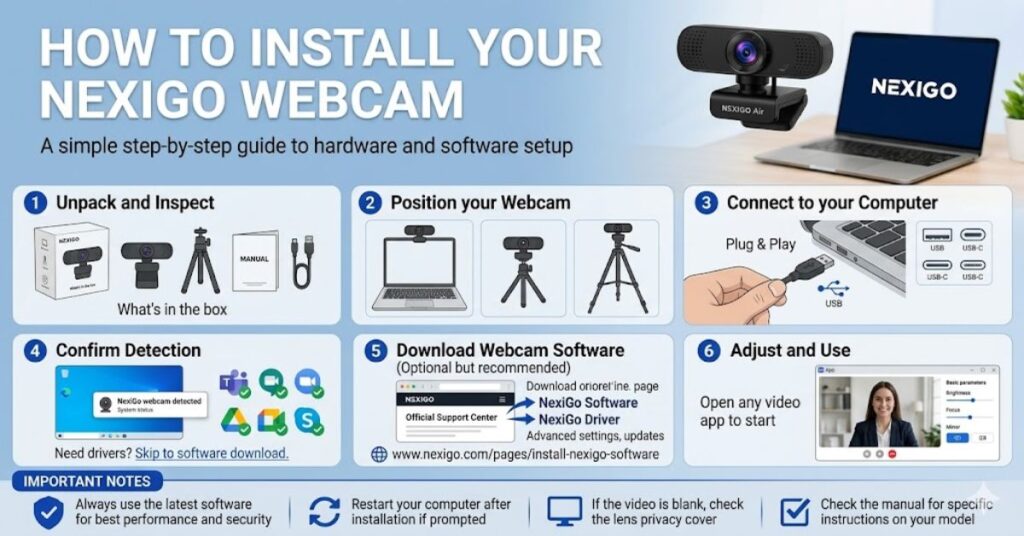
Installation usually takes only a few minutes.
Before installing:
- Disconnect webcam
- Close camera apps
- Update the operating system
- Remove older versions if needed
Installation Steps
1
- Download installer
2
- Open the installation file
3
- Allow permissions
4
- Complete setup
5
- Connect webcam
6
- Open software
7
- Select your webcam
After opening, the software should detect supported models automatically.
Main Features Inside Nexigo Webcam Software
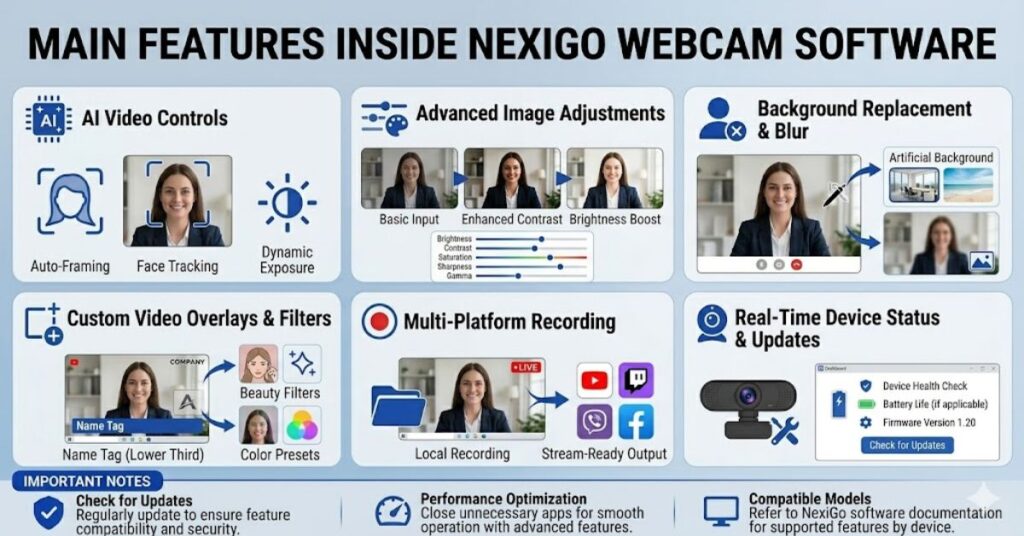
The software includes many controls that improve video output.
Image Controls
- Brightness
- Contrast
- Saturation
- Sharpness
- Gamma
Camera Controls
- Exposure
- Focus
- White balance
- Zoom
- Auto adjustment
Productivity Features
- Save profiles
- Preview changes
- Fast switching
- Device management
The Mac application description confirms support for brightness, contrast, saturation, gamma, exposure, focus, presets, and live preview.
How To Improve Webcam Quality Using Nexigo Webcam Software
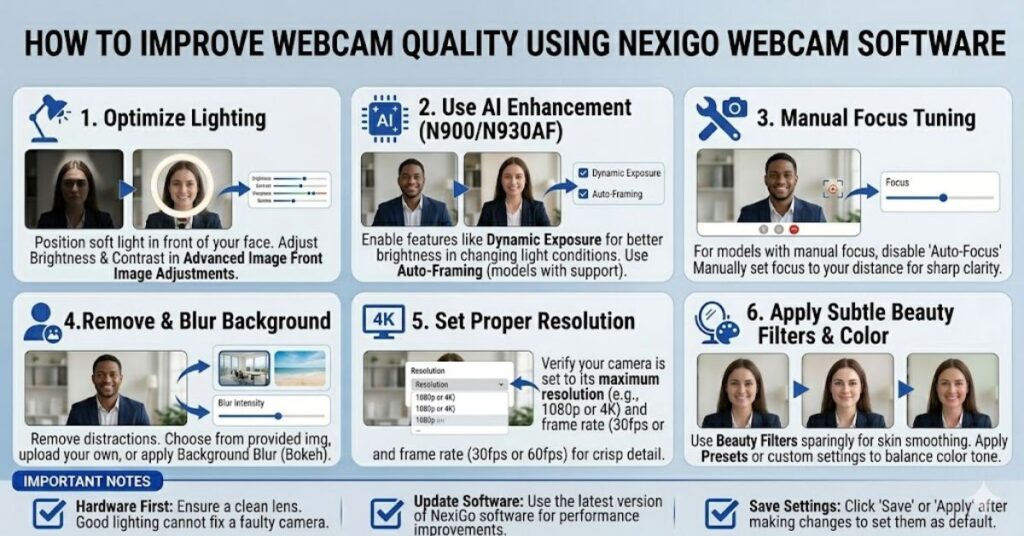
Good webcam quality depends on settings and environment.
Try these adjustments.
Lighting Improvements
- Face the light
- Avoid a strong backlight
- Use soft room lighting
Camera Adjustments
- Lower exposure
- Increase brightness carefully
- Adjust contrast slowly
Focus Improvements
- Enable autofocus
- Lock focus if needed
Video Improvements
- Test presets
- Save best settings
NexiGo also recommends adjusting image parameters through the software if colors appear abnormal.
Common Nexigo Webcam Software Problems and Fixes
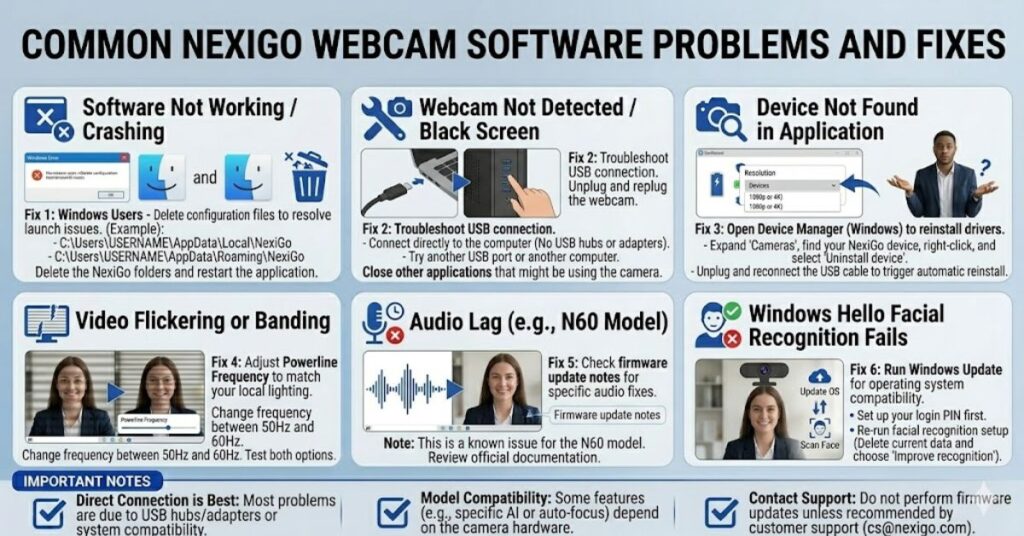
Some users report software problems.
Community discussions and NexiGo support pages show several working solutions.
Software Does Not Open
Try:
- Restart PC
- Reinstall software
- Run as administrator
Clear Cache Folders
Delete:
- C:\Users\USERNAME\AppData\Local\NexiGo
- C:\Users\USERNAME\AppData\Roaming\NexiGo
NexiGo officially recommends removing these folders in some software failure cases. Webcam Not Detected
Try:
- Change the USB port
- Remove the USB hub
- Test another app
Black Preview Screen
Try:
- Enable camera permission
- Update the operating system
- Test the Microsoft Camera app
Nexi Go Webcam Software Compatibility Guide
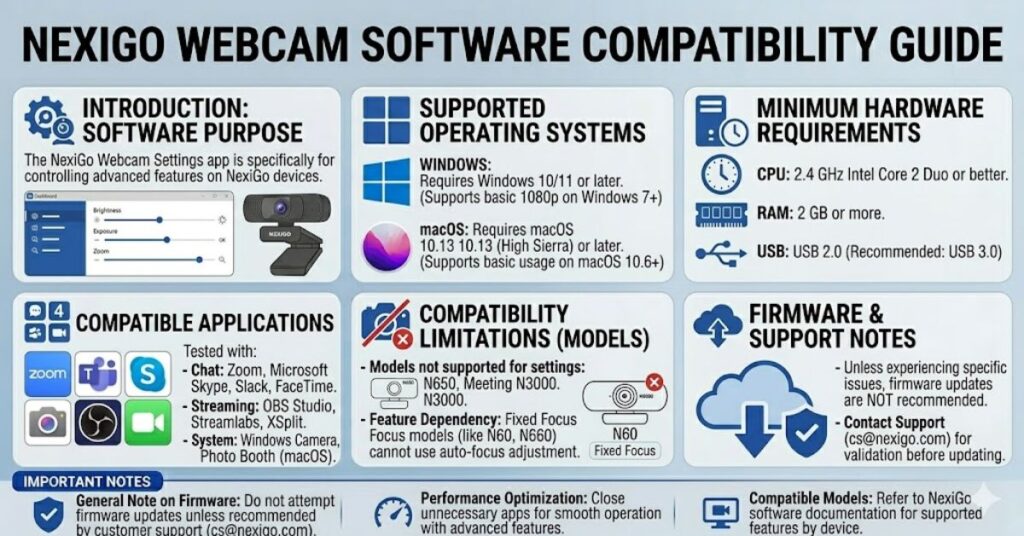
Compatibility varies by model.
NexiGo notes that some webcams support only selected controls, and some models currently do not support software integration.
Operating Systems
- Windows 10
- Windows 11
- macOS
Applications
- Zoom
- Teams
- Skype
- OBS
- FaceTime
Compatibility Notes
- Some webcams remain plug-and-play
- Some support advanced settings
- Fixed-focus models have limited controls
How To Use Nexigo Webcam Software for Meetings and Streaming
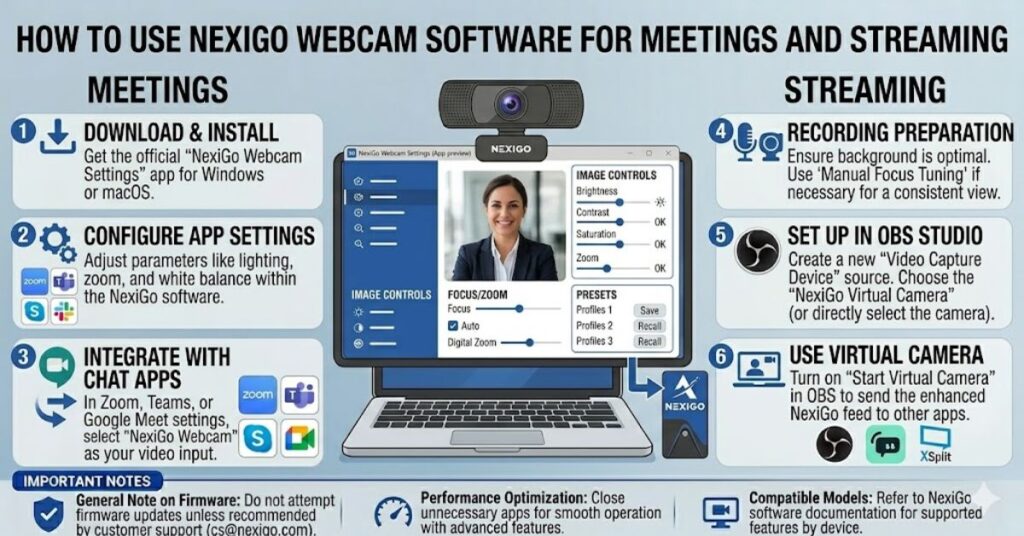
Streaming and meetings benefit from camera tuning.
Meeting Setup
- Open software
- Adjust exposure
- Save profile
Streaming Setup
- Connect OBS
- Test image
- Lock focus
Recording Setup
- Disable auto exposure
- Set white balance
NexiGo lists compatibility with major meeting and streaming platforms. (NexiGo)
Best Settings for Nexigo webcam
These settings work well for many users.
| Setting | Recommended |
| Brightness | Medium |
| Contrast | Medium |
| Saturation | Medium |
| Exposure | Low |
| Focus | Auto |
| White Balance | Auto |
Adjust slowly and test.
Save profiles after finding the right balance.
Final Thoughts
Nexigo webcam software gives users more control over webcam performance.
You can improve image quality, create custom presets, and fix common webcam issues.
Install official software, update regularly, and test settings one change at a time.
Most users can improve their webcam experience within a few minutes.
FAQs
Is Nexigo webcam software free?
NexiGo provides official webcam software downloads through its support center. Availability may depend on platform and model support.
Does Nexigo webcam work on Windows 11?
Yes. Supported webcam models generally work with Windows systems.
Can I use Nexigo webcam software without drivers?
Most NexiGo webcams work as plug-and-play devices and usually do not require extra drivers.
Why does the Nexigo webcam not open?
Try reinstalling the software and deleting the NexiGo cache folders.
Can I use nexigo webcam software with OBS?
Yes. NexiGo webcams commonly work with streaming software, including OBS.



