



Quick Answer:
Sony BRAVIA software updates improve TV stability, fix bugs, and can add or improve features. You can check for updates through the TV’s system settings or use a USB drive for supported models. Update availability depends on your exact BRAVIA model and region.
Author Bio
Gulnaz Malik — Technology Writer & Software Guide Expert.
Experience: 5+ years covering software updates, smart TVs, devices, and technology guides.
Introduction
Sony Bravia software update improves your TV system, fixes errors, and adds new smart features. It also improves streaming speed, app performance, and overall stability.
Sony regularly releases updates for Bravia TVs to keep them modern and secure. These updates support Android TV and Google TV systems. You should always install the latest version to avoid problems like slow performance, app crashes, and network issues.
In this complete guide, you will learn everything about the Sony Bravia software update, including methods, problems, fixes, and benefits in very simple language.
Sony Bravia Software Update Importance and System Overview
Sony Bravia software updates play a major role in keeping your TV system healthy. These updates improve user experience and fix technical issues that users report over time. Sony also uses them to enhance performance, stability, and app compatibility.
Modern Sony Bravia TVs work like smart computers. They run apps like Netflix, YouTube, and Amazon Prime. These apps need updated software to run smoothly.
If you skip updates, your TV may slow down or stop supporting new apps. That is why Sony pushes regular updates through the internet and USB systems.
Sony also improves security through updates. Hackers cannot easily attack updated systems. So, updates protect your personal data and connected accounts.
Why does Sony release software updates
Sony releases updates for many reasons:
- It fixes system bugs and crashes
- It improves picture quality and sound processing
- It adds support for new apps
- It improves Wi-Fi and internet stability
- It enhances the security system protection
- It updates smart features and the interface
A Sony Bravia software update does not only fixes problems. It also improves your TV experience in daily use.
How the Sony Bravia Software Update affects your TV performance
When your TV runs old software, it starts lagging. Apps take more time to open. Streaming becomes slow. Sometimes, the TV freezes.
But when you install the latest Sony Bravia software update:
- Apps open faster
- Menu navigation becomes smooth
- Internet connection stays stable
- Video quality improves automatically
- System errors reduce
So, software updates act like maintenance for your TV.
Sony Bravia Software Update via Internet (Step-by-Step)
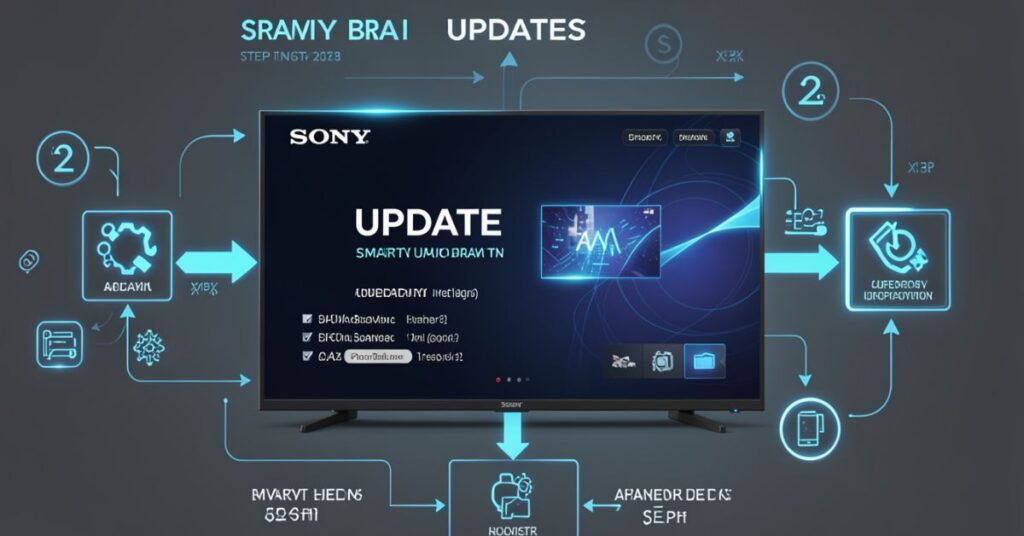
Start by connecting your Sony Bravia TV to a stable internet connection.
- Go to Settings and open the System Software Update option.
- Select “Check for Update” to search for the latest version.
- Download and install the update if it is available.
- Finish the process by restarting your TV.
Both methods work, but the online update works faster for most users.
Sony recommends using the internet update because it is simple and automatic.
Step-by-step process
Follow these steps carefully:
- Turn ON your Sony Bravia TV
- Connect TV to stable Wi-Fi
- Press the Home button on the remote
- Go to Settings
- Open System Preferences
- Select About
- Click System Software Update
- Select Check for Update
- Wait for system to search for updates
- Click Download and Install
Your TV will restart automatically after installation.
What happens during the Sony Bravia Software Update
During the Sony Bravia software update:
- TV downloads update files
- System installs new firmware
- TV restarts multiple times
- Settings may reset slightly
Do not turn off the TV during this process. It may damage the software installation.
Automatic Update Settings in Sony Bravia
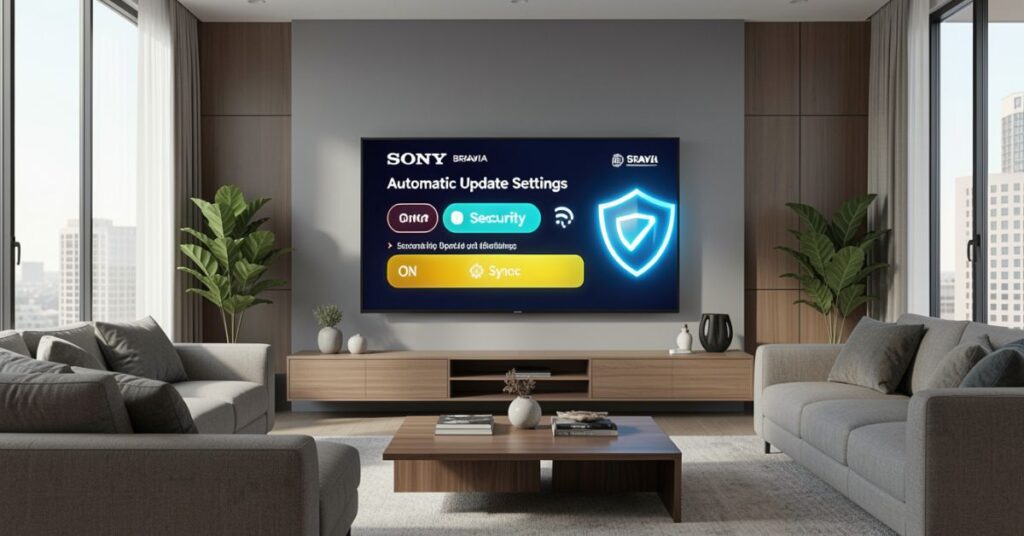
Sony allows automatic updates, so you do not need to check manually.
How to enable automatic updates
- Open Settings
- Go to System Settings
- Select About
- Enable Automatic Software Download
- Turn ON Auto Update over Wi-Fi
Benefits of auto update
- Saves time
- Installs updates in the background
- Reduces manual work
- Keeps the system always updated
When auto update is ON, your Sony Bravia software update installs automatically at night or when the TV stays idle.
Sony Bravia Software Update via USB (Offline Method)
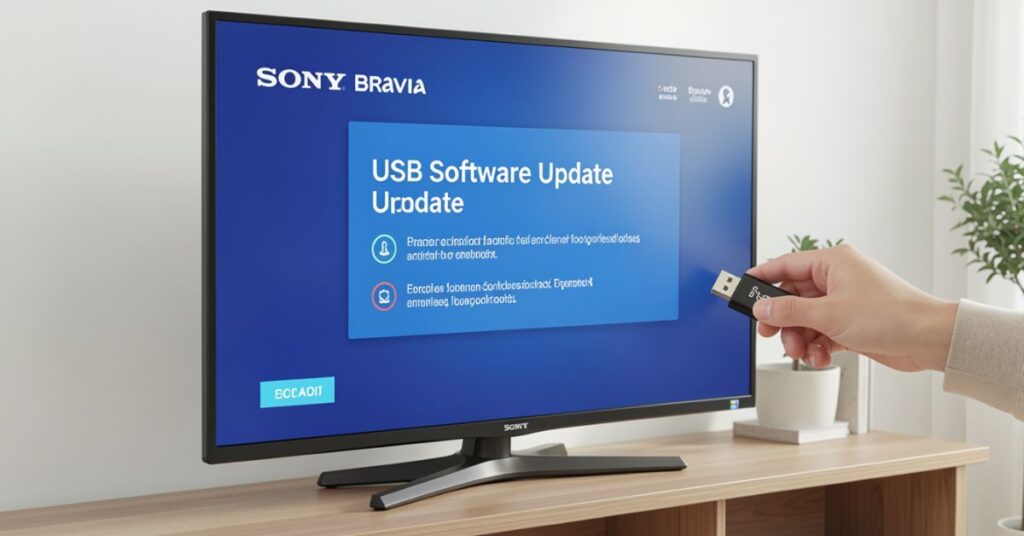
If your internet is slow or not working, you can install the Sony Bravia software update using a USB.
This method is useful for rural areas or unstable connections.
USB update requirements
Before starting, prepare these:
- USB drive (minimum 1GB free space)
- Official Sony update file
- Correct TV model number
- Computer or laptop
Step-by-step USB update process
Follow these steps:
- Visit the Sony official support website
- Enter your TV model number
- Download latest software update file
- Extract the ZIP file on the computer
- Format the USB drive to FAT32 or NTFS
- Copy extracted files into the USB root folder
- Turn OFF TV
- Insert the USB into the TV port
- Turn ON TV
- Wait for the update screen
- Follow on-screen instructions
Important rules
- Do not rename update files
- Do not remove the USB during the update
- Keep the TV connected to power
- Do not press any button during installation
USB update advantages
- Works without internet
- Useful for old TVs
- Helps when the online update fails
- Allows manual control
Sony Bravia Software Update Problems and Solutions
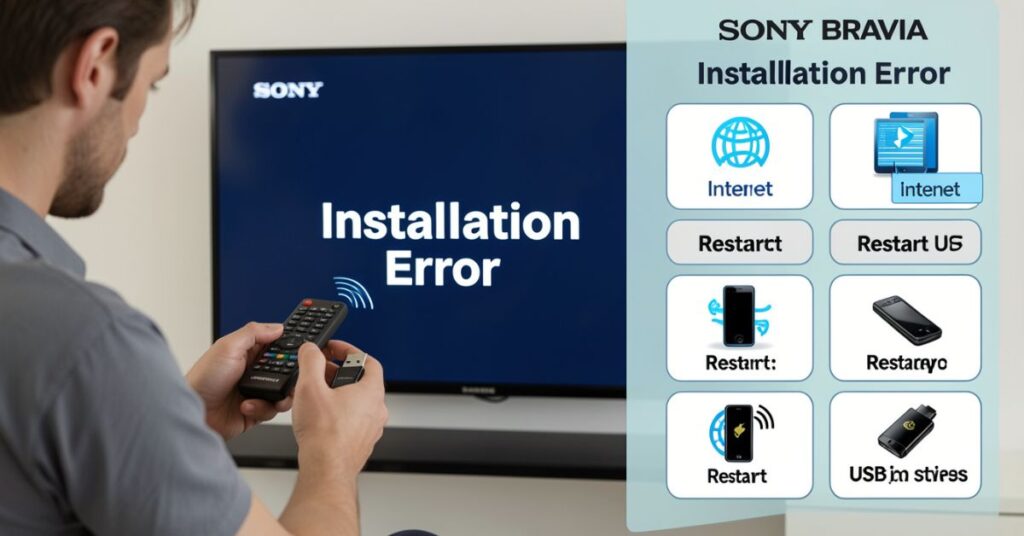
Many users face issues during the Sony Bravia software update. These problems usually come from network errors or system conflicts.
Common problems during the update
- Update stuck at 0% or 50%
- TV freezes during installation
- “No update available” message
- USB not detected
- TV restarts again and again
- Slow download speed
Solutions for update problems
You can fix most issues easily:
Resolve internet issues
- Restart the Wi-Fi router
- Move the TV closer to the router
- Use a wired LAN connection if possible
Troubleshoot system issues
- Restart TV
- Clear system cache
- Remove unnecessary apps
Fix USB issues
- Reformat USB
- Use a different USB port
- Re-download the update file
Last option
If nothing works:
- Perform a factory reset
- Contact Sony support
Sony Bravia Software Update Benefits for Users
Sony Bravia software update improves your TV in many ways. It does not only fixes errors but also upgrades your overall experience.
Performance improvements
After the update, your TV becomes faster:
- Apps open quickly
- The menu responds faster
- Less system lag
- Smooth navigation
Better streaming experience
Sony improves streaming quality:
- Netflix runs in better resolution
- YouTube loads faster
- Buffering reduces
- 4K content plays smoothly
Improved security
Updates protect your TV:
- Blocks malware threats
- Secures login accounts
- Protects personal data
New features
Sony adds new features:
- Updated home screen layout
- Better voice control
- Improved smart assistant
- New app support
Comparison Before vs After update
| Feature | Before Update | After Update |
| Speed | Slow | Fast |
| Apps | Crash sometimes | Stable |
| Streaming | Buffering | Smooth |
| Security | Weak | Strong |
| Interface | Old UI | New UI |
Sony Bravia Software Update Future Technology
Sony continues to improve smart TV technology. Future Sony Bravia software update versions will bring advanced features.
Expected future updates
- AI picture optimization
- Faster boot time
- Smart voice assistant upgrade
- Better gaming performance
- Cloud-based updates
Smart TV evolution
Sony will make TVs smarter:
- Auto-detect viewing habits
- Adjust the picture automatically
- Suggest content based on user behavior
Conclusion
Sony Bravia software update keeps your TV fast, secure, and modern. You should always install the latest version to enjoy smooth performance, better apps, and improved features.
Regular updates protect your device and extend its life. So always check for updates and keep your Sony Bravia TV up to date.
FAQs
1. How often should I update my Sony Bravia TV?
You should update every time Sony releases a new version.
2. Can I stop a Sony Bravia software update?
No, stopping updates can damage system software.
3. Does updating delete my apps?
No, but some settings may reset.
4. Why does the update take so long?
Large files and slow internet increase update time.
5. Can I use TV during the update?
No, TV stays inactive during installation.
6. Is the Sony Bravia update free?
Yes, all software updates are free.
7. What if the update fails?
Restart the TV or use the USB method.
Internal Links
Software Updates & Device Firmware — TechCrebia Software Updates & Device FirmwareDifference Between Software and Hardware — https://techcrebia.com/difference-between-software-and-hardware/Productivity Software — https://techcrebia.com/productivity-software/PhysX System Software — https://techcrebia.com/physx-system-software/Samsung J7 Software Update — https://techcrebia.com/samsung-j7-software-update/
External Links
- Sony BRAVIA Official Support — Sony Official BRAVIA Support
- Sony BRAVIA Software Updates — Sony Official Software Update Guide