




A Mac software update helps your computer stay fast, secure, and stable. Apple releases updates regularly to improve mac OS performance and fix system problems. These updates also protect your Mac from bugs, malware, and security risks.
Many users ignore Mac software because they think the process takes too much time. Some users fear data loss or system issues. In reality, Apple designs updates to improve user experience and system safety. Most updates install smoothly when users follow the correct steps.
A Mac software update can add new features to your device. Apple often improves Safari, Finder, FaceTime, and other system apps through updates. Updates also improve battery life, speed, and compatibility with new apps and accessories.
You can install Mac software automatically or manually. Apple gives users both options. Automatic updates save time because the system downloads and installs updates in the background. Manual updates give users more control over the installation process.
This guide explains everything about Mac update methods, benefits, problems, troubleshooting, and future improvements. You will also learn how to update old Macs and fix common update errors.
| Feature | Benefit |
| Security Updates | Protects Mac from threats |
| Performance Updates | Improves speed and stability |
| Feature Updates | Adds new tools and functions |
| Compatibility Updates | Supports new apps and devices |
| Bug Fixes | Solves system problems |
Mac Software Update Importance for System Performance

A Mac software update plays an important role in keeping your Mac healthy. Every update improves different parts of the operating system. Apple focuses on performance, security, stability, and user experience during each update release.
Many applications depend on the latest mac OS version. Old software versions may stop working correctly on outdated systems. Mac software helps users run modern apps smoothly without crashes or compatibility problems.
Security remains one of the biggest reasons for installing updates. Hackers often target outdated systems because they contain weak security points. Apple fixes these issues through regular updates. When users ignore updates, they increase the risk of malware attacks and data theft.
Performance improvements also come with most updates. Apple improves memory management, app loading speed, battery optimization, and background processing. These improvements help MacBooks run cooler and faster.
A Mac software update also improves device compatibility. New printers, accessories, AirPods, and external devices often require the latest software version. Updates allow smooth communication between hardware and software.
Businesses also depend on updates for security and workflow stability. Companies use Mac software update systems to protect work files and maintain productivity.
Benefits of Mac Software
Security Improvements
- Protects against malware and viruses
- Fixes security weaknesses
- Improves online safety
- Protects personal information
Better Performance
- Improves startup speed
- Reduces system lag
- Improves multitasking
- Optimizes battery life
New Features
- Adds modern tools
- Improves built-in apps
- Enhances system design
- Supports new Apple services
Better Compatibility
- Supports the latest applications
- Improves accessory connection
- Works better with iPhone and iPad
- Supports modern hardware
Mac Software Update Process Explained Step by Step
The Mac software update process remains simple for most users. Apple designed the update system for beginners and professionals. Users can update mac OS directly through System Settings or the App Store, depending on the mac OS version.
Before starting the update, users should check their internet speed and available storage space. A stable internet connection helps avoid download interruptions. Apple usually recommends several gigabytes of free storage for major updates.
Users should also create a backup before installing a Mac software update. A backup protects important files if something goes wrong during installation. Time Machine provides an easy backup solution for Mac users.
The update process may take several minutes or even hours, depending on internet speed and update size. During installation, the Mac may restart multiple times. Users should avoid turning off the computer during this process.
After installation, the Mac system completes optimization tasks in the background. Some users may notice temporary slow performance immediately after updating. The system usually returns to normal after indexing and optimization finish.
How to Install Mac Software
Update Through System Settings
- Open System Settings
- Click General
- Select Software Update
- Wait for the system to search for updates
- Click Update Now
Update Through App Store
- Open App Store
- Search macOS version
- Click Download
- Follow the installation instructions
Before Installing Mac
- Backup important files
- Charge your MacBook battery
- Connect stable Wi-Fi
- Free storage space
- Close unnecessary apps
After Installing Mac
- Restart the Mac
- Check app compatibility
- Review system settings
- Update third-party apps
- Test system performance
Mac Software Update Features and System Enhancements

A Mac software update introduces many useful features. Apple improves productivity, design, privacy, and performance through every major release. These features help users work faster and enjoy a smoother experience.
Apple usually upgrades Safari performance through updates. Users get faster browsing speed, better tab management, and improved privacy settings. Apple also improves Mail, Notes, Calendar, and Messages applications.
Privacy features remain a major focus in every Mac software update. Apple adds stronger app permissions and tracking protection tools. These features help users control personal information more effectively.
Updates also improve continuity between Apple devices. Users can copy content on an iPhone and paste it on a Mac instantly. Features like AirDrop, Handoff, Universal Clipboard, and Sidecar improve cross-device workflow.
Gaming performance also improves with modern updates. Apple optimizes graphics systems and processor performance for a better gaming experience.
Common Features Added
Productivity Features
- Better multitasking tools
- Improved window management
- Faster Spotlight search
- Enhanced file organization
Privacy Features
- App permission controls
- Better tracking protection
- Secure browsing tools
- Improved password security
Design Improvements
- Cleaner interface
- Better animations
- Improved dark mode
- Modern control center
Device Integration Features
- Better iPhone connection
- Improved AirDrop speed
- Easy file sharing
- Enhanced iCloud support
Mac Software Update Automatic Settings and Controls
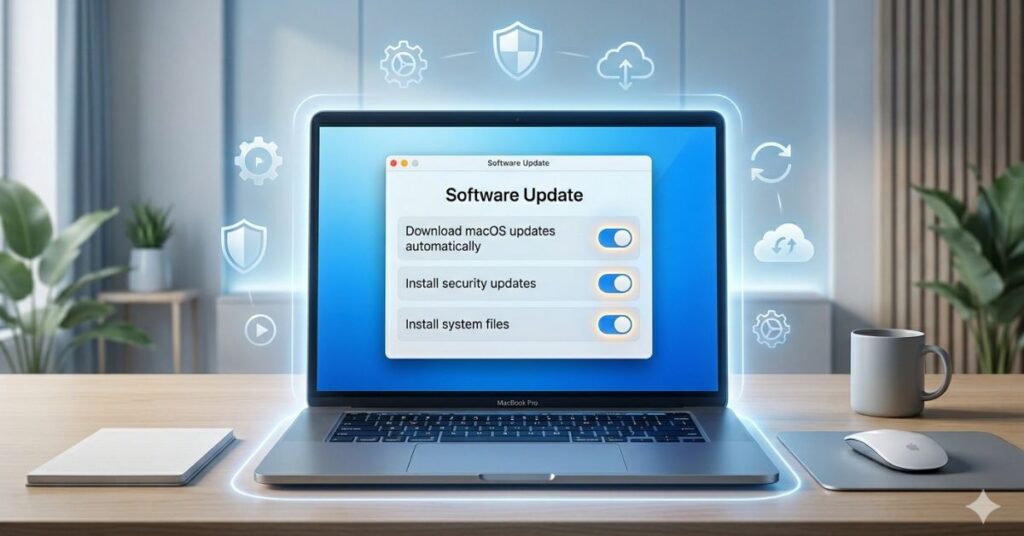
The Mac software update system includes automatic update settings that help users keep their devices updated without manual work. Automatic updates reduce security risks because the system installs important fixes quickly.
Apple allows users to customize automatic update behavior. Users can choose whether the system downloads updates automatically or installs them after permission. This flexibility helps users manage internet usage and storage space.
Automatic updates work best for users who forget manual maintenance. The system checks Apple servers regularly for new updates. When updates become available, macOS downloads them in the background.
Some users prefer manual control because they want to avoid unexpected restarts. Creative professionals and office users often delay updates until they finish important work projects.
Battery life also affects automatic installation on the MacBook. The system may wait until the device connects to power before completing installation.
Automatic Options
Smart Download Settings
- Download updates in the background
- Save update files automatically
- Reduce manual work
- Improve update speed
Mac OS Automation Controls
- Install security updates
- Install system files
- Install app updates
- Keep system current
Manual Control Options
- Pause updates
- Choose installation time
- Delay major updates
- Review update details
Recommended Settings
- Enable security updates
- Enable app updates
- Backup before major updates
- Monitor storage space
Common Mac Software Update Problems and Solutions
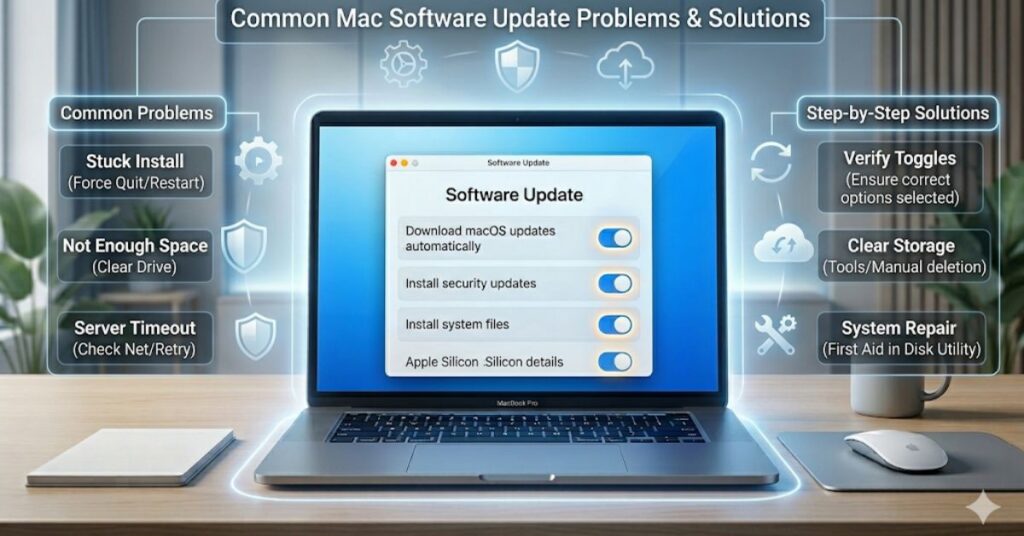
Many users face problems during the Mac software update process. Most issues happen because of weak internet, low storage, incompatible apps, or interrupted installation.
Storage problems remain one of the most common update issues. Large updates require enough free space for download and installation. Users should remove unnecessary files before updating.
Internet interruptions can also damage downloads. A broken connection may stop the update process completely. Stable Wi-Fi helps prevent installation failure.
Some users face frozen screens during updates. In many cases, the system continues working in the background. Users should wait patiently before forcing a restart.
Application compatibility problems may also appear after updates. Some older apps stop working on new macOS versions because developers no longer support them.
Troubleshooting Tips
Storage Problems
- Delete large unused files
- Empty Trash bin
- Remove old downloads
- Move files to external storage
Internet Problems
- Restart router
- Use stable Wi-Fi
- Avoid public networks
- Retry update later
Installation Problems
- Restart the Mac
- Enter Safe Mode
- Reset NVRAM
- Use Recovery Mode
Compatibility Problems
- Update applications
- Remove outdated apps
- Check developer support
- Install the latest drivers
Mac Software Update for Old Mac Devices

Many users wonder whether old Macs support modern Mac software update versions. Apple has supported devices for many years, but older models eventually lose official update support.
Even when full system updates stop, Apple may continue security updates for older versions. These updates help protect old Macs from major threats.
Users with unsupported Macs can still improve performance by installing lightweight applications and cleaning storage regularly. Some advanced users install unsupported macOS versions through unofficial tools, but this process carries risks.
Hardware limitations often affect update performance on old Macs. Devices with limited RAM or slow hard drives may struggle after major updates.
SSD upgrades and memory improvements can help older Macs run updates more smoothly.
Tips for Updating Old Macs
Improve Performance Before Updating
- Remove unnecessary apps
- Free storage space
- Upgrade SSD
- Increase RAM if possible
Backup Important Data
- Use Time Machine
- Save files to cloud storage
- Create external backups
- Protect important documents
Check Compatibility
- Review Apple support lists
- Check app compatibility
- Verify hardware requirements
- Test essential software
Maintain Older Macs
- Install security updates
- Clean startup programs
- Monitor battery health
- Optimize storage regularly
Mac Software Update Security and Privacy Benefits

A Mac software update improves digital security significantly. Apple focuses heavily on privacy and data protection across all macOS versions.
Cyber threats continue to grow every year. Hackers target weak systems that lack security patches. Apple responds quickly by releasing updates that fix vulnerabilities.
Privacy features also improve through updates. Users gain more control over microphone access, camera permissions, and app tracking activities.
Safari receives important security upgrades during many updates. Apple improves anti-tracking tools and phishing protection systems regularly.
Businesses and students especially benefit from strong security updates because they often store sensitive data on their devices.
Security Improvements
System Protection
- Blocks malware threats
- Fixes system weaknesses
- Improves firewall security
- Enhances encryption
Privacy Controls
- Controls app permissions
- Protects browsing activity
- Secures passwords
- Limits tracking systems
Online Safety
- Safer web browsing
- Improved phishing protection
- Secure online payments
- Better account security
Data Protection
- Encrypts user files
- Protects cloud storage
- Secures backups
- Improves login security
Mac Software Update: Future Technology and Innovations
The future of Mac software update systems looks advanced and more intelligent. Apple continues improving artificial intelligence, automation, and cloud integration across macOS updates.
Future updates may install faster with smaller download sizes. Apple may also improve background installation systems to reduce restart times.
Artificial intelligence could help optimize battery life, storage management, and performance automatically. Smart systems may learn user habits and improve system efficiency based on daily activity.
Gaming support may also improve through future updates. Apple continues developing graphics technologies for modern games and creative software.
Cross-device integration will likely become stronger. Future Mac software update versions may create even smoother connections between Mac, iPhone, iPad, and Apple Vision devices.
Future Mac Software Trends
AI Features
- Smart battery optimization
- Automatic performance tuning
- Intelligent storage cleaning
- Faster search systems
Faster Update Systems
- Smaller update files
- Quicker installations
- Better background processing
- Reduced restart times
Better Device Integration
- Improved Apple ecosystem
- Faster syncing
- Better cloud services
- Smarter file sharing
Advanced Security
- Stronger encryption
- AI threat detection
- Improved privacy tools
- Better identity protection
Final Thoughts
A Mac software update keeps your system safe, fast, and up to date. Apple designs updates to improve performance, security, and user experience. Regular updates help users avoid software problems and security risks.
Users should never ignore important updates for long periods. Delayed updates may reduce system safety and app compatibility. Regular maintenance and backups help users install updates safely.
Modern Mac software update systems make the installation process simple for beginners. Users can enable automatic updates or install updates manually depending on personal preference.
Old Macs can also benefit from updates when users maintain storage, memory, and system health properly. Future updates will likely become smarter, faster, and more secure as Apple improves macOS technology.
Keeping your Mac updated remains one of the easiest ways to improve performance and protect important data.
FAQs
What is a Mac software update?
A Mac software update improves macOS performance, security, and features. Apple releases updates regularly to fix bugs and improve system stability.
How do I check for a Mac software update?
Open System Settings and click Software Update. Your Mac will automatically search for available updates.
Is the Mac software update free?
Yes. Apple provides most macOS updates free for compatible devices.
Why does the Mac software update take so long?
Large update files, slow internet speed, and limited storage space can increase installation time.
Can I stop a Mac software update?
You can pause downloads before installation. Do not stop the update during installation because it may damage system files.
Does a Mac software update delete files?
Most updates do not remove personal files. However, users should always create backups before updating.
Should I enable automatic Mac software updates?
Yes. Automatic updates help protect your Mac with the latest security fixes and system improvements.